Support call analysis & routing with Gemini AI, ElevenLabs & Telegram alerts

Workflow preview

Workflow preview
100%
Support call analysis & routing with Gemini AI, ElevenLabs & Telegram alerts preview
Open on n8n.io

Important notice

This workflow is provided as-is. Please review and test before using in production.

1. Workflow Overview

What it does Customer support calls contain a wealth of valuable feedback and urgent issues, but manually reviewing audio files is inefficient. This workflow acts as an AI assistant for your call l...

Best for

  • Ticket Management automation workflows
  • AI Summarization automation workflows
  • advanced n8n builders looking for reusable templates

Tools used

n8n-nodes-base.scheduletrigger, n8n-nodes-base.googledrive, @n8n/n8n-nodes-langchain.lmchatgooglegemini, @n8n/n8n-nodes-langchain.outputparserstructured, n8n-nodes-base.telegram, n8n-nodes-base.switch, @n8n/n8n-nodes-langchain.agent, n8n-nodes-base.googlesheets

Source and attribution

This workflow is cataloged by N8N Workflows and links back to its original n8n.io source page by Atta.

Original n8n.io source

1.1 Workflow description

Title
Support call analysis & routing with Gemini AI, ElevenLabs & Telegram alerts
Workflow name
Support call analysis & routing with Gemini AI, ElevenLabs & Telegram alerts

What it does

Customer support calls contain a wealth of valuable feedback and urgent issues, but manually reviewing audio files is inefficient. This workflow acts as an AI assistant for your call log, transforming unstructured audio recordings into structured, actionable data. It provides a clean summary, sentiment analysis, and a list of required actions for every call, eliminating the need for manual listening and ensuring key insights are never missed.

How it works

The workflow runs on a schedule to fully automate the call analysis process from start to finish.

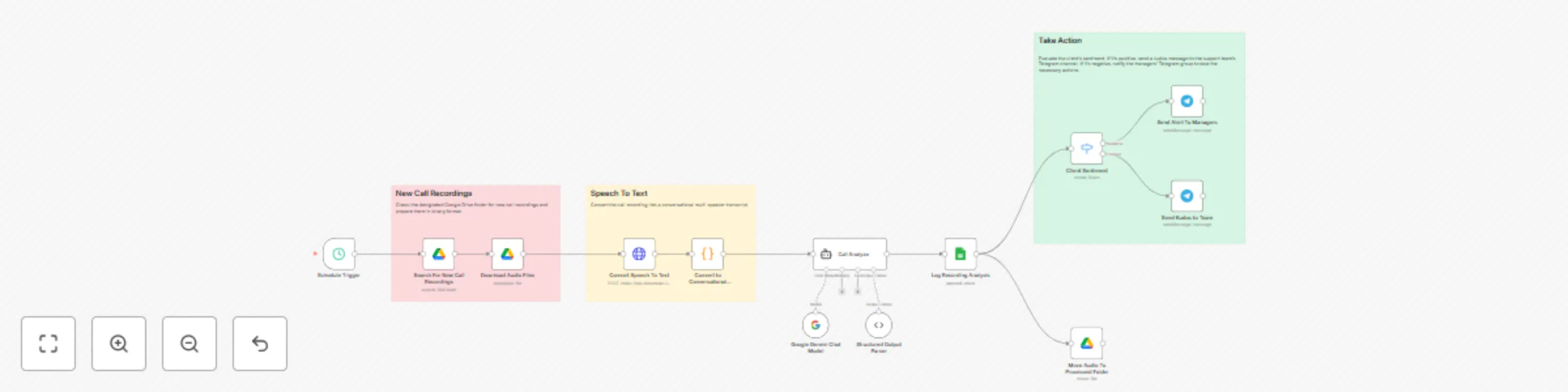
  1. Fetch New Recordings: The workflow triggers on a schedule (e.g., every 5 minutes), searches a designated Google Drive folder for new call recordings, and downloads any new files it finds.
  2. Transcribe Audio: Each audio file is sent to the ElevenLabs API to be converted from speech to a text transcript. The result is then formatted into a conversational, multi-speaker format.
  3. AI-Powered Analysis: The transcript is passed to a Google Gemini node, which is prompted to return a structured JSON object. This JSON contains a complete analysis of the call, including speaker identification (agent_name, client_name), a summary, the client_sentiment, a call_topic, a department_tag, and a list of action_items.
  4. Log the Results: The complete, structured analysis output from Gemini is appended as a new row in a Google Sheet, creating a centralized log with all the extracted call details and the full transcript.
  5. Take Action: The workflow uses conditional logic based on the detected sentiment:
    • Negative Sentiment: If a call was negative, an immediate alert containing the call summary and action items is sent to a manager's group on Telegram.
    • Positive Sentiment: If a call was positive, a kudos message is sent to the support team's Telegram channel to celebrate good work.
  6. File Management: After processing, the original audio file is automatically moved to a separate "Processed" folder in Google Drive to ensure it isn’t analyzed again.

Setup Instructions

To configure this workflow, you will need to set up your file storage in Google Drive, create a Google Sheet for logging, and configure credentials for all connected services.

Required Credentials

  1. Google:
    • You will need Google OAuth2 credentials that have permission for Google Drive, Google Sheets, and the Google AI (Gemini) APIs.
  2. ElevenLabs:
    • Sign up for an account at ElevenLabs and get your API Key. You will add this directly into the HTTP Request node for transcription.
  3. Telegram:
    • Create a bot using the BotFather in Telegram to get your Bot Token.
    • You will also need the specific Chat ID for the managers' channel and the team's channel.

Step-by-Step Configuration

  1. Google Drive: Create two folders in your Google Drive: one named "Company - Support Call Recordings" and another named "Processed Recordings". Copy the unique Folder ID from the URL for each and paste it into the respective Google Drive nodes.
  2. Google Sheets: Create a new Google Sheet to log the results. In the first row, create the following headers exactly as written: Recording File, Sentiment, Department, Topic, Agent, Client, Summary, Actions, and Fulltext. Copy the Sheet ID from the URL and paste it into the "Log Recording Analysis" (Google Sheets) node.
  3. ElevenLabs Node: In the "Convert Speech To Text" (HTTP Request) node, make sure the URL is set to the correct ElevenLabs API endpoint for speech-to-text. Add your ElevenLabs API Key to the authentication header.
  4. Telegram Nodes:
    • In the "Send Alert To Managers" node, enter the Chat ID for your managers' group.
    • In the "Send Kudos to Team" node, enter the Chat ID for the main team channel.

How to Adapt the Template

This workflow is a powerful starting point. Based on your specific needs, you can customize the inputs, the AI analysis, the logging method, and the final actions.

Input Method

  • Change File Source: Instead of Google Drive, you can adapt the workflow to fetch recordings from other services like Dropbox, OneDrive, or a custom FTP server.
  • Use a Webhook: Replace the Schedule Trigger with a Webhook Trigger to process calls in real-time as they are added from your call software (if it supports webhooks).

Final Actions

  • Create Service Tickets: This is a key area for customization. Replace the Telegram nodes with nodes for ticketing systems. For a negative call, you can automatically create a high-priority ticket in Jira, Zendesk, or ServiceNow.
  • Create Tasks: For calls with specific action items, use a node like Asana, Trello, or Todoist to automatically create a task and assign it to the correct team member.
  • Send Email Notifications: Use the Send Email node to dispatch summaries and alerts to stakeholders who are not on Telegram.

Logging and Analysis

  • Log to a Database: Instead of Google Sheets, you can use a Postgres, MySQL, or Data Warehouse node to log the structured data for more advanced business intelligence and dashboarding.
  • Customize the AI Prompt: The prompt in the Google Gemini node is the "brain" of the operation. It specifically instructs the AI to return a JSON object with a predefined structure. To change what data is extracted, you can modify this structure in the prompt. For example, you could add a new key-value pair like "competitor_mentioned": "Name of competitor if mentioned, otherwise null" to the JSON structure. The current workflow asks the AI to populate a JSON object like this:
{
  "speaker_identification": {
	"agent": "speaker_id",
    	"agent_name": "The agent's name",
    	"client": "client_id",
	"client_name": "The client's name"
  },
  "summary": "A concise summary.",
  "client_sentiment": "Positive, Negative, or Neutral",
  "call_topic": "A brief phrase for the topic.",
  "department_tag": "The most relevant department.",
  "action_items": [
    "A list of actionable tasks."
  ]
}
  • Change AI or STT Service: You can swap out the Google Gemini node for an OpenAI node, or change the HTTP Request node to use a different transcription service like AssemblyAI or Deepgram.

1.2 Logical Blocks

This catalog entry is organized from the workflow JSON. The node-level section below shows the executable blocks available for review before importing the template.

2. Block-by-Block Analysis

Block 1 - Schedule Trigger

Type / Role
n8n-nodes-base.scheduleTrigger - scheduleTrigger
Config choices
Version 1.2

Block 2 - Search For New Call Recordings

Type / Role
n8n-nodes-base.googleDrive - googleDrive
Config choices
Version 3

Block 3 - Google Gemini Chat Model

Type / Role
@n8n/n8n-nodes-langchain.lmChatGoogleGemini - lmChatGoogleGemini
Config choices
Version 1

Block 4 - Structured Output Parser

Type / Role
@n8n/n8n-nodes-langchain.outputParserStructured - outputParserStructured
Config choices
Version 1.3

Block 5 - Send Alert To Managers

Type / Role
n8n-nodes-base.telegram - telegram
Config choices
Version 1.2

Block 6 - Send Kudos to Team

Type / Role
n8n-nodes-base.telegram - telegram
Config choices
Version 1.2

Block 7 - Client Sentiment

Type / Role
n8n-nodes-base.switch - switch
Config choices
Version 3.2

Block 8 - Call Analyze

Type / Role
@n8n/n8n-nodes-langchain.agent - agent
Config choices
Version 2.2

Block 9 - Log Recording Analysis

Type / Role
n8n-nodes-base.googleSheets - googleSheets
Config choices
Version 4.7

Block 10 - Download Audio Files

Type / Role
n8n-nodes-base.googleDrive - googleDrive
Config choices
Version 3

Block 11 - Convert to Conversational Transcribe

Type / Role
n8n-nodes-base.code - code
Config choices
Version 2

Block 12 - Move Audio To Processed Folder

Type / Role
n8n-nodes-base.googleDrive - googleDrive
Config choices
Version 3

Block 13 - Convert Speech To Text

Type / Role
n8n-nodes-base.httpRequest - httpRequest
Config choices
Version 4.2

Block 14 - Sticky Note

Type / Role
n8n-nodes-base.stickyNote - stickyNote
Config choices
Version 1

Block 15 - Sticky Note1

Type / Role
n8n-nodes-base.stickyNote - stickyNote
Config choices
Version 1

Block 16 - Sticky Note2

Type / Role
n8n-nodes-base.stickyNote - stickyNote
Config choices
Version 1

3. Summary Table

Workflow Support call analysis & routing with Gemini AI, ElevenLabs & Telegram alerts
Complexity advanced
Nodes 16
Categories Ticket Management, AI Summarization
Author Atta
Published 02 Sept 2025

4. Reproducing the Workflow from Scratch

  1. 1. Download the workflow JSON

    Use the JSON export at /data/workflows/8151/8151.json as the source template for this automation.

  2. 2. Import the template into n8n

    Open n8n, import the downloaded JSON, and review each node before activating the workflow.

  3. 3. Configure credentials and variables

    Replace placeholder credentials, API keys, webhook URLs, account IDs, and environment-specific values with your own settings.

  4. 4. Test with sample data

    Run the workflow manually or in a staging workspace, inspect node output, and confirm downstream systems receive the expected data.

  5. 5. Activate and monitor

    Enable the workflow only after testing, then monitor executions, errors, and rate limits during the first production runs.

5. General Notes & Resources

Review imported nodes carefully before activation. This catalog entry is intended to help you inspect the workflow structure, understand required services, and find related templates faster.

Node names, credentials, schedules, webhook paths, and external service limits may need adjustment for your workspace.

Frequently asked questions

What does Support call analysis & routing with Gemini AI, ElevenLabs & Telegram alerts do?

What it does Customer support calls contain a wealth of valuable feedback and urgent issues, but manually reviewing audio files is inefficient. This workflow acts as an AI assistant for your call l...

What do I need before importing this workflow?

Review the workflow JSON, configure any required credentials in n8n, and test the automation in a safe workspace before using it in production.

Can I customize this workflow?

Yes. Use the block-by-block analysis and the downloadable JSON to inspect each node, then adjust credentials, prompts, schedules, filters, or destinations for your Ticket Management, AI Summarization use case.