Summarise MS Teams channel activity for weekly reports with AI

Workflow preview

Workflow preview
100%
Summarise MS Teams channel activity for weekly reports with AI preview
Open on n8n.io

Important notice

This workflow is provided as-is. Please review and test before using in production.

1. Workflow Overview

This n8n template lets you summarize individual team member activity on MS Teams for the past week and generates a report. For remote teams, chat is a crucial communication tool to ensure work gets...

Best for

  • Project Management automation workflows
  • AI Summarization automation workflows
  • advanced n8n builders looking for reusable templates

Tools used

n8n-nodes-base.scheduletrigger, n8n-nodes-base.microsoftteams, @n8n/n8n-nodes-langchain.lmchatopenai, @n8n/n8n-nodes-langchain.chainllm, n8n-nodes-base.set, n8n-nodes-base.aggregate, n8n-nodes-base.markdown, n8n-nodes-base.stickynote

Source and attribution

This workflow is cataloged by N8N Workflows and links back to its original n8n.io source page by Jimleuk.

Original n8n.io source

1.1 Workflow description

Title
Summarise MS Teams channel activity for weekly reports with AI
Workflow name
Summarise MS Teams channel activity for weekly reports with AI

This n8n template lets you summarize individual team member activity on MS Teams for the past week and generates a report.

For remote teams, chat is a crucial communication tool to ensure work gets done but with so many conversations happening at once and in multiple threads, ideas, information and decisions usually live in the moment and get lost just as quickly - and all together forgotten by the weekend!

Using this template, this doesn't have to be the case. Have AI crawl through last week's activity, summarize all messages and replies and generate a casual and snappy report to bring the team back into focus for the current week. A project manager's dream!

How it works

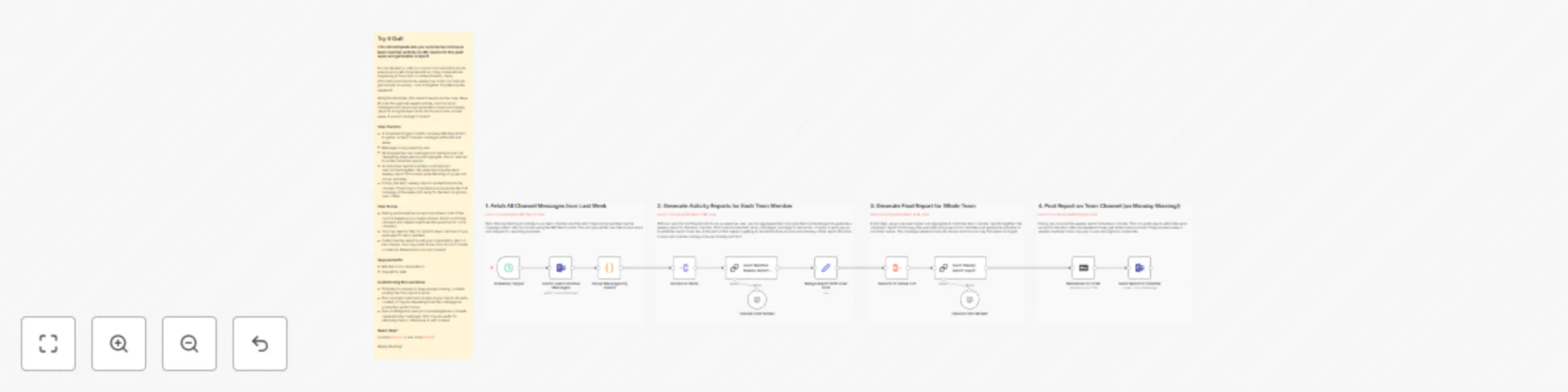
  • A scheduled trigger is set to run every Monday at 6am to gather all team channel messages within the last week.
  • Messages are grouped by user.
  • AI analyses the raw messages and replies to pull out interesting observations and highlights. This is referred to as the individual reports.
  • All individual reports are then combined and summarized together into what becomes the team weekly report. This allows understanding of group and similar activities.
  • Finally, the team weekly report is posted back to the channel. The timing is important as it should be the first message of the week and ready for the team to glance over coffee.

How to use

  • Ideally works best per project and where most of the comms happens on a single channel. Avoid combining channels and instead duplicate this workflow for more channels.
  • You may need to filter for specific team members if you want specific team updates.
  • Customise the report to suit your organisation, team or the channel. You may prefer to be more formal if clients or external stakeholders are also present.

Requirements

  • MS Teams for chat platform
  • OpenAI for LLM

Customising this workflow

  • If the teams channel is busy enough already, consider posting the final report to email.
  • Pull in project metrics to include in your report. As extra context, it may be interesting to tie the messages to production performance.
  • Use an AI Agent to query for knowledgebase or tickets relevant to the messages. This may be useful for attaching links or references to add context.

1.2 Logical Blocks

This catalog entry is organized from the workflow JSON. The node-level section below shows the executable blocks available for review before importing the template.

2. Block-by-Block Analysis

Block 1 - Schedule Trigger

Type / Role
n8n-nodes-base.scheduleTrigger - scheduleTrigger
Config choices
Version 1.2

Block 2 - Fetch Latest Channel Messages

Type / Role
n8n-nodes-base.microsoftTeams - microsoftTeams
Config choices
Version 2

Block 3 - OpenAI Chat Model

Type / Role
@n8n/n8n-nodes-langchain.lmChatOpenAi - lmChatOpenAi
Config choices
Version 1.2

Block 4 - Team Member Weekly Report Agent

Type / Role
@n8n/n8n-nodes-langchain.chainLlm - chainLlm
Config choices
Version 1.6

Block 5 - Merge Report With User Data

Type / Role
n8n-nodes-base.set - set
Config choices
Version 3.4

Block 6 - OpenAI Chat Model1

Type / Role
@n8n/n8n-nodes-langchain.lmChatOpenAi - lmChatOpenAi
Config choices
Version 1.2

Block 7 - Reports to Single List

Type / Role
n8n-nodes-base.aggregate - aggregate
Config choices
Version 1

Block 8 - Team Weekly Report Agent

Type / Role
@n8n/n8n-nodes-langchain.chainLlm - chainLlm
Config choices
Version 1.6

Block 9 - Markdown to HTML

Type / Role
n8n-nodes-base.markdown - markdown
Config choices
Version 1

Block 10 - Send Report to Channel

Type / Role
n8n-nodes-base.microsoftTeams - microsoftTeams
Config choices
Version 2

Block 11 - Sticky Note

Type / Role
n8n-nodes-base.stickyNote - stickyNote
Config choices
Version 1

Block 12 - Group Messages By UserId

Type / Role
n8n-nodes-base.code - code
Config choices
Version 2

Block 13 - Groups to Items

Type / Role
n8n-nodes-base.splitOut - splitOut
Config choices
Version 1

Block 14 - Sticky Note1

Type / Role
n8n-nodes-base.stickyNote - stickyNote
Config choices
Version 1

Block 15 - Sticky Note3

Type / Role
n8n-nodes-base.stickyNote - stickyNote
Config choices
Version 1

Block 16 - Sticky Note4

Type / Role
n8n-nodes-base.stickyNote - stickyNote
Config choices
Version 1

Block 17 - Sticky Note6

Type / Role
n8n-nodes-base.stickyNote - stickyNote
Config choices
Version 1

3. Summary Table

Workflow Summarise MS Teams channel activity for weekly reports with AI
Complexity advanced
Nodes 17
Categories Project Management, AI Summarization
Author Jimleuk
Published 10 May 2025

4. Reproducing the Workflow from Scratch

  1. 1. Download the workflow JSON

    Use the JSON export at /data/workflows/3971/3971.json as the source template for this automation.

  2. 2. Import the template into n8n

    Open n8n, import the downloaded JSON, and review each node before activating the workflow.

  3. 3. Configure credentials and variables

    Replace placeholder credentials, API keys, webhook URLs, account IDs, and environment-specific values with your own settings.

  4. 4. Test with sample data

    Run the workflow manually or in a staging workspace, inspect node output, and confirm downstream systems receive the expected data.

  5. 5. Activate and monitor

    Enable the workflow only after testing, then monitor executions, errors, and rate limits during the first production runs.

5. General Notes & Resources

Review imported nodes carefully before activation. This catalog entry is intended to help you inspect the workflow structure, understand required services, and find related templates faster.

Node names, credentials, schedules, webhook paths, and external service limits may need adjustment for your workspace.

Frequently asked questions

What does Summarise MS Teams channel activity for weekly reports with AI do?

This n8n template lets you summarize individual team member activity on MS Teams for the past week and generates a report. For remote teams, chat is a crucial communication tool to ensure work gets...

What do I need before importing this workflow?

Review the workflow JSON, configure any required credentials in n8n, and test the automation in a safe workspace before using it in production.

Can I customize this workflow?

Yes. Use the block-by-block analysis and the downloadable JSON to inspect each node, then adjust credentials, prompts, schedules, filters, or destinations for your Project Management, AI Summarization use case.