Block 1 - Schedule Trigger
- Type / Role
- n8n-nodes-base.scheduleTrigger - scheduleTrigger
- Config choices
- Version 1.2


 Early Deal
This workflow is provided as-is. Please review and test before using in production.
Description: This automation uses GPT 4o to scan unread Gmail emails and intelligently classify them as: Action → Requires your attention (reply, review, schedule, or respond) No Action → Inform...
n8n-nodes-base.scheduletrigger, @n8n/n8n-nodes-langchain.lmchatopenai, n8n-nodes-base.gmail, @n8n/n8n-nodes-langchain.textclassifier, n8n-nodes-base.stickynote
This workflow is cataloged by N8N Workflows and links back to its original n8n.io source page by Khaled.
Original n8n.io source🧾 Description:
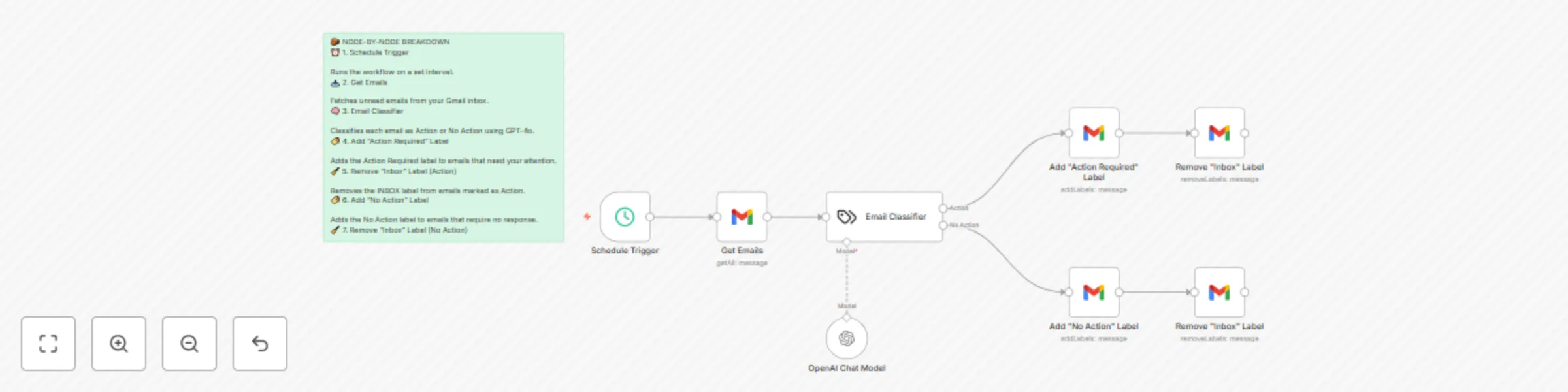
This automation uses GPT-4o to scan unread Gmail emails and intelligently classify them as:
Action → Requires your attention (reply, review, schedule, or respond)

No Action → Informational or promotional; no action needed
The result? You eliminate inbox noise and gain a clear daily routine: only check what's in Action Required. ⚙️ How It Works:
Trigger: Runs on a customizable schedule

Fetch Emails: Pulls unread messages from Gmail

Classify via GPT-4o: Determines if each email needs action or not

Sort Emails:

    Labels actionable emails as Action Required

    Labels non-actionable ones as No Action

    Removes the Inbox label to clean your primary inbox view

    ✅ Emails stay in your account—just better organized
🚀 How to Use:
Import the workflow into your n8n instance

Set up Gmail and OpenAI credentials

Create Gmail labels:

    Action Required

    No Action

Activate the workflow

Start your day by checking only the Action Required label
📦 Requirements:
n8n (self-hosted or cloud)

Gmail OAuth2 account

OpenAI API key (GPT-4o or GPT-4o-mini)

Gmail labels: Action Required, No Action
💡 Why It Matters:
Stop manually filtering emails. This workflow helps you focus only on what matters while keeping everything else out of your way—without deleting or archiving anything.
This catalog entry is organized from the workflow JSON. The node-level section below shows the executable blocks available for review before importing the template.
| Workflow | Sort Gmail emails with GPT-4o into action required and no action labels |
|---|---|
| Complexity | intermediate |
| Nodes | 9 |
| Categories | Personal Productivity, AI Summarization |
| Author | Khaled |
| Published | 14 May 2025 |
Use the JSON export at /data/workflows/4053/4053.json as the source template for this automation.
Open n8n, import the downloaded JSON, and review each node before activating the workflow.
Replace placeholder credentials, API keys, webhook URLs, account IDs, and environment-specific values with your own settings.
Run the workflow manually or in a staging workspace, inspect node output, and confirm downstream systems receive the expected data.
Enable the workflow only after testing, then monitor executions, errors, and rate limits during the first production runs.
Review imported nodes carefully before activation. This catalog entry is intended to help you inspect the workflow structure, understand required services, and find related templates faster.
Node names, credentials, schedules, webhook paths, and external service limits may need adjustment for your workspace.
Description: This automation uses GPT 4o to scan unread Gmail emails and intelligently classify them as: Action → Requires your attention (reply, review, schedule, or respond) No Action → Inform...
Review the workflow JSON, configure any required credentials in n8n, and test the automation in a safe workspace before using it in production.
Yes. Use the block-by-block analysis and the downloadable JSON to inspect each node, then adjust credentials, prompts, schedules, filters, or destinations for your Personal Productivity, AI Summarization use case.