Khaled
Workflows by Khaled
Sort Gmail emails with GPT-4o into action required and no action labels
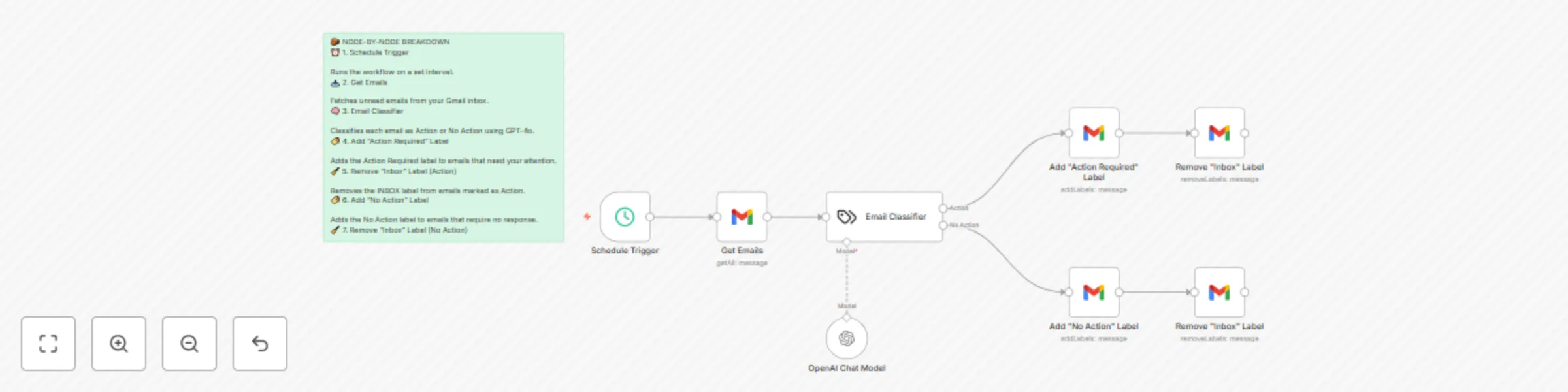
🧾 Description: This automation uses GPT-4o to scan unread Gmail emails and intelligently classify them as: Action → Requires your attention (reply, review, schedule, or respond) No Action → Informational or promotional; no action needed The result? You eliminate inbox noise and gain a clear daily routine: only check what's in Action Required. ⚙️ How It Works: Trigger: Runs on a customizable schedule Fetch Emails: Pulls unread messages from Gmail Classify via GPT-4o: Determines if each email needs action or not Sort Emails: Labels actionable emails as Action Required Labels non-actionable ones as No Action Removes the Inbox label to clean your primary inbox view ✅ Emails stay in your account—just better organized 🚀 How to Use: Import the workflow into your n8n instance Set up Gmail and OpenAI credentials Create Gmail labels: Action Required No Action Activate the workflow Start your day by checking only the Action Required label 📦 Requirements: n8n (self-hosted or cloud) Gmail OAuth2 account OpenAI API key (GPT-4o or GPT-4o-mini) Gmail labels: Action Required, No Action 💡 Why It Matters: Stop manually filtering emails. This workflow helps you focus only on what matters while keeping everything else out of your way—without deleting or archiving anything.
Monitor server uptime & get email alerts with Google Sheets
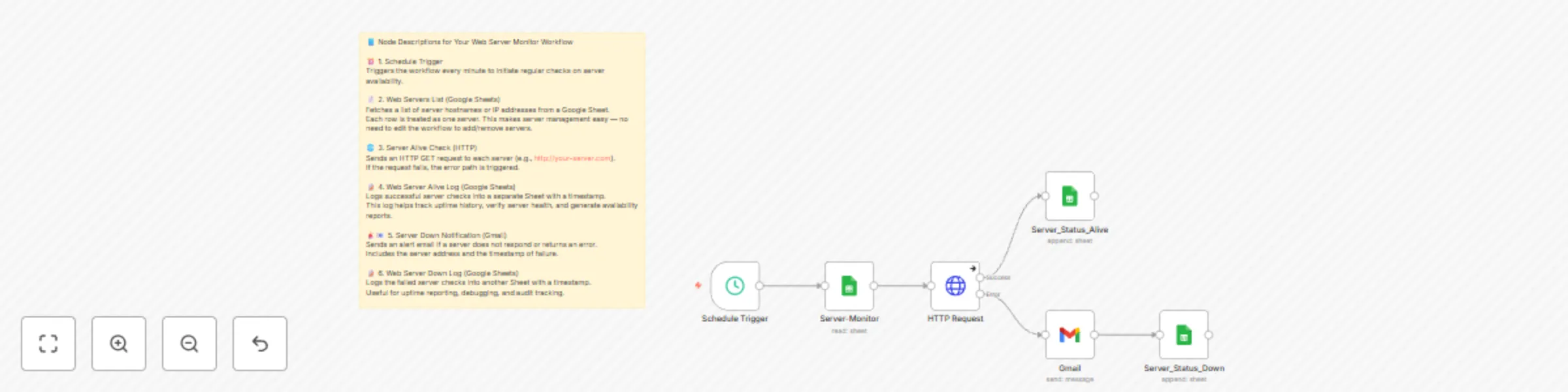
🌐 Web Server Monitor & Alert System This automation pings web servers at regular intervals, logs their status, and sends email alerts if a server goes down. It’s perfect for maintaining visibility over server uptime — without complex monitoring tools. 🧠 How It Works This workflow performs minute-by-minute checks on all listed servers in a Google Sheet and: ✅ Logs all reachable servers in an “Alive” log. 🔻 Sends an email alert if a server is unreachable. 📄 Logs failed servers in a “Down” sheet with timestamps. 🧩 Key Components ⏰ 1. Schedule Trigger Runs the workflow every minute for real-time monitoring. 📄 2. Web Servers List (Google Sheets) Pulls server IPs or hostnames from a Google Sheet named Server_List. Each row = one server to monitor. This makes adding/removing servers effortless — just update the sheet. 🌐 3. Servers Alive Check (HTTP Request) Performs an HTTP GET request to each server (e.g., http://your-server.com). If the request fails, it automatically triggers the error path (handled via continueOnFail). ✅ 4. Web Server Alive Log (Google Sheets) Records successful pings in Server_Status_Alive with: Timestamp Server IP Status = Alive This log can be used for uptime reports or audits. 📧 5. Server Down Notification (Gmail) If a server fails, this node sends an email to the admin. It includes: Server address Timestamp Suggested action 📄 6. Web Server Down Log (Google Sheets) Logs failed pings in a separate sheet for historical tracking and debugging. ✅ Main Advantages Live Server Monitoring Stay informed about server health in near real-time. No-Code Configuration Add/remove servers from the Google Sheet — no need to touch the workflow. Email Alerts on Failure Proactively notifies you before users report the issue. Audit-Ready Logging Maintains logs for both healthy and failed checks for documentation or reporting. Flexible & Scalable Monitor 1 or 100 servers with the same template — just scale the list. ⚙️ Setup Steps 🔑 Prerequisites Google Sheet with server list (column name = “Server”) Gmail OAuth2 Connection for alerts n8n Instance running regularly 🛠 Configuration Google Sheets Sheet 1 (Server_List): Your list of servers. Sheet 2 (Server_Status_Alive): Log for reachable servers. Sheet 3 (Server_Status_Down): Log for unreachable servers. Gmail Integration Connect your Gmail account in the Server Down Notification node. Edit recipient email and message content as needed. HTTP Check Adjust the HTTP request URL template if using port numbers or paths (e.g., http://{{Server}}:8080/status). Schedule Default is every 1 minute. Change via Schedule Trigger if needed. 🧪 Testing Input a reachable server (e.g., example.com) and an unreachable IP. Run the workflow manually or wait for the next scheduled run. Check: Alive log updates correctly. Down log records failures. Email alert is received. 🚀 Deployment Activate the workflow, and it will quietly run in the background, notifying you of any server downtime instantly while keeping logs for future review.