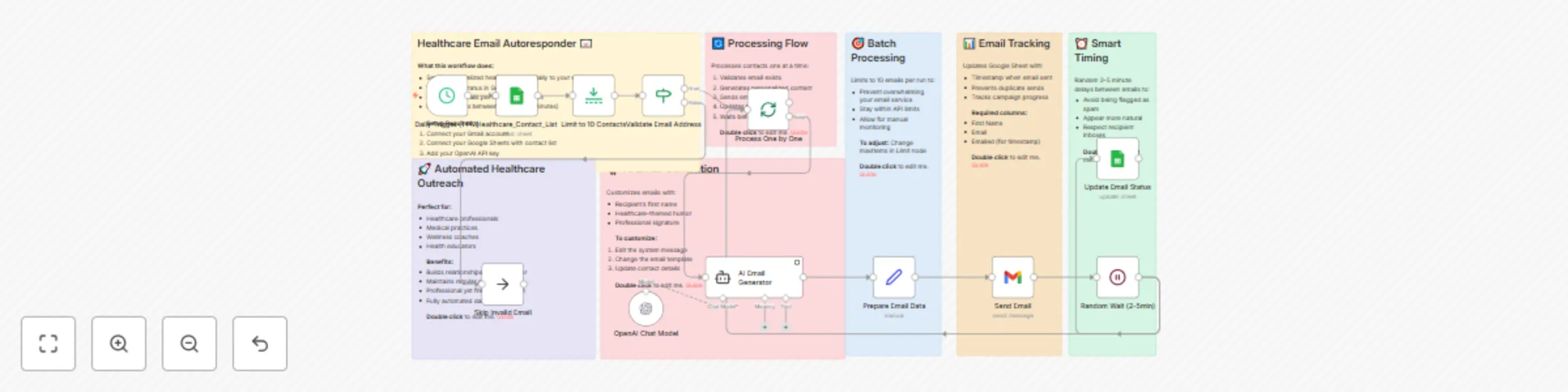
Send personalized healthcare joke emails with OpenAI, Gmail, and Google Sheets

Workflow preview

Workflow preview
100%
Send personalized healthcare joke emails with OpenAI, Gmail, and Google Sheets preview
Open on n8n.io

Important notice

This workflow is provided as-is. Please review and test before using in production.

1. Workflow Overview

Healthcare Email Autoresponder Daily Outreach A production ready n8n workflow for automated healthcare email marketing with AI powered personalization. What This Workflow Does This automated ...

Best for

  • Multimodal AI automation workflows
  • advanced n8n builders looking for reusable templates

Tools used

@n8n/n8n-nodes-langchain.agent, @n8n/n8n-nodes-langchain.lmchatopenai, n8n-nodes-base.gmail, n8n-nodes-base.wait, n8n-nodes-base.stickynote, n8n-nodes-base.if, n8n-nodes-base.noop, n8n-nodes-base.splitinbatches

Source and attribution

This workflow is cataloged by N8N Workflows and links back to its original n8n.io source page by Ronnie Craig.

Original n8n.io source

1.1 Workflow description

Title
Send personalized healthcare joke emails with OpenAI, Gmail, and Google Sheets
Workflow name
Send personalized healthcare joke emails with OpenAI, Gmail, and Google Sheets

Healthcare Email Autoresponder - Daily Outreach πŸ“§

A production-ready n8n workflow for automated healthcare email marketing with AI-powered personalization.

🎯 What This Workflow Does

This automated email system sends daily personalized healthcare-themed emails to your contact list. Perfect for:

  • Healthcare professionals building patient relationships
  • Medical practices maintaining client engagement
  • Wellness coaches staying connected with clients
  • Health educators sharing daily motivation

✨ Key Features

  • AI-Powered Personalization: Uses OpenAI to customize each email with recipient's name
  • Smart Rate Limiting: Random 2-5 minute delays between emails to avoid spam filters
  • Batch Processing: Limits to 10 emails per run for better deliverability
  • Email Tracking: Updates Google Sheets to prevent duplicates and track progress
  • Professional Templates: Healthcare-themed content with customizable signatures
  • Automated Scheduling: Runs daily at 1 PM (customizable)

πŸ› οΈ Setup Instructions

Prerequisites

  • n8n instance (cloud or self-hosted)
  • Gmail account for sending emails
  • Google Sheets for contact management
  • OpenAI API key

Step 1: Import the Workflow

  1. Download the Healthcare_Email_Autoresponder_Community_Template.json file
  2. In n8n, go to Templates and click "Import from File"
  3. Select the downloaded JSON file
  4. The workflow will be imported as inactive

Step 2: Configure Credentials

Gmail OAuth2 Setup:

  1. Click on the "Send Email" node
  2. Create new Gmail OAuth2 credential
  3. Follow n8n's Gmail setup guide
  4. Test the connection

Google Sheets Setup:

  1. Click on the "Healthcare_Contact_List" node
  2. Create new Google Sheets OAuth2 credential
  3. Replace YOUR_GOOGLE_SHEET_ID_HERE with your actual sheet ID
  4. Ensure your sheet has these columns:
    • First Name
    • Email
    • Emailed (for tracking timestamps)

OpenAI API Setup:

  1. Click on the "OpenAI Chat Model" node
  2. Create new OpenAI credential
  3. Add your OpenAI API key
  4. Select your preferred model (gpt-4o-mini recommended for cost efficiency)

Step 3: Customize Your Email Template

  1. Click on the "AI Email Generator" node
  2. Edit the system message to include your details:
    • Replace [YOUR NAME HERE] with your actual name
    • Replace [YOUR TITLE HERE] with your professional title
    • Replace [YOUR COMPANY HERE] with your company name
    • Replace [YOUR PHONE NUMBER] with your phone number
    • Replace [YOUR EMAIL] with your email address
    • Replace [YOUR WEBSITE] with your website URL

Step 4: Prepare Your Contact List

Create a Google Sheet with the following structure:

| First Name | Email              | Emailed    |
|------------|-------------------|------------|
| John       | [email protected]  |            |
| Jane       | [email protected]  |            |

Important Notes:

  • Leave the "Emailed" column empty initially
  • The workflow will populate timestamps as emails are sent
  • Only contacts with empty "Emailed" cells will receive emails

Step 5: Test and Activate

  1. Test the workflow with a few sample contacts
  2. Check that emails are being generated and sent correctly
  3. Verify that Google Sheets is being updated with timestamps
  4. Once satisfied, activate the workflow

πŸ“Š Google Sheets Structure

Your contact sheet should include these columns:

  • First Name (required): Used for personalization
  • Email (required): Recipient email address
  • Emailed (required): Timestamp tracking (leave empty initially)

Optional columns you can add:

  • Last Name
  • Company
  • Phone
  • Notes

βš™οΈ Customization Options

Change Email Frequency

  • Edit the "Daily Trigger (1 PM)" node
  • Modify the schedule (hourly, daily, weekly)
  • Set preferred time zones

Adjust Batch Size

  • Edit the "Limit to 10 Contacts" node
  • Change maxItems value (recommend staying under 50)

Modify Wait Times

  • Edit the "Random Wait (2-5min)" node
  • Adjust the random delay formula
  • Current: {{ Math.floor(Math.random() * 4) + 2 }} (2-5 minutes)

Update Email Content

  • Edit the system message in "AI Email Generator" node
  • Change the joke, signature, or entire email structure
  • Add seasonal content or special promotions

πŸ”§ Troubleshooting

Common Issues:

  1. Emails not sending

    • Verify Gmail credentials are active
    • Check email quota limits
    • Ensure recipient emails are valid
  2. Google Sheets not updating

    • Confirm sheet ID is correct
    • Check column names match exactly
    • Verify Google Sheets credentials
  3. AI not generating content

    • Validate OpenAI API key
    • Check API quota and billing
    • Test with different model if needed
  4. Rate limiting issues

    • Increase wait times between emails
    • Reduce batch size
    • Check Gmail sending limits

πŸ“ˆ Best Practices

  1. Start Small: Begin with 5-10 contacts to test deliverability
  2. Monitor Metrics: Track open rates and responses
  3. Respect Privacy: Include unsubscribe options
  4. Stay Relevant: Update content regularly
  5. Follow Regulations: Comply with CAN-SPAM and GDPR

🀝 Contributing to the Community

This template is designed to be:

  • Easy to understand: Clear node names and documentation
  • Production ready: Includes error handling and rate limiting
  • Customizable: Template placeholders for personalization
  • Well documented: Comprehensive setup instructions

Feel free to adapt this workflow for your specific healthcare niche!

πŸ“„ License

This workflow template is provided free to the n8n community under MIT License.

πŸ†˜ Support

For questions or issues:

  1. Check the n8n community forum
  2. Review n8n's official documentation
  3. Test each node individually to isolate problems

Made with ❀️ for the n8n community

1.2 Logical Blocks

This catalog entry is organized from the workflow JSON. The node-level section below shows the executable blocks available for review before importing the template.

2. Block-by-Block Analysis

Block 1 - AI Email Generator

Type / Role
@n8n/n8n-nodes-langchain.agent - agent
Config choices
Version 1.9

Block 2 - OpenAI Chat Model

Type / Role
@n8n/n8n-nodes-langchain.lmChatOpenAi - lmChatOpenAi
Config choices
Version 1.2

Block 3 - Send Email

Type / Role
n8n-nodes-base.gmail - gmail
Config choices
Version 2.1

Block 4 - Random Wait (2-5min)

Type / Role
n8n-nodes-base.wait - wait
Config choices
Version 1.1

Block 5 - πŸ“‹ Workflow Overview

Type / Role
n8n-nodes-base.stickyNote - stickyNote
Config choices
Version 1

Block 6 - ✨ AI Personalization

Type / Role
n8n-nodes-base.stickyNote - stickyNote
Config choices
Version 1

Block 7 - ⏰ Rate Limiting

Type / Role
n8n-nodes-base.stickyNote - stickyNote
Config choices
Version 1

Block 8 - 🎯 Batch Control

Type / Role
n8n-nodes-base.stickyNote - stickyNote
Config choices
Version 1

Block 9 - πŸ“Š Progress Tracking

Type / Role
n8n-nodes-base.stickyNote - stickyNote
Config choices
Version 1

Block 10 - πŸ”„ Sequential Processing

Type / Role
n8n-nodes-base.stickyNote - stickyNote
Config choices
Version 1

Block 11 - Validate Email Address

Type / Role
n8n-nodes-base.if - if
Config choices
Version 2.2

Block 12 - Skip Invalid Email

Type / Role
n8n-nodes-base.noOp - noOp
Config choices
Version 1

Block 13 - Process One by One

Type / Role
n8n-nodes-base.splitInBatches - splitInBatches
Config choices
Version 3

Block 14 - Prepare Email Data

Type / Role
n8n-nodes-base.set - set
Config choices
Version 3.4

Block 15 - Limit to 10 Contacts

Type / Role
n8n-nodes-base.limit - limit
Config choices
Version 1

Block 16 - πŸš€ Use Cases

Type / Role
n8n-nodes-base.stickyNote - stickyNote
Config choices
Version 1

Block 17 - Healthcare_Contact_List

Type / Role
n8n-nodes-base.googleSheets - googleSheets
Config choices
Version 4.5

Block 18 - Update Email Status

Type / Role
n8n-nodes-base.googleSheets - googleSheets
Config choices
Version 4.5

Block 19 - Daily Trigger (1 PM)

Type / Role
n8n-nodes-base.scheduleTrigger - scheduleTrigger
Config choices
Version 1.2

3. Summary Table

Workflow Send personalized healthcare joke emails with OpenAI, Gmail, and Google Sheets
Complexity advanced
Nodes 19
Categories Multimodal AI
Author Ronnie Craig
Published 25 Aug 2025

4. Reproducing the Workflow from Scratch

  1. 1. Download the workflow JSON

    Use the JSON export at /data/workflows/7854/7854.json as the source template for this automation.

  2. 2. Import the template into n8n

    Open n8n, import the downloaded JSON, and review each node before activating the workflow.

  3. 3. Configure credentials and variables

    Replace placeholder credentials, API keys, webhook URLs, account IDs, and environment-specific values with your own settings.

  4. 4. Test with sample data

    Run the workflow manually or in a staging workspace, inspect node output, and confirm downstream systems receive the expected data.

  5. 5. Activate and monitor

    Enable the workflow only after testing, then monitor executions, errors, and rate limits during the first production runs.

5. General Notes & Resources

Review imported nodes carefully before activation. This catalog entry is intended to help you inspect the workflow structure, understand required services, and find related templates faster.

Node names, credentials, schedules, webhook paths, and external service limits may need adjustment for your workspace.

Frequently asked questions

What does Send personalized healthcare joke emails with OpenAI, Gmail, and Google Sheets do?

Healthcare Email Autoresponder Daily Outreach A production ready n8n workflow for automated healthcare email marketing with AI powered personalization. What This Workflow Does This automated ...

What do I need before importing this workflow?

Review the workflow JSON, configure any required credentials in n8n, and test the automation in a safe workspace before using it in production.

Can I customize this workflow?

Yes. Use the block-by-block analysis and the downloadable JSON to inspect each node, then adjust credentials, prompts, schedules, filters, or destinations for your Multimodal AI use case.