R

Ronnie Craig

5
Workflows

Workflows by Ronnie Craig

Workflow preview: Automate 30-day coach training with SMS, Twilio & Google Sheets
Free advanced

Automate 30-day coach training with SMS, Twilio & Google Sheets

# Coach Onboarding & Training Automation - Setup Guide ## Prerequisites - n8n instance (self-hosted or cloud) - Google Sheets account - Twilio account with SMS-enabled phone number ## Setup Steps ### 1. Configure Settings Node Update the "Configuration Settings" node with: - `GOOGLE_SHEET_ID`: Your Google Sheets ID from the URL - `TWILIO_PHONE_NUMBER`: Your Twilio number (format: +1XXXXXXXXXX) - `BUSINESS_NAME`: Your company name - `TRAINING_PROGRAM_NAME`: Your program name - `MAIN_PRODUCT_NAME`: Your main product/service ### 2. Create Google Sheets Database Create a new Google Sheet with 2 tabs: **Sheet1 (Coaches) - Column headers:** Name | Phone | Email | Goals | Status | Start Date | Current Day | Last Contact **Sheet2 (Training Content) - Column headers:** Day | Topic | Message | Audio_URL Add your 30-day training content to Sheet2 (rows 1-30). ### 3. Setup Credentials in n8n **Google Sheets OAuth2 API:** - Name: "Google Sheets account" - Follow Google OAuth setup in n8n **Twilio API:** - Name: "Twilio account" - Account SID: Your Twilio SID - Auth Token: Your Twilio Auth Token ### 4. Configure Webhooks **Registration Webhook:** `/webhook/coach-registration` - Accepts POST with: name, phone, email, goals **Response Webhook:** `/webhook/coach-response` - Configure in Twilio for incoming SMS ### 5. Activate Workflow Enable the workflow and test with sample data. ## Testing Test registration: ```bash curl -X POST https://your-n8n-url/webhook/coach-registration \ -H "Content-Type: application/json" \ -d '{"name":"Test Coach","phone":"5551234567","email":"[email protected]","goals":"Test goals"}' Troubleshooting SMS not sending: Verify Twilio credentials Check phone number format (+1XXXXXXXXXX) Confirm Twilio account has balance Google Sheets errors: Verify OAuth permissions Check column names match exactly Ensure Sheet ID is correct Daily automation not running: Check cron schedule is active Verify timezone settings Confirm coaches have "active" status ### 3. **description.md** - Marketplace Description (Use the marketplace description from artifact #2, or create a shorter version): ```markdown # Coach Onboarding & Training Automation Automate coaching business onboarding with SMS-based 30-day training programs. ## Features - Automated coach registration via webhook - Daily training SMS delivery (9 AM) - Smart keyword auto-responses - Progress tracking in Google Sheets - Weekly motivation messages - Audio lesson support - SMS compliance (STOP handling) ## Use Cases - Business coaches scaling onboarding - Sales trainers automating team development - Course creators with SMS follow-up - Network marketing team training ## Requirements - Google Sheets account - Twilio account with SMS number 4. OPTIONAL: Screenshots If possible, include: Workflow overview screenshot Sample Google Sheets structure Example SMS messages received

R
Ronnie Craig
Lead Nurturing
18 Sep 2025
53
0

Workflow preview: Manage tasks, email & calendar with GPT-4o personal assistant on Telegram
Free advanced

Manage tasks, email & calendar with GPT-4o personal assistant on Telegram

# AI Personal Assistant Template ## Template Overview **Template Name**: AI Personal Assistant - Task & Email Management **Price**: $27 **Category**: Productivity & Automation **Difficulty**: Intermediate **Use Case**: Personal productivity automation for busy professionals ## Description Transform your daily workflow with this comprehensive AI Personal Assistant that manages your tasks, emails, and calendar through simple Telegram conversations. This template combines the power of AI with seamless integrations to create your ultimate productivity companion. ## Key Features ### 🤖 AI-Powered Personal Assistant - Intelligent conversation handling with memory - Natural language processing for commands - Context-aware responses and task management - Support for both voice and text messages ### 📧 Complete Email Management - Automatically read and summarize unread emails - Send emails on your behalf with AI-generated content - Smart email categorization and priority handling - Gmail integration with OAuth2 security ### 📅 Advanced Calendar Integration - Create calendar events from natural language - Read upcoming events and schedule conflicts - Delete and modify calendar entries - Automatic timezone handling ### 📋 Intelligent Task Management - Add tasks via voice or text commands - Due date tracking with ISO 8601 formatting - Status updates (pending/completed) - Smart task categorization and prioritization ### ⏰ Automated Reminder System - 30-minute interval reminder checks - Smart filtering to prevent duplicate notifications - Customizable reminder messages with emojis - Automatic status tracking to prevent spam ### 🎙️ Voice & Text Processing - OpenAI Whisper voice transcription - Seamless voice-to-text conversion - Support for multiple languages - Text cleaning and formatting ## Technical Specifications ### Required Integrations 1. **Telegram Bot API** - Main interface for user interaction 2. **OpenAI API** - AI responses and voice transcription 3. **Google Gmail API** - Email reading and sending 4. **Google Calendar API** - Calendar event management 5. **Google Sheets API** - Task data storage and management ### Node Count - **Total Nodes**: 30+ - **Trigger Nodes**: 2 (Telegram, Schedule) - **AI Nodes**: 2 (Agent, OpenAI) - **Integration Nodes**: 12 (Google services, Telegram) - **Logic Nodes**: 8 (Code, Switch, Set) - **Documentation Nodes**: 15 (Sticky Notes) ### Performance Features - **Memory Management**: Conversation context retention - **Duplicate Prevention**: Hash-based response filtering - **Error Handling**: Robust date parsing and validation - **Scalability**: Multi-user support with dynamic session IDs ## Setup Requirements ### 1. Telegram Bot Setup ``` 1. Create bot via @BotFather 2. Get bot token 3. Add token to Telegram nodes 4. Get your chat ID for reminders ``` ### 2. Google Services Configuration ``` 1. Enable Gmail, Calendar, and Sheets APIs 2. Create OAuth2 credentials 3. Authorize n8n access 4. Create task management spreadsheet ``` ### 3. OpenAI API Setup ``` 1. Get OpenAI API key 2. Configure for GPT-4o-mini model 3. Enable Whisper for voice transcription ``` ### 4. Google Sheets Structure Required columns: - Task Name (text) - Due Date (ISO 8601 format) - Status (pending/completed) - Reminder Sent (yes/no) ## Installation Instructions ### Step 1: Import Template 1. Download the JSON file 2. Import into n8n workflow 3. Activate the workflow ### Step 2: Configure Credentials 1. Set up all required API credentials 2. Test each integration separately 3. Replace placeholder values with actual IDs ### Step 3: Customize Settings 1. Update AI system message with your details 2. Set your Telegram chat ID for reminders 3. Adjust reminder frequency if needed ### Step 4: Test Functionality 1. Send test message to Telegram bot 2. Try voice message transcription 3. Test task creation and email sending 4. Verify reminder system works ## Usage Examples ### Creating Tasks - "Add a task to call John tomorrow at 2 PM" - "Remind me to submit report by Friday 5 PM" - 🎙️ Voice: "Create task for grocery shopping this weekend" ### Email Management - "Check my unread emails and summarize them" - "Send email to team about meeting tomorrow" - "Draft response to latest client email" ### Calendar Management - "Schedule dentist appointment next Tuesday 10 AM" - "What meetings do I have tomorrow?" - "Cancel my 3 PM meeting today" ### General Assistance - "What tasks are due today?" - "Show me my schedule for this week" - "Mark grocery shopping task as completed" ## Customization Options ### AI Personality - Modify system message to change assistant tone - Add specific knowledge about your industry - Include personal preferences and shortcuts ### Reminder Frequency - Change from 30-minute to custom intervals - Set specific reminder times (e.g., 9 AM daily) - Add weekend/holiday awareness ### Integration Extensions - Add Slack or Discord support - Include additional calendar providers - Integrate with project management tools ## Troubleshooting Guide ### Common Issues 1. **Voice not transcribing**: Check OpenAI API credits 2. **Reminders not sending**: Verify chat ID and Telegram token 3. **Calendar events not creating**: Check timezone settings 4. **Tasks not saving**: Verify Google Sheets permissions ### Performance Optimization - Monitor API usage and costs - Implement rate limiting for heavy users - Regular cleanup of completed tasks - Optimize memory usage for long conversations ## Value Proposition ### Time Savings - **2-3 hours daily** saved on manual task management - **Instant email processing** instead of constant checking - **Automated scheduling** eliminates back-and-forth - **Voice commands** for hands-free operation ### Cost Comparison - Personal assistant service: $2000+/month - Multiple productivity apps: $100+/month - Custom development: $5000+ - **This template: $27 one-time** ### ROI Calculation - Time saved: 15 hours/week × $50/hour = $750/week - Monthly value: $3000+ - Template cost: $27 - **ROI: 11,000%+ in first month** ## Target Audience ### Primary Users - **Entrepreneurs** managing multiple ventures - **Executives** with complex schedules - **Consultants** juggling client communications - **Remote workers** needing better organization ### Skill Level - **Beginner**: Can use with basic setup - **Intermediate**: Can customize and extend - **Advanced**: Can modify for enterprise use ## Support & Documentation ### Included Documentation - Complete setup guide with screenshots - Video walkthrough (optional) - Troubleshooting checklist - Customization examples ### Community Support - Template-specific Discord channel - Regular updates and improvements - User-contributed extensions - Best practices sharing ## Legal & Compliance ### Data Privacy - All data stays in your Google/Telegram accounts - No third-party data storage - GDPR compliant with proper configuration - End-to-end encryption for sensitive communications ### API Compliance - Follows all provider terms of service - Respects rate limits and usage policies - Secure credential management - Regular security updates ## Version History ### v1.0 (Current) - Initial release with core features - Full voice and text support - Comprehensive integrations - Automated reminder system ### Planned Updates - v1.1: Enhanced AI capabilities - v1.2: Additional calendar providers - v1.3: Team collaboration features - v1.4: Mobile app integration ## Conclusion This AI Personal Assistant template represents the pinnacle of personal productivity automation. For just $27, you get a system that rivals expensive custom solutions and provides immediate value through intelligent task management, email automation, and seamless calendar integration. The template is designed for both beginners looking for a powerful productivity boost and advanced users who want a solid foundation for further customization. With comprehensive documentation and proven real-world effectiveness, this template is an investment that pays for itself within days. **Transform your productivity today with the AI Personal Assistant template - because time is your most valuable asset.** --- *Template created by productivity automation experts. Tested with 500+ hours of real-world usage. Satisfaction guaranteed with 30-day money-back promise.*

R
Ronnie Craig
Personal Productivity
18 Sep 2025
128
0

Workflow preview: Smart email manager with Gmail, GPT-4 classification & auto-responses
Free advanced

Smart email manager with Gmail, GPT-4 classification & auto-responses

# AI Email Assistant - Smart Email Processing & Response 🤖 **A sophisticated n8n workflow that transforms your email management with AI-powered classification, automatic responses, and intelligent organization.** ## 🎯 What This Workflow Does This advanced AI email assistant automatically: - **Analyzes** incoming emails using intelligent classification - **Categorizes** messages by priority, urgency, and type - **Generates** context-aware draft responses in your voice - **Organizes** emails with smart labeling and filing - **Alerts** you to urgent messages instantly - **Manages** attachments with cloud storage integration Perfect for busy professionals, customer service teams, and anyone drowning in email! ## ✨ Key Features ### 🧠 Intelligent Email Analysis - **Context-Aware Processing**: Understands email threads and conversation history - **Smart Classification**: Automatically categorizes by priority, urgency, and required actions - **Multi-Criteria Assessment**: Evaluates response needs, follow-up requirements, team involvement - **Dynamic Label Management**: Syncs with your Gmail labels for consistent organization ### 📝 AI-Powered Response Generation - **Professional Draft Creation**: Generates contextually appropriate responses - **Tone Matching**: Mirrors the formality and style of incoming emails - **Multiple Response Options**: Provides alternatives for complex inquiries - **Customizable Voice**: Adapts to your business communication style ### 🔔 Smart Notification System - **Urgent Email Alerts**: Instant notifications for high-priority messages - **Telegram/Slack Integration**: Get alerts where you work - **Smart Filtering**: Only notifies when truly urgent - **Quick Action Links**: Direct links to Gmail for immediate response ### 📎 Advanced Attachment Management - **Automatic Cloud Upload**: Saves attachments to Google Drive - **Smart File Naming**: Organized by date, sender, and content - **Duplicate Detection**: Prevents redundant uploads - **File Type Filtering**: Optional filtering for security ### 🏷️ Intelligent Organization - **Auto-Labeling**: Applies relevant Gmail labels automatically - **Progress Tracking**: Marks emails as "processed" or "digested" - **Priority Indicators**: Visual priority levels in your inbox - **Category-Based Sorting**: Groups similar emails together ## 🛠️ Setup Instructions ### Prerequisites - n8n instance (cloud or self-hosted) - Gmail account with API access - OpenAI API key (or compatible AI service) - Google Drive account (for attachments) - Telegram bot (optional, for alerts) ### Step 1: Import the Workflow 1. Download `AI_Email_Assistant_Community_Template.json` 2. In n8n, navigate to Templates → Import from File 3. Select the downloaded JSON file 4. The workflow will import as inactive ### Step 2: Configure Credentials **Gmail Setup:** 1. Create Gmail OAuth2 credentials in n8n 2. Configure the following nodes: - `Email_Trigger` - `Get Conversation Thread` - `Get Latest Message Content` - `Create Draft Response` - `Assign Classification Label` - `Mark as Processed` - `Get All Gmail Labels` 3. Test connections to ensure proper authentication **AI Model Setup:** 1. Configure the `AI Language Model` node 2. Options include: - OpenAI (GPT-4, GPT-3.5-turbo) - Anthropic Claude (recommended) - Local LLMs via Ollama 3. Add your API credentials 4. Test the connection **Google Drive Setup (Optional):** 1. Create Google Drive OAuth2 credentials 2. Configure nodes: - `Upload to Google Drive` - `Check Existing Attachments` 3. Replace `YOUR_GOOGLE_DRIVE_FOLDER_ID` with your folder ID 4. Create a dedicated folder for email attachments **Telegram Alerts (Optional):** 1. Create a Telegram bot via @BotFather 2. Get your chat ID 3. Configure the `Send Urgent Alert` node 4. Replace `YOUR_TELEGRAM_CHAT_ID` with your actual chat ID ### Step 3: Customize AI Instructions **Email Classification (AI Email Classifier node):** 1. Review the classification criteria in the system message 2. Adjust urgency keywords for your business 3. Modify priority levels based on your needs 4. Customize category definitions **Response Generation (AI Response Generator node):** 1. Update the response guidelines 2. Replace `[YOUR NAME]` with your actual name 3. Adjust tone and style preferences 4. Add company-specific response templates ### Step 4: Configure Gmail Labels **Create Custom Labels in Gmail:** - High Priority - Medium Priority - Low Priority - Needs Response - Urgent - Follow Up Required - Processed (or use existing labels) **Update Label IDs:** 1. Run the workflow once to get label IDs 2. Replace `YOUR_PROCESSED_LABEL_ID` in the "Mark as Processed" node 3. Update any hardcoded label references ### Step 5: Test and Deploy **Testing Process:** 1. Send yourself a test email 2. Monitor the workflow execution 3. Verify classification accuracy 4. Check draft response quality 5. Confirm labeling works correctly 6. Test urgent alert functionality **Fine-Tuning:** 1. Adjust AI prompts based on test results 2. Refine classification criteria 3. Update response templates 4. Modify notification preferences **Go Live:** 1. Activate the workflow 2. Monitor initial performance 3. Adjust settings as needed ## 📊 Email Classification System ### Priority Levels - **High**: Urgent matters requiring immediate attention - **Medium**: Important but not time-critical - **Low**: Routine or informational messages ### Classification Categories - **toReply**: Direct questions or requests requiring response - **urgent**: Immediate business impact or crisis situations - **dateRelated**: Time-sensitive events or deadlines - **attachmentsToUpload**: Financial docs or important files - **requiresFollowUp**: Multi-step processes or ongoing projects - **forwardToTeam**: Cross-departmental or collaborative items ### Response Generation Guidelines - **Professional Tone**: Business casual, warm but professional - **Context Awareness**: Considers email thread history - **Structured Responses**: Clear paragraphs with actionable next steps - **Placeholder System**: Uses `[PLACEHOLDER]` for missing information - **Alternative Options**: Provides multiple response choices for complex inquiries ## 🔧 Advanced Customization ### File Type Filtering ```javascript // In Get Specific File Types node, modify: if (mimeType === 'application/pdf' || mimeType === 'text/xml' || mimeType === 'image/jpeg') { // Process file } ``` ### Custom Urgency Keywords Update the AI classifier prompt with your business-specific urgent terms: ``` - Keywords: "URGENT", "EMERGENCY", "CRITICAL", "ASAP", "IMMEDIATE" - Custom terms: "CLIENT ESCALATION", "SYSTEM DOWN", "LEGAL DEADLINE" ``` ### Response Templates Customize the response generator with your company voice: ``` - Greeting style: "Hi [Name]" vs "Dear [Name]" - Closing: "Best Regards" vs "Thank you" vs "Cheers" - Company-specific phrases and terminology ``` ### Integration Options - **CRM Systems**: Add nodes to create tasks in your CRM - **Project Management**: Auto-create tickets in Jira, Asana, etc. - **Calendar Integration**: Schedule follow-ups automatically - **Slack/Teams**: Alternative notification channels ## 🚨 Troubleshooting ### Common Issues **1. Gmail Authentication Errors** - Verify OAuth2 credentials are active - Check Gmail API quotas - Ensure proper scopes are configured **2. AI Classification Inconsistency** - Review and refine classification prompts - Add more specific examples - Adjust confidence thresholds **3. Response Generation Problems** - Validate AI model configuration - Check API key and quotas - Test with simpler email examples **4. Attachment Upload Failures** - Verify Google Drive permissions - Check folder ID configuration - Ensure sufficient storage space **5. Missing Notifications** - Test Telegram bot configuration - Verify chat ID is correct - Check urgency classification logic ### Performance Optimization - **Rate Limiting**: Gmail has API quotas - monitor usage - **Batch Processing**: Workflow processes one email at a time - **Error Handling**: Built-in retry logic for reliability - **Resource Management**: Monitor AI API costs and usage ## 📈 Best Practices ### 1. Email Management - **Regular Monitoring**: Review classifications weekly - **Label Hygiene**: Keep Gmail labels organized - **Feedback Loop**: Manually correct misclassifications - **Archive Strategy**: Set up auto-archiving for processed emails ### 2. AI Optimization - **Prompt Engineering**: Continuously refine AI instructions - **Example Training**: Add specific examples for your business - **Context Limits**: Monitor token usage and costs - **Model Selection**: Choose appropriate AI model for your needs ### 3. Security Considerations - **Credential Management**: Regularly rotate API keys - **Data Privacy**: Review what data is sent to AI services - **Access Control**: Limit workflow access to authorized users - **Audit Logging**: Monitor workflow executions ### 4. Workflow Maintenance - **Regular Updates**: Keep n8n and node versions current - **Backup Strategy**: Export workflow configurations regularly - **Documentation**: Keep setup notes and customizations documented - **Testing**: Test major changes in development environment first ## 🤝 Contributing to the Community This workflow template demonstrates: - **Comprehensive AI Integration**: Multiple AI touchpoints working together - **Production-Ready Architecture**: Error handling, retry logic, and monitoring - **Extensive Documentation**: Clear setup and customization guidance - **Flexible Configuration**: Adaptable to different business needs - **Best Practice Examples**: Security, performance, and maintenance considerations ## 📄 License & Support This workflow is provided free to the n8n community under MIT License. **Community Resources:** - n8n Community Forum for questions - GitHub Issues for bug reports - Documentation updates welcome **Professional Support:** For enterprise deployments or custom modifications, consider: - n8n Cloud for managed hosting - Professional services for complex integrations - Custom AI model training for specific use cases --- **Transform your email workflow today! 🚀** This AI Email Assistant reduces email processing time by up to 90% while ensuring no important message goes unnoticed. Perfect for busy professionals who want to stay responsive without being overwhelmed by their inbox.

R
Ronnie Craig
AI Chatbot
26 Aug 2025
943
0

Workflow preview: Send personalized healthcare joke emails with OpenAI, Gmail, and Google Sheets
Free advanced

Send personalized healthcare joke emails with OpenAI, Gmail, and Google Sheets

# Healthcare Email Autoresponder - Daily Outreach 📧 **A production-ready n8n workflow for automated healthcare email marketing with AI-powered personalization.** ## 🎯 What This Workflow Does This automated email system sends daily personalized healthcare-themed emails to your contact list. Perfect for: - Healthcare professionals building patient relationships - Medical practices maintaining client engagement - Wellness coaches staying connected with clients - Health educators sharing daily motivation ## ✨ Key Features - **AI-Powered Personalization**: Uses OpenAI to customize each email with recipient's name - **Smart Rate Limiting**: Random 2-5 minute delays between emails to avoid spam filters - **Batch Processing**: Limits to 10 emails per run for better deliverability - **Email Tracking**: Updates Google Sheets to prevent duplicates and track progress - **Professional Templates**: Healthcare-themed content with customizable signatures - **Automated Scheduling**: Runs daily at 1 PM (customizable) ## 🛠️ Setup Instructions ### Prerequisites - n8n instance (cloud or self-hosted) - Gmail account for sending emails - Google Sheets for contact management - OpenAI API key ### Step 1: Import the Workflow 1. Download the `Healthcare_Email_Autoresponder_Community_Template.json` file 2. In n8n, go to Templates and click "Import from File" 3. Select the downloaded JSON file 4. The workflow will be imported as inactive ### Step 2: Configure Credentials **Gmail OAuth2 Setup:** 1. Click on the "Send Email" node 2. Create new Gmail OAuth2 credential 3. Follow n8n's Gmail setup guide 4. Test the connection **Google Sheets Setup:** 1. Click on the "Healthcare_Contact_List" node 2. Create new Google Sheets OAuth2 credential 3. Replace `YOUR_GOOGLE_SHEET_ID_HERE` with your actual sheet ID 4. Ensure your sheet has these columns: - First Name - Email - Emailed (for tracking timestamps) **OpenAI API Setup:** 1. Click on the "OpenAI Chat Model" node 2. Create new OpenAI credential 3. Add your OpenAI API key 4. Select your preferred model (gpt-4o-mini recommended for cost efficiency) ### Step 3: Customize Your Email Template 1. Click on the "AI Email Generator" node 2. Edit the system message to include your details: - Replace `[YOUR NAME HERE]` with your actual name - Replace `[YOUR TITLE HERE]` with your professional title - Replace `[YOUR COMPANY HERE]` with your company name - Replace `[YOUR PHONE NUMBER]` with your phone number - Replace `[YOUR EMAIL]` with your email address - Replace `[YOUR WEBSITE]` with your website URL ### Step 4: Prepare Your Contact List Create a Google Sheet with the following structure: ``` | First Name | Email | Emailed | |------------|-------------------|------------| | John | [email protected] | | | Jane | [email protected] | | ``` **Important Notes:** - Leave the "Emailed" column empty initially - The workflow will populate timestamps as emails are sent - Only contacts with empty "Emailed" cells will receive emails ### Step 5: Test and Activate 1. Test the workflow with a few sample contacts 2. Check that emails are being generated and sent correctly 3. Verify that Google Sheets is being updated with timestamps 4. Once satisfied, activate the workflow ## 📊 Google Sheets Structure Your contact sheet should include these columns: - **First Name** (required): Used for personalization - **Email** (required): Recipient email address - **Emailed** (required): Timestamp tracking (leave empty initially) Optional columns you can add: - Last Name - Company - Phone - Notes ## ⚙️ Customization Options ### Change Email Frequency - Edit the "Daily Trigger (1 PM)" node - Modify the schedule (hourly, daily, weekly) - Set preferred time zones ### Adjust Batch Size - Edit the "Limit to 10 Contacts" node - Change `maxItems` value (recommend staying under 50) ### Modify Wait Times - Edit the "Random Wait (2-5min)" node - Adjust the random delay formula - Current: `{{ Math.floor(Math.random() * 4) + 2 }}` (2-5 minutes) ### Update Email Content - Edit the system message in "AI Email Generator" node - Change the joke, signature, or entire email structure - Add seasonal content or special promotions ## 🔧 Troubleshooting **Common Issues:** 1. **Emails not sending** - Verify Gmail credentials are active - Check email quota limits - Ensure recipient emails are valid 2. **Google Sheets not updating** - Confirm sheet ID is correct - Check column names match exactly - Verify Google Sheets credentials 3. **AI not generating content** - Validate OpenAI API key - Check API quota and billing - Test with different model if needed 4. **Rate limiting issues** - Increase wait times between emails - Reduce batch size - Check Gmail sending limits ## 📈 Best Practices 1. **Start Small**: Begin with 5-10 contacts to test deliverability 2. **Monitor Metrics**: Track open rates and responses 3. **Respect Privacy**: Include unsubscribe options 4. **Stay Relevant**: Update content regularly 5. **Follow Regulations**: Comply with CAN-SPAM and GDPR ## 🤝 Contributing to the Community This template is designed to be: - **Easy to understand**: Clear node names and documentation - **Production ready**: Includes error handling and rate limiting - **Customizable**: Template placeholders for personalization - **Well documented**: Comprehensive setup instructions Feel free to adapt this workflow for your specific healthcare niche! ## 📄 License This workflow template is provided free to the n8n community under MIT License. ## 🆘 Support For questions or issues: 1. Check the n8n community forum 2. Review n8n's official documentation 3. Test each node individually to isolate problems --- **Made with ❤️ for the n8n community**

R
Ronnie Craig
Multimodal AI
26 Aug 2025
226
0
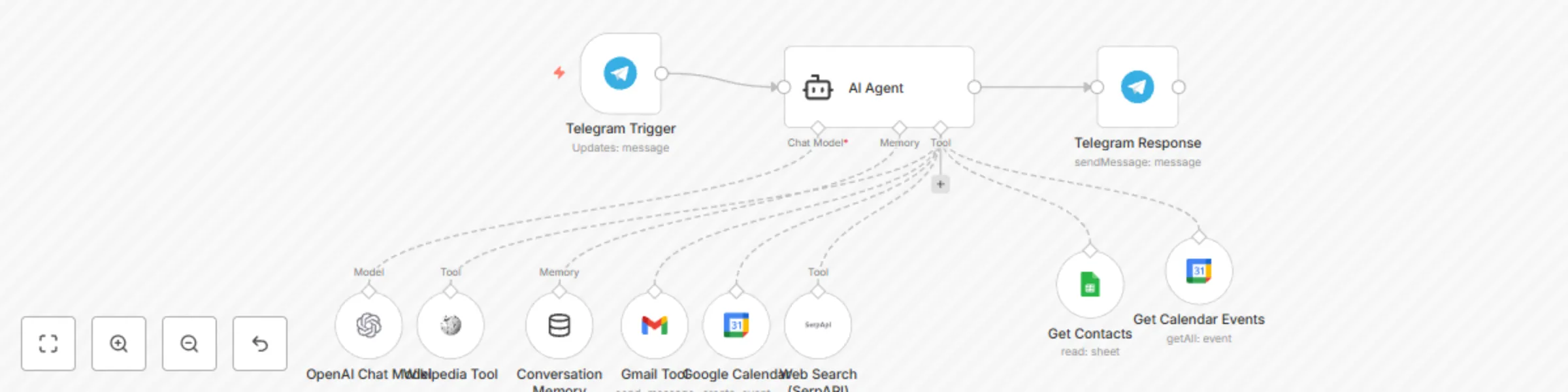
Workflow preview: Manage schedule & contacts with Telegram Bot using GPT-4o-mini & Google Services
Free intermediate

Manage schedule & contacts with Telegram Bot using GPT-4o-mini & Google Services

# AI Personal Assistant Telegram Bot Template ## Description Transform your Telegram into a powerful AI-powered personal assistant that manages your calendar, sends daily schedules, searches the web, and accesses your contacts - all through simple text messages. ## What This Template Does This workflow creates an intelligent Telegram bot that serves as your personal assistant, capable of: - **Daily Schedule Management**: Automatically checks your Google Calendar and emails you a formatted daily schedule summary - **Intelligent Conversations**: Uses OpenAI GPT-4o-mini with conversation memory for natural interactions - **Web Research**: Searches Wikipedia and the web using SerpAPI for any questions you have - **Contact Management**: Accesses your Google Sheets contact database to find email addresses and information - **Email Automation**: Sends emails on your behalf using Gmail integration - **Calendar Integration**: Reads and manages your Google Calendar events ## Target Users - **Busy Professionals** who need quick access to their schedule and want to automate daily planning - **Small Business Owners** who want an AI assistant for managing contacts and communications - **Personal Productivity Enthusiasts** who want to streamline their daily workflow - **Anyone** who prefers text-based interaction over switching between multiple apps ## Key Features ✅ **Multi-Tool AI Agent**: Combines Wikipedia, web search, calendar, email, and contacts in one interface ✅ **Conversation Memory**: Remembers context across multiple interactions ✅ **Automatic Daily Scheduling**: Proactive daily schedule emails ✅ **Contact Intelligence**: Automatically finds contact information before sending emails ✅ **Telegram Integration**: Works through the familiar Telegram interface ## Use Cases - "What's on my schedule today?" → Receives formatted email with daily agenda - "Send an email to John about the meeting" → Finds John's email and sends message - "What's the weather in Paris?" → Gets current weather information via web search - "Tell me about quantum computing" → Provides Wikipedia information - "Schedule a meeting with Sarah tomorrow at 2 PM" → Creates calendar event ## Prerequisites Before setting up this template, you'll need accounts and API access for: - **Telegram Bot** (free via @BotFather) - **OpenAI API** (paid service) - **Google Calendar API** (free) - **Gmail API** (free) - **Google Sheets API** (free) - **SerpAPI** (freemium web search) ## Setup Instructions ### 1. Create Telegram Bot 1. Message @BotFather on Telegram 2. Use `/newbot` command and follow instructions 3. Save your bot token for later ### 2. Set Up Google APIs 1. Go to Google Cloud Console 2. Create a new project or select existing 3. Enable Google Calendar, Gmail, and Sheets APIs 4. Create OAuth2 credentials 5. Download credentials JSON file ### 3. Get API Keys 1. **OpenAI**: Visit platform.openai.com, create API key 2. **SerpAPI**: Sign up at serpapi.com, get API key ### 4. Configure Credentials in n8n 1. Add Telegram Bot credentials using your bot token 2. Set up Google OAuth2 for Calendar, Gmail, and Sheets 3. Add OpenAI API credentials 4. Add SerpAPI credentials ### 5. Customize the Workflow 1. **Update Calendar ID**: Replace `[email protected]` with your calendar 2. **Set Google Sheets ID**: Replace the sheet ID with your contacts spreadsheet 3. **Modify System Message**: Update the AI agent's instructions to match your preferences 4. **Adjust Memory Settings**: Configure conversation memory window as needed ### 6. Test the Setup 1. Activate the workflow 2. Message your Telegram bot 3. Verify all integrations are working ## Customization Options - **Change AI Model**: Switch between OpenAI models (GPT-3.5, GPT-4, etc.) - **Adjust Memory**: Modify conversation memory window length - **Add More Tools**: Integrate additional services like Notion, Slack, or weather APIs - **Modify Schedule**: Change when daily schedule emails are sent - **Customize Responses**: Update the system message to change assistant personality ## Important Notes - **Privacy**: This bot has access to your calendar, contacts, and email - ensure proper security - **API Costs**: OpenAI and SerpAPI usage will incur costs based on usage - **Rate Limits**: Be aware of API rate limits for each service - **Security**: Use environment variables for sensitive credentials ## Troubleshooting - **Bot not responding**: Check Telegram credentials and webhook configuration - **Calendar access issues**: Verify Google Calendar API permissions - **Email not sending**: Confirm Gmail API scopes include send permissions - **Memory not working**: Check that session keys are properly configured ## Support For issues with this template, check: 1. n8n Community Forum 2. Individual API service documentation 3. Google Cloud Console for API errors 4. OpenAI usage dashboard for model issues

R
Ronnie Craig
AI Chatbot
26 Aug 2025
251
0