Block 1 - Filter Status (Waiting for sending)
- Type / Role
- n8n-nodes-base.filter - filter
- Config choices
- Version 2


 Early Deal
This workflow is provided as-is. Please review and test before using in production.
Send multiple emails in Gmail directly via Google Sheets [Video for workflow process](https://www.canva.com/design/DAF8VnLBBQA/BKog1CSHs7 goAYse3mEzQ/watch?utm content=DAF8VnLBBQA&utm campaign=desi...
n8n-nodes-base.filter, n8n-nodes-base.set, n8n-nodes-base.stickynote, n8n-nodes-base.scheduletrigger, n8n-nodes-base.googlesheets, n8n-nodes-base.gmail, n8n-nodes-base.merge
This workflow is cataloged by N8N Workflows and links back to its original n8n.io source page by AlQaisi.
Original n8n.io sourceIn today's fast-paced digital world, businesses are constantly seeking ways to streamline their processes and enhance customer engagement. One powerful tool that facilitates these goals is n8n, an automation platform that allows users to create workflows to automate tasks and workflows.
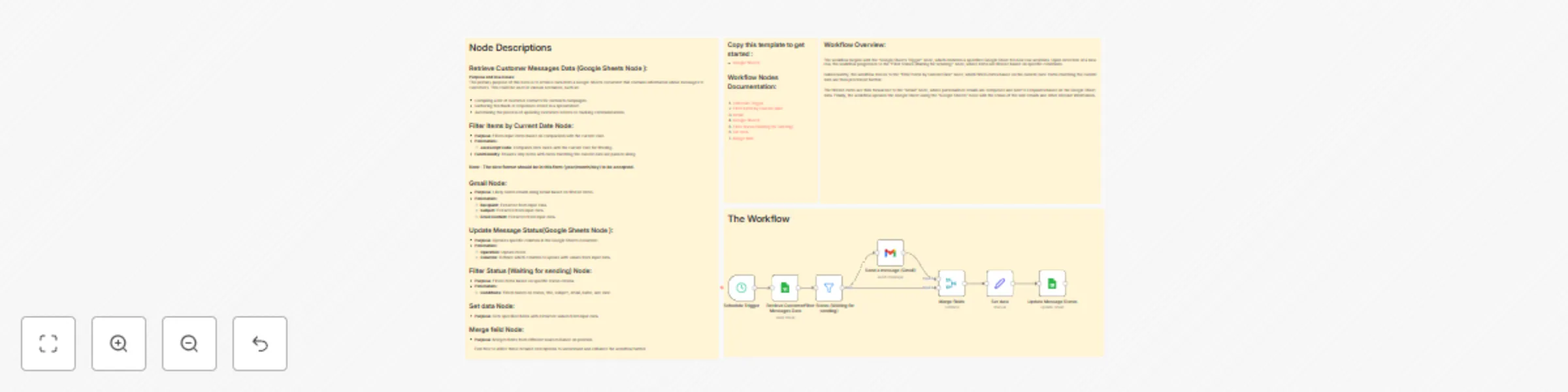
The workflow begins with the "Google Sheets Trigger" node, which monitors a specified Google Sheet for new row additions. Upon detection of a new row, the workflow progresses to the "Filter Status (Waiting for sending)" node, where items are filtered based on specific conditions.
Subsequently, the workflow moves to the "Filter Items by Current Date" node, which filters items based on the current date. Items matching the current date are then processed further.
The filtered items are then forwarded to the "Gmail" node, where personalized emails are composed and sent to recipients based on the Google Sheet data. Finally, the workflow updates the Google Sheet using the "Google Sheets" node with the status of the sent emails and other relevant information.
In conclusion, this n8n workflow presents a powerful solution for automating email communication processes based on Google Sheets data. By leveraging automation, businesses can enhance their operational efficiency, accuracy, and customer engagement. The seamless integration of nodes in this workflow streamlines the communication process and ensures timely and personalized interactions with customers.
As businesses continue to prioritize efficiency and customer satisfaction, n8n workflows offer a versatile and effective means to achieve these objectives.
This catalog entry is organized from the workflow JSON. The node-level section below shows the executable blocks available for review before importing the template.
| Workflow | Send multiple emails in Gmail directly via Google Sheets |
|---|---|
| Complexity | intermediate |
| Nodes | 12 |
| Categories | Social Media |
| Author | AlQaisi |
| Published | 09 Feb 2024 |
Use the JSON export at /data/workflows/2088/2088.json as the source template for this automation.
Open n8n, import the downloaded JSON, and review each node before activating the workflow.
Replace placeholder credentials, API keys, webhook URLs, account IDs, and environment-specific values with your own settings.
Run the workflow manually or in a staging workspace, inspect node output, and confirm downstream systems receive the expected data.
Enable the workflow only after testing, then monitor executions, errors, and rate limits during the first production runs.
Review imported nodes carefully before activation. This catalog entry is intended to help you inspect the workflow structure, understand required services, and find related templates faster.
Node names, credentials, schedules, webhook paths, and external service limits may need adjustment for your workspace.
Send multiple emails in Gmail directly via Google Sheets [Video for workflow process](https://www.canva.com/design/DAF8VnLBBQA/BKog1CSHs7 goAYse3mEzQ/watch?utm content=DAF8VnLBBQA&utm campaign=desi...
Review the workflow JSON, configure any required credentials in n8n, and test the automation in a safe workspace before using it in production.
Yes. Use the block-by-block analysis and the downloadable JSON to inspect each node, then adjust credentials, prompts, schedules, filters, or destinations for your Social Media use case.