Block 1 - Config
- Type / Role
- n8n-nodes-base.set - set
- Config choices
- Version 3.4


 Early Deal
What Is This? This workflow is an automated invoice payment tracking and vindication system that monitors unpaid and overdue invoices stored in NocoDB, then sends escalating reminders to clients ba...
n8n-nodes-base.set, n8n-nodes-base.filter, n8n-nodes-base.manualtrigger, n8n-nodes-base.httprequest, n8n-nodes-base.if, n8n-nodes-base.nocodb, n8n-nodes-base.splitinbatches, n8n-nodes-base.scheduletrigger
This workflow is cataloged by N8N Workflows and links back to its original n8n.io source page by Łukasz.
Original n8n.io sourceThis workflow is an automated invoice payment tracking and vindication system that monitors unpaid and overdue invoices stored in NocoDB, then sends escalating reminders to clients based on configurable time thresholds. The system handles three escalation levels: friendly payment reminders before/at due date, formal warning notices for overdue invoices, and legal action notifications for severely overdue accounts.
It works with any accounting system that can populate a NocoDB database, making it ideal for businesses using custom invoicing systems, international accounting software, or multiple invoice sources.
Designed for small to medium-sized businesses, IT service providers, consulting agencies, and accounting departments that need professional payment enforcement without expensive debt collection services. This workflow is particularly valuable for companies experiencing cash flow challenges due to late-paying clients.
B2B service providers, software development agencies, consultancies, and freelancers managing multiple client invoices will benefit from automated, multi-channel payment reminders that maintain professional relationships while firmly enforcing payment terms.
Whether you're tracking 5 high-value contracts or managing 200+ monthly invoices, this automation ensures no payment deadline slips through the cracks. It's especially useful for businesses operating internationally or using accounting systems without built-in reminder features.
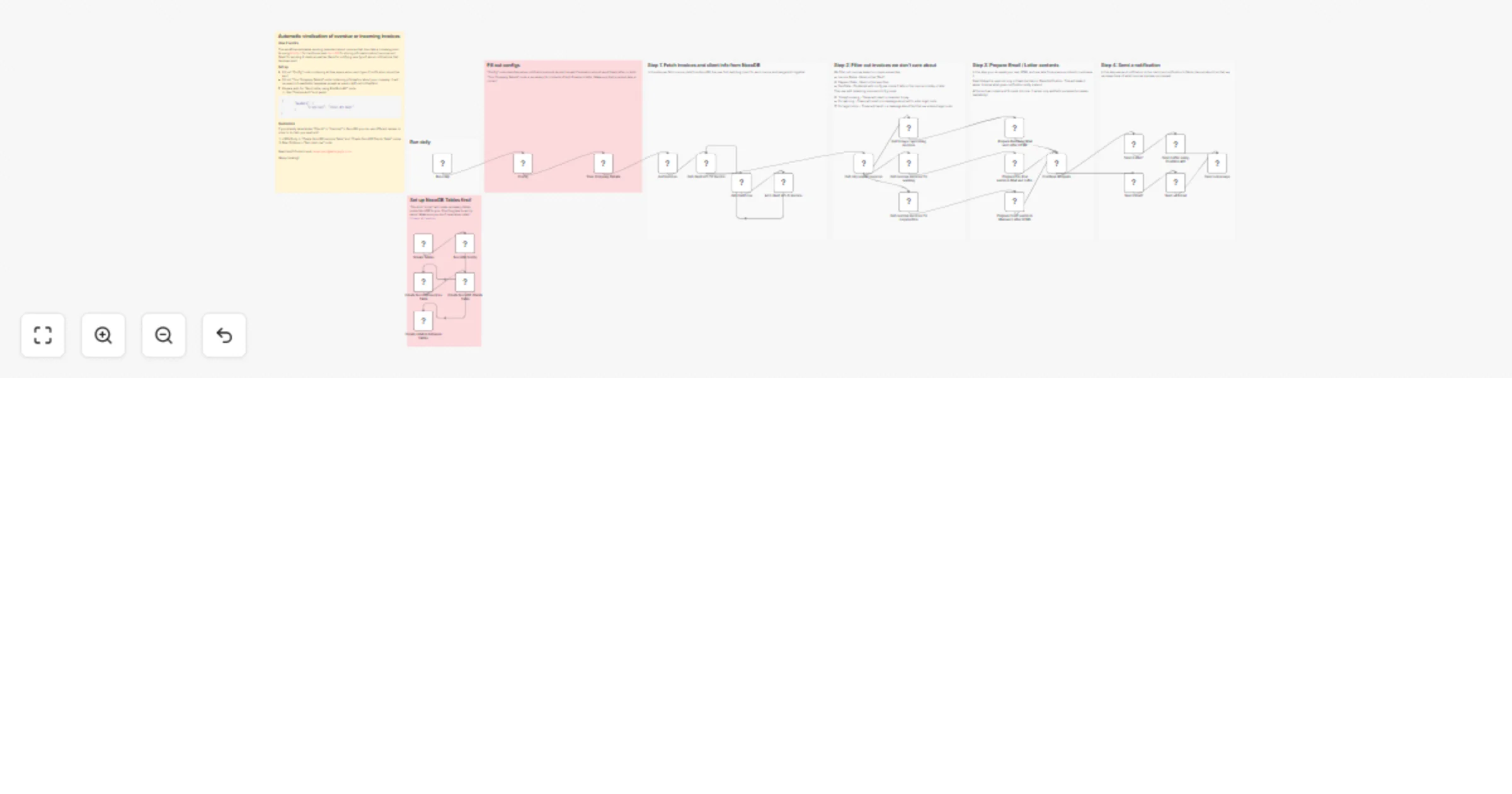
This comprehensive invoice vindication automation consists of four main stages:
1. Configuration & Company Details Setup Defines critical parameters including escalation timeframes (Days before Due Date for reminder, Days after Due Date for warning, Days after Due Date for Legal action), and toggles for notification channels (Send Email, Send Physical Letter). The workflow also captures complete company information for professional correspondence including banking details, tax identification numbers, and contact information.
2. Invoice & Client Data Retrieval Connects to NocoDB to fetch all invoices with their associated client information. The workflow uses a Split in Batches node to process each invoice individually, retrieving complete client details (name, email, full address) from the linked Clients table. This two-step fetch ensures all necessary data is available for personalized communications.
3. Intelligent Filtering & Categorization Invoices are filtered to remove already-paid invoices (checking both Invoice Status ≠ "Paid" and Payment Date = empty), then categorized into three escalation groups:
4. Multi-Channel Notification Dispatch For each escalation level, the workflow generates professionally formatted HTML content with complete invoice details, payment instructions, and appropriate urgency levels. Notifications are dispatched via:
Each notification includes invoice number, amounts, due dates, payment details (bank account, SWIFT code), and clear call-to-action based on escalation level.
Prerequisites:
Step 1: Create NocoDB Tables
Execute the "Create Tables" manual trigger to automatically create two tables in your NocoDB base:
Invoices Table with fields:
Clients Table with fields:
The workflow automatically creates a one-to-many relationship between Clients and Invoices.
Step 2: Configure NocoDB Connection
In the "NocoDB Config" node:
pksfpoc943gwhvy)https://noco.sbyte.eu/)Update all NocoDB credentials to point to your instance using the "NocoDB Token" authentication.
Step 3: Set Escalation Timing
In the "Config" node, configure:
Critical: Ensure "Days after Due Date for Legal action" > "Days after Due Date for warning" to maintain proper escalation sequence. Setting legal action earlier than warning will confuse clients.
Step 4: Configure Notification Channels
In the "Config" node:
Step 5: Add Your Company Details
In the "Your Company Details" node, provide:
This information appears in all correspondence and legal notices.
Step 6: Configure Credentials
Set up the following credentials:
Step 7: Customize Slack Channel
In the "Send a message" node, update the Slack channel ID to your desired notification channel.
Step 8: Schedule Execution
The workflow runs automatically daily at 7:00 AM via the "Run daily" trigger node. Adjust timing in the Schedule Trigger node as needed. For testing, execute manually using the "Execute workflow" button.
Professional HTML Email Templates: Three distinct HTML email templates provide escalating urgency levels while maintaining professional communication standards. Each template includes:
Smart Date Calculations: The workflow uses N8N's DateTime functions to calculate:
equals operator, not ranges)This ensures invoices are processed exactly once at each escalation stage, preventing duplicate notifications.
Flexible Data Model: The NocoDB schema supports tracking:
Multi-Format Address Handling: The workflow correctly formats addresses for:
Batch Processing with Error Isolation: The Split in Batches node processes invoices individually, ensuring one failed notification (e.g., invalid email address) doesn't block processing of remaining invoices. Each invoice proceeds through the workflow independently.
Conditional Notification Routing: IF nodes check configuration flags before sending notifications, allowing granular control:
Slack Notification Intelligence: Slack messages include structured blocks showing:
This provides at-a-glance visibility into which invoices triggered notifications and why.
Table Creation Automation: Rather than requiring manual NocoDB table setup, the workflow includes HTTP Request nodes that programmatically create tables with exact field types, validation rules, and relationships using NocoDB's Meta API. This ensures consistent schema across deployments and eliminates manual configuration errors.
Currency Support: While defaulting to PLN (Polish Złoty), the Amount field uses NocoDB's Currency type, which can be easily changed to EUR, USD, GBP, or 150+ other currencies via the table schema without modifying workflow logic.
Visit my profile for other free business automations. And if you're looking for dedicated software development or custom n8n workflow solutions, don't hesitate to reach out at [email protected] or on sailingbyte.com!
This catalog entry is organized from the workflow JSON. The node-level section below shows the executable blocks available for review before importing the template.
Showing the first 24 of 33 workflow blocks. Download the JSON for the full node graph.
| Workflow | Send multi-stage overdue invoice reminders with NocoDB, Gmail, PostGrid and Slack |
|---|---|
| Complexity | advanced |
| Nodes | 33 |
| Categories | Invoice Processing |
| Author | Łukasz |
| Published | 25 Mar 2026 |
Use the JSON export at /data/workflows/14313/14313.json as the source template for this automation.
Open n8n, import the downloaded JSON, and review each node before activating the workflow.
Replace placeholder credentials, API keys, webhook URLs, account IDs, and environment-specific values with your own settings.
Run the workflow manually or in a staging workspace, inspect node output, and confirm downstream systems receive the expected data.
Enable the workflow only after testing, then monitor executions, errors, and rate limits during the first production runs.
Review imported nodes carefully before activation. This catalog entry is intended to help you inspect the workflow structure, understand required services, and find related templates faster.
Node names, credentials, schedules, webhook paths, and external service limits may need adjustment for your workspace.
What Is This? This workflow is an automated invoice payment tracking and vindication system that monitors unpaid and overdue invoices stored in NocoDB, then sends escalating reminders to clients ba...
Review the workflow JSON, configure any required credentials in n8n, and test the automation in a safe workspace before using it in production.
Yes. Use the block-by-block analysis and the downloadable JSON to inspect each node, then adjust credentials, prompts, schedules, filters, or destinations for your Invoice Processing use case.