Block 1 - Daily Invoice Check Trigger
- Type / Role
- n8n-nodes-base.scheduleTrigger - scheduleTrigger
- Config choices
- Version 1.2


 Early Deal
This workflow is provided as-is. Please review and test before using in production.
Who's this for Small business owners, finance teams, accountants, and bookkeepers who use Xero for invoicing and want to improve cash flow by automating payment reminders. If you're spending time m...
n8n-nodes-base.scheduletrigger, n8n-nodes-base.xero, n8n-nodes-base.if, n8n-nodes-base.code, n8n-nodes-base.httprequest, n8n-nodes-base.stickynote, n8n-nodes-base.microsoftoutlook
This workflow is cataloged by N8N Workflows and links back to its original n8n.io source page by Patrick Campbell .
Original n8n.io sourceSmall business owners, finance teams, accountants, and bookkeepers who use Xero for invoicing and want to improve cash flow by automating payment reminders. If you're spending time manually following up on unpaid invoices or struggling with late payments, this workflow eliminates the manual effort and ensures consistent, timely communication with customers while maintaining a complete audit trail.
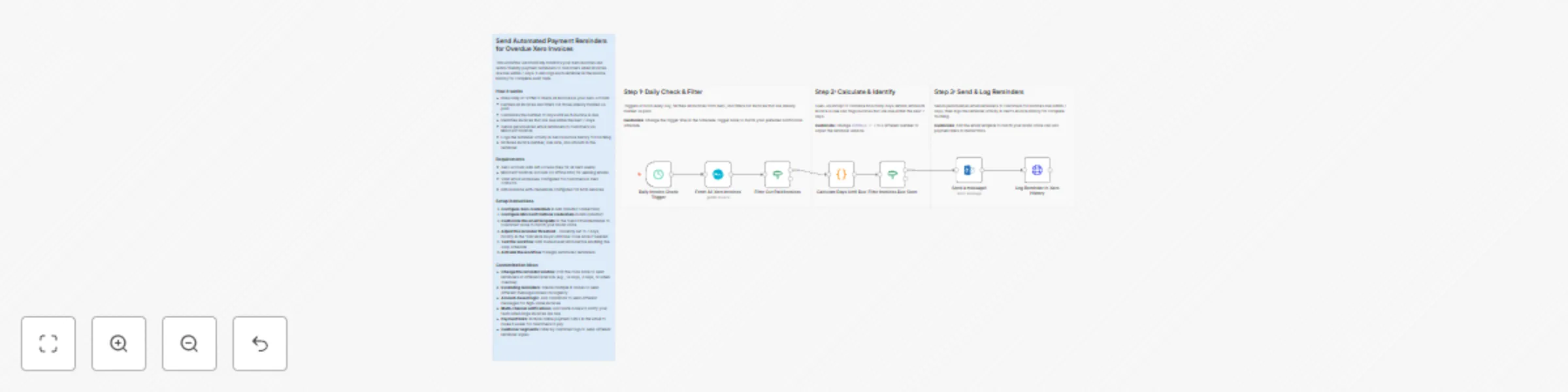
This workflow automatically monitors all invoices in your Xero account and sends friendly payment reminders to customers when invoices are approaching their due date. It runs daily at noon, checks every invoice, calculates how many days until payment is due, sends personalized email reminders for invoices due within 7 days, and logs each reminder activity back into Xero's invoice history. The automation ensures no invoice slips through the cracks, reduces the administrative burden of accounts receivable management, and maintains professional customer relationships through polite, timely reminders—all while keeping your Xero records up to date with reminder tracking.
The workflow executes automatically every day at 12 PM and follows this process:
The workflow only sends reminders for invoices meeting the criteria, so customers aren't bombarded with unnecessary emails. The Xero history logging ensures your team can see at a glance which customers have been reminded and when, preventing duplicate reminders and providing accountability.
1. Enable Xero API access
Ensure your Xero account has API access enabled. This is available by default for all Xero accounts. You'll need administrator access to create the API connection.
2. Configure n8n credentials
In your n8n instance, set up OAuth2 credentials for:
3. Assign credentials to nodes
Open the workflow and assign your configured credentials to these nodes:
4. Customize the email template
Edit the "Send Email Reminder to Customer" node to personalize the message:
5. Adjust the reminder threshold (optional)
By default, reminders are sent for invoices due within 7 days. To change this:
isDueSoon: diffDays <= 7 && diffDays >= 07 to your preferred number of days (e.g., 14 for two weeks notice)6. Test the workflow
Before enabling the daily schedule:
7. Activate the workflow
Once testing is complete, activate the workflow. It will run automatically every day at noon (or your customized schedule time).
This catalog entry is organized from the workflow JSON. The node-level section below shows the executable blocks available for review before importing the template.
| Workflow | Send automated payment reminders for Xero invoices via Outlook email |
|---|---|
| Complexity | intermediate |
| Nodes | 11 |
| Categories | Invoice Processing |
| Author | Patrick Campbell |
| Published | 12 Jan 2026 |
Use the JSON export at /data/workflows/12648/12648.json as the source template for this automation.
Open n8n, import the downloaded JSON, and review each node before activating the workflow.
Replace placeholder credentials, API keys, webhook URLs, account IDs, and environment-specific values with your own settings.
Run the workflow manually or in a staging workspace, inspect node output, and confirm downstream systems receive the expected data.
Enable the workflow only after testing, then monitor executions, errors, and rate limits during the first production runs.
Review imported nodes carefully before activation. This catalog entry is intended to help you inspect the workflow structure, understand required services, and find related templates faster.
Node names, credentials, schedules, webhook paths, and external service limits may need adjustment for your workspace.
Who's this for Small business owners, finance teams, accountants, and bookkeepers who use Xero for invoicing and want to improve cash flow by automating payment reminders. If you're spending time m...
Review the workflow JSON, configure any required credentials in n8n, and test the automation in a safe workspace before using it in production.
Yes. Use the block-by-block analysis and the downloadable JSON to inspect each node, then adjust credentials, prompts, schedules, filters, or destinations for your Invoice Processing use case.