Block 1 - Reminder Webhook
- Type / Role
- n8n-nodes-base.webhook - webhook
- Config choices
- Version 1


 Early Deal
This workflow is provided as-is. Please review and test before using in production.
How It Works The workflow is an automated appointment reminder system built on n8n. Here is a step by step breakdown of its process: Reminder Webhook This node acts as the entry point for the workf...
n8n-nodes-base.webhook, n8n-nodes-base.code, n8n-nodes-base.twilio
This workflow is cataloged by N8N Workflows and links back to its original n8n.io source page by David Olusola.
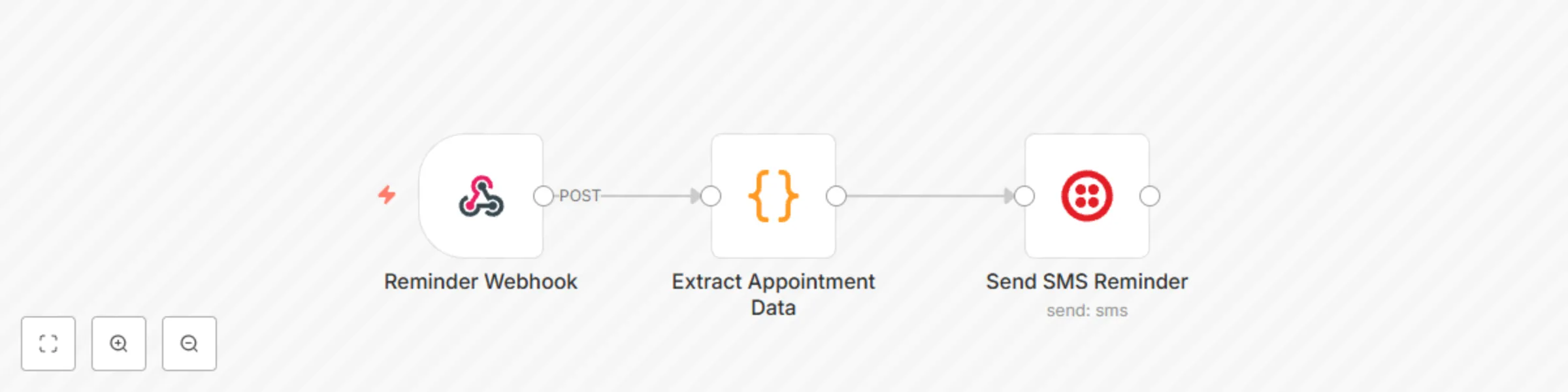
Original n8n.io sourceThe workflow is an automated appointment reminder system built on n8n. Here is a step-by-step breakdown of its process:
This node acts as the entry point for the workflow. It's a unique URL that waits for data to be sent to it from an external application, such as a booking or scheduling platform. When a new appointment is created in that system, it sends a JSON payload to this webhook.
This is a Code node that processes the incoming data. It's a critical step that:
This node uses your Twilio credentials to send an SMS message. It dynamically constructs the message using the data extracted in the previous step. The message is personalized with the customer's name and includes the formatted appointment details.
Import the Workflow
Copy the JSON code from the Canvas and import it into your n8n instance.
Connect Your Twilio Account
Click on the "Send SMS Reminder" node. In the "Credentials" section, you will need to either select your existing Twilio account or add new credentials by providing your Account SID and Auth Token from your Twilio console.
Find the Webhook URL
Click on the "Reminder Webhook" node. The unique URL for this workflow will be displayed. Copy this URL.
Configure Your Booking System
Go to your booking or scheduling platform (e.g., Calendly, Acuity). In the settings or integrations section, find where you can add a new webhook. Paste the URL you copied from n8n here. You'll need to map the data fields from your booking system (like customer name, phone, etc.) to match the expected format shown in the comments of the "Extract Appointment Data" node.
Once these steps are complete, your workflow will be ready to automatically send SMS reminders whenever a new appointment is created.
This catalog entry is organized from the workflow JSON. The node-level section below shows the executable blocks available for review before importing the template.
| Workflow | Send automated appointment reminders via SMS with Twilio webhook |
|---|---|
| Complexity | beginner |
| Nodes | 3 |
| Categories | Support Chatbot |
| Author | David Olusola |
| Published | 03 Aug 2025 |
Use the JSON export at /data/workflows/6932/6932.json as the source template for this automation.
Open n8n, import the downloaded JSON, and review each node before activating the workflow.
Replace placeholder credentials, API keys, webhook URLs, account IDs, and environment-specific values with your own settings.
Run the workflow manually or in a staging workspace, inspect node output, and confirm downstream systems receive the expected data.
Enable the workflow only after testing, then monitor executions, errors, and rate limits during the first production runs.
Review imported nodes carefully before activation. This catalog entry is intended to help you inspect the workflow structure, understand required services, and find related templates faster.
Node names, credentials, schedules, webhook paths, and external service limits may need adjustment for your workspace.
How It Works The workflow is an automated appointment reminder system built on n8n. Here is a step by step breakdown of its process: Reminder Webhook This node acts as the entry point for the workf...
Review the workflow JSON, configure any required credentials in n8n, and test the automation in a safe workspace before using it in production.
Yes. Use the block-by-block analysis and the downloadable JSON to inspect each node, then adjust credentials, prompts, schedules, filters, or destinations for your Support Chatbot use case.