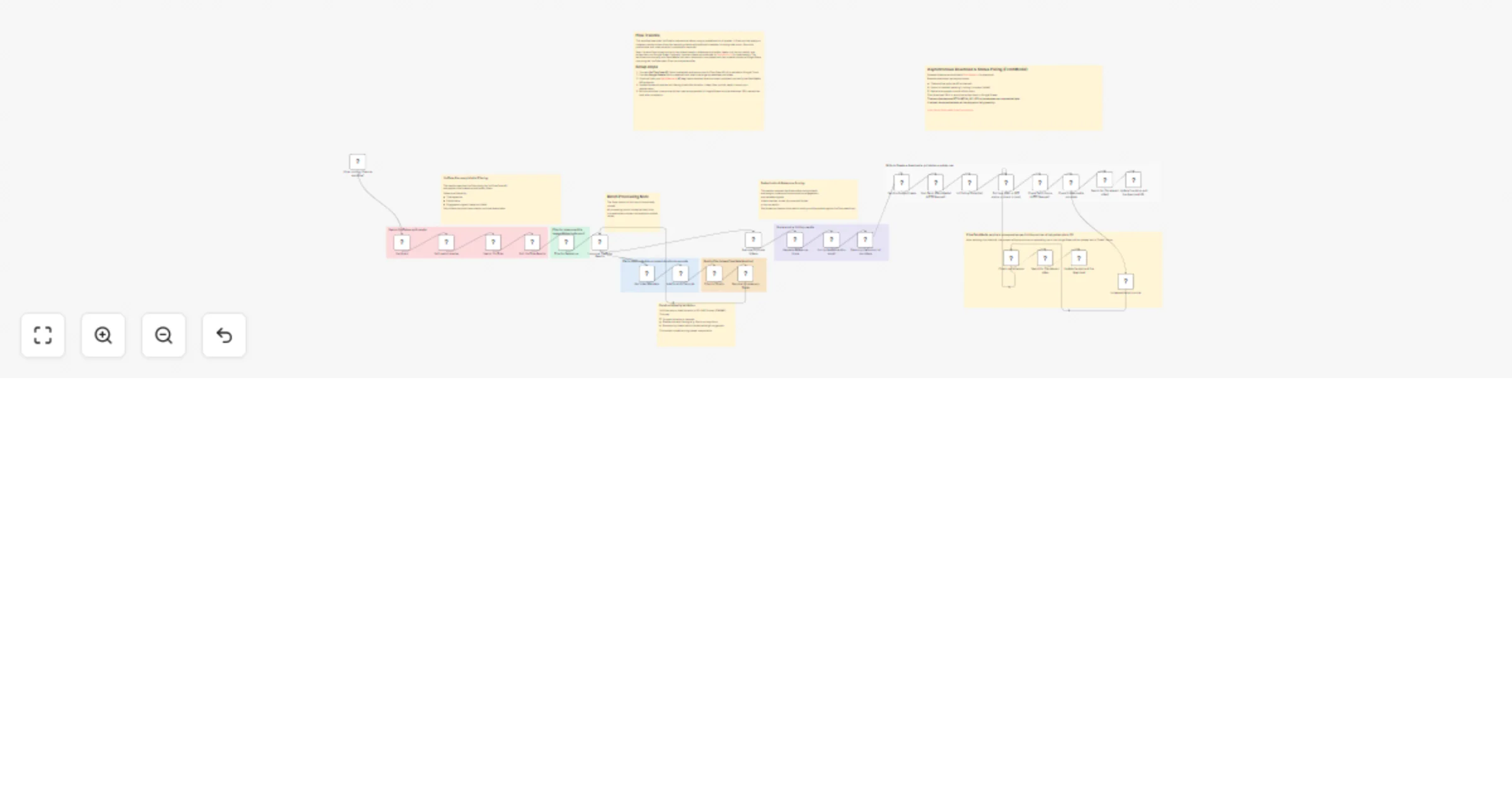
Score and download top YouTube videos to Google Sheets with FetchMedia.io

Workflow preview

Workflow preview
100%
Score and download top YouTube videos to Google Sheets with FetchMedia.io preview
Open on n8n.io

1. Workflow Overview

Find, score, and download the best YouTube videos to Google Sheets This workflow provides an end to end automation for discovering, evaluating, and optionally downloading high quality educational Y...

Best for

  • Market Research automation workflows
  • AI Summarization automation workflows
  • advanced n8n builders looking for reusable templates

Tools used

n8n-nodes-base.manualtrigger, n8n-nodes-base.set, n8n-nodes-base.httprequest, n8n-nodes-base.filter, n8n-nodes-base.removeduplicates, n8n-nodes-base.googlesheets, n8n-nodes-base.code, n8n-nodes-base.wait

Source and attribution

This workflow is cataloged by N8N Workflows and links back to its original n8n.io source page by FetchMedia.

Original n8n.io source

1.1 Workflow description

Title
Score and download top YouTube videos to Google Sheets with FetchMedia.io
Workflow name
Score and download top YouTube videos to Google Sheets with FetchMedia.io

Find, score, and download the best YouTube videos to Google Sheets

This workflow provides an end-to-end automation for discovering, evaluating, and optionally downloading high-quality educational YouTube videos.

It searches YouTube using configurable queries, applies multiple relevance and quality filters, scores the remaining videos, stores the best results in Google Sheets, and optionally downloads selected videos asynchronously using FetchMedia.io.

The workflow is designed to be modular, transparent, and easy to customize for different content curation, research, or archival use cases.


How the workflow works

1. Search YouTube

The workflow uses the YouTube Data API to search for videos based on predefined queries.

2. Filter by relevance and quality

Videos are filtered using multiple criteria, including:

  • Title keywords
  • Publish date
  • View count
  • Like count
  • Video duration

YouTube returns video duration in ISO-8601 format (for example, PT1M30S). The workflow converts this value to seconds to enable reliable numeric filtering (for example, Shorts vs long-form videos).

3. Deduplicate and score videos

  • Duplicate videos are removed using videoId as a unique identifier.
  • A relevance score is generated based on engagement metrics and metadata.
  • Videos are sorted by score and limited to the top candidates.

4. Store results in Google Sheets

Selected video metadata is written to a Google Sheet. The videoId is used as a stable identifier so rows can be updated later in the workflow.

5. Optional: Download videos asynchronously

Selected videos can be submitted to FetchMedia.io for download. Because downloads are asynchronous:

  • The workflow polls the FetchMedia API at regular intervals
  • Download status is checked (pending, running, success, failed)
  • Retry attempts are capped to prevent infinite loops

When a download completes, the final download URL (or error information) is written back to the corresponding row in Google Sheets.


Who this workflow is for

  • Content curators and educators
  • Researchers and analysts
  • Marketing and growth teams
  • AI and machine learning practitioners collecting video datasets

Requirements

To use this workflow, you need:

  • YouTube Data API v3 enabled with OAuth credentials
  • Google Sheets OAuth credentials
  • FetchMedia.io API key (optional, required only for the download step)

> Note: FetchMedia.io is a third-party service and may require a paid account - free tier is available. > The workflow can still be used without the download branch if desired.


Configuration notes

  • The FetchMedia API key is expected to be provided via an environment variable: FETCHMEDIA_API_KEY
  • API quotas and limits depend on your YouTube and FetchMedia accounts.
  • Retry limits and wait intervals are capped to avoid infinite loops.
  • The workflow uses batch processing internally; the loop completion branch is intentionally unused, as all processing occurs within the loop itself.

Customization ideas

  • Adjust the relevance scoring logic to prioritize different engagement signals.
  • Modify duration thresholds to focus on Shorts or long-form videos.
  • Add notifications (Slack, email) when downloads complete.
  • Extend the workflow to additional video platforms.

Notes

This template demonstrates a complete content-curation pipeline: from discovery, through quality control and scoring, to optional asynchronous media downloading.

It is intended as a practical, production-ready example that can be easily adapted to different workflows.

1.2 Logical Blocks

This catalog entry is organized from the workflow JSON. The node-level section below shows the executable blocks available for review before importing the template.

2. Block-by-Block Analysis

Block 1 - When clicking ‘Execute workflow’

Type / Role
n8n-nodes-base.manualTrigger - manualTrigger
Config choices
Version 1

Block 2 - Set Query

Type / Role
n8n-nodes-base.set - set
Config choices
Version 3.4

Block 3 - Search YouTube

Type / Role
n8n-nodes-base.httpRequest - httpRequest
Config choices
Version 4.2

Block 4 - Filter for Quality

Type / Role
n8n-nodes-base.filter - filter
Config choices
Version 2.2

Block 5 - Filter for Relevance

Type / Role
n8n-nodes-base.filter - filter
Config choices
Version 2.2

Block 6 - Get Video Metadata

Type / Role
n8n-nodes-base.httpRequest - httpRequest
Config choices
Version 4.2

Block 7 - Remove Unnecessary Fields

Type / Role
n8n-nodes-base.set - set
Config choices
Version 3.4

Block 8 - Remove Duplicate Videos

Type / Role
n8n-nodes-base.removeDuplicates - removeDuplicates
Config choices
Version 2

Block 9 - Generate Relevance Score

Type / Role
n8n-nodes-base.set - set
Config choices
Version 3.4

Block 10 - Send to Google Sheets

Type / Role
n8n-nodes-base.googleSheets - googleSheets
Config choices
Version 4.6

Block 11 - Add Duration Seconds

Type / Role
n8n-nodes-base.code - code
Config choices
Version 2

Block 12 - Start Fetch (FetchMedia) (HTTP Request)

Type / Role
n8n-nodes-base.httpRequest - httpRequest
Config choices
Version 4.2

Block 13 - Init Polling State (Set)

Type / Role
n8n-nodes-base.set - set
Config choices
Version 3.4

Block 14 - Poll loop (Wait → GET status → check → loop)

Type / Role
n8n-nodes-base.wait - wait
Config choices
Version 1.1

Block 15 - Check Fetch Status (HTTP Request)

Type / Role
n8n-nodes-base.httpRequest - httpRequest
Config choices
Version 4.2

Block 16 - Sticky Note

Type / Role
n8n-nodes-base.stickyNote - stickyNote
Config choices
Version 1

Block 17 - Sticky Note1

Type / Role
n8n-nodes-base.stickyNote - stickyNote
Config choices
Version 1

Block 18 - Sticky Note3

Type / Role
n8n-nodes-base.stickyNote - stickyNote
Config choices
Version 1

Block 19 - Sticky Note4

Type / Role
n8n-nodes-base.stickyNote - stickyNote
Config choices
Version 1

Block 20 - Sticky Note2

Type / Role
n8n-nodes-base.stickyNote - stickyNote
Config choices
Version 1

Block 21 - Loop over YouTube Results

Type / Role
n8n-nodes-base.splitInBatches - splitInBatches
Config choices
Version 3

Block 22 - Split search queries

Type / Role
n8n-nodes-base.splitOut - splitOut
Config choices
Version 1

Block 23 - Split YouTube Results

Type / Role
n8n-nodes-base.splitOut - splitOut
Config choices
Version 1

Block 24 - Take only the amount of top videos

Type / Role
n8n-nodes-base.limit - limit
Config choices
Version 1

Showing the first 24 of 40 workflow blocks. Download the JSON for the full node graph.

3. Summary Table

Workflow Score and download top YouTube videos to Google Sheets with FetchMedia.io
Complexity advanced
Nodes 40
Categories Market Research, AI Summarization
Author FetchMedia
Published 24 Jan 2026

4. Reproducing the Workflow from Scratch

  1. 1. Download the workflow JSON

    Use the JSON export at /data/workflows/12965/12965.json as the source template for this automation.

  2. 2. Import the template into n8n

    Open n8n, import the downloaded JSON, and review each node before activating the workflow.

  3. 3. Configure credentials and variables

    Replace placeholder credentials, API keys, webhook URLs, account IDs, and environment-specific values with your own settings.

  4. 4. Test with sample data

    Run the workflow manually or in a staging workspace, inspect node output, and confirm downstream systems receive the expected data.

  5. 5. Activate and monitor

    Enable the workflow only after testing, then monitor executions, errors, and rate limits during the first production runs.

5. General Notes & Resources

Review imported nodes carefully before activation. This catalog entry is intended to help you inspect the workflow structure, understand required services, and find related templates faster.

Node names, credentials, schedules, webhook paths, and external service limits may need adjustment for your workspace.

Frequently asked questions

What does Score and download top YouTube videos to Google Sheets with FetchMedia.io do?

Find, score, and download the best YouTube videos to Google Sheets This workflow provides an end to end automation for discovering, evaluating, and optionally downloading high quality educational Y...

What do I need before importing this workflow?

Review the workflow JSON, configure any required credentials in n8n, and test the automation in a safe workspace before using it in production.

Can I customize this workflow?

Yes. Use the block-by-block analysis and the downloadable JSON to inspect each node, then adjust credentials, prompts, schedules, filters, or destinations for your Market Research, AI Summarization use case.