Block 1 - 📋 Overview
- Type / Role
- n8n-nodes-base.stickyNote - stickyNote
- Config choices
- Version 1


 Early Deal
Schedule social media posts from local files using UploadToURL, OpenAI, and Buffer === Marketing teams often have design files sitting locally — campaign images, product videos, event graphics — th...
n8n-nodes-base.stickynote, n8n-nodes-base.webhook, n8n-nodes-base.code, n8n-nodes-base.if, n8n-nodes-uploadtourl.uploadtourl, @n8n/n8n-nodes-langchain.openai, n8n-nodes-base.switch, n8n-nodes-base.httprequest
This workflow is cataloged by N8N Workflows and links back to its original n8n.io source page by Jitesh Dugar.
Original n8n.io sourceMarketing teams often have design files sitting locally — campaign images, product videos, event graphics — that need to be published on social media. The usual process means downloading files, switching apps, uploading to each platform separately, and writing captions by hand. This workflow removes those steps.
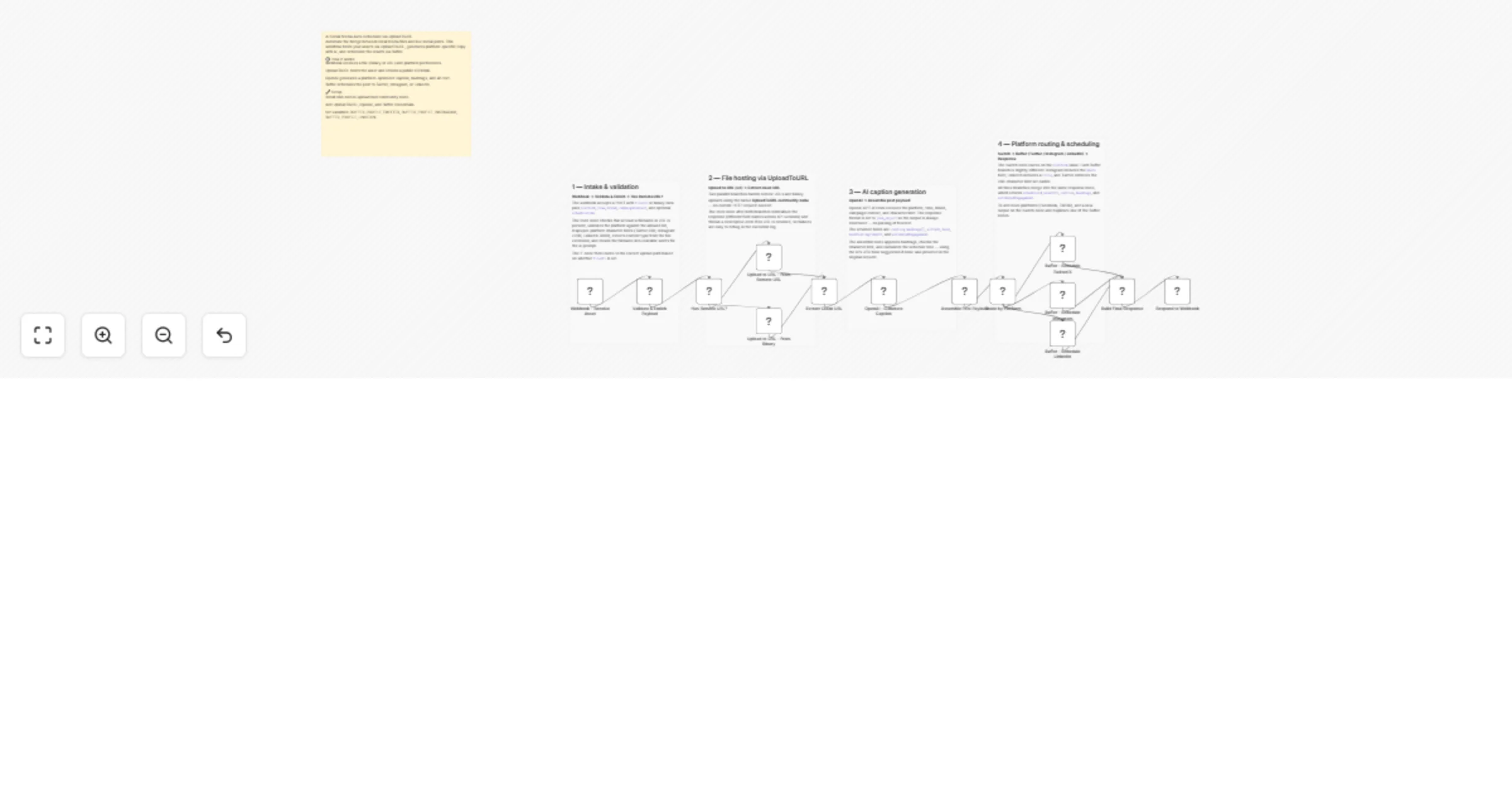
Send a file link or binary upload to the webhook. UploadToURL hosts it instantly and returns a clean public URL. OpenAI GPT-4.1 mini reads the filename and context to generate a platform-specific caption, hashtags, alt text, and a scroll-stopping hook. A Switch node routes to the correct Buffer profile — Twitter/X, Instagram, or LinkedIn — and the post is scheduled at the AI-suggested best time.
n8n-nodes-uploadtourlBUFFER_PROFILE_TWITTER, BUFFER_PROFILE_INSTAGRAM, BUFFER_PROFILE_LINKEDIN — find these IDs in your Buffer account under each profile's settings{
"fileUrl": "https://cdn.example.com/summer-campaign.jpg",
"filename": "summer-campaign.jpg",
"platform": "instagram",
"tone": "casual",
"brand": "Acme Studio",
"hashtags": true
}
To upload a binary file instead, send as multipart/form-data with field name file and omit fileUrl. Pass scheduleTime as an ISO 8601 string to override the AI scheduling suggestion.
gpt-4.1-mini with response_format: json_object to guarantee structured output — no post-processing of freetext required400 response so calling apps receive actionable feedback without needing to check n8n logsThis catalog entry is organized from the workflow JSON. The node-level section below shows the executable blocks available for review before importing the template.
| Workflow | Schedule social media posts from local files using UploadToURL, OpenAI, and Buffer |
|---|---|
| Complexity | advanced |
| Nodes | 19 |
| Categories | Social Media, Multimodal AI |
| Author | Jitesh Dugar |
| Published | 20 Feb 2026 |
Use the JSON export at /data/workflows/13540/13540.json as the source template for this automation.
Open n8n, import the downloaded JSON, and review each node before activating the workflow.
Replace placeholder credentials, API keys, webhook URLs, account IDs, and environment-specific values with your own settings.
Run the workflow manually or in a staging workspace, inspect node output, and confirm downstream systems receive the expected data.
Enable the workflow only after testing, then monitor executions, errors, and rate limits during the first production runs.
Review imported nodes carefully before activation. This catalog entry is intended to help you inspect the workflow structure, understand required services, and find related templates faster.
Node names, credentials, schedules, webhook paths, and external service limits may need adjustment for your workspace.
Schedule social media posts from local files using UploadToURL, OpenAI, and Buffer === Marketing teams often have design files sitting locally — campaign images, product videos, event graphics — th...
Review the workflow JSON, configure any required credentials in n8n, and test the automation in a safe workspace before using it in production.
Yes. Use the block-by-block analysis and the downloadable JSON to inspect each node, then adjust credentials, prompts, schedules, filters, or destinations for your Social Media, Multimodal AI use case.