Block 1 - Overview
- Type / Role
- n8n-nodes-base.stickyNote - stickyNote
- Config choices
- Version 1


 Early Deal
Description Paste any text into a simple form — an email, social caption, blog paragraph, or proposal — and submit. GPT 4o mini rewrites it simultaneously in five distinct tones: Professional, Casu...
n8n-nodes-base.stickynote, n8n-nodes-base.formtrigger, n8n-nodes-base.set, @n8n/n8n-nodes-langchain.agent, @n8n/n8n-nodes-langchain.lmchatopenai, @n8n/n8n-nodes-langchain.outputparserstructured, n8n-nodes-base.code, n8n-nodes-base.googledrive
This workflow is cataloged by N8N Workflows and links back to its original n8n.io source page by Incrementors.
Original n8n.io sourcePaste any text into a simple form — an email, social caption, blog paragraph, or proposal — and submit. GPT-4o-mini rewrites it simultaneously in five distinct tones: Professional, Casual, Persuasive, Concise, and Empathetic. All five versions are saved as a single document in your Google Drive folder, and your Slack channel gets an instant preview of the Concise version. Built for content teams, copywriters, and agencies who write the same message repeatedly for different audiences.
Estimated Setup Time: 15–20 minutes
YOUR_GOOGLE_DRIVE_FOLDER_ID with the ID of your Drive folder (open the folder in Google Drive, look at the URL bar, and copy the string after /folders/). Replace #YOUR-SLACK-CHANNEL with your Slack channel name including the # symbol. Replace YOUR COMPANY NAME with your company or team name.> ⚠️ All three placeholder values are in 2. Set — Config Values — you must update all three before activating.
Connect your OpenAI credential — Open the node named 4. OpenAI — GPT-4o-mini Model. Click the credential dropdown and connect your OpenAI API key. If you do not have one, go to platform.openai.com, sign in, click your account name, select API Keys, and create a new key.
Connect your Google Drive credential — Open the node named 8. Google Drive — Upload Tone Doc. Click the credential dropdown and connect your Google account using OAuth2. n8n will prompt you to sign in and grant Drive access.
Connect your Slack credential — Open the node named 9. Slack — Send Concise Preview. Click the credential dropdown and connect your Slack OAuth2 app. After connecting, invite the Slack bot to your target channel by typing /invite @your-bot-name inside that channel.
Activate the workflow — Click Activate in the top right of n8n. Copy the form URL from node 1. Form — Content Tone Rewriter and bookmark it or share it with your team.
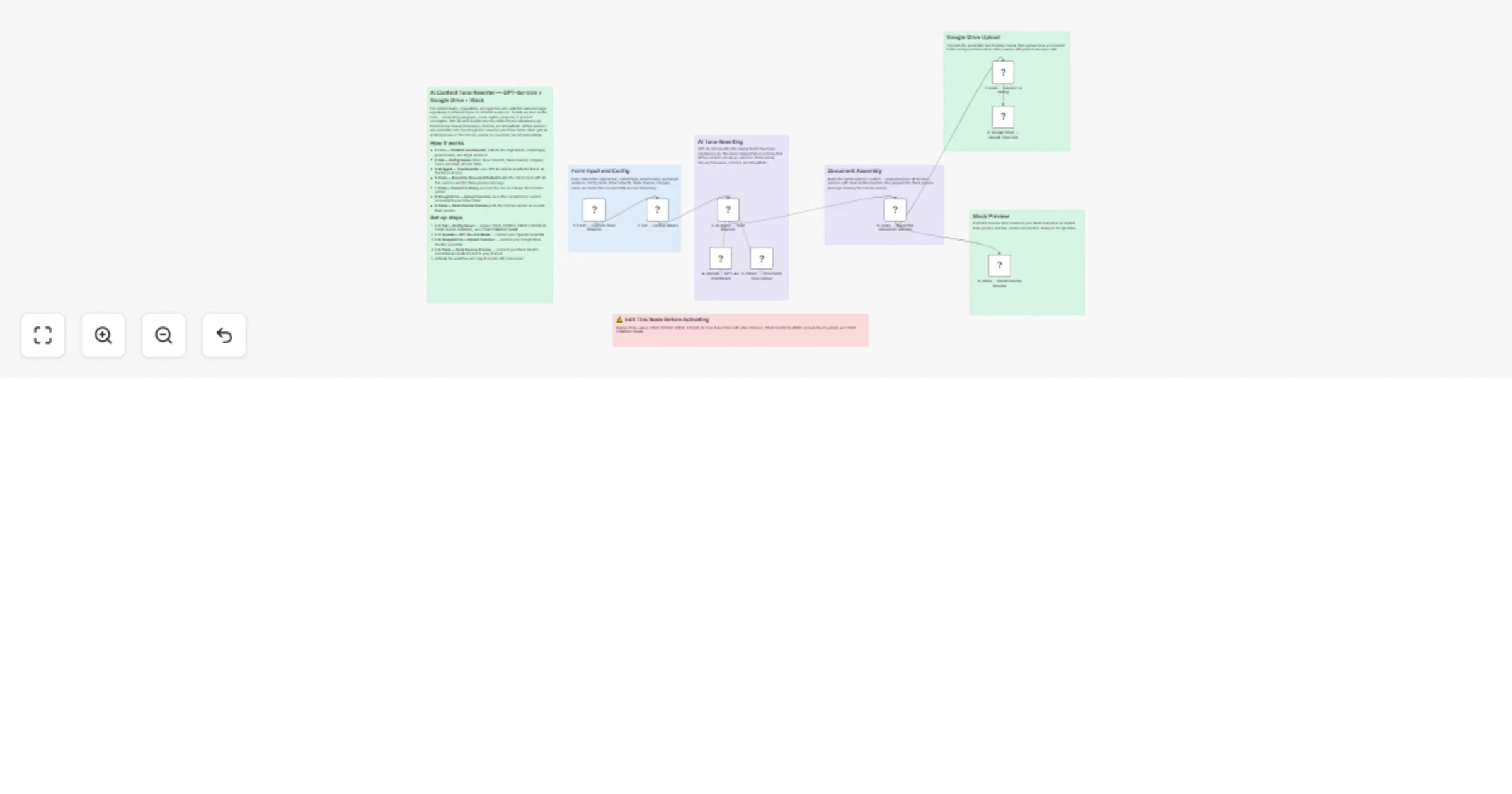
Step 1 — Form Trigger: Content Tone Rewriter You open the form in your browser and fill in four fields: your original text, the content type (Email, Social Media Caption, Blog Paragraph, Client Proposal, Product Description, or Other), your name or project name, and an optional target audience. When you submit, the workflow starts immediately.
Step 2 — Set: Config Values This step loads your configuration and maps every form field into clean variables. It sets the Drive folder ID, Slack channel, and company name from your placeholders. It also builds the document title automatically — combining your project name with today's date — and records the exact time the workflow ran.
Step 3 — AI Agent: Tone Rewriter (with GPT-4o-mini and Structured Output Parser) This step sends your original text to GPT-4o-mini along with the content type, target audience, and company name. The AI is instructed to return exactly five rewrites: Professional, Casual, Persuasive, Concise, and Empathetic. The 5. Parser — Structured Tone Output enforces a strict schema on the AI response, so if any tone version is missing or malformed, the parser catches it. All five versions must be present before the workflow moves forward.
Step 4 — Code: Assemble Document Content This step takes the five AI-generated versions and combines them into one complete document. It adds a header showing the project name, content type, target audience, and run timestamp. Each tone version is separated by a clear divider line and labelled. It also prepares the Slack message, which shows the Concise version as a quick preview along with the project name and date.
Step 5 — Code: Convert to Binary
This step converts the assembled text document into a binary file that Google Drive can accept. It encodes the content and sets the filename to match the document title with a .txt extension. This step also passes the Slack channel and preview message forward for the parallel Slack step.
Step 6 — Google Drive Upload: Upload Tone Doc This step uploads the binary file to the Google Drive folder you configured. The file is named with your project name and today's date. After this step, the complete five-version document is permanently saved in your Drive.
Step 7 — Slack: Send Concise Preview This step runs in parallel with the Drive upload. It posts the Concise tone version to your configured Slack channel. The message includes the project name, content type, run time, and the full Concise rewrite. Your team can read and use the shortest version immediately without opening Drive.
✅ Five tones in one submission — no need to run the form five times or manually rewrite anything yourself ✅ Schema-enforced AI output — the structured parser guarantees all five versions are always returned, preventing incomplete results ✅ Auto-dated Drive documents — files are named with project name and date so your library stays organized with zero manual effort ✅ Parallel delivery — Drive upload and Slack notification run at the same time, so your team gets the preview while the document is saving ✅ Configurable defaults — target audience falls back to "General audience" if left blank, so the workflow never breaks on optional fields ✅ Any content type — the form dropdown covers six common content types so GPT-4o-mini adapts its rewrites appropriately to each format ✅ Single config node — all three configuration values live in one place (2. Set — Config Values), making updates fast and error-free
Add more content types to the dropdown — Open node 1. Form — Content Tone Rewriter, find the Content Type field, and add new options such as "LinkedIn Post", "Press Release", or "SMS Message".
Change the AI temperature — Open node 4. OpenAI — GPT-4o-mini Model and adjust the temperature value (currently 0.7). Lower it to 0.3 for more consistent, conservative rewrites. Raise it to 0.9 for more creative variation between versions.
Swap GPT-4o-mini for a different model — Open node 4. OpenAI — GPT-4o-mini Model and change the model to gpt-4o if you want higher-quality rewrites and your usage allows the extra cost.
Save to a dated subfolder in Drive — Add a Google Drive "Create Folder" step before node 8. Google Drive — Upload Tone Doc that creates a folder named by month, then pass that new folder's ID into the upload step instead of the static folderId.
Email the document link after upload — Add a Gmail node after node 8. Google Drive — Upload Tone Doc to send the Drive file link to yourself or a client automatically after every submission.
Add a sixth tone — In node 3. AI Agent — Tone Rewriter, add a sixth instruction inside the prompt (for example, "humorous"). Then update the schema in 5. Parser — Structured Tone Output to include the new key, and update node 6. Code — Assemble Document Content to include the sixth version in the document.
OpenAI credential not connecting:
Google Drive upload failing:
/folders/Slack message not appearing:
# symbol/invite @your-bot-nameAI returning incomplete tone versions:
Form submits but workflow does not run:
Need help setting this up or want a custom version built for your team or agency?
📧 Email: [email protected] 🌐 Website: https://incrementors.com/
This catalog entry is organized from the workflow JSON. The node-level section below shows the executable blocks available for review before importing the template.
| Workflow | Rewrite content in 5 tones using GPT-4o-mini, Google Drive and Slack |
|---|---|
| Complexity | advanced |
| Nodes | 16 |
| Categories | Content Creation, Multimodal AI |
| Author | Incrementors |
| Published | 11 Apr 2026 |
Use the JSON export at /data/workflows/14989/14989.json as the source template for this automation.
Open n8n, import the downloaded JSON, and review each node before activating the workflow.
Replace placeholder credentials, API keys, webhook URLs, account IDs, and environment-specific values with your own settings.
Run the workflow manually or in a staging workspace, inspect node output, and confirm downstream systems receive the expected data.
Enable the workflow only after testing, then monitor executions, errors, and rate limits during the first production runs.
Review imported nodes carefully before activation. This catalog entry is intended to help you inspect the workflow structure, understand required services, and find related templates faster.
Node names, credentials, schedules, webhook paths, and external service limits may need adjustment for your workspace.
Description Paste any text into a simple form — an email, social caption, blog paragraph, or proposal — and submit. GPT 4o mini rewrites it simultaneously in five distinct tones: Professional, Casu...
Review the workflow JSON, configure any required credentials in n8n, and test the automation in a safe workspace before using it in production.
Yes. Use the block-by-block analysis and the downloadable JSON to inspect each node, then adjust credentials, prompts, schedules, filters, or destinations for your Content Creation, Multimodal AI use case.