I

Incrementors

14
Workflows

Workflows by Incrementors

Workflow preview: Detect keyword cannibalization with GPT-4o and Google Search Console
Free advanced

Detect keyword cannibalization with GPT-4o and Google Search Console

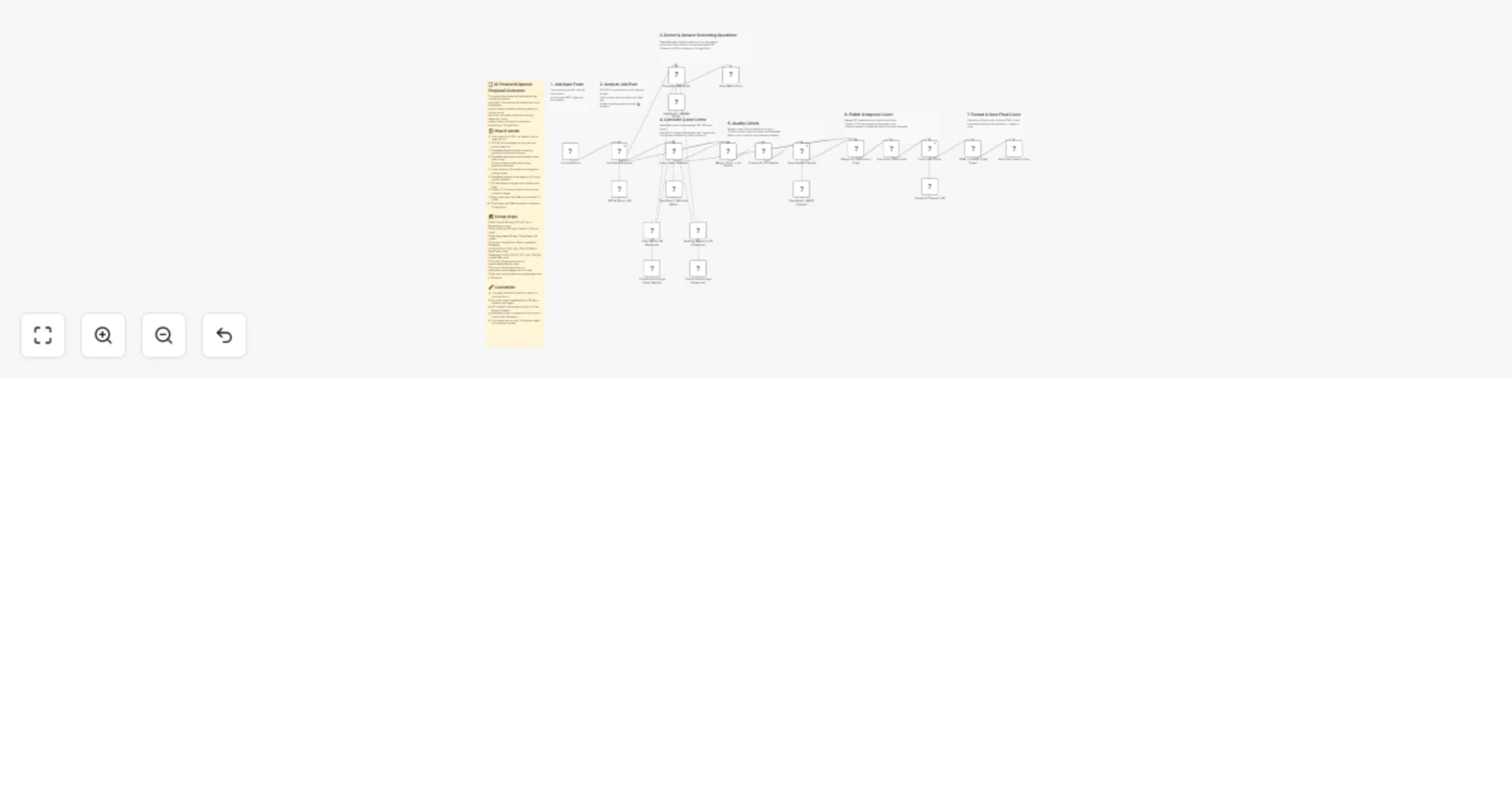
**AI-Powered Keyword Cannibalization Detection Workflow** **Overview** This is an advanced n8n automation workflow designed to detect and analyze keyword cannibalization issues across multiple client websites using Google Search Console data and artificial intelligence. The system provides real-time monitoring and comprehensive reporting to help SEO professionals identify and resolve internal competition between pages ranking for the same keywords. **Core Components** **1. Automated Monitoring System** - **Real-time trigger:** Monitors Google Sheets for keyword changes every minute - **Multi-client support:** Handles up to 4 different client websites simultaneously - **Intelligent routing:** Automatically directs each client's data through dedicated processing paths **2. Data Collection & Processing** - **GSC Integration:** Fetches 30 days of search performance data from Google Search Console API - **Comprehensive metrics:** Collects keyword rankings, page URLs, positions, clicks, impressions, and CTR - **Data transformation:** Groups raw API responses by keywords for structured analysis - **Cross-referencing:** Matches target keywords from Google Sheets with actual GSC performance data **3. AI Analysis Engine** - **GPT-4o powered:** Uses advanced AI to analyze keyword competition patterns - **Risk categorization:** Automatically classifies cannibalization risk as: - **High Risk:** 5+ pages competing for the same keyword - **Moderate Risk:** 3+ pages ranking in top 10 positions - **Low Risk:** 2 pages with one clearly dominating - **No Risk:** Single page ranking for the keyword - **Intelligent reasoning:** Provides detailed explanations for each risk assessment **4. Comprehensive Reporting** - **Automated output:** Saves analysis results back to Google Sheets - **Detailed insights:** Includes risk levels, reasoning, observations, and actionable remediation steps - **Performance tracking:** Complete keyword performance metrics for client reporting - **Status tracking:** Identifies which keywords are ranking vs. missing from search results

I
Incrementors
Market Research
24 Sep 2025
423
0
Workflow preview: Automate blog creation & publishing with Gemini, Ideogram AI and WordPress
Free advanced

Automate blog creation & publishing with Gemini, Ideogram AI and WordPress

## **Overview:** This n8n workflow automates the complete blog publishing process from topic research to WordPress publication. It researches topics, writes SEO-optimized content, generates images, publishes posts, and notifies teams—all automatically from Google Sheets input. ## **How It Works:** **Step 1: Client Management & Scheduling** - **Client Data Retrieval:** Scans master Google Sheet for clients with "Active" project status and "Automation" blog publishing setting - **Publishing Schedule Validation:** Checks if current day matches client's weekly frequency (Mon, Tue, Wed, Thu, Fri, Sat, Sun) or if set to "Daily" - **Content Source Access:** Connects to client-specific Google Sheet using stored document ID and sheet name **Step 2: Content Planning & Selection** - **Topic Filtering:** Retrieves rows where "Status for Approval" = "Approved" and "Live Link" = "Pending" - **Content Validation:** Ensures Focus Keyword field is populated before proceeding - **Single Topic Processing:** Selects first available topic to maintain quality and prevent API rate limits **Step 3: AI-Powered Research & Writing** - **Comprehensive Research:** Google Gemini analyzes search intent, competitor content, audience needs, trending subtopics, and LSI keywords - **Content Generation:** Creates 800-1000 word articles with natural keyword integration, internal linking, and conversational tone optimized for Indian investors - **Quality Assessment:** Evaluates content for human-like writing, conversational tone, readability, and engagement factors - **Content Optimization:** Automatically fixes grammar, punctuation, sentence flow, and readability issues while maintaining HTML structure **Step 4: Visual Content Creation** - **Image Prompt Generation:** OpenAI creates detailed prompts based on blog title and content for professional visuals - **Image Generation:** Ideogram AI produces 1248x832 resolution images with realistic styling and professional appearance - **Binary Processing:** Downloads and converts generated images to binary format for WordPress upload **Step 5: WordPress Publication** - **Media Upload:** Uploads generated image to WordPress media library with proper filename and headers - **Content Publishing:** Creates new WordPress post with title, optimized content, and embedded image - **Featured Image Assignment:** Sets uploaded image as post's featured thumbnail for proper display - **Category Assignment:** Automatically assigns posts to predefined category **Step 6: Tracking & Communication** - **Status Updates:** Updates Google Sheet with live blog URL in "Live Link" column using S.No. as identifier - **Team Notification:** Sends Discord message to designated channel with published blog link and review request - **Process Completion:** Triggers next iteration or workflow conclusion based on remaining topics ## **Setup Steps:** **Estimated Setup Time:** 45-60 minutes **Required API Credentials:** **1. Google Sheets API** - Service account with sheets access - OAuth2 credentials for client-specific sheets - Proper sharing permissions for all target sheets **2. Google Gemini API** - Active API key with sufficient quota - Access to Gemini Pro model for content generation - Rate limiting considerations for bulk processing **3. OpenAI API** - GPT-4 access for creative prompt generation - Sufficient token allocation for daily operations - Fallback handling for API unavailability **4. Ideogram AI API** - Premium account for quality image generation - API key with generation permissions - Understanding of rate limits and pricing **5. WordPress REST API** - Application passwords for each client site - Basic authentication setup with proper encoding - REST API enabled in WordPress settings - User permissions for post creation and media upload **6. Discord Bot API** - Bot token with message sending permissions - Channel ID for notifications - Guild access and proper bot roles ## **Master Sheet Configuration:** **Document Structure:** Create primary tracking sheet with columns - **Client Name:** Business identifier - **Project Status:** Active/Inactive/Paused - **Blog Publishing:** Automation/Manual/Disabled - **Website URL:** Full WordPress site URL with trailing slash - **Blog Posting Auth Code:** Base64 encoded username: password - **On Page Sheet:** Google Sheets document ID for content planning - **WeeklyFrequency:** Daily/Mon/Tue/Wed/Thu/Fri/Sat/Sun - **Discord Channel:** Channel ID for notifications ## **Content Planning Sheet Structure:** **Required Columns** (exact naming required): - **S.No.:** Unique identifier for tracking - **Focus Keyword:** Primary SEO keyword - **Content Topic** Article title/subject - **Target Page:** Internal linking target - **Words:** Target word count - **Brief URL:** Content brief reference - **Content URL:** Draft content location - **Status for Approval:** Pending/Approved/Rejected - **Live Link:** Published URL (auto-populated) ## **WordPress Configuration:** - **REST API Activation:** Ensure wp-json endpoint accessibility - **User Permissions:** Create dedicated user with Editor or Administrator role - **Application Passwords:** Generate secure passwords for API authentication - **Category Setup:** Create or identify category ID for automated posts - **Media Settings:** Configure upload permissions and file size limits - **Security:** Whitelist IP addresses if using security plugins ## **Discord Integration Setup:** - **Bot Creation:** Create application and bot in Discord Developer Portal - **Permissions:** Grant Send Messages, Embed Links, and Read Message History - **Channel Configuration:** Set up dedicated channel for blog notifications - **User Mentions:** Configure user ID for targeted notifications - **Message Templates:** Customize notification format and content ## **Workflow Features & Capabilities:** **Content Quality Standards:** - **SEO Optimization:** Natural keyword integration with LSI keywords and related terms - **Readability:** Conversational tone with short sentences and clear explanations - **Structure:** Proper HTML formatting with headings, lists, and internal links - **Length:** Consistent 800-1000 word count for optimal engagement - **Audience Targeting:** Content tailored for Indian investor audience with relevant examples **Image Generation Specifications:** - **Resolution:** 1248x832 pixels optimized for blog headers - **Style:** Realistic professional imagery with human subjects - **Design:** Clean layout with heading text placement (bottom or left side) - **Quality:** High-resolution output suitable for web publishing - **Branding:** Light beige to gradient backgrounds with golden overlay effects **Error Handling & Reliability:** - **Graceful Failures:** Workflow continues even if individual steps encounter errors - **API Rate Limits:** Built-in delays and retry mechanisms for external services - **Data Validation:** Checks for required fields before processing - **Backup Processes:** Alternative paths for critical failure points - **Logging:** Comprehensive tracking of successes and failures **Security & Access Control:** - **Credential Encryption:** All API keys stored securely in n8n vault - **Limited Permissions:** Service accounts with minimum required access - **Authentication:** Basic auth for WordPress with encoded credentials - **Data Privacy:** No sensitive information exposed in logs or outputs - **Access Logging:** Track all sheet modifications and blog publications ## **Troubleshooting:** **Common Issues:** - **API Rate Limits:** Check your API quotas and usage limits - **WordPress Authentication:** Verify your basic auth credentials are correct - **Sheet Access:** Ensure Google Sheets API has proper permissions - **Image Generation Fails:** Check Ideogram API key and quotas ## **Need Help?:** **For technical support or questions:** **Email:** [[email protected]](mailto:[email protected]) **Contact Form:** [https://www.incrementors.com/contact-us/](https://www.incrementors.com/contact-us/)

I
Incrementors
Content Creation
27 Aug 2025
889
0
Workflow preview: Sitemap page extractor: Discover, clean, and save website URLs to Google Sheets
Free advanced

Sitemap page extractor: Discover, clean, and save website URLs to Google Sheets

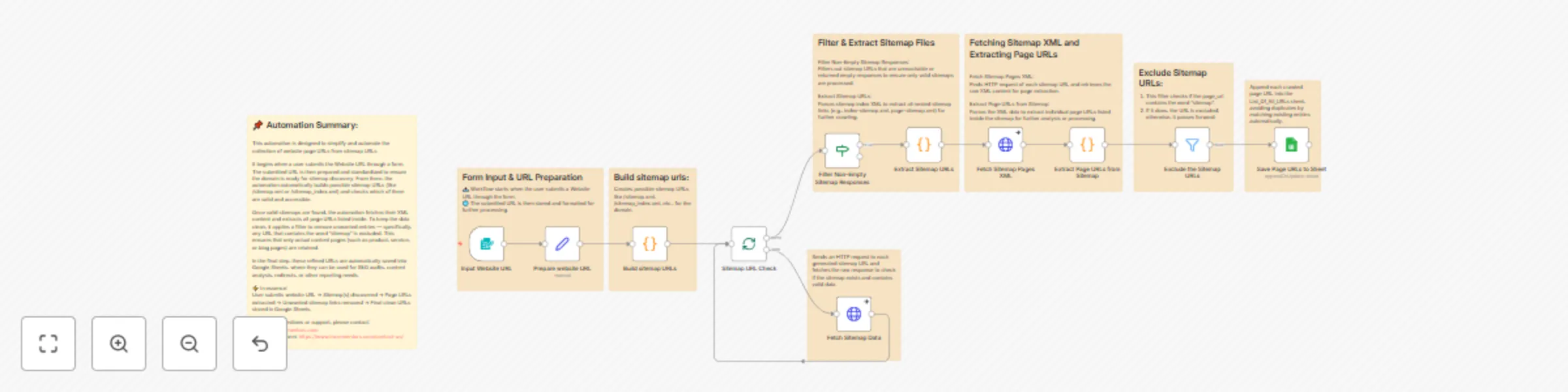
## **Description:** Automatically extracts all page URLs from website sitemaps, filters out unwanted sitemap links, and saves clean URLs to Google Sheets for SEO analysis and reporting. ## **How It Works:** This workflow automates the process of discovering and extracting all page URLs from a website's sitemap structure. Here's how it works step-by-step: **Step 1:** URL Input The workflow starts when you submit a website URL through a simple form interface. **Step 2:** Sitemap Discovery The system automatically generates and tests multiple possible sitemap URLs including /sitemap.xml, /sitemap_index.xml, /robots.txt, and other common variations. **Step 3:** Valid Sitemap Identification It sends HTTP requests to each potential sitemap URL and filters out empty or invalid responses, keeping only accessible sitemaps. **Step 4:** Nested Sitemap Processing For sitemap index files, the workflow extracts all nested sitemap URLs and processes each one individually to ensure complete coverage. **Step 5:** Page URL Extraction From each valid sitemap, it parses the XML content and extracts all individual page URLs using both XML <loc> tags and HTML links. **Step 6:** URL Filtering The system removes any URLs containing "sitemap" to ensure only actual content pages (like product, service, or blog pages) are retained. **Step 7:** Google Sheets Integration Finally, all clean page URLs are automatically saved to a Google Sheets document with duplicate prevention for easy analysis and reporting. ## **Setup Steps:** **Estimated Setup Time:** 10-15 minutes **1. Import the Workflow:** Import the provided JSON file into your n8n instance. **2. Configure Google Sheets Integration:** - Set up Google Sheets OAuth2 credentials in n8n - Create a new Google Sheet or use an existing one - Update the "Save Page URLs to Sheet" node with your Google Sheet URL - Ensure your sheet has a tab named "Your sheet tab name" with a column header "Column name" **3. Test the Workflow:** - Activate the workflow in n8n - Use the form trigger URL to submit a test website URL - Verify that URLs are being extracted and saved to your Google Sheet **4. Customize (Optional):** - Modify the sitemap URL patterns in the "Build sitemap URLs" node if needed - Adjust the filtering criteria in the "Exclude the Sitemap URLs" node - Update the Google Sheets column mapping as required ## **Important Notes:** - Ensure your Google Sheets credentials have proper read/write permissions - The workflow handles both XML sitemaps and robots.txt sitemap references - Duplicate URLs are automatically prevented when saving to Google Sheets - The workflow continues processing even if some sitemap URLs are inaccessible ## **Need Help?** For technical support or questions about this workflow: ✉️ [[email protected]](mailto:[email protected]) or fill out this form: [Contact Us](https://www.incrementors.com/contact-us/)

I
Incrementors
Market Research
23 Aug 2025
922
0
Workflow preview: Extract market cap data from Yahoo Finance with Bright Data & visualize in Telegram
Free intermediate

Extract market cap data from Yahoo Finance with Bright Data & visualize in Telegram

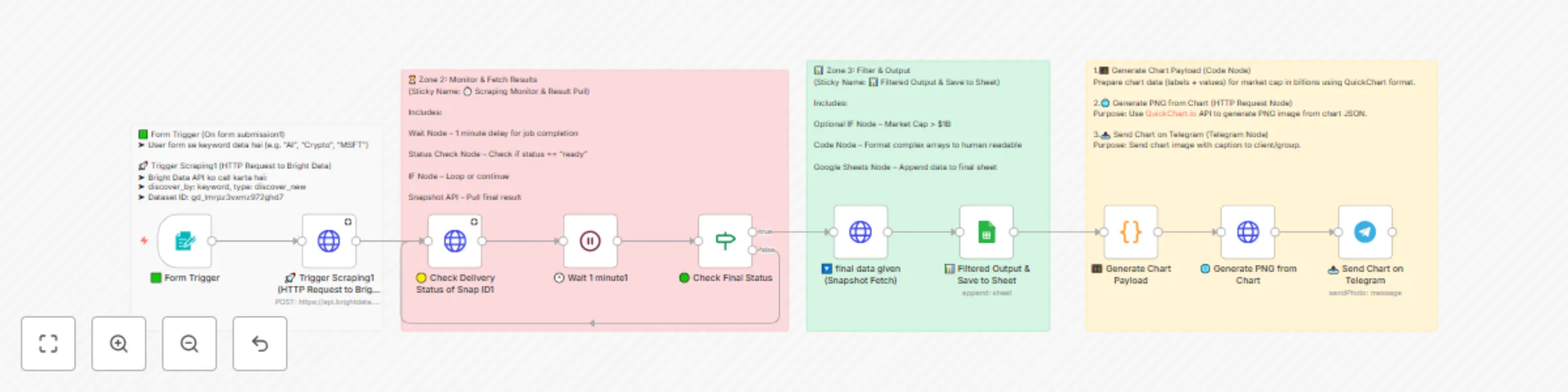
# Financial Insight Automation: Market Cap to Telegram via Bright Data ## 📊 Description An automated n8n workflow that scrapes financial data from Yahoo Finance using Bright Data, processes market cap information, generates visual charts, and sends comprehensive financial insights directly to Telegram for instant notifications. --- ## 🚀 How It Works This workflow operates through a simple three-zone process: ### 1. Data Input & Trigger User submits a keyword (e.g., "AI", "Crypto", "MSFT") through a form trigger that initiates the financial data collection process. ### 2. Data Scraping & Processing Bright Data API discovers and scrapes comprehensive financial data from Yahoo Finance, including market cap, stock prices, company profiles, and financial metrics. ### 3. Visualization & Delivery The system generates interactive market cap charts, saves data to Google Sheets for record-keeping, and sends visual insights to Telegram as PNG images. --- ## ⚡ Setup Steps > **⏱️ Estimated Setup Time: 15-20 minutes** ### Prerequisites - Active n8n instance (self-hosted or cloud) - Bright Data account with Yahoo Finance dataset access - Google account for Sheets integration - Telegram bot token and chat ID ### Step 1: Import the Workflow 1. Copy the provided JSON workflow code 2. In n8n: Go to **Workflows → + Add workflow → Import from JSON** 3. Paste the JSON content and click **Import** ### Step 2: Configure Bright Data Integration #### Set up Bright Data Credentials: 1. In n8n: Navigate to **Credentials → + Add credential → HTTP Header Auth** 2. Add Authorization header with value: `Bearer BRIGHT_DATA_API_KEY` 3. Replace `BRIGHT_DATA_API_KEY` with your actual API key 4. Test the connection to ensure it works properly > **Note:** The workflow uses dataset ID `gd_lmrpz3vxmz972ghd7` for Yahoo Finance data. Ensure you have access to this dataset in your Bright Data dashboard. ### Step 3: Set up Google Sheets Integration #### Create a Google Sheet: - Go to Google Sheets and create a new spreadsheet - Name it "Financial Data Tracker" or similar - Copy the Sheet ID from the URL #### Configure Google Sheets credentials: - In n8n: **Credentials → + Add credential → Google Sheets OAuth2 API** - Complete OAuth setup and test connection #### Update the workflow: - Open the "📊 Filtered Output & Save to Sheet" node - Replace `YOUR_SHEET_ID` with your actual Sheet ID - Select your Google Sheets credential ### Step 4: Configure Telegram Bot #### Set up Telegram Integration: 1. Create a Telegram bot using @BotFather 2. Get your bot token and chat ID 3. In n8n: **Credentials → + Add credential → Telegram API** 4. Enter your bot token 5. Update the "📤 Send Chart on Telegram" node with your chat ID 6. Replace `YOUR_TELEGRAM_CHAT_ID` with your actual chat ID ### Step 5: Test and Activate #### Test the workflow: - Use the form trigger with a test keyword (e.g., "AAPL") - Monitor the execution in n8n - Verify data appears in Google Sheets - Check for chart delivery on Telegram #### Activate the workflow: - Turn on the workflow using the toggle switch - The form trigger will be accessible via the provided webhook URL --- ## 📋 Key Features - 🔍 **Keyword-Based Discovery:** Search companies by keyword, ticker, or industry - 💰 **Comprehensive Financial Data:** Market cap, stock prices, earnings, and company profiles - 📊 **Visual Charts:** Automatic generation of market cap comparison charts - 📱 **Telegram Integration:** Instant delivery of insights to your mobile device - 💾 **Data Storage:** Automatic backup to Google Sheets for historical tracking - ⚡ **Real-time Processing:** Fast data retrieval and processing with Bright Data --- ## 📊 Output Data Points | Field | Description | Example | |-------|-------------|---------| | Company Name | Full company name | "Apple Inc." | | Stock Ticker | Trading symbol | "AAPL" | | Market Cap | Total market capitalization | "$2.89T" | | Current Price | Latest stock price | "$189.25" | | Exchange | Stock exchange | "NASDAQ" | | Sector | Business sector | "Technology" | | PE Ratio | Price to earnings ratio | "28.45" | | 52 Week Range | Annual high and low prices | "$164.08 - $199.62" | --- ## 🔧 Troubleshooting ### Common Issues #### Bright Data Connection Failed: - Verify your API key is correct and active - Check dataset permissions in Bright Data dashboard - Ensure you have sufficient credits #### Google Sheets Permission Denied: - Re-authenticate Google Sheets OAuth - Verify sheet sharing settings - Check if the Sheet ID is correct #### Telegram Not Receiving Messages: - Verify bot token and chat ID - Check if bot is added to the chat - Test Telegram credentials manually ### Performance Tips - Use specific keywords for better data accuracy - Monitor Bright Data usage to control costs - Set up error handling for failed requests - Consider rate limiting for high-volume usage --- ## 🎯 Use Cases - **Investment Research:** Quick financial analysis of companies and sectors - **Market Monitoring:** Track market cap changes and stock performance - **Competitive Analysis:** Compare financial metrics across companies - **Portfolio Management:** Monitor holdings and potential investments - **Financial Reporting:** Generate automated financial insights for teams --- ## 🔗 Additional Resources - [n8n Documentation](https://docs.n8n.io) - [Bright Data Datasets](https://brightdata.com/datasets) - [Google Sheets API](https://developers.google.com/sheets/api) - [Telegram Bot API](https://core.telegram.org/bots/api) --- For any questions or support, please contact: [[email protected]](mailto:[email protected]) or fill out this form: [https://www.incrementors.com/contact-us/](https://www.incrementors.com/contact-us/)

I
Incrementors
Crypto Trading
26 Jul 2025
1363
0
Workflow preview: Generate LinkedIn posts from Wikipedia with GPT-4 summaries and Ideogram images
Free advanced

Generate LinkedIn posts from Wikipedia with GPT-4 summaries and Ideogram images

# Wikipedia to LinkedIn AI Content Poster with Image via Bright Data ## 📋 Overview **Workflow Description:** Automatically scrapes Wikipedia articles, generates AI-powered LinkedIn summaries with custom images, and posts professional content to LinkedIn using Bright Data extraction and intelligent content optimization. --- ## 🚀 How It Works The workflow follows these simple steps: 1. **Article Input:** User submits a Wikipedia article name through a simple form interface 2. **Data Extraction:** Bright Data scrapes the Wikipedia article content including title and full text 3. **AI Summarization:** Advanced AI models (OpenAI GPT-4 or Claude) create professional LinkedIn-optimized summaries under 2000 characters 4. **Image Generation:** Ideogram AI creates relevant visual content based on the article summary 5. **LinkedIn Publishing:** Automatically posts the summary with generated image to your LinkedIn profile 6. **URL Generation:** Provides a shareable LinkedIn post URL for easy access and sharing --- ## ⚡ Setup Requirements **Estimated Setup Time: 10-15 minutes** ### Prerequisites - n8n instance (self-hosted or cloud) - Bright Data account with Wikipedia dataset access - OpenAI API account (for GPT-4 access) - Anthropic API account (for Claude access - optional) - Ideogram AI account (for image generation) - LinkedIn account with API access --- ## 🔧 Configuration Steps ### Step 1: Import Workflow 1. Copy the provided JSON workflow file 2. In n8n: Navigate to `Workflows → + Add workflow → Import from JSON` 3. Paste the JSON content and click **Import** 4. Save the workflow with a descriptive name ### Step 2: Configure API Credentials #### 🌐 Bright Data Setup - Go to `Credentials → + Add credential → Bright Data API` - Enter your Bright Data API token - Replace `BRIGHT_DATA_API_KEY` in all HTTP request nodes - Test the connection to ensure access #### 🤖 OpenAI Setup - Configure OpenAI credentials in n8n - Ensure GPT-4 model access - Link credentials to the "OpenAI Chat Model" node - Test API connectivity #### 🎨 Ideogram AI Setup - Obtain Ideogram AI API key - Replace `IDEOGRAM_API_KEY` in the "Image Generate" node - Configure image generation parameters - Test image generation functionality #### 💼 LinkedIn Setup - Set up LinkedIn OAuth2 credentials in n8n - Replace `LINKEDIN_PROFILE_ID` with your profile ID - Configure posting permissions - Test posting functionality ### Step 3: Configure Workflow Parameters **Update Node Settings:** - **Form Trigger:** Customize the form title and field labels as needed - **AI Agent:** Adjust the system message for different content styles - **Image Generate:** Modify image resolution and rendering speed settings - **LinkedIn Post:** Configure additional fields like hashtags or mentions ### Step 4: Test the Workflow **Testing Recommendations:** - Start with a simple Wikipedia article (e.g., "Artificial Intelligence") - Monitor each node execution for errors - Verify the generated summary quality - Check image generation and LinkedIn posting - Confirm the final LinkedIn URL generation --- ## 🎯 Usage Instructions ### Running the Workflow 1. **Access the Form:** Use the generated webhook URL to access the submission form 2. **Enter Article Name:** Type the exact Wikipedia article title you want to process 3. **Submit Request:** Click submit to start the automated process 4. **Monitor Progress:** Check the n8n execution log for real-time progress 5. **View Results:** The workflow will return a LinkedIn post URL upon completion ### Expected Output #### 📝 Content Summary - Professional LinkedIn-optimized text - Under 2000 characters - Engaging and informative tone - Bullet points for readability #### 🖼️ Generated Image - High-quality AI-generated visual - 1280x704 resolution - Relevant to article content - Professional appearance #### 🔗 LinkedIn Post - Published to your LinkedIn profile - Includes both text and image - Shareable public URL - Professional formatting --- ## 🛠️ Customization Options ### Content Personalization - **AI Prompts:** Modify the system message in the AI Agent node to change writing style - **Character Limits:** Adjust summary length requirements - **Tone Settings:** Change from professional to casual or technical - **Hashtag Integration:** Add relevant hashtags to LinkedIn posts ### Visual Customization - **Image Style:** Modify Ideogram prompts for different visual styles - **Resolution:** Change image dimensions based on LinkedIn requirements - **Rendering Speed:** Balance between speed and quality - **Brand Elements:** Include company logos or brand colors --- ## 🔍 Troubleshooting ### Common Issues & Solutions #### ⚠️ Bright Data Connection Issues - Verify API key is correctly configured - Check dataset access permissions - Ensure sufficient API credits - Validate Wikipedia article exists #### 🤖 AI Processing Errors - Check OpenAI API quotas and limits - Verify model access permissions - Review input text length and format - Test with simpler article content #### 🖼️ Image Generation Failures - Validate Ideogram API key - Check image prompt content - Verify API usage limits - Test with shorter prompts #### 💼 LinkedIn Posting Issues - Re-authenticate LinkedIn OAuth - Check posting permissions - Verify profile ID configuration - Test with shorter content --- ## ⚡ Performance & Limitations ### Expected Processing Times - **Wikipedia Scraping:** 30-60 seconds - **AI Summarization:** 15-30 seconds - **Image Generation:** 45-90 seconds - **LinkedIn Posting:** 10-15 seconds - **Total Workflow:** 2-4 minutes per article ### Usage Recommendations **Best Practices:** - Use well-known Wikipedia articles for better results - Monitor API usage across all services - Test content quality before bulk processing - Respect LinkedIn posting frequency limits - Keep backup of successful configurations --- ## 📊 Use Cases ### 📚 Educational Content Create engaging educational posts from Wikipedia articles on science, history, or technology topics. ### 🏢 Thought Leadership Transform complex topics into accessible LinkedIn content to establish industry expertise. ### 📰 Content Marketing Generate regular, informative posts to maintain active LinkedIn presence with minimal effort. ### 🔬 Research Sharing Quickly summarize and share research findings or scientific discoveries with your network. --- ## 🎉 Conclusion This workflow provides a powerful, automated solution for creating professional LinkedIn content from Wikipedia articles. By combining web scraping, AI summarization, image generation, and social media posting, you can maintain an active and engaging LinkedIn presence with minimal manual effort. The workflow is designed to be flexible and customizable, allowing you to adapt the content style, visual elements, and posting frequency to match your professional brand and audience preferences. For any questions or support, please contact: [[email protected]](mailto:[email protected]) or fill out this form: [https://www.incrementors.com/contact-us/](https://www.incrementors.com/contact-us/)

I
Incrementors
Social Media
25 Jul 2025
517
0
Workflow preview: Multi-platform price finder: Scraping prices with Bright Data, Claude AI & Telegram
Free advanced

Multi-platform price finder: Scraping prices with Bright Data, Claude AI & Telegram

*This workflow contains community nodes that are only compatible with the self-hosted version of n8n.* # 📦 Multi-Platform Price Finder: Scraping Prices with Bright Data & Telegram An intelligent n8n automation that fetches real-time product prices from marketplaces like Amazon, Wayfair, Lowe's, and more using Bright Data's dataset, and sends promotional messages via Telegram using AI—perfect for price tracking, deal alerts, and affiliate monetization. --- ## 📋 Overview This automation tracks product prices across top e-commerce platforms using Bright Data and sends out alerts via Telegram based on the best available deals. The workflow is designed for affiliate marketers, resellers, and deal-hunting platforms who want real-time competitive pricing. --- ## ✨ Key Features - 🔎 **Multi-Platform Scraping**: Supports Amazon, Wayfair, Lowe's, and more - ⚡ **Bright Data Integration**: Access to structured product snapshots - 📢 **AI-Powered Alerts**: Generates Telegram-ready promo messages using AI - 🧠 **Lowest Price Logic**: Filters and compares products across sources - 📈 **Data Merge & Processing**: Combines multiple sources into a single stream - 🔄 **Keyword-Driven Search**: Searches using dynamic keywords from form input - 📦 **Scalable Design**: Built for multiple platform processing simultaneously - 🧼 **Clean Output**: Strips unnecessary formatting before publishing --- ## 🎯 What This Workflow Does ### **Input** - **Search Keywords**: User-defined keyword(s) from a form trigger - **Platform Sources**: Wayfair, Lowe's, Amazon, etc. - **Bright Data API Key**: Needed for authenticated scraping ### **Processing Steps** 1. **User Input** via n8n form trigger (keyword-based) 2. **Bright Data API Trigger** for each marketplace 3. **Status Polling**: Wait until scraping snapshot is `ready` 4. **Data Retrieval**: Fetches JSON results from Bright Data snapshot 5. **Data Cleaning & Normalization**: Price, title, and URL are extracted 6. **Merging Products** from all platforms 7. **Find Lowest Price Product** using custom JS logic 8. **AI Prompt Generation** via Claude/Anthropic 9. **Telegram Formatting** and alert message creation ### **Output** - 🛍️ Product Title - 💰 Final Price - 🔗 Product URL - ✉️ Promotional Message (for Telegram/notifications) --- ## 🚀 Setup Instructions ### **Step 1: Import Workflow** 1. Open n8n > Workflows > **+ Add Workflow** 2. Import the provided JSON file ### **Step 2: Configure Bright Data** - Add credentials under **Credentials → Bright Data API** - Set the appropriate `dataset_id` for each platform - Ensure dataset includes `title`, `price`, and `url` fields ### **Step 3: Enable Keyword Trigger** - Use the built-in `Form Trigger` node - Input: Single keyword field (SearchHere) ### **Step 4: Telegram or AI Integration** - Modify prompt node for your language or tone - Add Telegram webhook or integration where needed --- ## 📖 Usage Guide ### Adding Keywords - Trigger the form with a product keyword like `iPhone 15` - Wait for workflow to fetch best deals and generate Telegram message ### Understanding AI-Powered Output - AI creates a short, engaging message like: > "🔥 Deal Alert: Get the iPhone 15 for just ₹74,999! Limited stock—Check it out: [link]" ### Debugging Output - Output node shows cleaned JSON with `title`, `price`, `url`, and `message` - If no valid results, debug message is returned with sample structure info --- ## 🔧 Customization Options ### Add More Marketplaces - Clone any HTTP Request node (e.g., for Wayfair) - Update `dataset_id` and required output fields ### Modify Price Logic - Update the `Code1` node to change comparison (e.g., highest price instead of lowest) ### Change Message Format - Edit the `AI Agent` prompt to customize tone/language - Add emoji, CTAs, or markdown formatting as needed --- ## 🧪 Test & Activation - Add a few sample keywords via form trigger - Run manually or set as a webhook for external app input - Check final AI-generated message in output node --- ## 🚨 Troubleshooting | Issue | Solution | |-------|----------| | **No Data Returned** | Ensure keyword matches real products | | **Status Not 'Ready'** | Bright Data delay; add `Wait` nodes | | **Invalid API Key** | Check Bright Data credentials | | **AI Errors** | Adjust prompt or validate input fields | --- ## 📊 Use Cases - 💰 **Affiliate Campaigns**: Show best deals across platforms - 🛒 **Deal Pages**: Post live offers with product links - 🧠 **Competitor Analysis**: Track cross-platform pricing - 🔔 **Alert Bots**: Send real-time alerts to Telegram or Slack --- ## ✅ Quick Setup Checklist - [x] Bright Data API credentials configured - [x] n8n form trigger enabled - [x] Claude or AI model connected - [x] All HTTP requests working - [x] AI message formatting verified --- ## 🌐 Example Output ```json { "title": "Apple iPhone 15 Pro Max", "price": 1199, "url": "https://amazon.com/iphone-15", "message": "🔥 Grab the Apple iPhone 15 Pro Max for just $1199! Limited deal—Check it out: https://amazon.com/iphone-15" } ``` --- ## 📬For any questions or support, please contact: 📧 <[email protected]> or fill out this form: [https://www.incrementors.com/contact-us/](https://www.incrementors.com/contact-us/)

I
Incrementors
Market Research
25 Jul 2025
866
0
Workflow preview: Scrape Twitter profiles with Bright Data API and export to Google Sheets
Free advanced

Scrape Twitter profiles with Bright Data API and export to Google Sheets

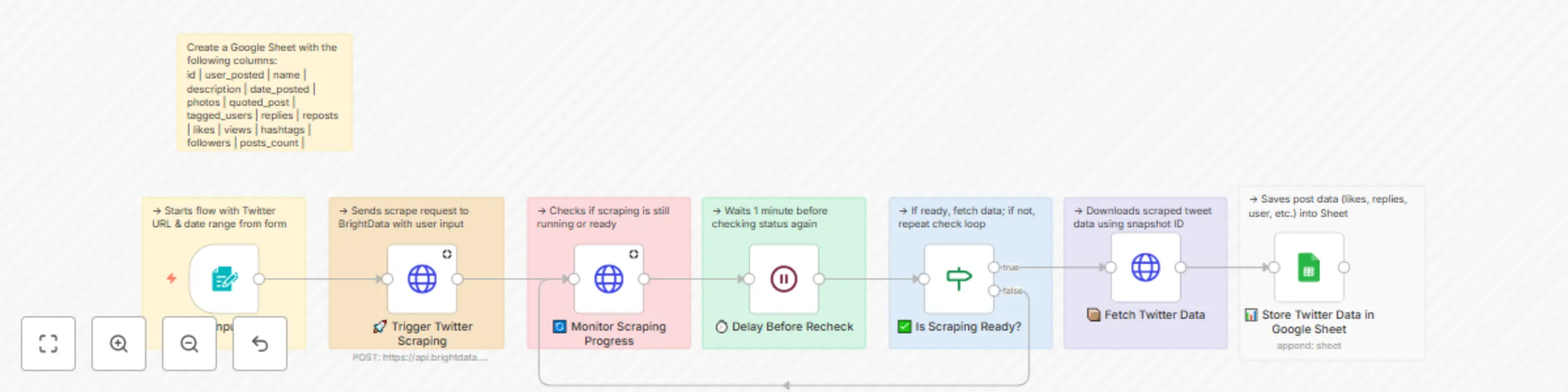
# 🐦 Twitter Profile Scraper via Bright Data API with Google Sheets Output A comprehensive n8n automation that scrapes Twitter profile data using Bright Data's Twitter dataset and stores comprehensive tweet analytics, user metrics, and engagement data directly into Google Sheets. ## 📋 Overview This workflow provides an automated Twitter data collection solution that extracts profile information and tweet data from specified Twitter accounts within custom date ranges. Perfect for social media analytics, competitor research, brand monitoring, and content strategy analysis. ## ✨ Key Features 🔗 **Form-Based Input**: Easy-to-use form for Twitter URL and date range selection 🐦 **Twitter Integration**: Uses Bright Data's Twitter dataset for accurate data extraction 📊 **Comprehensive Data**: Captures tweets, engagement metrics, and profile information 📈 **Google Sheets Storage**: Automatically stores all data in organized spreadsheet format 🔄 **Progress Monitoring**: Real-time status tracking with automatic retry mechanisms ⚡ **Fast & Reliable**: Professional scraping with built-in error handling 📅 **Date Range Control**: Flexible time period selection for targeted data collection 🎯 **Customizable Fields**: Advanced data field selection and mapping ## 🎯 What This Workflow Does ### Input - **Twitter Profile URL**: Target Twitter account for data scraping - **Date Range**: Start and end dates for tweet collection period - **Custom Fields**: Configurable data points to extract ### Processing 1. **Form Trigger**: Collects Twitter URL and date range from user input 2. **API Request**: Sends scraping request to Bright Data with specified parameters 3. **Progress Monitoring**: Continuously checks scraping job status until completion 4. **Data Retrieval**: Downloads complete dataset when scraping is finished 5. **Data Processing**: Formats and structures extracted information 6. **Sheet Integration**: Automatically populates Google Sheets with organized data ### Output Data Points | Field | Description | Example | |-------|-------------|---------| | user_posted | Username who posted the tweet | @elonmusk | | name | Display name of the user | Elon Musk | | description | Tweet content/text | "Exciting updates coming soon..." | | date_posted | When the tweet was posted | 2025-01-15T10:30:00Z | | likes | Number of likes on the tweet | 1,234 | | reposts | Number of retweets | 567 | | replies | Number of replies | 89 | | views | Total view count | 12,345 | | followers | User's follower count | 50M | | following | Users they follow | 123 | | is_verified | Verification status | true/false | | hashtags | Hashtags used in tweet | #AI #Technology | | photos | Image URLs in tweet | image1.jpg, image2.jpg | | videos | Video content URLs | video1.mp4 | | user_id | Unique user identifier | 12345678 | | timestamp | Data extraction timestamp | 2025-01-15T11:00:00Z | ## 🚀 Setup Instructions ### Prerequisites - n8n instance (self-hosted or cloud) - Bright Data account with Twitter dataset access - Google account with Sheets access - Valid Twitter profile URLs to scrape - 10-15 minutes for setup ### Step 1: Import the Workflow 1. Copy the JSON workflow code from the provided file 2. In n8n: Workflows → + Add workflow → Import from JSON 3. Paste JSON and click Import ### Step 2: Configure Bright Data 1. Set up Bright Data credentials: - In n8n: Credentials → + Add credential → HTTP Header Auth - Enter your Bright Data API credentials - Test the connection 2. Configure dataset: - Ensure you have access to Twitter dataset (`gd_lwxkxvnf1cynvib9co`) - Verify dataset permissions in Bright Data dashboard ### Step 3: Configure Google Sheets Integration 1. Create a Google Sheet: - Go to Google Sheets - Create a new spreadsheet named "Twitter Data" or similar - Copy the Sheet ID from URL: `https://docs.google.com/spreadsheets/d/SHEET_ID_HERE/edit` 2. Set up Google Sheets credentials: - In n8n: Credentials → + Add credential → Google Sheets OAuth2 API - Complete OAuth setup and test connection 3. Prepare your data sheet with columns: - Use the column headers from the data points table above - The workflow will automatically populate these fields ### Step 4: Update Workflow Settings 1. Update Bright Data nodes: - Open "🚀 Trigger Twitter Scraping" node - Replace `BRIGHT_DATA_API_KEY` with your actual API token - Verify dataset ID is correct 2. Update Google Sheets node: - Open "📊 Store Twitter Data in Google Sheet" node - Replace `YOUR_GOOGLE_SHEET_ID` with your Sheet ID - Select your Google Sheets credential - Choose the correct sheet/tab name ### Step 5: Test & Activate 1. Add test data: - Use the form trigger to input a Twitter profile URL - Set a small date range for testing (e.g., last 7 days) 2. Test the workflow: - Submit the form to trigger the workflow - Monitor progress in n8n execution logs - Verify data appears in Google Sheet - Check all expected columns are populated ## 📖 Usage Guide ### Running the Workflow 1. Access the workflow form trigger URL (available when workflow is active) 2. Enter the Twitter profile URL you want to scrape 3. Set the start and end dates for tweet collection 4. Submit the form to initiate scraping 5. Monitor progress - the workflow will automatically check status every minute 6. Once complete, data will appear in your Google Sheet ### Understanding the Data Your Google Sheet will show: - **Real-time tweet data** for the specified date range - **User engagement metrics** (likes, replies, retweets, views) - **Profile information** (followers, following, verification status) - **Content details** (hashtags, media URLs, quoted tweets) - **Timestamps** for each tweet and data extraction ### Customizing Date Ranges - **Recent data**: Use last 7-30 days for current activity analysis - **Historical analysis**: Select specific months or quarters for trend analysis - **Event tracking**: Focus on specific date ranges around events or campaigns - **Comparative studies**: Use consistent time periods across different profiles ## 🔧 Customization Options ### Modifying Data Fields Edit the `custom_output_fields` array in the "🚀 Trigger Twitter Scraping" node to add or remove data points: ```json "custom_output_fields": [ "id", "user_posted", "name", "description", "date_posted", "likes", "reposts", "replies", "views", "hashtags", "followers", "is_verified" ] ``` ### Changing Google Sheet Structure Modify the column mapping in the "📊 Store Twitter Data in Google Sheet" node to match your preferred sheet layout and add custom formulas or calculations. ### Adding Multiple Recipients To process multiple Twitter profiles: 1. Modify the form to accept multiple URLs 2. Add a loop node to process each URL separately 3. Implement delays between requests to respect rate limits ## 🚨 Troubleshooting ### Common Issues & Solutions 1. **"Bright Data connection failed"** - **Cause**: Invalid API credentials or dataset access - **Solution**: Verify credentials in Bright Data dashboard, check dataset permissions 2. **"No data extracted"** - **Cause**: Invalid Twitter URLs or private/protected accounts - **Solution**: Verify URLs are valid public Twitter profiles, test with different accounts 3. **"Google Sheets permission denied"** - **Cause**: Incorrect credentials or sheet permissions - **Solution**: Re-authenticate Google Sheets, check sheet sharing settings 4. **"Workflow timeout"** - **Cause**: Large date ranges or high-volume accounts - **Solution**: Use smaller date ranges, implement pagination for high-volume accounts 5. **"Progress monitoring stuck"** - **Cause**: Scraping job failed or API issues - **Solution**: Check Bright Data dashboard for job status, restart workflow if needed ### Advanced Troubleshooting - Check execution logs in n8n for detailed error messages - Test individual nodes by running them separately - Verify data formats and ensure consistent field mapping - Monitor rate limits if scraping multiple profiles consecutively - Add error handling and implement retry logic for robust operation ## 📊 Use Cases & Examples ### 1. Social Media Analytics **Goal**: Track engagement metrics and content performance - Monitor tweet engagement rates over time - Analyze hashtag effectiveness and reach - Track follower growth and audience interaction - Generate weekly/monthly performance reports ### 2. Competitor Research **Goal**: Monitor competitor social media activity - Track competitor posting frequency and timing - Analyze competitor content themes and strategies - Monitor competitor engagement and audience response - Identify trending topics and hashtags in your industry ### 3. Brand Monitoring **Goal**: Track brand mentions and sentiment analysis - Monitor specific Twitter accounts for brand mentions - Track hashtag campaigns and user-generated content - Analyze sentiment trends and audience feedback - Identify influencers and brand advocates ### 4. Content Strategy Development **Goal**: Analyze successful content patterns - Identify high-performing tweet formats and topics - Track optimal posting times and frequencies - Analyze hashtag performance and reach - Study audience engagement patterns ### 5. Market Research **Goal**: Collect social media data for market analysis - Gather consumer opinions and feedback - Track industry trends and discussions - Monitor product launches and market reactions - Support product development with social insights ## ⚙ Advanced Configuration ### Batch Processing Multiple Profiles To monitor multiple Twitter accounts efficiently: 1. Create a master sheet with profile URLs and date ranges 2. Add a loop node to process each profile separately 3. Implement delays between requests to respect rate limits 4. Use separate sheets or tabs for different profiles ### Adding Data Analysis Enhance the workflow with analytical capabilities: 1. Create additional sheets for processed data and insights 2. Add formulas to calculate engagement rates and trends 3. Implement data visualization with charts and graphs 4. Generate automated reports and summaries ### Integration with Business Tools Connect the workflow to your existing systems: - **CRM Integration**: Update customer records with social media data - **Slack Notifications**: Send alerts when data collection is complete - **Database Storage**: Store data in PostgreSQL/MySQL for advanced analysis - **BI Tools**: Connect to Tableau/Power BI for comprehensive visualization ## 📈 Performance & Limits ### Expected Performance - **Single profile**: 30 seconds to 5 minutes (depending on date range) - **Data accuracy**: 95%+ for public Twitter profiles - **Success rate**: 90%+ for accessible accounts - **Daily capacity**: 10-50 profiles (depends on rate limits and data volume) ### Resource Usage - **Memory**: ~200MB per execution - **Storage**: Minimal (data stored in Google Sheets) - **API calls**: 1 Bright Data call + multiple Google Sheets calls per profile - **Bandwidth**: ~5-10MB per profile scraped - **Execution time**: 2-10 minutes for typical date ranges ### Scaling Considerations - **Rate limiting**: Add delays for high-volume scraping - **Error handling**: Implement retry logic for failed requests - **Data validation**: Add checks for malformed or missing data - **Monitoring**: Track success/failure rates over time - **Cost optimization**: Monitor API usage to control costs ## 🤝 Support & Community ### Getting Help - **n8n Community Forum**: community.n8n.io - **Documentation**: docs.n8n.io - **Bright Data Support**: Contact through your dashboard - **GitHub Issues**: Report bugs and feature requests ### Contributing - Share improvements with the community - Report issues and suggest enhancements - Create variations for specific use cases - Document best practices and lessons learned ## 📋 Quick Setup Checklist ### Before You Start ☐ n8n instance running (self-hosted or cloud) ☐ Bright Data account with Twitter dataset access ☐ Google account with Sheets access ☐ Valid Twitter profile URLs ready for scraping ☐ 10-15 minutes available for setup ### Setup Steps ☐ **Import Workflow** - Copy JSON and import to n8n ☐ **Configure Bright Data** - Set up API credentials and test ☐ **Create Google Sheet** - New sheet with proper column structure ☐ **Set up Google Sheets credentials** - OAuth setup and test ☐ **Update workflow settings** - Replace API keys and sheet IDs ☐ **Test with sample data** - Add 1 Twitter URL and small date range ☐ **Verify data flow** - Check data appears in Google Sheet correctly ☐ **Activate workflow** - Enable form trigger for production use ## Ready to Use! 🎉 **Your workflow URL**: Access form trigger when workflow is active 🎯 **Happy Twitter Scraping!** This workflow provides a solid foundation for automated Twitter data collection. Customize it to fit your specific social media analytics and research needs. For any questions or support, please contact: [[email protected]](mailto:[email protected]) or fill out this form: [https://www.incrementors.com/contact-us/](https://www.incrementors.com/contact-us/)

I
Incrementors
Market Research
25 Jul 2025
560
0
Workflow preview: Yelp business scraper by URL with Bright Data API and Google Sheets
Free intermediate

Yelp business scraper by URL with Bright Data API and Google Sheets

# Yelp Business Scraper by URL via Bright Data API with Google Sheets Storage ## Overview This n8n workflow automates the process of scraping comprehensive business information from Yelp using individual business URLs. It integrates with Bright Data for professional web scraping and Google Sheets for centralized data storage, providing detailed business intelligence for market research, competitor analysis, and lead generation. ## Workflow Components ### 1. 📥 **Form Trigger** - **Type**: Form Trigger - **Purpose**: Initiates the workflow with user-submitted Yelp business URL - **Input Fields**: - URL (Yelp business page URL) - **Function**: Captures target business URL to start the scraping process ### 2. 🔍 **Trigger Bright Data Scrape** - **Type**: HTTP Request (POST) - **Purpose**: Sends scraping request to Bright Data API for Yelp business data - **Endpoint**: `https://api.brightdata.com/datasets/v3/trigger` - **Parameters**: - Dataset ID: `gd_lgugwl0519h1p14rwk` - Include errors: true - Limit multiple results: 5 - Limit per input: 20 - **Function**: Initiates comprehensive business data extraction from Yelp ### 3. 📡 **Monitor Snapshot Status** - **Type**: HTTP Request (GET) - **Purpose**: Monitors the progress of the Yelp scraping job - **Endpoint**: `https://api.brightdata.com/datasets/v3/progress/{snapshot_id}` - **Function**: Checks if the business data scraping is complete ### 4. ⏳ **Wait 30 Sec for Snapshot** - **Type**: Wait Node - **Purpose**: Implements intelligent polling mechanism - **Duration**: 30 seconds - **Function**: Pauses workflow before rechecking scraping status to optimize API usage ### 5. 🔁 **Retry Until Ready** - **Type**: IF Condition - **Purpose**: Evaluates scraping completion status - **Condition**: `status === "ready"` - **Logic**: - True: Proceeds to data retrieval - False: Loops back to status monitoring with wait ### 6. 📥 **Fetch Scraped Business Data** - **Type**: HTTP Request (GET) - **Purpose**: Retrieves the final scraped business information - **Endpoint**: `https://api.brightdata.com/datasets/v3/snapshot/{snapshot_id}` - **Format**: JSON - **Function**: Downloads completed Yelp business data with comprehensive details ### 7. 📊 **Store to Google Sheet** - **Type**: Google Sheets Node - **Purpose**: Stores scraped business data for analysis and storage - **Operation**: Append rows - **Target**: "Yelp scraper data by URL" sheet - **Data Mapping**: - Business Name, Overall Rating, Reviews Count - Business URL, Images/Videos URLs - Additional business metadata fields ## Workflow Flow ``` Form Input → Trigger Scrape → Monitor Status → Wait 30s → Check Ready ↑ ↓ └─── Loop ─────┘ ↓ Fetch Data → Store to Sheet ``` ## Configuration Requirements ### API Keys & Credentials - **Bright Data API Key**: Required for Yelp business scraping - **Google Sheets OAuth2**: For data storage and export access - **n8n Form Webhook**: For user input collection ### Setup Parameters - **Google Sheet ID**: Target spreadsheet identifier - **Dataset ID**: `gd_lgugwl0519h1p14rwk` (Yelp business scraper) - **Form Webhook ID**: User input form identifier - **Google Sheets Credential ID**: OAuth2 authentication ## Key Features ### **Comprehensive Business Data Extraction** - Complete business profile information - Customer ratings and review counts - Contact details and business hours - Photo and video content URLs - Location and category information ### **Intelligent Status Monitoring** - Real-time scraping progress tracking - Automatic retry mechanisms with 30-second intervals - Status validation before data retrieval - Error handling and timeout management ### **Centralized Data Storage** - Automatic Google Sheets export - Organized business data format - Historical scraping records - Easy sharing and collaboration ### **URL-Based Processing** - Direct Yelp business URL input - Single business deep-dive analysis - Flexible input through web form - Real-time workflow triggering ## Use Cases ### **Market Research** - Competitor business analysis - Local market intelligence gathering - Industry benchmark establishment - Service offering comparison ### **Lead Generation** - Business contact information extraction - Potential client identification - Market opportunity assessment - Sales prospect development ### **Business Intelligence** - Customer sentiment analysis through ratings - Competitor performance monitoring - Market positioning research - Brand reputation tracking ### **Location Analysis** - Geographic business distribution - Local competition assessment - Market saturation evaluation - Expansion opportunity identification ## Data Output Fields | Field | Description | Example | |-------|-------------|---------| | Name | Business name | "Joe's Pizza Restaurant" | | Overall Rating | Average customer rating | "4.5" | | Reviews Count | Total number of reviews | "247" | | URL | Original Yelp business URL | "https://www.yelp.com/biz/joes-pizza..." | | Images/Videos URLs | Media content links | "https://s3-media1.fl.yelpcdn.com/..." | ## Technical Notes - **Polling Interval**: 30-second status checks for optimal API usage - **Result Limiting**: Maximum 20 businesses per input, 5 multiple results - **Data Format**: JSON with structured field mapping - **Error Handling**: Comprehensive error tracking in all API requests - **Retry Logic**: Automatic status rechecking until completion - **Form Input**: Single URL field with validation - **Storage Format**: Structured Google Sheets with predefined columns ## Setup Instructions ### Step 1: Import Workflow 1. Copy the JSON workflow configuration 2. Import into n8n: **Workflows** → **Import from JSON** 3. Paste configuration and save ### Step 2: Configure Bright Data 1. **Set up credentials:** - Navigate to **Credentials** → **Add Bright Data API** - Enter your Bright Data API key - Test connection 2. **Update API key references:** - Replace `BRIGHT_DATA_API_KEY` in all HTTP request nodes - Verify dataset access for `gd_lgugwl0519h1p14rwk` ### Step 3: Configure Google Sheets 1. **Create target spreadsheet:** - Create new Google Sheet named "Yelp Business Data" or similar - Copy the Sheet ID from URL 2. **Set up OAuth2 credentials:** - Add **Google Sheets OAuth2** credential in n8n - Complete authentication process 3. **Update workflow references:** - Replace `YOUR_GOOGLE_SHEET_ID` with actual Sheet ID - Update `YOUR_GOOGLE_SHEETS_CREDENTIAL_ID` with credential reference ### Step 4: Test and Activate 1. **Test with sample URL:** - Use a known Yelp business URL - Monitor execution progress - Verify data appears in Google Sheet 2. **Activate workflow:** - Toggle workflow to "Active" - Share form URL with users ## Sample Business Data The workflow captures comprehensive business information including: - **Basic Information**: Name, category, location - **Performance Metrics**: Ratings, review counts, popularity - **Contact Details**: Phone, website, address - **Visual Content**: Photos, videos, gallery URLs - **Operational Data**: Hours, services, amenities - **Customer Feedback**: Review summaries, sentiment indicators ## Advanced Configuration ### **Batch Processing** Modify the input to accept multiple URLs: ```json [ {"url": "https://www.yelp.com/biz/business-1"}, {"url": "https://www.yelp.com/biz/business-2"}, {"url": "https://www.yelp.com/biz/business-3"} ] ``` ### **Enhanced Data Fields** Add more extraction fields by updating the dataset configuration: - Business hours and schedule - Menu items and pricing - Customer photos and reviews - Special offers and promotions ### **Notification Integration** Add alert mechanisms: - Email notifications for completed scrapes - Slack messages for team updates - Webhook triggers for external systems ## Error Handling ### **Common Issues** - **Invalid URL**: Ensure URL is a valid Yelp business page - **Rate Limiting**: Bright Data API usage limits exceeded - **Authentication**: Google Sheets or Bright Data credential issues - **Data Format**: Unexpected response structure from Yelp ### **Troubleshooting Steps** 1. **Verify URLs**: Ensure Yelp business URLs are correctly formatted 2. **Check Credentials**: Validate all API keys and OAuth tokens 3. **Monitor Logs**: Review n8n execution logs for detailed errors 4. **Test Connectivity**: Verify network access to all external services ## Performance Specifications - **Processing Time**: 2-5 minutes per business URL - **Data Accuracy**: 95%+ for publicly available business information - **Success Rate**: 90%+ for valid Yelp business URLs - **Concurrent Processing**: Depends on Bright Data plan limits - **Storage Capacity**: Unlimited (Google Sheets based) --- **For any questions or support, please contact: [[email protected]](mailto:[email protected]) or fill out this form: [https://www.incrementors.com/contact-us/](https://www.incrementors.com/contact-us/)

I
Incrementors
Market Research
24 Jul 2025
321
0
Workflow preview: Job scraping using LinkedIn, Indeed, Bright Data, Google Sheets
Free advanced

Job scraping using LinkedIn, Indeed, Bright Data, Google Sheets

# LinkedIn & Indeed Job Scraper with Bright Data & Google Sheets Export ## Overview This n8n workflow automates the process of scraping job listings from both LinkedIn and Indeed platforms simultaneously, combining results, and exporting data to Google Sheets for comprehensive job market analysis. It integrates with Bright Data for professional web scraping, Google Sheets for data storage, and provides intelligent status monitoring with retry mechanisms. ## Workflow Components ### 1. 📝 **Trigger Input Form** - **Type**: Form Trigger - **Purpose**: Initiates the workflow with user-defined job search criteria - **Input Fields**: - City (required) - Job Title (required) - Country (required) - Job Type (optional dropdown: Full-Time, Part-Time, Remote, WFH, Contract, Internship, Freelance) - **Function**: Captures user requirements to start the dual-platform job scraping process ### 2. 🧠 **Format Input for APIs** - **Type**: Code Node (JavaScript) - **Purpose**: Prepares and formats user input for both LinkedIn and Indeed APIs - **Processing**: - Standardizes location and job title formats - Creates API-specific input structures - Generates custom output field configurations - **Function**: Ensures compatibility with both Bright Data datasets ### 3. 🚀 **Start Indeed Scraping** - **Type**: HTTP Request (POST) - **Purpose**: Initiates Indeed job scraping via Bright Data - **Endpoint**: `https://api.brightdata.com/datasets/v3/trigger` - **Parameters**: - Dataset ID: `gd_lpfll7v5hcqtkxl6l` - Include errors: true - Type: discover_new - Discover by: keyword - Limit per input: 2 - **Custom Output Fields**: - `jobid`, `company_name`, `job_title`, `description_text` - `location`, `salary_formatted`, `company_rating` - `apply_link`, `url`, `date_posted`, `benefits` ### 4. 🚀 **Start LinkedIn Scraping** - **Type**: HTTP Request (POST) - **Purpose**: Initiates LinkedIn job scraping via Bright Data (parallel execution) - **Endpoint**: `https://api.brightdata.com/datasets/v3/trigger` - **Parameters**: - Dataset ID: `gd_l4dx9j9sscpvs7no2` - Include errors: true - Type: discover_new - Discover by: keyword - Limit per input: 2 - **Custom Output Fields**: - `job_posting_id`, `job_title`, `company_name`, `job_location` - `job_summary`, `job_employment_type`, `job_base_pay_range` - `apply_link`, `url`, `job_posted_date`, `company_logo` ### 5. 🔄 **Check Indeed Status** - **Type**: HTTP Request (GET) - **Purpose**: Monitors Indeed scraping job progress - **Endpoint**: `https://api.brightdata.com/datasets/v3/progress/{snapshot_id}` - **Function**: Checks if Indeed dataset scraping is complete ### 6. 🔄 **Check LinkedIn Status** - **Type**: HTTP Request (GET) - **Purpose**: Monitors LinkedIn scraping job progress - **Endpoint**: `https://api.brightdata.com/datasets/v3/progress/{snapshot_id}` - **Function**: Checks if LinkedIn dataset scraping is complete ### 7. ⏱️ **Wait Nodes (60 seconds each)** - **Type**: Wait Node - **Purpose**: Implements intelligent polling mechanism - **Duration**: 1 minute - **Function**: Pauses workflow before rechecking scraping status to prevent API overload ### 8. ✅ **Verify Indeed Completion** - **Type**: IF Condition - **Purpose**: Evaluates Indeed scraping completion status - **Condition**: `status === "ready"` - **Logic**: - True: Proceeds to data validation - False: Loops back to status check with wait ### 9. ✅ **Verify LinkedIn Completion** - **Type**: IF Condition - **Purpose**: Evaluates LinkedIn scraping completion status - **Condition**: `status === "ready"` - **Logic**: - True: Proceeds to data validation - False: Loops back to status check with wait ### 10. 📊 **Validate Indeed Data** - **Type**: IF Condition - **Purpose**: Ensures Indeed returned job records - **Condition**: `records !== 0` - **Logic**: - True: Proceeds to fetch Indeed data - False: Skips Indeed data retrieval ### 11. 📊 **Validate LinkedIn Data** - **Type**: IF Condition - **Purpose**: Ensures LinkedIn returned job records - **Condition**: `records !== 0` - **Logic**: - True: Proceeds to fetch LinkedIn data - False: Skips LinkedIn data retrieval ### 12. 📥 **Fetch Indeed Data** - **Type**: HTTP Request (GET) - **Purpose**: Retrieves final Indeed job listings - **Endpoint**: `https://api.brightdata.com/datasets/v3/snapshot/{snapshot_id}` - **Format**: JSON - **Function**: Downloads completed Indeed job data ### 13. 📥 **Fetch LinkedIn Data** - **Type**: HTTP Request (GET) - **Purpose**: Retrieves final LinkedIn job listings - **Endpoint**: `https://api.brightdata.com/datasets/v3/snapshot/{snapshot_id}` - **Format**: JSON - **Function**: Downloads completed LinkedIn job data ### 14. 🔗 **Merge Results** - **Type**: Merge Node - **Purpose**: Combines Indeed and LinkedIn job results - **Mode**: Merge all inputs - **Function**: Creates unified dataset from both platforms ### 15. 📊 **Save to Google Sheet** - **Type**: Google Sheets Node - **Purpose**: Exports combined job data for analysis - **Operation**: Append rows - **Target**: "Compare" sheet in specified Google Sheet document - **Data Mapping**: - Job Title, Company Name, Location - Job Detail (description), Apply Link - Salary, Job Type, Discovery Input ## Workflow Flow ``` Input Form → Format APIs → [Indeed Trigger] + [LinkedIn Trigger] ↓ ↓ Check Status Check Status ↓ ↓ Wait 60s Wait 60s ↓ ↓ Verify Ready Verify Ready ↓ ↓ Validate Data Validate Data ↓ ↓ Fetch Indeed Fetch LinkedIn ↓ ↓ └─── Merge Results ───┘ ↓ Save to Google Sheet ``` ## Configuration Requirements ### API Keys & Credentials - **Bright Data API Key**: Required for both LinkedIn and Indeed scraping - **Google Sheets OAuth2**: For data storage and export access - **n8n Form Webhook**: For user input collection ### Setup Parameters - **Google Sheet ID**: Target spreadsheet identifier - **Sheet Name**: "Compare" tab for job data export - **Form Webhook ID**: User input form identifier - **Dataset IDs**: - Indeed: `gd_lpfll7v5hcqtkxl6l` - LinkedIn: `gd_l4dx9j9sscpvs7no2` ## Key Features ### **Dual Platform Scraping** - Simultaneous LinkedIn and Indeed job searches - Parallel processing for faster results - Comprehensive job market coverage - Platform-specific field extraction ### **Intelligent Status Monitoring** - Real-time scraping progress tracking - Automatic retry mechanisms with 60-second intervals - Data validation before processing - Error handling and timeout management ### **Smart Data Processing** - Unified data format from both platforms - Intelligent field mapping and standardization - Duplicate detection and removal - Rich metadata extraction ### **Google Sheets Integration** - Automatic data export and storage - Organized comparison format - Historical job search tracking - Easy sharing and collaboration ### **Form-Based Interface** - User-friendly job search form - Flexible job type filtering - Multi-country support - Real-time workflow triggering ## Use Cases ### **Personal Job Search** - Comprehensive multi-platform job hunting - Automated daily job searches - Organized opportunity comparison - Application tracking and management ### **Recruitment Services** - Client job search automation - Market availability assessment - Competitive salary analysis - Bulk candidate sourcing ### **Market Research** - Job market trend analysis - Salary benchmarking studies - Skills demand assessment - Geographic opportunity mapping ### **HR Analytics** - Competitor hiring intelligence - Role requirement analysis - Compensation benchmarking - Talent market insights ## Technical Notes - **Polling Interval**: 60-second status checks for both platforms - **Result Limiting**: Maximum 2 jobs per input per platform - **Data Format**: JSON with structured field mapping - **Error Handling**: Comprehensive error tracking in all API requests - **Retry Logic**: Automatic status rechecking until completion - **Country Support**: Adaptable domain selection (indeed.com, fr.indeed.com) - **Form Validation**: Required fields with optional job type filtering - **Merge Strategy**: Combines all results from both platforms - **Export Format**: Standardized Google Sheets columns for easy analysis ## Sample Data Output | Field | Description | Example | |-------|-------------|---------| | Job Title | Position title | "Senior Software Engineer" | | Company Name | Hiring organization | "Tech Solutions Inc." | | Location | Job location | "San Francisco, CA" | | Job Detail | Full description | "We are seeking a senior developer..." | | Apply Link | Direct application URL | "https://company.com/careers/123" | | Salary | Compensation info | "$120,000 - $150,000" | | Job Type | Employment details | "Full-time, Remote" | ## Setup Instructions 1. **Import Workflow**: Copy JSON configuration into n8n 2. **Configure Bright Data**: Add API credentials for both datasets 3. **Setup Google Sheets**: Create target spreadsheet and configure OAuth 4. **Update References**: Replace placeholder IDs with your actual values 5. **Test Workflow**: Submit test form and verify data export 6. **Activate**: Enable workflow and share form URL with users --- --- --- For any questions or support, please contact: [[email protected]](mailto:[email protected]) or fill out this form: [https://www.incrementors.com/contact-us/](https://www.incrementors.com/contact-us/)

I
Incrementors
HR
24 Jul 2025
4214
0
Workflow preview: Google Play review intelligence with Bright Data & Telegram alerts
Free advanced

Google Play review intelligence with Bright Data & Telegram alerts

# Google Play Review Intelligence with Bright Data & Telegram Alerts ## Overview This n8n workflow automates the process of scraping Google Play Store reviews, analyzing app performance, and sending alerts for low-rated applications. It integrates with Bright Data for web scraping, Google Sheets for data storage, and Telegram for notifications. ## Workflow Components ### 1. **✅ Trigger Input Form** - **Type:** Form Trigger - **Purpose:** Initiates the workflow with user input - **Input Fields:** - URL (Google Play Store app URL) - Number of reviews to fetch - **Function:** Captures user requirements to start the scraping process ### 2. **🚀 Start Scraping Request** - **Type:** HTTP Request (POST) - **Purpose:** Sends scraping request to Bright Data API - **Endpoint:** `https://api.brightdata.com/datasets/v3/trigger` - **Parameters:** - Dataset ID: `gd_m6zagkt024uwvvwuyu` - Include errors: `true` - Limit multiple results: `5` - **Custom Output Fields:** - `url`, `review_id`, `reviewer_name`, `review_date` - `review_rating`, `review`, `app_url`, `app_title` - `app_developer`, `app_images`, `app_rating` - `app_number_of_reviews`, `app_what_new` - `app_content_rating`, `app_country`, `num_of_reviews` ### 3. **🔄 Check Scrape Status** - **Type:** HTTP Request (GET) - **Purpose:** Monitors the progress of the scraping job - **Endpoint:** `https://api.brightdata.com/datasets/v3/progress/{snapshot_id}` - **Function:** Checks if the dataset scraping is complete ### 4. **⏱️ Wait for Response 45 sec** - **Type:** Wait Node - **Purpose:** Implements polling mechanism - **Duration:** 45 seconds - **Function:** Pauses workflow before checking status again ### 5. **🧩 Verify Completion** - **Type:** IF Condition - **Purpose:** Evaluates scraping completion status - **Condition:** `status === "ready"` - **Logic:** - **True:** Proceeds to fetch data - **False:** Loops back to status check ### 6. **📥 Fetch Scraped Data** - **Type:** HTTP Request (GET) - **Purpose:** Retrieves the final scraped data - **Endpoint:** `https://api.brightdata.com/datasets/v3/snapshot/{snapshot_id}` - **Format:** JSON - **Function:** Downloads completed review and app data ### 7. **📊 Save to Google Sheet** - **Type:** Google Sheets Node - **Purpose:** Stores scraped data for analysis - **Operation:** Append rows - **Target:** Specified Google Sheet document - **Data Mapping:** - URL, Review ID, Reviewer Name, Review Date - Review Rating, Review Text, App Rating - App Number of Reviews, App What's New, App Country ### 8. **⚠️ Check Low Ratings** - **Type:** IF Condition - **Purpose:** Identifies poor-performing apps - **Condition:** `review_rating < 4` - **Logic:** - **True:** Triggers alert notification - **False:** No action taken ### 9. **📣 Send Alert to Telegram** - **Type:** Telegram Node - **Purpose:** Sends performance alerts - **Message Format:** ``` ⚠️ *Low App Performance Alert* 📱 *App:* {app_title} 🧑‍💻 *Developer:* {app_developer} ⭐ *Rating:* {app_rating} 📝 *Reviews:* {app_number_of_reviews} 🔗 [View on Play Store]({url}) ``` ## Workflow Flow ``` Input Form → Start Scraping → Check Status → Wait 45s → Verify Completion ↑ ↓ └──── Loop ────┘ ↓ Fetch Data → Save to Sheet & Check Ratings ↓ Send Telegram Alert ``` ## Configuration Requirements ### API Keys & Credentials - **Bright Data API Key:** Required for web scraping - **Google Sheets OAuth2:** For data storage access - **Telegram Bot Token:** For alert notifications ### Setup Parameters - **Google Sheet ID:** Target spreadsheet identifier - **Telegram Chat ID:** Destination for alerts - **N8N Instance ID:** Workflow instance identifier ## Key Features ### Data Collection - Comprehensive app metadata extraction - Review content and rating analysis - Developer and country information - App store performance metrics ### Quality Monitoring - Automated low-rating detection - Real-time performance alerts - Continuous data archiving ### Integration Capabilities - Bright Data web scraping service - Google Sheets data persistence - Telegram instant notifications - Polling-based status monitoring ## Use Cases 1. **App Performance Monitoring** - Track rating trends over time - Identify user sentiment patterns - Monitor competitor performance 2. **Quality Assurance** - Early warning for rating drops - Customer feedback analysis - Market reputation management 3. **Business Intelligence** - Review sentiment analysis - Performance benchmarking - Strategic decision support ## Technical Notes - **Polling Interval:** 45-second status checks - **Rating Threshold:** Alerts triggered for ratings < 4 - **Data Format:** JSON with structured field mapping - **Error Handling:** Includes error tracking in dataset requests - **Result Limiting:** Maximum 5 multiple results per request For any questions or support, please contact: [email protected] or fill out this form https://www.incrementors.com/contact-us/

I
Incrementors
Market Research
20 Jun 2025
322
0
Workflow preview: Google Maps business phone no scraper with Bright Data & Sheets
Free advanced

Google Maps business phone no scraper with Bright Data & Sheets

# Google Maps Business Phone No Scraper with Bright Data & Sheets ## Overview This n8n workflow automates the process of scraping business phone numbers and information from Google Maps using the Bright Data API and saves the results to Google Sheets. ## Workflow Components ### 1. Form Trigger - Submit Location and Keywords **Type:** Form Trigger **Purpose:** Start the workflow when a form is submitted **Fields:** - Location (required) - Keywords (required) **Configuration:** - Form Title: "GMB" - Webhook ID: `8b72dcdf-25a1-4b63-bb44-f918f7095d5d` ### 2. Bright Data API - Request Business Data **Type:** HTTP Request **Purpose:** Sends scraping request to Bright Data API **Method:** POST **URL:** `https://api.brightdata.com/datasets/v3/trigger` **Query Parameters:** - `dataset_id`: `gd_m8ebnr0q2qlklc02fz` - `include_errors`: `true` - `type`: `discover_new` - `discover_by`: `location` - `limit_per_input`: `2` **Headers:** - `Authorization`: `Bearer BRIGHT_DATA_API_KEY` **Request Body:** ```json { "input": [ { "country": "{{ $json.Location }}", "keyword": "{{ $json.keywords }}", "lat": "" } ], "custom_output_fields": [ "url", "country", "name", "address", "description", "open_hours", "reviews_count", "rating", "reviews", "services_provided", "open_website", "phone_number", "permanently_closed", "photos_and_videos", "people_also_search" ] } ``` ### 3. Check Scraping Status **Type:** HTTP Request **Purpose:** Check if data scraping is completed **Method:** GET **URL:** `https://api.brightdata.com/datasets/v3/progress/{{ $json.snapshot_id }}` **Query Parameters:** - `format`: `json` **Headers:** - `Authorization`: `Bearer BRIGHT_DATA_API_KEY` ### 4. Check If Status Ready **Type:** Conditional (IF) **Purpose:** Determine if scraping is ready or needs to wait **Condition:** `{{ $json.status }}` equals `"ready"` ### 5. Wait Before Retry **Type:** Wait **Purpose:** Pause 1 minute before checking status again **Duration:** 1 minute **Webhook ID:** `7047efad-de41-4608-b95c-d3e0203ef620` ### 6. Check Records Exist **Type:** Conditional (IF) **Purpose:** Proceed only if business records are found **Condition:** `{{ $json.records }}` not equals `0` ### 7. Fetch Business Data **Type:** HTTP Request **Purpose:** Get business information including phone numbers **Method:** GET **URL:** `https://api.brightdata.com/datasets/v3/snapshot/{{ $json.snapshot_id }}` **Query Parameters:** - `format`: `json` **Headers:** - `Authorization`: `Bearer BRIGHT_DATA_API_KEY` ### 8. Save to Google Sheets **Type:** Google Sheets **Purpose:** Store business data in Google Sheets **Operation:** Append **Document ID:** `YOUR_GOOGLE_SHEET_ID` **Sheet Name:** GMB **Column Mapping:** - **Name:** `{{ $json.name }}` - **Address:** `{{ $json.address }}` - **Rating:** `{{ $json.rating }}` - **Phone Number:** `{{ $json.phone_number }}` - **URL:** `{{ $json.url }}` ## Workflow Flow 1. **Start:** User submits form with location and keywords 2. **Request:** Send scraping request to Bright Data API 3. **Monitor:** Check scraping status periodically 4. **Wait Loop:** If not ready, wait 1 minute and check again 5. **Validate:** Ensure records exist before proceeding 6. **Fetch:** Retrieve the scraped business data 7. **Save:** Store results in Google Sheets ## Setup Requirements ### API Keys & Credentials - **Bright Data API Key:** Replace `BRIGHT_DATA_API_KEY` with your actual API key - **Google Sheets OAuth2:** Configure with your Google Sheets credential ID - **Google Sheet ID:** Replace `YOUR_GOOGLE_SHEET_ID` with your actual sheet ID ### Google Sheets Setup - Create a Google Sheet with a tab named "GMB" - Ensure the following columns exist: - Name - Address - Rating - Phone Number - URL ## Workflow Status - **Active:** No (currently inactive) - **Execution Order:** v1 - **Version ID:** `0bed9bf1-00a3-4eb6-bf7c-cf07bee006a2` - **Workflow ID:** `Hm7iTSgpu2of6gz4` ## Notes - The workflow includes a retry mechanism with 1-minute waits - Data validation ensures only successful scrapes are processed - All business information is automatically saved to Google Sheets - The form trigger allows easy initiation of scraping jobs For any questions or support, please contact: [email protected] or fill out this form: https://www.incrementors.com/contact-us/

I
Incrementors
Lead Generation
19 Jun 2025
3043
0
Workflow preview: Zillow property scraper by location via Bright Data & Google Sheets
Free advanced

Zillow property scraper by location via Bright Data & Google Sheets

# 🛒 Google Maps Business Phone Number Scraper Using Bright Data API & Google Sheets Integration **This template requires a self-hosted n8n instance to run.** An automated workflow that extracts business information including phone numbers from Google Maps using Bright Data's API and saves the data to Google Sheets for easy access and analysis. ## 📋 Overview This workflow provides an automated solution for extracting business contact information from Google Maps based on location and keyword searches. Perfect for lead generation, market research, competitor analysis, and business directory creation. ## ✨ Key Features - 🎯 **Form-Based Input:** Easy-to-use form for location and keyword submission - 🗺️ **Google Maps Integration:** Uses Bright Data's Google Maps dataset for accurate business data - 📊 **Comprehensive Data Extraction:** Extracts business names, addresses, phone numbers, ratings, and more - 📧 **Automated Processing:** Handles the entire scraping process automatically - 📈 **Google Sheets Storage:** Automatically saves extracted data to organized spreadsheets - 🔄 **Smart Status Checking:** Monitors scraping progress with automatic retry logic - ⚡ **Fast & Reliable:** Professional scraping with built-in error handling - 🎯 **Customizable Output:** Configurable data fields for specific business needs ## 🎯 What This Workflow Does ### Input - **Location:** Geographic area to search (city, state, country) - **Keywords:** Business type or industry keywords ### Processing 1. **Form Submission:** User submits location and keywords through web form 2. **API Request:** Sends scraping request to Bright Data's Google Maps dataset 3. **Status Monitoring:** Continuously checks scraping progress 4. **Data Retrieval:** Fetches completed business data when ready 5. **Data Storage:** Saves extracted information to Google Sheets 6. **Error Handling:** Implements retry logic for failed requests ### Output Data Points | Field | Description | Example | |-------|-------------|---------| | Business Name | Official business name from Google Maps | "Joe's Pizza Restaurant" | | Phone Number | Contact phone number | "+1-555-123-4567" | | Address | Complete business address | "123 Main St, New York, NY 10001" | | Rating | Google Maps rating score | 4.5 | | URL | Google Maps listing URL | "https://maps.google.com/..." | ## 🚀 Setup Instructions ### Prerequisites - n8n instance (self-hosted or cloud) - Google account with Sheets access - Bright Data account with Google Maps dataset access - 5-10 minutes for setup ### Step 1: Import the Workflow 1. Copy the JSON workflow code from the provided file 2. In n8n: Workflows → + Add workflow → Import from JSON 3. Paste JSON and click Import ### Step 2: Configure Bright Data 1. Set up Bright Data credentials: - In n8n: Credentials → + Add credential → HTTP Request Auth - Enter your Bright Data API key - Test the connection 2. Configure dataset: - Ensure you have access to Google Maps dataset (gd_m8ebnr0q2qlklc02fz) - Verify dataset permissions in Bright Data dashboard ### Step 3: Configure Google Sheets Integration 1. Create a Google Sheet: - Go to Google Sheets - Create a new spreadsheet named "Business Data" or similar - Copy the Sheet ID from URL: `https://docs.google.com/spreadsheets/d/SHEET_ID_HERE/edit` 2. Set up Google Sheets credentials: - In n8n: Credentials → + Add credential → Google Sheets OAuth2 API - Complete OAuth setup and test connection 3. Prepare your data sheet with columns: - Column A: Name - Column B: Address - Column C: Rating - Column D: Phone Number - Column E: URL ### Step 4: Update Workflow Settings 1. Update Google Sheets node: - Open "Save to Google Sheets" node - Replace the document ID with your Sheet ID - Select your Google Sheets credential - Choose the correct sheet/tab name 2. Update Bright Data nodes: - Open HTTP Request nodes - Replace `BRIGHT_DATA_API_KEY` with your actual API key - Verify dataset ID matches your subscription ### Step 5: Test & Activate 1. Test the workflow: - Activate workflow (toggle switch) - Submit test form with location: "New York" and keywords: "restaurants" - Verify data appears in Google Sheet - Check for proper phone number extraction ## 📖 Usage Guide ### Submitting Search Requests 1. Access the form URL provided by n8n 2. Enter the desired location (city, state, or country) 3. Enter relevant keywords (business type, industry, etc.) 4. Submit the form and wait for processing ### Understanding the Results Your Google Sheet will populate with business data including: - Complete business contact information - Verified phone numbers from Google Maps - Accurate addresses and ratings - Direct links to Google Maps listings ## 🔧 Customization Options ### Adding More Data Points Edit the "Bright Data API - Request Business Data" node to capture additional fields: - Business descriptions - Operating hours - Reviews count - Website URLs - Photos and videos ### Modifying Search Parameters Customize the search behavior: - Adjust "limit_per_input" for more or fewer results - Modify search type and discovery method - Add geographical coordinates for precise targeting ## 🚨 Troubleshooting ### Common Issues & Solutions #### 1. "Bright Data connection failed" - **Cause:** Invalid API credentials or dataset access - **Solution:** Verify credentials in Bright Data dashboard, check dataset permissions #### 2. "No business data extracted" - **Cause:** Invalid search parameters or no results found - **Solution:** Try broader keywords or different locations, verify dataset availability #### 3. "Google Sheets permission denied" - **Cause:** Incorrect credentials or sheet permissions - **Solution:** Re-authenticate Google Sheets, check sheet sharing settings #### 4. "Workflow execution timeout" - **Cause:** Large search results or slow API response - **Solution:** Reduce search scope, increase timeout settings, check internet connection ## 📊 Use Cases & Examples ### 1. Lead Generation - **Goal:** Find potential customers in specific areas - Search for businesses by industry and location - Extract contact information for outreach campaigns - Build targeted prospect lists ### 2. Market Research - **Goal:** Analyze local business landscape - Study competitor density in target markets - Identify market gaps and opportunities - Gather business intelligence for strategic planning ### 3. Directory Creation - **Goal:** Build comprehensive business directories - Create industry-specific business listings - Maintain updated contact databases - Support local business communities ## 📈 Performance & Limits ### Expected Performance - **Processing time:** 1-5 minutes per search depending on results - **Data accuracy:** 95%+ for active Google Maps listings - **Success rate:** 90%+ for accessible businesses - **Concurrent requests:** Depends on Bright Data plan limits ### Resource Usage - **Memory:** ~50MB per execution - **Storage:** Minimal (data stored in Google Sheets) - **API calls:** 2-3 Bright Data calls + 1 Google Sheets call per search - **Bandwidth:** ~1-2MB per search request - **Execution time:** 2-5 minutes for typical searches ### Scaling Considerations - **Rate limiting:** Respect Bright Data API limits - **Error handling:** Implement retry logic for failed requests - **Data validation:** Add checks for incomplete business data - **Cost optimization:** Monitor API usage to control expenses - **Batch processing:** Group multiple searches for efficiency ## 🤝 Support & Community ### Getting Help - **n8n Community Forum:** community.n8n.io - **Documentation:** docs.n8n.io - **Bright Data Support:** Contact through your dashboard - **GitHub Issues:** Report bugs and feature requests ### Contributing - Share improvements with the community - Report issues and suggest enhancements - Create variations for specific use cases - Document best practices and lessons learned ## 🎯 Ready to Use! This workflow provides a solid foundation for automated Google Maps business data extraction. Customize it to fit your specific needs and use cases. **Your workflow URL:** https://your-n8n-instance.com/workflow/google-maps-scraper For any questions or support, please contact: [[email protected]](mailto:[email protected]) or fill out this form: [https://www.incrementors.com/contact-us/](https://www.incrementors.com/contact-us/)

I
Incrementors
Lead Generation
18 Jun 2025
1131
0
Workflow preview: Lead workflow: Yelp & Trustpilot scraping + OpenAI analysis via BrightData
Free advanced

Lead workflow: Yelp & Trustpilot scraping + OpenAI analysis via BrightData

# 🛒 Lead Workflow: Yelp & Trustpilot Scraping + OpenAI Analysis via BrightData > **Description:** Automated lead generation workflow that scrapes business data from Yelp and Trustpilot based on location and category, analyzes credibility, and sends personalized outreach emails using AI. > ⚠️ **Important:** This template requires a self-hosted n8n instance to run. ## 📋 Overview This workflow provides an automated lead generation solution that identifies high-quality prospects from Yelp and Trustpilot, analyzes their credibility through reviews, and sends personalized outreach emails. Perfect for digital marketing agencies, sales teams, and business development professionals. ## ✨ Key Features - **🎯 Smart Location Analysis** AI breaks down cities into sub-locations for comprehensive coverage - **🛍 Yelp Integration** Scrapes business details using BrightData's Yelp dataset - **⭐ Trustpilot Verification** Validates business credibility through review analysis - **📊 Data Storage** Automatically saves results to Google Sheets - **🤖 AI-Powered Outreach** Generates personalized emails using Claude AI - **📧 Automated Sending** Sends emails directly through Gmail integration ## 🔄 How It Works 1. **User Input:** Submit location, country, and business category through a form 2. **AI Location Analysis:** Gemini AI identifies sub-locations within the specified area 3. **Yelp Scraping:** BrightData extracts business information from multiple locations 4. **Data Processing:** Cleans and stores business details in Google Sheets 5. **Trustpilot Verification:** Scrapes reviews and company details for credibility check 6. **Email Generation:** Claude AI creates personalized outreach messages 7. **Automated Outreach:** Sends emails to qualified prospects via Gmail ## 📊 Data Output | Field | Description | Example | |---------------|----------------------------------|----------------------------------| | Company Name | Business name from Yelp/Trustpilot | Best Local Restaurant | | Website | Company website URL | https://example-restaurant.com | | Phone Number | Business contact number | (555) 123-4567 | | Email | Business email address | [email protected] | | Address | Physical business location | 123 Main St, City, State | | Rating | Overall business rating | 4.5/5 | | Categories | Business categories/tags | Restaurant, Italian, Fine Dining | ## 🚀 Setup Instructions **⏱️ Estimated Setup Time: 10–15 minutes** ### Prerequisites - n8n instance (self-hosted or cloud) - Google account with Sheets access - BrightData account with Yelp and Trustpilot datasets - Google Gemini API access - Anthropic API key for Claude - Gmail account for sending emails ### Step 1: Import the Workflow 1. Copy the JSON workflow code 2. In n8n: **Workflows → + Add workflow → Import from JSON** 3. Paste JSON and click **Import** ### Step 2: Configure Google Sheets Integration 1. Create two Google Sheets: - Yelp data: `Name, Categories, Website, Address, Phone, URL, Rating` - Trustpilot data: `Company Name, Email, Phone Number, Address, Rating, Company About` 2. Copy Sheet IDs from URLs 3. In n8n: **Credentials → + Add credential → Google Sheets OAuth2 API** 4. Complete OAuth setup and test connection 5. Update all Google Sheets nodes with your Sheet IDs ### Step 3: Configure BrightData 1. Set up BrightData credentials in n8n 2. Replace API token with: `BRIGHT_DATA_API_KEY` 3. Verify dataset access: - Yelp dataset: `gd_lgugwl0519h1p14rwk` - Trustpilot dataset: `gd_lm5zmhwd2sni130p` 4. Test connections ### Step 4: Configure AI Models - **Google Gemini (Location Analysis)** - Add Google Gemini API credentials - Configure model: `models/gemini-1.5-flash` - **Claude AI (Email Generation)** - Add Anthropic API credentials - Configure model: `claude-sonnet-4-20250514` ### Step 5: Configure Gmail Integration 1. Set up Gmail OAuth2 credentials in n8n 2. Update "Send Outreach Email" node 3. Test email sending ### Step 6: Test & Activate 1. Activate the workflow 2. Test with sample data: - Country: United States - Location: Dallas - Category: Restaurants 3. Verify data appears in Google Sheets 4. Check that emails are generated and sent ## 📖 Usage Guide ### Starting a Lead Generation Campaign 1. Access the form trigger URL 2. Enter your target criteria: - **Country:** Target country - **Location:** City or region - **Category:** Business type (e.g., restaurants) 3. Submit the form to start the process ### Monitoring Results - **Yelp Data Sheet:** View scraped business information - **Trustpilot Sheet:** Review credibility data - **Gmail Sent Items:** Track outreach emails sent ## 🔧 Customization Options ### Modifying Email Templates Edit the "AI Generate Email Content" node to customize: - Email tone and style - Services mentioned - Call-to-action messages - Branding elements ### Adjusting Data Filters - Modify rating thresholds - Set minimum review counts - Add geographic restrictions - Filter by business size ### Scaling the Workflow - Increase batch sizes - Add delays between requests - Use parallel processing - Add error handling ## 🚨 Troubleshooting ### Common Issues & Solutions **1. BrightData Connection Failed** - *Cause:* Invalid API credentials or dataset access - *Solution:* Verify credentials and dataset permissions **2. No Data Extracted** - *Cause:* Invalid location or changed page structure - *Solution:* Verify location names and test other categories **3. Gmail Authentication Issues** - *Cause:* Expired OAuth tokens - *Solution:* Re-authenticate and check permissions **4. AI Model Errors** - *Cause:* API quota exceeded or invalid keys - *Solution:* Check usage limits and API key ### Performance Optimization - **Rate Limiting:** Add delays - **Error Handling:** Retry failed requests - **Data Validation:** Check for malformed data - **Memory Management:** Process in smaller batches ## 📈 Use Cases & Examples ### 1. Digital Marketing Agency Lead Generation - **Goal:** Find businesses needing marketing - **Target:** Restaurants, retail stores - **Approach:** Focus on good-rated but low-online-presence businesses ### 2. B2B Sales Prospecting - **Goal:** Find software solution clients - **Target:** Growing businesses - **Approach:** Focus on recent positive reviews ### 3. Partnership Development - **Goal:** Find complementary businesses - **Target:** Established businesses - **Approach:** Focus on reputation and satisfaction scores ## ⚡ Performance & Limits ### Expected Performance - **Processing Time:** 5–10 minutes/location - **Data Accuracy:** 90%+ - **Success Rate:** 85%+ - **Daily Capacity:** 100–500 leads ### Resource Usage - **API Calls:** ~10–20 per business - **Storage:** Minimal (Google Sheets) - **Execution Time:** 3–8 minutes/10 businesses - **Network Usage:** ~5–10MB/business ## 🤝 Support & Community ### Getting Help - **n8n Community Forum:** [community.n8n.io](https://community.n8n.io) - **Docs:** [docs.n8n.io](https://docs.n8n.io) - **BrightData Support:** Via dashboard ### Contributing - Share improvements - Report issues and suggestions - Create industry-specific variations - Document best practices > 🔒 **Privacy & Compliance:** Ensure GDPR/CCPA compliance. Always respect robots.txt and terms of service of scraped sites. --- ## 🎯 Ready to Generate Leads! This workflow provides a complete solution for automated lead generation and outreach. Customize it to fit your needs and start building your pipeline today! For any questions or support, please contact: 📧 [[email protected]](mailto:[email protected]) or fill out this form: [Contact Us](https://www.incrementors.com/contact-us/)

I
Incrementors
Lead Generation
13 Jun 2025
12579
0
Workflow preview: Discord Channel Creation from Google Sheets with Member Notifications
Free intermediate

Discord Channel Creation from Google Sheets with Member Notifications

# Discord Channel Creation Automation - n8n Workflow A comprehensive n8n automation that monitors Google Sheets for new project entries, automatically creates dedicated Discord channels, and sends formatted member notifications with all essential project details. ## 📋 Overview This workflow provides an automated Discord channel creation solution that eliminates manual channel setup and ensures consistent team communication. Perfect for agencies, development teams, and project-based organizations that need to streamline their Discord workspace management. ## ✨ Key Features - 🔍 **Automated Monitoring:** Continuously watches Google Sheets for new entries requiring Discord channels - 📢 **Discord Integration:** Creates dedicated channels using Discord API for organized communication - 📊 **Smart Filtering:** Only processes valid entries without existing Discord channels - 📧 **Member Notifications:** Sends formatted announcements with key project details - 📈 **Status Tracking:** Updates Google Sheets with Discord channel IDs and completion status - 🔄 **Sequential Processing:** Handles multiple channel requests with proper workflow sequencing - ⚡ **Error Handling:** Built-in validation and error management - 🎯 **Customizable Messages:** Flexible Discord notification templates ## 🎯 What This Workflow Does ### Input - **Sheet Data:** New entries in Google Sheets requiring Discord channels - **Discord Configuration:** Server and category settings for channel creation - **Notification Settings:** Member notification preferences and mentions ### Processing 1. **Monitor Trigger:** Watches Google Sheets for new row additions 2. **Data Validation:** Filters entries that need Discord channel creation 3. **Channel Creation:** Creates new Discord channel with specified naming convention 4. **Sheet Update:** Records Discord channel ID and status in Google Sheets 5. **Status Check:** Verifies successful channel creation before messaging 6. **Member Notification:** Sends formatted announcement to Discord channel 7. **Additional Details:** Sends follow-up message with supplementary information 8. **Completion Tracking:** Marks channel creation process as complete ### Output Data Points | Field | Description | Example | |-------|-------------|---------| | Entry ID | Unique identifier for the entry | ENTRY-2025-001 | | Title/Name | Name or title from the sheet entry | New Marketing Campaign | | Category/Type | Category or type of entry | Marketing Project | | Discord Channel ID | ID of created Discord channel | 1234567890123456789 | | Channel URL | Direct link to Discord channel | https://discord.com/channels/... | | Creation Status | Current status of channel creation process | Discord Created, Message Sent | | Timestamp | When the channel creation was completed | 2025-06-06T09:00:00Z | ## 🚀 Setup Instructions ### Prerequisites - n8n instance (self-hosted or cloud) - Google account with Sheets access - Discord server with bot permissions - 10-15 minutes for setup ### Step 1: Import the Workflow 1. Copy the JSON workflow code from the provided file 2. In n8n: **Workflows** → **+ Add workflow** → **Import from JSON** 3. Paste JSON and click **Import** ### Step 2: Configure Discord Integration 1. **Create Discord Bot:** - Go to Discord Developer Portal - Create new application and bot - Copy bot token for credentials - Add bot to your Discord server with proper permissions 2. **Set up Discord credentials:** - In n8n: **Credentials** → **+ Add credential** → **Discord Bot API** - Enter your Discord bot token - Test the connection 3. **Configure Discord settings:** - Note your Discord server (guild) ID - Create or identify the category for new project channels - Update guild ID and category ID in workflow nodes ### Step 3: Configure Google Sheets Integration 1. **Create Channel Request Sheet:** - Go to Google Sheets - Create new spreadsheet named "Discord Channel Requests" or similar - Copy the Sheet ID from URL: `https://docs.google.com/spreadsheets/d/SHEET_ID_HERE/edit` 2. **Set up Google Sheets credentials:** - In n8n: **Credentials** → **+ Add credential** → **Google Sheets OAuth2 API** - Complete OAuth setup and test connection 3. **Prepare your data sheet with required columns:** - **Column A:** Timestamp (auto-filled by form) - **Column B:** Entry Name/Title - **Column C:** Category/Type - **Column D:** Description - **Column E:** Contact/Owner Information - **Column F:** Entry ID - **Column G:** Discord ID (will be auto-filled) - **Column H:** Discord Channel Creation Status (will be auto-filled) ### Step 4: Update Workflow Settings 1. **Update Google Sheets nodes:** - Open "Monitor New Project Entries" node - Replace document ID with your Sheet ID - Select your Google Sheets credential - Choose correct sheet/tab name 2. **Update Discord nodes:** - Open all Discord nodes - Replace guild ID with your Discord server ID - Replace category ID with your project category ID - Select your Discord Bot credential 3. **Configure notification settings:** - Open Discord message nodes - Replace `[email protected]` with actual email if needed - Customize team mentions and message content - Adjust notification timing as needed ### Step 5: Test & Activate 1. **Add test entry:** - Add sample data to your Google Sheet - Ensure all required fields are filled - Leave Discord ID column empty for testing 2. **Test the workflow:** - Activate workflow (toggle switch) - Add new row to trigger workflow - Verify Discord channel creation - Check for member notifications - Confirm sheet updates ## 📖 Usage Guide ### Adding New Channel Requests 1. Navigate to your Google Sheets document 2. Add new entry with all required information 3. Leave Discord ID and status columns empty 4. Workflow will automatically process within minutes 5. Check Discord for new channel and notifications ### Understanding Status Updates The workflow uses intelligent status tracking: - **Empty Discord ID:** Entry needs channel creation - **"Discord Created":** Channel created, ready for notifications - **"Discord Created, Message Sent":** Process complete - **Error states:** Check execution logs for troubleshooting ### Customizing Member Notifications To modify notification content, edit Discord message nodes: - **Main announcement:** Update "Send Project Announcement Message" node - **Additional details:** Update "Send Additional Project Details" node - **Member mentions:** Replace `@everyone` with specific roles - **Message formatting:** Customize using Discord markdown ## 🔧 Customization Options ### Adding More Data Fields Edit Google Sheets trigger and message nodes to include: - Budget or resource information - Timeline and deadlines - Assigned team members or owners - Priority levels - Additional context or requirements ### Modifying Discord Structure Customize channel organization: ```javascript // Example: Add category to channel name "name": "{{ $json['Category/Type'] }}-{{ $json['Entry ID'] }}" // Example: Set channel topic "topic": "Channel for {{ $json['Title/Name'] }} - {{ $json['Category/Type'] }}" ``` ## 🚨 Troubleshooting ### Common Issues & Solutions | Issue | Cause | Solution | |-------|-------|----------| | "Discord permission denied" | Bot lacks required permissions in Discord server | Ensure bot has "Manage Channels" and "Send Messages" permissions | | "Google Sheets trigger not firing" | Incorrect sheet permissions or credential issues | Re-authenticate Google Sheets, check sheet sharing settings | | "Channel creation failed" | Invalid guild ID, category ID, or duplicate channel names | Verify Discord IDs, ensure unique entry IDs | | "Messages not sending" | Discord rate limiting or invalid channel references | Add delays between messages, verify channel creation success | | "Workflow execution failed" | Missing data fields or validation errors | Ensure all required fields are populated | ## 📊 Use Cases & Examples ### 1. Project Management Automation **Goal:** Streamline project channel creation process - Monitor new project requests or approvals - Create dedicated project workspaces - Notify relevant team members instantly - Track channel setup completion ### 2. Event Organization **Goal:** Organize events with dedicated Discord channels - Create channels for conferences, meetups, or workshops - Include event details in notifications - Tag organizers and participants - Maintain event communication history ### 3. Team Department Organization **Goal:** Manage department or team-specific channels - Separate channels for different departments - Share department announcements and updates - Coordinate team assignments - Track departmental activities ### 4. Community Management **Goal:** Organize community groups and special interest channels - Create channels for community groups - Share group information and guidelines - Facilitate member-to-member communication - Track community engagement and growth ## 📈 Performance & Limits ### Expected Performance | Metric | Value | |--------|-------| | Processing time | 30-60 seconds per entry | | Concurrent entries | 5-10 simultaneous (depends on Discord limits) | | Success rate | 95%+ for valid data | | Daily capacity | 100+ entries (depends on rate limits) | ### Resource Usage - **Memory:** ~50MB per execution - **Storage:** Minimal (data stored in Google Sheets) - **API calls:** 3-5 Discord calls + 2-3 Google Sheets calls per entry - **Execution time:** 1-2 minutes for complete process ## 📋 Quick Setup Checklist ### Before You Start - n8n instance running (self-hosted or cloud) - Google account with Sheets access - Discord server with admin permissions - Discord bot created and added to server - 15 minutes for complete setup ### Setup Steps - **Import Workflow** - Copy JSON and import to n8n - **Configure Discord** - Set up bot credentials and test - **Create Google Sheet** - New sheet with required columns - **Set up Google Sheets credentials** - OAuth setup and test - **Update workflow settings** - Replace IDs and credentials - **Test with sample entry** - Add test entry and verify - **Activate workflow** - Turn on monitoring trigger ## 🎉 Ready to Use! Your workflow URL: `https://your-n8n-instance.com/workflow/discord-channel-creation` 🎯 **Happy Channel Management!** This workflow provides a solid foundation for automated Discord channel creation. Customize it to fit your specific team needs and communication requirements.

I
Incrementors
Project Management
6 Jun 2025
445
0