Block 1 - Get the Events for the Rest of the Day
- Type / Role
- n8n-nodes-base.googleCalendar - googleCalendar
- Config choices
- Version 1.3


 Early Deal
This workflow is provided as-is. Please review and test before using in production.
Need help? Want access to this workflow + many more paid workflows + live Q&A sessions with a top verified n8n creator? [Join the community](https://www.skool.com/beyond nodes automation lab 2006/a...
n8n-nodes-base.googlecalendar, n8n-nodes-base.respondtowebhook, n8n-nodes-base.webhook, n8n-nodes-base.stickynote
This workflow is cataloged by N8N Workflows and links back to its original n8n.io source page by David Ashby.
Original n8n.io sourceNeed help? Want access to this workflow + many more paid workflows + live Q&A sessions with a top verified n8n creator?
⏰ Move All Appointments 15/30/60 Minutes Later Via Stream Deck
Running a bit behind? 😅
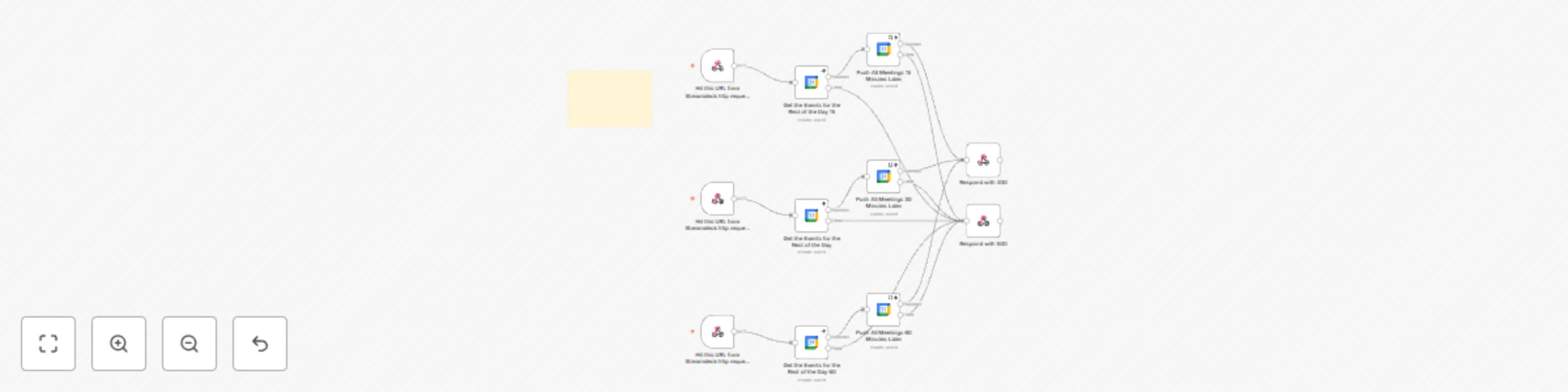
Shift your day's remaining Google Calendar appointments by 15, 30, or 60 minutes with one press of a stream deck button!
tl;dr
This template is your lifesaver for those days when things get hectic. With dedicated buttons on your Stream Deck, you can instantly push all subsequent Google Calendar appointments for the current day forward by 15, 30, or 60 minutes, automatically notifying all attendees.
Why You'll Love This Workflow ❤️:
One-Click Reschedule: No more manually editing each calendar event. One press, and your day is adjusted!
Stream Deck Powered: Integrates seamlessly with your Elgato Stream Deck using the API Ninja plugin.
Flexible Delays: Choose between 15, 30, or 60-minute adjustments with separate buttons.
Smart Event Fetching: Automatically grabs all remaining appointments for the current day from your specified Google Calendar.
Attendee Notifications: Keeps everyone in the loop by sending standard Google Calendar update notifications.
Peace of Mind: Your "graceful delay" button when you need a few extra minutes.
Perfect For 🧑💻:
Busy professionals managing a packed schedule.
Streamers and content creators who need to adjust live sessions or meetings on the fly.
Anyone who juggles back-to-back Google Calendar appointments and uses a Stream Deck for peak efficiency.
Streamlined Setup Guide 🛠️:
1️⃣ Install the "API Ninja" plugin
2️⃣ n8n Webhook Configuration: (choose a username and password).
3️⃣ Stream Deck Buttons:
4️⃣ Google Calendar Connection:
5️⃣ Activate & Test! Your Stream Deck buttons should now be ready to dynamically adjust your day.
Important Notes 📝:
Calendar Selection: Ensure you've correctly selected your target calendar in all Google Calendar nodes.
Error Handling: The workflow includes basic error handling to respond with a 500 error if issues occur (like not finding events), otherwise, it responds with a 200 success code.
Attendee Impact: Remember this will move all remaining events for the day and send updates to all attendees of those events.
Take control of your schedule with this powerful Stream Deck and n8n automation. Never stress about manually pushing meetings again! ✨
This catalog entry is organized from the workflow JSON. The node-level section below shows the executable blocks available for review before importing the template.
| Workflow | Reschedule Google Calendar appointments with Stream Deck (15/30/60 min) |
|---|---|
| Complexity | intermediate |
| Nodes | 12 |
| Categories | Personal Productivity |
| Author | David Ashby |
| Published | 03 Jun 2025 |
Use the JSON export at /data/workflows/4634/4634.json as the source template for this automation.
Open n8n, import the downloaded JSON, and review each node before activating the workflow.
Replace placeholder credentials, API keys, webhook URLs, account IDs, and environment-specific values with your own settings.
Run the workflow manually or in a staging workspace, inspect node output, and confirm downstream systems receive the expected data.
Enable the workflow only after testing, then monitor executions, errors, and rate limits during the first production runs.
Review imported nodes carefully before activation. This catalog entry is intended to help you inspect the workflow structure, understand required services, and find related templates faster.
Node names, credentials, schedules, webhook paths, and external service limits may need adjustment for your workspace.
Need help? Want access to this workflow + many more paid workflows + live Q&A sessions with a top verified n8n creator? [Join the community](https://www.skool.com/beyond nodes automation lab 2006/a...
Review the workflow JSON, configure any required credentials in n8n, and test the automation in a safe workspace before using it in production.
Yes. Use the block-by-block analysis and the downloadable JSON to inspect each node, then adjust credentials, prompts, schedules, filters, or destinations for your Personal Productivity use case.