Process testimonials with GPT-4 & auto-generate social media cards with Google Sheets

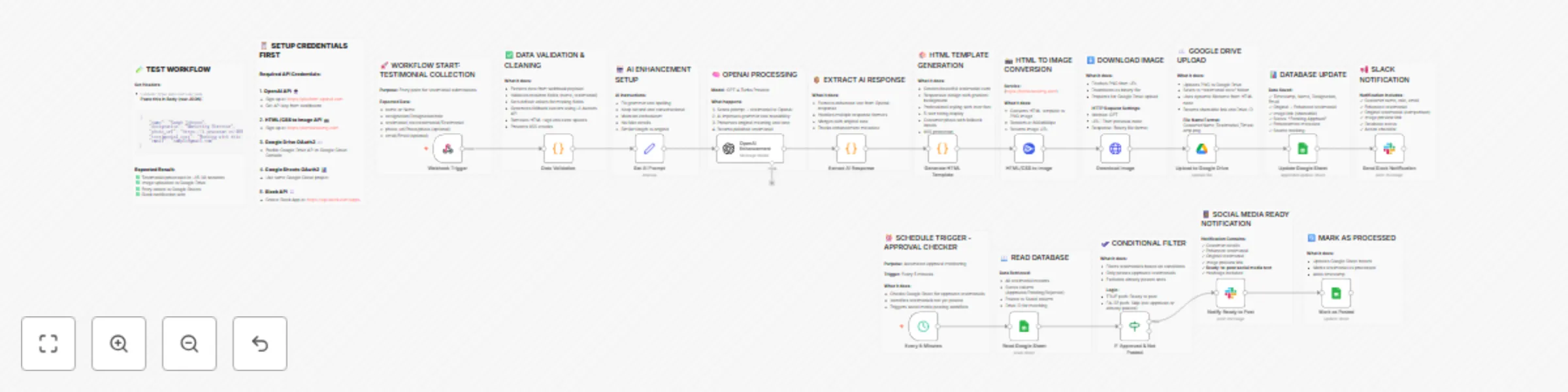
Workflow preview

Workflow preview
100%
Process testimonials with GPT-4 & auto-generate social media cards with Google Sheets preview
Open on n8n.io

Important notice

This workflow is provided as-is. Please review and test before using in production.

1. Workflow Overview

Automated AI Powered Testimonial Processing & Social Media Workflow Overview: This comprehensive workflow automates the entire testimonial collection and publishing process, from submission to soci...

Best for

  • Social Media automation workflows
  • Multimodal AI automation workflows
  • advanced n8n builders looking for reusable templates

Tools used

n8n-nodes-base.stickynote, n8n-nodes-base.webhook, n8n-nodes-base.code, n8n-nodes-base.set, @n8n/n8n-nodes-langchain.openai, n8n-nodes-htmlcsstoimage.htmlcsstoimage, n8n-nodes-base.httprequest, n8n-nodes-base.googledrive

Source and attribution

This workflow is cataloged by N8N Workflows and links back to its original n8n.io source page by Jitesh Dugar.

Original n8n.io source

1.1 Workflow description

Title
Process testimonials with GPT-4 & auto-generate social media cards with Google Sheets
Workflow name
Process testimonials with GPT-4 & auto-generate social media cards with Google Sheets

Automated AI-Powered Testimonial Processing & Social Media Workflow


Overview:

This comprehensive workflow automates the entire testimonial collection and publishing process, from submission to social media-ready content. It uses AI to enhance testimonials, generates beautiful branded cards, and implements an approval system before posting.

Key Features:

  • βœ… Webhook-based submission - Accept testimonials via API
  • πŸ€– AI Enhancement - GPT-4 polishes grammar while maintaining authenticity
  • 🎨 Automated Design - Generates professional 800x600px testimonial cards
  • ☁️ Cloud Storage - Uploads to Google Drive with organized naming
  • πŸ“Š Database Logging - Tracks all testimonials in Google Sheets
  • πŸ”” Team Notifications - Slack alerts for new and approved testimonials
  • βœ… Approval Workflow - Manual review before social media posting
  • πŸ”„ Scheduled Checker - Auto-detects approved testimonials every 5 minutes

Workflow Steps:

Main Flow (Testimonial Processing):

  1. Receives testimonial via webhook (POST request)
  2. Validates and cleans data (name, testimonial, photo, email)
  3. Enhances testimonial using GPT-4 Turbo
  4. Generates HTML template with customer details
  5. Converts HTML to PNG image (800x600px)
  6. Uploads image to Google Drive
  7. Logs all data to Google Sheets with "Pending Approval" status
  8. Sends Slack notification to review team

Approval Flow (Scheduled Check):

  1. Runs every 5 minutes automatically
  2. Checks Google Sheets for approved testimonials
  3. Filters testimonials not yet posted
  4. Sends ready-to-post Slack notification with formatted text
  5. Marks testimonial as processed in database

Use Cases:

  • SaaS companies collecting customer feedback
  • Marketing agencies managing client testimonials
  • E-commerce businesses showcasing reviews
  • Course creators featuring student success stories
  • Any business automating social proof collection

What Makes This Workflow Special:

  • Zero manual design work - Beautiful cards generated automatically
  • AI-powered quality - Professional grammar enhancement
  • Audit trail - Complete tracking in Google Sheets
  • Approval control - Review before publishing
  • Duplicate prevention - Smart matching by Drive ID
  • Flexible input - Accepts multiple field name variations

πŸ”§ Required Integrations:

  1. OpenAI API (GPT-4 Turbo) - AI testimonial enhancement
  2. HTML/CSS to Image API - Screenshot generation
  3. Google Drive OAuth2 - Image storage
  4. Google Sheets OAuth2 - Database management
  5. Slack API - Team notifications

πŸ“‹ Prerequisites:


πŸš€ Setup Instructions:

1. Import Workflow

  • Download the JSON file
  • Import into your n8n instance
  • Replace placeholder credentials (see below)

2. Configure Credentials

Add these credentials in n8n:

  • OpenAI API - Your API key
  • htmlcsstoimgApi - User ID and API key
  • Google Drive OAuth2 - Configure OAuth app
  • Google Sheets OAuth2 - Same Google Cloud project
  • Slack API - Create Slack app with chat:write scope

3. Update Configuration

Replace in the JSON:

  • Google Drive Folder ID - Your testimonial storage folder
  • Google Sheets ID - Your database spreadsheet
  • Slack Channel ID - Your notification channel

4. Test the Workflow

Send a POST request to your webhook URL:

{
    "name": "Sarah Johnson",
    "designation": "Marketing Director",
    "photo_url": "https://i.pravatar.cc/400?img=5",
    "testimonial_text": "Working with this team was amazing!",
    "email": "[email protected]"
}

πŸ“Š Google Sheets Setup:

Create a Google Sheet with these columns:

  • Timestamp
  • Name
  • Designation
  • Original Testimonial
  • Testimonial (Enhanced)
  • Image Link
  • Drive ID
  • Status
  • Email
  • Original Length
  • Enhanced
  • Source
  • Posted to Social
  • Posted At

🎨 Customization Options:

  • Modify AI prompt for different enhancement styles
  • Change HTML template colors/design
  • Add more validation rules
  • Integrate with Twitter/LinkedIn APIs for auto-posting
  • Add email notifications instead of Slack
  • Include rating/score system
  • Add custom approval fields

πŸ†˜ Troubleshooting:

Webhook not receiving data:

  • Check webhook URL is correct
  • Verify HTTP method is POST
  • Ensure Content-Type is application/json

AI enhancement failing:

  • Verify OpenAI API key is valid
  • Check API usage limits
  • Ensure sufficient credits

Image not generating:

  • Confirm htmlcsstoimg credentials are correct
  • Check HTML template has no errors
  • Verify you haven't exceeded free tier limit

Google Drive upload failing:

  • Re-authenticate OAuth2 connection
  • Check folder ID is correct
  • Verify folder permissions

πŸ† Perfect For:

  • Marketing teams
  • Customer success teams
  • Product managers
  • Social media managers
  • Growth hackers
  • Agency owners

βš–οΈ License:

Free to use and modify for personal and commercial projects.

1.2 Logical Blocks

This catalog entry is organized from the workflow JSON. The node-level section below shows the executable blocks available for review before importing the template.

2. Block-by-Block Analysis

Block 1 - Sticky Note

Type / Role
n8n-nodes-base.stickyNote - stickyNote
Config choices
Version 1

Block 2 - Webhook Trigger

Type / Role
n8n-nodes-base.webhook - webhook
Config choices
Version 1.1

Block 3 - Sticky Note1

Type / Role
n8n-nodes-base.stickyNote - stickyNote
Config choices
Version 1

Block 4 - Data Validation

Type / Role
n8n-nodes-base.code - code
Config choices
Version 2

Block 5 - Sticky Note2

Type / Role
n8n-nodes-base.stickyNote - stickyNote
Config choices
Version 1

Block 6 - Set AI Prompt

Type / Role
n8n-nodes-base.set - set
Config choices
Version 3.3

Block 7 - Sticky Note3

Type / Role
n8n-nodes-base.stickyNote - stickyNote
Config choices
Version 1

Block 8 - OpenAI Enhancement

Type / Role
@n8n/n8n-nodes-langchain.openAi - openAi
Config choices
Version 1

Block 9 - Sticky Note4

Type / Role
n8n-nodes-base.stickyNote - stickyNote
Config choices
Version 1

Block 10 - Extract AI Response

Type / Role
n8n-nodes-base.code - code
Config choices
Version 2

Block 11 - Sticky Note5

Type / Role
n8n-nodes-base.stickyNote - stickyNote
Config choices
Version 1

Block 12 - Generate HTML Template

Type / Role
n8n-nodes-base.code - code
Config choices
Version 2

Block 13 - Sticky Note6

Type / Role
n8n-nodes-base.stickyNote - stickyNote
Config choices
Version 1

Block 14 - HTML/CSS to Image

Type / Role
n8n-nodes-htmlcsstoimage.htmlCssToImage - htmlCssToImage
Config choices
Version 1

Block 15 - Sticky Note7

Type / Role
n8n-nodes-base.stickyNote - stickyNote
Config choices
Version 1

Block 16 - Download Image

Type / Role
n8n-nodes-base.httpRequest - httpRequest
Config choices
Version 4.2

Block 17 - Sticky Note8

Type / Role
n8n-nodes-base.stickyNote - stickyNote
Config choices
Version 1

Block 18 - Upload to Google Drive

Type / Role
n8n-nodes-base.googleDrive - googleDrive
Config choices
Version 3

Block 19 - Update Google Sheet

Type / Role
n8n-nodes-base.googleSheets - googleSheets
Config choices
Version 4.4

Block 20 - Sticky Note10

Type / Role
n8n-nodes-base.stickyNote - stickyNote
Config choices
Version 1

Block 21 - Send Slack Notification

Type / Role
n8n-nodes-base.slack - slack
Config choices
Version 2.2

Block 22 - Sticky Note11

Type / Role
n8n-nodes-base.stickyNote - stickyNote
Config choices
Version 1

Block 23 - Every 5 Minutes

Type / Role
n8n-nodes-base.scheduleTrigger - scheduleTrigger
Config choices
Version 1.2

Block 24 - Sticky Note12

Type / Role
n8n-nodes-base.stickyNote - stickyNote
Config choices
Version 1

Showing the first 24 of 34 workflow blocks. Download the JSON for the full node graph.

3. Summary Table

Workflow Process testimonials with GPT-4 & auto-generate social media cards with Google Sheets
Complexity advanced
Nodes 34
Categories Social Media, Multimodal AI
Author Jitesh Dugar
Published 24 Oct 2025

4. Reproducing the Workflow from Scratch

  1. 1. Download the workflow JSON

    Use the JSON export at /data/workflows/10135/10135.json as the source template for this automation.

  2. 2. Import the template into n8n

    Open n8n, import the downloaded JSON, and review each node before activating the workflow.

  3. 3. Configure credentials and variables

    Replace placeholder credentials, API keys, webhook URLs, account IDs, and environment-specific values with your own settings.

  4. 4. Test with sample data

    Run the workflow manually or in a staging workspace, inspect node output, and confirm downstream systems receive the expected data.

  5. 5. Activate and monitor

    Enable the workflow only after testing, then monitor executions, errors, and rate limits during the first production runs.

5. General Notes & Resources

Review imported nodes carefully before activation. This catalog entry is intended to help you inspect the workflow structure, understand required services, and find related templates faster.

Node names, credentials, schedules, webhook paths, and external service limits may need adjustment for your workspace.

Frequently asked questions

What does Process testimonials with GPT-4 & auto-generate social media cards with Google Sheets do?

Automated AI Powered Testimonial Processing & Social Media Workflow Overview: This comprehensive workflow automates the entire testimonial collection and publishing process, from submission to soci...

What do I need before importing this workflow?

Review the workflow JSON, configure any required credentials in n8n, and test the automation in a safe workspace before using it in production.

Can I customize this workflow?

Yes. Use the block-by-block analysis and the downloadable JSON to inspect each node, then adjust credentials, prompts, schedules, filters, or destinations for your Social Media, Multimodal AI use case.