Process images with Background Remover AI and track results in Google Sheets

Workflow preview

Workflow preview
100%
Process images with Background Remover AI and track results in Google Sheets preview
Open on n8n.io

Important notice

This workflow is provided as-is. Please review and test before using in production.

1. Workflow Overview

AI Powered Image Background Removal Workflow with Google Sheets Integration Flow Description: This workflow utilizes AI powered image background removal integrated with Google Sheets to create a fu...

Best for

  • Content Creation automation workflows
  • Multimodal AI automation workflows
  • advanced n8n builders looking for reusable templates

Tools used

n8n-nodes-base.formtrigger, n8n-nodes-base.httprequest, n8n-nodes-base.converttofile, n8n-nodes-base.if, n8n-nodes-base.wait, n8n-nodes-base.googlesheets, n8n-nodes-base.stickynote

Source and attribution

This workflow is cataloged by N8N Workflows and links back to its original n8n.io source page by Evoort Solutions.

Original n8n.io source

1.1 Workflow description

Title
Process images with Background Remover AI and track results in Google Sheets
Workflow name
Process images with Background Remover AI and track results in Google Sheets

AI-Powered Image Background Removal Workflow with Google Sheets Integration

Flow Description:

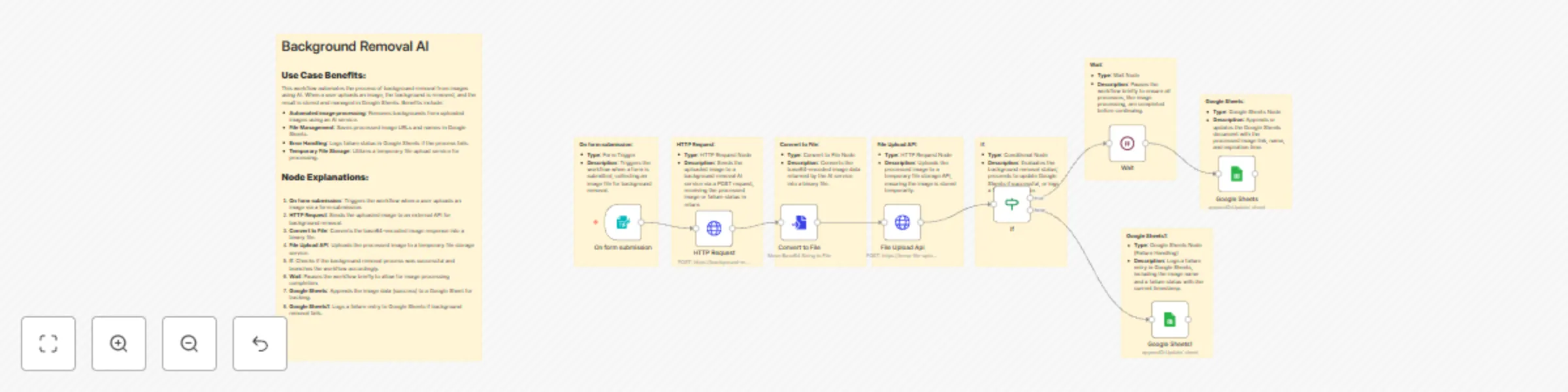
This workflow utilizes AI-powered image background removal integrated with Google Sheets to create a fully automated and streamlined process for handling and managing image files. The flow is triggered when a user uploads an image through a form. The image is sent to the API Background Remover AI, where it undergoes automatic background removal. Upon successful processing, the new image is uploaded to a temporary file storage service using the Temp File Upload. Afterward, the relevant data, including the image link and status, is logged in a Google Sheets document for easy access and tracking.

In case the process fails, the system automatically logs a failure status in the same Google Sheet, along with the reason (if applicable). This allows users to have a transparent, organized, and real-time view of both successful and failed background removal attempts.

Used APIs:

  1. Background Remover AI: An AI-powered service that removes backgrounds from images. This service offers a fast, accurate, and scalable solution for background removal in images.
  2. Temp File Upload: This API facilitates the upload of processed images to a temporary file storage service, making it easy to access and manage files before permanent storage.

Use Case:

This workflow is highly beneficial for businesses and developers who need to process multiple images automatically. It helps automate tedious tasks such as background removal, making it an efficient tool for industries like:

  • E-commerce: Automatically removing backgrounds from product images for clean, professional-looking listings across online platforms such as Amazon, eBay, or Shopify.
  • Content Creation: Content creators can quickly remove backgrounds from images for blogs, social media posts, and marketing campaigns, saving significant time in photo editing.
  • Real Estate: Real estate businesses can use this workflow to enhance property images by removing unwanted backgrounds, making them look more polished and appealing for listings.
  • Advertising & Marketing: This workflow simplifies image preparation for digital ads, banners, and promotional content by automatically cleaning up images for a more professional look.

Benefits:

  • Time-Saving: By automating the background removal process via the Background Remover AI API, you eliminate the need for manual image editing, saving time and resources.
  • AI-Powered Accuracy: The AI-powered background removal service ensures precise and high-quality results consistently.
  • Seamless Integration with Google Sheets: All successful and failed image processing attempts are automatically logged into a Google Sheets document, ensuring you have a transparent, real-time record of each operation.
  • Error Tracking: In case of failure, detailed error logs are created in Google Sheets, allowing easy tracking and troubleshooting.
  • Efficient Cloud Storage: The Temp File Upload API stores processed images securely in the cloud, offering a temporary solution before permanent storage.

Google Sheets Table Example:

The data from the workflow will be automatically added to a Google Sheets document, creating an organized table with information about the processed images. The table will have the following columns:

Image Name Link Status Expire At
image1.jpg Link Success 2025-07-25T12:00:00Z
image2.jpg Link Success 2025-07-25T12:00:00Z
image3.jpg Not found Failed 2025-07-24T12:00:00Z
image4.jpg Link Success 2025-07-25T12:00:00Z

Columns Explained:

  • Image Name: The name of the image file uploaded by the user.
  • Link: A direct link to the processed image stored in temporary file storage.
  • Status: Indicates whether the background removal was Successful or Failed.
  • Expire At: The expiration date and time when the temporary file link will no longer be accessible.

This table provides real-time tracking of each image processing event, offering full visibility of the workflow results. It is ideal for businesses or developers who need to keep a record of their image-processing operations.


Additional Features:

  • Automatic Error Logging: If the background removal fails for any reason, a failure entry is recorded in Google Sheets with a timestamp and an error message.
  • Custom Expiry Time: The system automatically sets an expiry time for the processed image, allowing temporary access before it expires and is removed from storage.
  • Scalable Process: The workflow can easily handle multiple form submissions and process images in bulk, making it scalable for various use cases.

Create your free n8n account and set up the workflow in just a few minutes using the link below:

👉 Start Automating with n8n

Save time, stay consistent, and grow your LinkedIn presence effortlessly!

1.2 Logical Blocks

This catalog entry is organized from the workflow JSON. The node-level section below shows the executable blocks available for review before importing the template.

2. Block-by-Block Analysis

Block 1 - On form submission

Type / Role
n8n-nodes-base.formTrigger - formTrigger
Config choices
Version 2.2

Block 2 - HTTP Request

Type / Role
n8n-nodes-base.httpRequest - httpRequest
Config choices
Version 4.2

Block 3 - Convert to File

Type / Role
n8n-nodes-base.convertToFile - convertToFile
Config choices
Version 1.1

Block 4 - If

Type / Role
n8n-nodes-base.if - if
Config choices
Version 2.2

Block 5 - Wait

Type / Role
n8n-nodes-base.wait - wait
Config choices
Version 1.1

Block 6 - Google Sheets

Type / Role
n8n-nodes-base.googleSheets - googleSheets
Config choices
Version 4.6

Block 7 - Google Sheets1

Type / Role
n8n-nodes-base.googleSheets - googleSheets
Config choices
Version 4.6

Block 8 - File Upload Api

Type / Role
n8n-nodes-base.httpRequest - httpRequest
Config choices
Version 4.2

Block 9 - Sticky Note

Type / Role
n8n-nodes-base.stickyNote - stickyNote
Config choices
Version 1

Block 10 - Sticky Note1

Type / Role
n8n-nodes-base.stickyNote - stickyNote
Config choices
Version 1

Block 11 - Sticky Note2

Type / Role
n8n-nodes-base.stickyNote - stickyNote
Config choices
Version 1

Block 12 - Sticky Note3

Type / Role
n8n-nodes-base.stickyNote - stickyNote
Config choices
Version 1

Block 13 - Sticky Note4

Type / Role
n8n-nodes-base.stickyNote - stickyNote
Config choices
Version 1

Block 14 - Sticky Note5

Type / Role
n8n-nodes-base.stickyNote - stickyNote
Config choices
Version 1

Block 15 - Sticky Note6

Type / Role
n8n-nodes-base.stickyNote - stickyNote
Config choices
Version 1

Block 16 - Sticky Note7

Type / Role
n8n-nodes-base.stickyNote - stickyNote
Config choices
Version 1

Block 17 - Sticky Note8

Type / Role
n8n-nodes-base.stickyNote - stickyNote
Config choices
Version 1

3. Summary Table

Workflow Process images with Background Remover AI and track results in Google Sheets
Complexity advanced
Nodes 17
Categories Content Creation, Multimodal AI
Author Evoort Solutions
Published 24 Jul 2025

4. Reproducing the Workflow from Scratch

  1. 1. Download the workflow JSON

    Use the JSON export at /data/workflows/6376/6376.json as the source template for this automation.

  2. 2. Import the template into n8n

    Open n8n, import the downloaded JSON, and review each node before activating the workflow.

  3. 3. Configure credentials and variables

    Replace placeholder credentials, API keys, webhook URLs, account IDs, and environment-specific values with your own settings.

  4. 4. Test with sample data

    Run the workflow manually or in a staging workspace, inspect node output, and confirm downstream systems receive the expected data.

  5. 5. Activate and monitor

    Enable the workflow only after testing, then monitor executions, errors, and rate limits during the first production runs.

5. General Notes & Resources

Review imported nodes carefully before activation. This catalog entry is intended to help you inspect the workflow structure, understand required services, and find related templates faster.

Node names, credentials, schedules, webhook paths, and external service limits may need adjustment for your workspace.

Frequently asked questions

What does Process images with Background Remover AI and track results in Google Sheets do?

AI Powered Image Background Removal Workflow with Google Sheets Integration Flow Description: This workflow utilizes AI powered image background removal integrated with Google Sheets to create a fu...

What do I need before importing this workflow?

Review the workflow JSON, configure any required credentials in n8n, and test the automation in a safe workspace before using it in production.

Can I customize this workflow?

Yes. Use the block-by-block analysis and the downloadable JSON to inspect each node, then adjust credentials, prompts, schedules, filters, or destinations for your Content Creation, Multimodal AI use case.