Block 1 - Sticky — Webhook + Normalize
- Type / Role
- n8n-nodes-base.stickyNote - stickyNote
- Config choices
- Version 1


 Early Deal
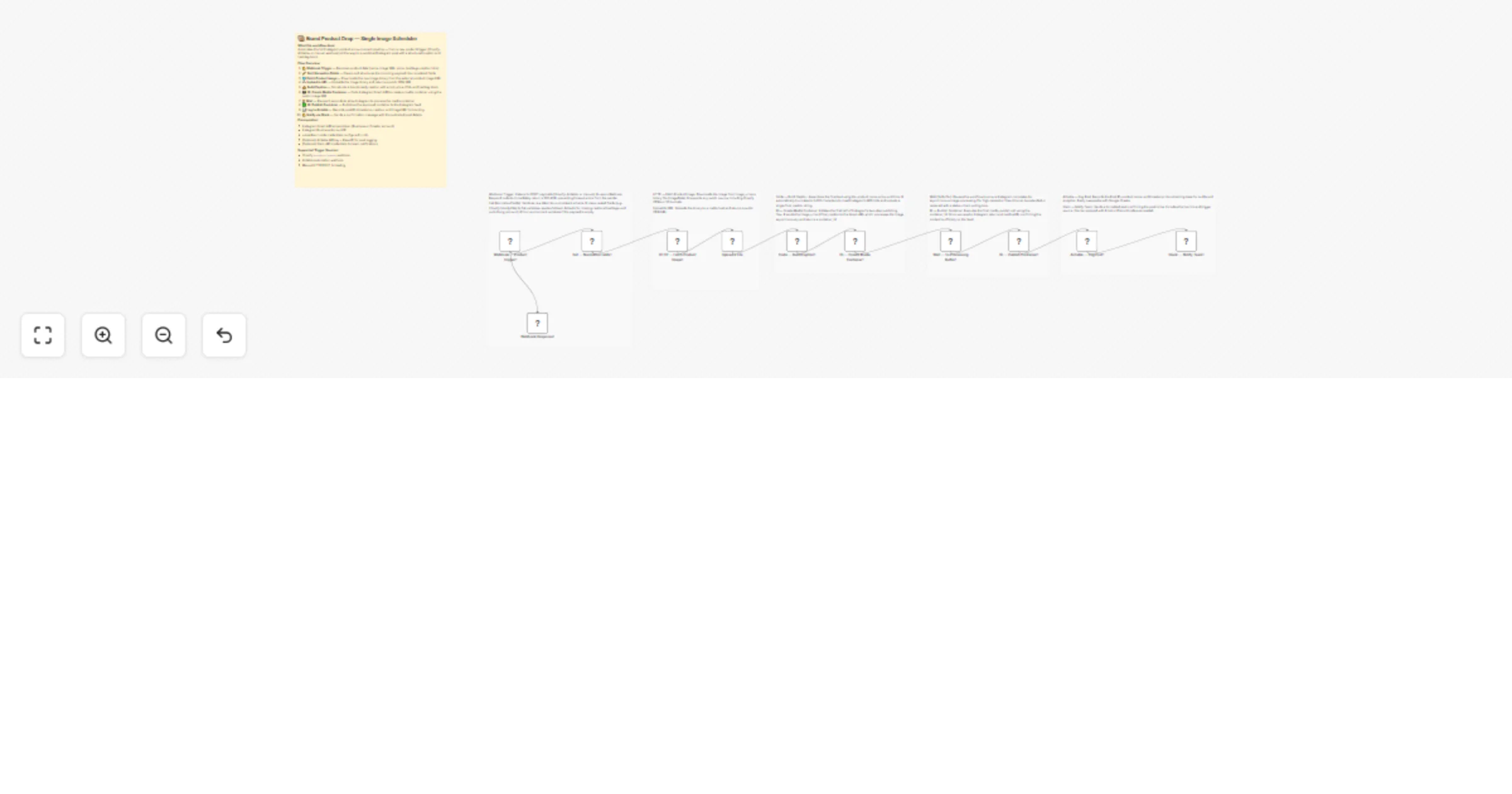
Automated Instagram Product Drop via uploadtourl Streamline your e commerce marketing with this end to end Instagram publishing pipeline. This workflow automates the transition from a new produc...
n8n-nodes-base.stickynote, n8n-nodes-base.webhook, n8n-nodes-base.respondtowebhook, n8n-nodes-base.set, n8n-nodes-base.httprequest, n8n-nodes-base.code, n8n-nodes-base.wait, n8n-nodes-base.airtable
This workflow is cataloged by N8N Workflows and links back to its original n8n.io source page by Jitesh Dugar.
Original n8n.io source📦 Automated Instagram Product Drop via uploadtourl
Streamline your e-commerce marketing with this end-to-end Instagram publishing pipeline. This workflow automates the transition from a new product entry to a live social media announcement, ensuring your brand stays active and consistent across platforms.
🎯 What This Workflow Does This template handles the complex multi-step process of social media publishing through a single trigger:
🔔 Smart Data Intake The Webhook Trigger accepts data from Shopify, Airtable, or manual inputs. A normalization node then sanitizes the raw data, mapping nested fields to a consistent schema and applying fallback defaults for missing captions or hashtags.
☁️ Image Processing & Hosting The system fetches your product image from any public source and passes the binary to the uploadtourl node. This converts your raw image into a public CDN URL, which is required for the Instagram Graph API to access the file.
📸 Instagram Publishing Flow A dedicated Code Node assembles a brand-ready caption with emojis, prices, and CTAs, automatically truncating text to 2,200 characters to meet API limits. The workflow then executes Instagram's two-step flow: creating a media container and publishing it after a safe 5-second buffer.
📊 Audit & Notification Once the post is live, the workflow records the Live Post ID, product name, and timestamp in Airtable for future analytics. Finally, it sends a formatted alert to your team via Slack with a direct link to the new post.
✨ Key Features
Multi-Source Support: Works natively with Shopify products/create webhooks and Airtable automations.
Automated CDN Hosting: Bypasses manual file uploads by using uploadtourl to generate API-compatible links.
Safe Buffer Logic: Built-in wait timers ensure Instagram finishes asynchronous image processing before the final publish call.
Brand Guardrails: Centralized caption builder ensures every post follows your brand's emoji and hashtag style.
💼 Perfect For
SMM Managers: Automating repetitive product announcement tasks.
E-commerce Owners: Linking Shopify new arrivals directly to Instagram.
Creative Agencies: Managing high-volume product drops for multiple clients.
Content Operations: Creating an automated audit log of all social media activity.
🔧 What You'll Need
Required Integrations
Instagram Graph API: A Business or Creator account access token.
uploadtourl Account: Credentials configured in n8n for media hosting.
Airtable & Slack: (Optional) For logging and team notifications.
Configuration Steps
API Keys: Connect your Instagram and uploadtourl credentials.
Environment Variables: Set your IG_ACCOUNT_ID, AIRTABLE_BASE_ID, and SLACK_CHANNEL_ID in n8n.
This catalog entry is organized from the workflow JSON. The node-level section below shows the executable blocks available for review before importing the template.
| Workflow | Post new product drops to Instagram using uploadtourl and Airtable |
|---|---|
| Complexity | advanced |
| Nodes | 17 |
| Categories | Social Media, Multimodal AI |
| Author | Jitesh Dugar |
| Published | 02 Apr 2026 |
Use the JSON export at /data/workflows/14595/14595.json as the source template for this automation.
Open n8n, import the downloaded JSON, and review each node before activating the workflow.
Replace placeholder credentials, API keys, webhook URLs, account IDs, and environment-specific values with your own settings.
Run the workflow manually or in a staging workspace, inspect node output, and confirm downstream systems receive the expected data.
Enable the workflow only after testing, then monitor executions, errors, and rate limits during the first production runs.
Review imported nodes carefully before activation. This catalog entry is intended to help you inspect the workflow structure, understand required services, and find related templates faster.
Node names, credentials, schedules, webhook paths, and external service limits may need adjustment for your workspace.
Automated Instagram Product Drop via uploadtourl Streamline your e commerce marketing with this end to end Instagram publishing pipeline. This workflow automates the transition from a new produc...
Review the workflow JSON, configure any required credentials in n8n, and test the automation in a safe workspace before using it in production.
Yes. Use the block-by-block analysis and the downloadable JSON to inspect each node, then adjust credentials, prompts, schedules, filters, or destinations for your Social Media, Multimodal AI use case.