Post images from Google Drive to Discord using Gemini Gemini AI

Workflow preview

Workflow preview
100%
Post images from Google Drive to Discord using Gemini Gemini AI preview
Open on n8n.io

1. Workflow Overview

What This Does This workflow automatically monitors a specific Google Drive folder for new images. When you drop a file in, it uses Google's Gemini AI to analyze the image, generate an creative ...

Best for

  • Content Creation automation workflows
  • Multimodal AI automation workflows
  • advanced n8n builders looking for reusable templates

Tools used

n8n-nodes-base.googledrive, n8n-nodes-base.googledrivetrigger, @n8n/n8n-nodes-langchain.agent, @n8n/n8n-nodes-langchain.outputparserstructured, @n8n/n8n-nodes-langchain.lmchatgooglegemini, n8n-nodes-base.httprequest, n8n-nodes-base.merge, n8n-nodes-base.set

Source and attribution

This workflow is cataloged by N8N Workflows and links back to its original n8n.io source page by EoCi - Mr.Eo.

Original n8n.io source

1.1 Workflow description

Title
Post images from Google Drive to Discord using Gemini Gemini AI
Workflow name
Post images from Google Drive to Discord using Gemini Gemini AI

🎯 What This Does

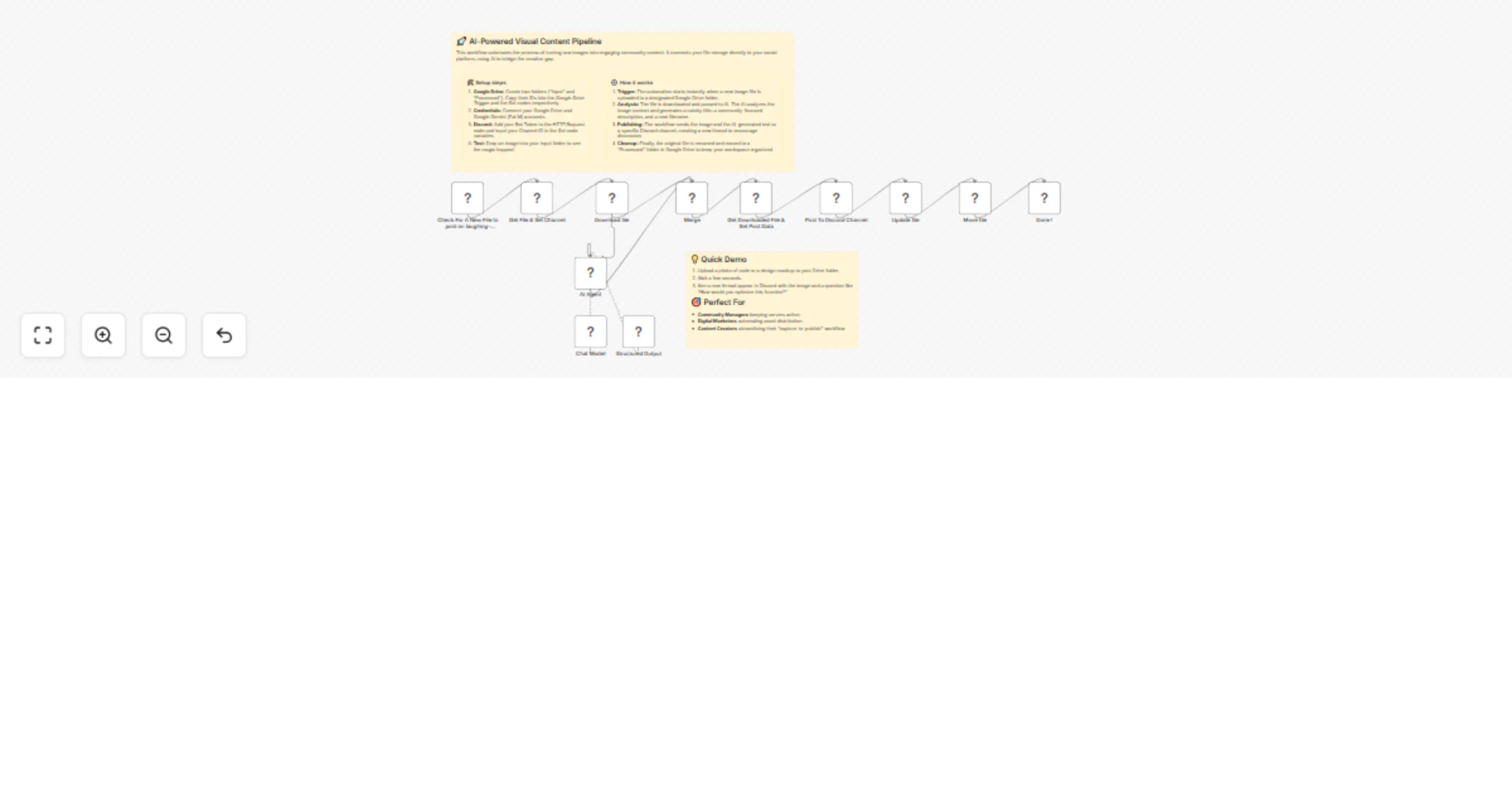
This workflow automatically monitors a specific Google Drive folder for new images. When you drop a file in, it uses Google's Gemini AI to analyze the image, generate an creative title, and write a high-engagement description. It then posts the image and text to a Discord channel and organizes your Google Drive by renaming the file and moving it to a "Processed" folder.

πŸ”„ How It Works

  • Watch: The workflow detects when a new image file is uploaded to a specific Google Drive folder.
  • Analyze: It downloads the image and sends it to a Google Gemini AI Agent to identify the "hook" and generate technical/marketing copy.
  • Format: The AI returns a structured title, description, and a new optimized filename.
  • Publish: The workflow posts the image and the AI-generated caption directly to your Discord channel as a new thread.
  • Organize: Finally, it renames the original file in Google Drive and moves it to a separate "Processed" folder to keep your workspace clean.

πŸš€ Setup Requirements

  • n8n Version: Latest stable release recommended.
  • Google Cloud Console Project: With Google Drive API enabled.
  • Google Gemini API Key: For the AI generation.
  • Discord Application: A Bot Token with permissions to send messages/create threads in your server.
  • Estimated Setup Time: ~15 minutes.

Set up steps

  1. Configure Google Drive Credentials:
  • Set up a project in Google Cloud Console.
  • Enable the Google Drive API.
  • Create OAuth 2.0 credentials and add them to the Google Drive Trigger and Google Drive nodes in n8n.
  1. Prepare Drive Folders:
  • Create a folder in Google Drive for Input (where you drop files). Copy the Folder ID from the URL.
  • Create a folder for Processed files. Copy this Folder ID as well.
  • Paste the Input Folder ID into the Google Drive Trigger node.
  • Update the processed_folder_id value in the "Get File & Set Channel" (Set) node.
  1. Configure AI Agent:
  • Get your API Key from Google AI Studio.
  • Add a new credential for Google PaLM API in the Chat Model node.
  1. Setup Discord Bot:
  • Go to the Discord Developer Portal and create a new Application/Bot.
  • Copy the Bot Token.
  • Invite the bot to your server.
  • Enable Developer Mode in your Discord User Settings to right-click a channel and "Copy Channel ID".
  • Update the channel_id in the "Get File & Set Channel" node.
  • Open the "Post To Discord Channel" (HTTP Request) node. Under Authentication, select "Predefined Credential Type" -> "Discord Bot API" and paste your token.
  1. Test the Workflow:
  • Click "Test Workflow" in n8n.
  • Upload an image to your Google Drive Input folder.
  • Watch the execution! Check Discord for the new post and Drive to see the file move.

Nodes Used

  • Google Drive Trigger: Watches for new content.
  • Google Drive: Downloads, Updates (Renames), and Moves files.
  • AI Agent (LangChain): Orchestrates the analysis.
  • Google Gemini Chat Model: Generates the creative text.
  • Structured Output Parser: Ensures the AI replies in usable JSON.
  • HTTP Request: custom API call to Discord for advanced thread creation.
  • Set: Manages variables and folder IDs.

Customization Guide

  • Change the Persona: Edit the "System Message" in the AI Agent node to change the tone. Want a pirate narrator? Or a strictly professional corporate tone? Change it there!

πŸ™ Thank You for Trying This Workflow!

Your time and trust mean a lot! I truly appreciate you using this template.

Your feedback shapes future updates:

  • πŸ’‘ Suggestions for improvement
  • πŸ†• Ideas for new features
  • πŸ“ Requests for other automation workflows
Please share your thoughts! Every idea helps shape the next update.

πŸ™‹β€β™‚οΈ Join & Follow For More Free Templates!

Discord Community: We Work Together
  • Get help, share builds, collaborate!
  • Daily tips, tutorials, and updates

Thank you again for being part of this journey! πŸš€

Together, we automate better! πŸ€–βœ¨

1.2 Logical Blocks

This catalog entry is organized from the workflow JSON. The node-level section below shows the executable blocks available for review before importing the template.

2. Block-by-Block Analysis

Block 1 - Download file

Type / Role
n8n-nodes-base.googleDrive - googleDrive
Config choices
Version 3

Block 2 - Check For A New File to post on laughing-everyday

Type / Role
n8n-nodes-base.googleDriveTrigger - googleDriveTrigger
Config choices
Version 1

Block 3 - AI Agent

Type / Role
@n8n/n8n-nodes-langchain.agent - agent
Config choices
Version 2

Block 4 - Structured Output

Type / Role
@n8n/n8n-nodes-langchain.outputParserStructured - outputParserStructured
Config choices
Version 1.3

Block 5 - Chat Model

Type / Role
@n8n/n8n-nodes-langchain.lmChatGoogleGemini - lmChatGoogleGemini
Config choices
Version 1

Block 6 - Post To Discord Channel

Type / Role
n8n-nodes-base.httpRequest - httpRequest
Config choices
Version 4.3

Block 7 - Merge

Type / Role
n8n-nodes-base.merge - merge
Config choices
Version 3.2

Block 8 - Get Downloaded File & Set Post Data

Type / Role
n8n-nodes-base.set - set
Config choices
Version 3.4

Block 9 - Move file

Type / Role
n8n-nodes-base.googleDrive - googleDrive
Config choices
Version 3

Block 10 - Update file

Type / Role
n8n-nodes-base.googleDrive - googleDrive
Config choices
Version 3

Block 11 - Done !

Type / Role
n8n-nodes-base.noOp - noOp
Config choices
Version 1

Block 12 - Get File & Set Channel

Type / Role
n8n-nodes-base.set - set
Config choices
Version 3.4

Block 13 - Sticky Note

Type / Role
n8n-nodes-base.stickyNote - stickyNote
Config choices
Version 1

Block 14 - Sticky Note1

Type / Role
n8n-nodes-base.stickyNote - stickyNote
Config choices
Version 1

Block 15 - Sticky Note4

Type / Role
n8n-nodes-base.stickyNote - stickyNote
Config choices
Version 1

Block 16 - Sticky Note5

Type / Role
n8n-nodes-base.stickyNote - stickyNote
Config choices
Version 1

3. Summary Table

Workflow Post images from Google Drive to Discord using Gemini Gemini AI
Complexity advanced
Nodes 16
Categories Content Creation, Multimodal AI
Author EoCi - Mr.Eo
Published 05 Feb 2026

4. Reproducing the Workflow from Scratch

  1. 1. Download the workflow JSON

    Use the JSON export at /data/workflows/13236/13236.json as the source template for this automation.

  2. 2. Import the template into n8n

    Open n8n, import the downloaded JSON, and review each node before activating the workflow.

  3. 3. Configure credentials and variables

    Replace placeholder credentials, API keys, webhook URLs, account IDs, and environment-specific values with your own settings.

  4. 4. Test with sample data

    Run the workflow manually or in a staging workspace, inspect node output, and confirm downstream systems receive the expected data.

  5. 5. Activate and monitor

    Enable the workflow only after testing, then monitor executions, errors, and rate limits during the first production runs.

5. General Notes & Resources

Review imported nodes carefully before activation. This catalog entry is intended to help you inspect the workflow structure, understand required services, and find related templates faster.

Node names, credentials, schedules, webhook paths, and external service limits may need adjustment for your workspace.

Frequently asked questions

What does Post images from Google Drive to Discord using Gemini Gemini AI do?

What This Does This workflow automatically monitors a specific Google Drive folder for new images. When you drop a file in, it uses Google's Gemini AI to analyze the image, generate an creative ...

What do I need before importing this workflow?

Review the workflow JSON, configure any required credentials in n8n, and test the automation in a safe workspace before using it in production.

Can I customize this workflow?

Yes. Use the block-by-block analysis and the downloadable JSON to inspect each node, then adjust credentials, prompts, schedules, filters, or destinations for your Content Creation, Multimodal AI use case.