n8n Workflow Error Alerts with Google Sheets, Telegram, and Gmail

Workflow preview

Workflow preview
100%
n8n Workflow Error Alerts with Google Sheets, Telegram, and Gmail preview
Open on n8n.io

Important notice

This workflow is provided as-is. Please review and test before using in production.

1. Workflow Overview

This n8n workflow provides a robust error handling and notification system for your n8n workflows. When an error occurs, it automatically logs the error details to Google Sheets, sends a notificati...

Best for

  • DevOps automation workflows
  • intermediate n8n builders looking for reusable templates

Tools used

n8n-nodes-base.errortrigger, n8n-nodes-base.googlesheets, n8n-nodes-base.set, n8n-nodes-base.telegram, n8n-nodes-base.gmail, n8n-nodes-base.stickynote

Source and attribution

This workflow is cataloged by N8N Workflows and links back to its original n8n.io source page by Aitor | 1Node.

Original n8n.io source

1.1 Workflow description

Title
n8n Workflow Error Alerts with Google Sheets, Telegram, and Gmail
Workflow name
n8n Workflow Error Alerts with Google Sheets, Telegram, and Gmail

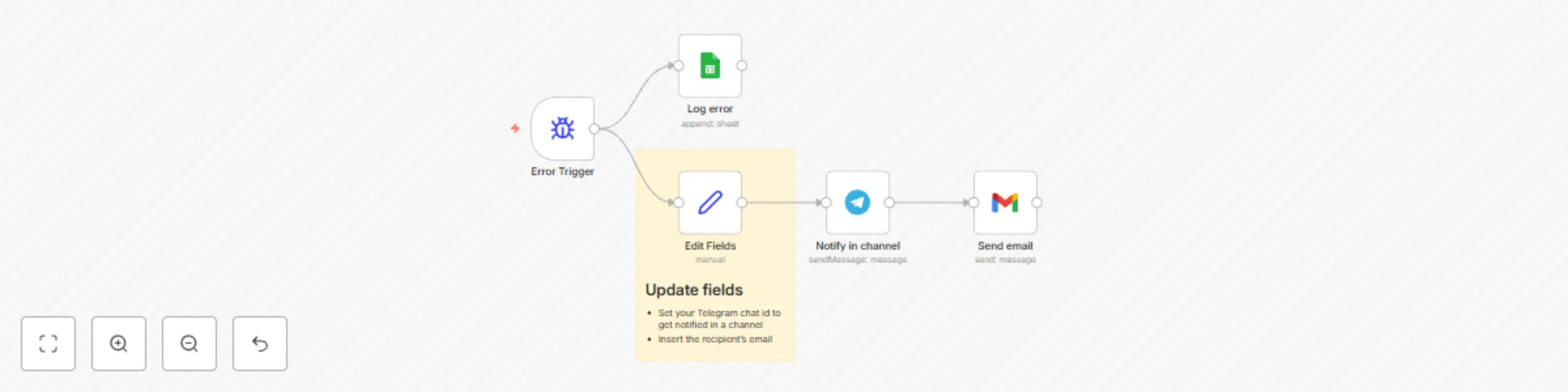
This n8n workflow provides a robust error handling and notification system for your n8n workflows. When an error occurs, it automatically logs the error details to Google Sheets, sends a notification to a Telegram channel, and dispatches an email alert, ensuring you're immediately aware of any issues.

How it works

  • Error Trigger: The workflow is activated whenever an error occurs in another n8n workflow.
  • Log Error (Google Sheets): Error details (e.g., workflow name, error message, timestamp) are appended to a specified Google Sheet, creating a centralized log for all errors.
  • Edit Fields (Manual Configuration): This node allows you to manually set the Telegram chat ID and recipient email for notifications.
  • Notify in channel (Telegram): An error notification containing relevant details is sent to your configured Telegram channel.
  • Send email (Gmail): An email alert with comprehensive error information is sent to the specified recipient.

Set up steps

This setup will take approximately 10-15 minutes.

  1. Download the workflow: Download this workflow and import it into your n8n instance.
  2. Configure the Error Trigger: This trigger will automatically activate when an error occurs in any workflow. Make sure you set this workflow as the "Error Workflow" inside the workflows where you want to be alerted.
  3. Configure Log error (Google Sheets):
    • Connect your Google Sheets account credentials.
    • Specify the Google Sheet ID and the sheet name where you want to log the errors.
    • Ensure the sheet has appropriate headers (e.g., "Timestamp", "Workflow Name", "Error Message", "Error Details") to receive the data.
  4. Configure Edit Fields:
    • In the "Edit Fields" node, manually enter your Telegram chat ID. This is the ID of the chat or channel where you want to receive Telegram notifications.
    • Insert the recipient's email address where you want to receive email alerts.
  5. Configure Notify in channel (Telegram):
    • Connect your Telegram account credentials.
    • Ensure the "Chat ID" field is correctly linked to the output from the "Edit Fields" node.
  6. Configure Send email (Gmail):
    • Connect your Gmail account credentials.
    • Ensure the "To" email address is correctly linked to the output from the "Edit Fields" node.
    • Customize the subject and body of the email to include relevant error information from the "Error Trigger" node.
  7. Test the workflow: To test, you can intentionally create an error in another simple n8n workflow. This error workflow should then trigger this error handling workflow, and you can verify if the log is updated, Telegram message is sent, and email is received. Make sure that the workflow you are testing has the "Error Workflow" selected in the workflow's settings.

Requirements

  • n8n instance: An active n8n instance (self-hosted or cloud).
  • Google Account: A Google account with access to Google Sheets.
  • Telegram Account: A Telegram account and a chat/channel ID for notifications.
  • Gmail Account: A Gmail account to send email alerts.

Need help?

Feel free to contact us at 1 Node. Get instant access to a library of free resources we created.

1.2 Logical Blocks

This catalog entry is organized from the workflow JSON. The node-level section below shows the executable blocks available for review before importing the template.

2. Block-by-Block Analysis

Block 1 - Error Trigger

Type / Role
n8n-nodes-base.errorTrigger - errorTrigger
Config choices
Version 1

Block 2 - Log error

Type / Role
n8n-nodes-base.googleSheets - googleSheets
Config choices
Version 4.5

Block 3 - Edit Fields

Type / Role
n8n-nodes-base.set - set
Config choices
Version 3.4

Block 4 - Notify in channel

Type / Role
n8n-nodes-base.telegram - telegram
Config choices
Version 1.2

Block 5 - Send email

Type / Role
n8n-nodes-base.gmail - gmail
Config choices
Version 2.1

Block 6 - Sticky Note

Type / Role
n8n-nodes-base.stickyNote - stickyNote
Config choices
Version 1

3. Summary Table

Workflow n8n Workflow Error Alerts with Google Sheets, Telegram, and Gmail
Complexity intermediate
Nodes 6
Categories DevOps
Author Aitor | 1Node
Published 26 May 2025

4. Reproducing the Workflow from Scratch

  1. 1. Download the workflow JSON

    Use the JSON export at /data/workflows/4407/4407.json as the source template for this automation.

  2. 2. Import the template into n8n

    Open n8n, import the downloaded JSON, and review each node before activating the workflow.

  3. 3. Configure credentials and variables

    Replace placeholder credentials, API keys, webhook URLs, account IDs, and environment-specific values with your own settings.

  4. 4. Test with sample data

    Run the workflow manually or in a staging workspace, inspect node output, and confirm downstream systems receive the expected data.

  5. 5. Activate and monitor

    Enable the workflow only after testing, then monitor executions, errors, and rate limits during the first production runs.

5. General Notes & Resources

Review imported nodes carefully before activation. This catalog entry is intended to help you inspect the workflow structure, understand required services, and find related templates faster.

Node names, credentials, schedules, webhook paths, and external service limits may need adjustment for your workspace.

Frequently asked questions

What does n8n Workflow Error Alerts with Google Sheets, Telegram, and Gmail do?

This n8n workflow provides a robust error handling and notification system for your n8n workflows. When an error occurs, it automatically logs the error details to Google Sheets, sends a notificati...

What do I need before importing this workflow?

Review the workflow JSON, configure any required credentials in n8n, and test the automation in a safe workspace before using it in production.

Can I customize this workflow?

Yes. Use the block-by-block analysis and the downloadable JSON to inspect each node, then adjust credentials, prompts, schedules, filters, or destinations for your DevOps use case.