Translating your YouTube video titles and descriptions into multiple languages is one of the simplest ways to expand your channel's global reach. But doing it manually is super tedious and time-consuming. This n8n workflow automates the entire process: from detecting your latest video, translating its metadata into multiple languages using AI, to publishing the translated versions directly to YouTube - all managed and tracked through a connected Google Sheet only.
What Problem Is This Workflow Solving?
Manually translating YouTube metadata—titles, descriptions, and tags—is both time-consuming and costly, especially as your video library grows. For example, let's say you want to translate the metadata of 50 videos into 5 languages, and if you spend 10 minutes on each video, it could take over 40 hours of manual work.
This workflow automates the localization of your YouTube metadata, making it fast and efficient to translate large volumes of content. Instead of spending days on translations, you can handle bulk updates in minutes:
- Save Time and Resources: Instantly translate metadata for dozens or hundreds of videos, freeing you from repetitive, manual tasks.
- Expand Your Global Reach: Enable your videos to appear in search results across multiple languages, reaching new audiences worldwide.
- Boost Engagement and SEO: Localized metadata helps your videos get discovered and increases viewer engagement, leading to higher watch times and better performance.
- Make Content More Accessible: Welcome viewers from different linguistic backgrounds, making your channel inclusive and inviting.
Who Is This For?
Use cases are many: This workflow is perfect for YouTubers who want to automate multilingual metadata updates and eliminate repetitive manual tasks. It’s especially useful for creators whose content is visually driven and easy to follow, such as:
- DIY and How-to Channels
- Travel and Nature Channels
- Fitness and Workout Channels
- Cooking Channels
- Art and Craft Channels
How It Works
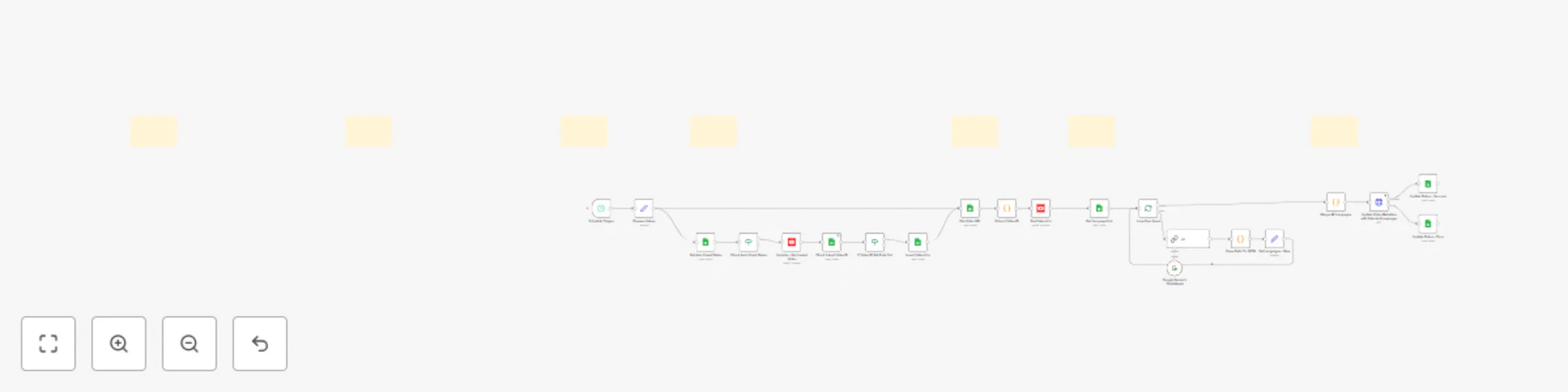
Phase 1: Prepare Values & Auto Crawl Mode
- Set up a Schedule Trigger: In the Schedule Trigger node in n8n, define your preferred interval to automatically run the workflow on a recurring schedule; no manual execution needed.
- Set Required Parameters: In the Prepare Values node in n8n, you must enter the following:
- spreadsheet_id: to link the workflow to your connected Google Sheet
- channel_name: to specify which tab of the Google Sheet contains the video URLs to process
- channel_id: to define the YouTube channel the workflow will act upon
- Set Target Languages: In the Languages tab of your connected Google Sheet, list all languages you'd like to generate translated titles and descriptions for. These will be used later during the translation phase.
- Choose Crawling Mode: In the Auto tab of your Google Sheet, configure the Auto Crawl setting in Column B based on your preferred method:
- Select No (Turn off Auto Crawl): You must manually input the video URL(s) in the channel_name tab and set the status to Ready for 1 video only.
- Select Yes (Turn on Auto Crawl): The workflow will automatically fetch one of the latest videos from your connected YouTube channel (based on channel_id) into the channel_name tab in your Google Sheet.
Phase 2: Trigger The Process
- Once everything is properly set up, the workflow in n8n can be activated - either manually or automatically via the Schedule Trigger, which runs based on the interval you’ve configured earlier.
- The tool then checks the Auto Crawl status in Column B in the Auto tab of your connected Google Sheet to determine the route:
- If Auto Crawl = No: The workflow skips auto-fetching and proceeds directly to the next phase, expecting that the video URL is already entered manually and marked as Ready in its status.
- If Auto Crawl = Yes: The tool connects to your YouTube channel using the predefined channel_id. It fetches one of the latest videos and checks whether that video’s ID already exists in the list of processed videos.
- If the video has not been processed yet, its URL will be inserted into the channel_name tab, and its status in Column A will automatically be set to Ready, ensuring it proceeds to the next step.
- If it already exists, the video is skipped to avoid reprocessing.
⚠️ Important: When Auto Crawl = Yes, do not manually add another URL and set its status to Ready in the channel_name tab in the Google Sheet. Doing so may trigger the same video twice, causing data conflicts and redundant processing.
Phase 3: Collect Video Information
- Once a new video URL appears in your connected Google Sheet and its status is set Ready in Column A (under the specified channel_name tab), the workflow picks it up automatically.
- Then, it extracts the Video ID from the URL and sends a GET request to the YouTube API to retrieve that video’s title and description in your channel’s default language for the next steps.
Phase 4: Generate Translated Metadata In Preset Languages
- The tool reads your target languages from the Languages tab in your connected Google Sheet.
- A loop runs through each language code one at a time.
- For each language, the tool sends your original title and description to Google Gemini’s Chat Model. Then, the AI returns the content translated into the target language.
- The output is returned in JSON data, then restructured to ensure each language’s data is clearly separated and ready for the next step.
Phase 5: Update Translated Metadata On YouTube & Log Status
- All translated titles and descriptions from previous steps are combined into one structured format.
- The tool sends a PUT request to the YouTube API to update the video’s metadata directly with the new multilingual-translated content.
- If the update is successful, the video's status in Column A in the channel_name tab in the connected Google Sheet is marked as Success.
- If the update fails, the video’s status is marked as Error for later review or retry.
How To Set Up
- Download the working package.
- Import the package into your n8n interface.
- Duplicate the Youtube - Update Video Metadata in Multi-Languages Google Sheet template into your Google Sheets account. For the channel_name tab in the template, you can rename it with your actual YouTube channel's name for easier tracking.
- Set up necessary credentials in Google Cloud Console for tools access and usability:
- For Google Sheets access, please ensure connection in the following nodes:
Node Get Auto Crawl Status → connected to the Auto tab
Node Check Latest Video ID → connected to the channel_name tab
Node Insert Video Info → connected to the channel_name tab
Node Get Video URL → connected to the channel_name tab
Node Get Language List → connected to the Languages tab
Node Update Status - Success → connected to the channel_name tab
Node Update Status - Error → connected to the channel_name tab
- For YouTube access, ensure connection to YouTube API in the following nodes:
Node YouTube - Get Latest Video
Node Get Video Info
Node Update Video Metadata with Selected Languages
- For Google Gemini access, ensure connection to Google Gemini API in the following node:
Node Google Gemini’s Chat Model
- Set a Schedule Trigger in n8n to run the workflow automatically at your preferred interval.
- Define necessary parameters in Node Prepare Values in your n8n workflow:
- spreadsheet_id: your connected Google Sheet ID
- channel_name: the tab in your connected Google Sheet contains the video URLs and receives process updates (should be renamed with your actual YouTube channel’s name for easy tracking)
- channel_id: your YouTube channel ID
- Check the status of the Auto Crawl function in the Auto tab in your connected Google Sheet:
- By default, its status is No: You’ll manually insert a video URL and mark its row as Ready.
- In case you want to turn it on, please change it to Yes: The tool will automatically fetch the latest video(s) from your channel.
- Activate the workflow in n8n.
- To manually update a video:
- Set Auto Crawl to No
- Insert the video URL into the channel_name tab
- Set the status to Ready
- To automate with Auto Crawl:
- Set Auto Crawl to Yes
- The tool will auto-fetch one of the new videos and set its status to Ready
- Track results of the original row in the channel_name tab of your Google Sheet and YouTube:
- If the row’s status is Success, the metadata is updated on YouTube with all the set languages and you can check things out on the platform directly.
- If the row’s status is Error, you can do manual review or retry.
Requirements
- Basic setup in Google Cloud Console with OAuth2 credentials in the following configurations:
- Google Sheets API enabled, with edit permissions on the connected spreadsheet
- YouTube API enabled, with an account that has Owner or Editor role on the target channel
- API access to Google Gemini for generating multilingual translated content via AI.
How To Customize
- Adjust the trigger interval: Change the schedule in the Schedule Trigger node to fit your needs (e.g. every 10 minutes, hourly, etc.).
- Add or remove target languages: Simply update the Languages tab in your connected Google Sheet. No changes in n8n are required.
- Customize the translation style: You can edit the prompt inside the AI node to change the tone, format, or style of the translations. However, do not modify the output structure format - doing so will break the workflow.
- Add alerts or notifications when finished: Feel free to integrate additional nodes (like Telegram or Email) to notify you and your team when updates succeed or fail.
FAQs:
1. Can I use this workflow for more than one YouTube channel?
Not directly. This workflow is currently designed to connect to a single YouTube channel ID at a time. However, if you’d like to manage multiple YouTube channels within one Google Sheet and a unified n8n interface, we can customize the setup for you. Feel free to reach out to Agent Circle for a tailored setup and guidance.
2. What happens if I manually enter a video URL while Auto Crawl is ON?
Avoid this. Manually adding a URL with status Ready in the channel_name tab while Auto Crawl = Yes may cause duplicate processing, API conflicts, or data overwrites.
3. How many languages can I translate into at once?
There's no strict limit. You can list as many languages as needed in the Languages tab in your connected Google Sheet. Refer to the All Languages tab in the Google Sheet template for valid languages and language codes (e.g., en, fr, es, de).
4. Do I need to change anything in n8n when I add more languages?
No - simply update the Languages tab in your connected Google Sheet. No work in n8n is needed for this.
5. Can I change the AI model from Google Gemini to something else?
Yes. You can replace the Google Gemini Chat Model node with another chat model, such as OpenAI GPT-4, or any compatible LLM provider.
6. What happens if the metadata update to YouTube fails?
The video's status in Column A of the channel_name tab in your connected Google Sheet will be marked Error. You can then review, fix, and re-run the process.
7. Can I edit the translation prompt in the AI node for my own brand tone?
Absolutely. You can customize the translation prompt in the AI node to adjust tone, format, or even brand voice. Just make sure the structure of the returned JSON remains intact.
8. Is the workflow GDPR or YouTube policy-compliant?
Yes - as long as you're the owner or have editor access to the YouTube channel and use the official YouTube API with proper OAuth2 authentication.
9. Can I schedule this workflow to run every day?
Yes. In the Schedule Trigger node in n8n, set your preferred interval - e.g., daily, every 12 hours, etc.
10. Does this work with unlisted or private videos?
No - YouTube API typically returns data only for public videos. For private/unlisted videos, additional permissions and scopes are required. If you need support for this case, feel free to contact Agent Circle for personalized consultation and setup assistance.
Need Help?
If you need a step-by-step guide to set up this workflow or want it customized for your specific business needs, feel free to reach out to Agent Circle. We’re always here to support and help you to bring automation ideas to life.
Join our community on different platforms for assistance, inspiration and tips from others.
Website: https://www.agentcircle.ai/
Etsy: https://www.etsy.com/shop/AgentCircle
Gumroad: http://agentcircle.gumroad.com/
Discord Global: https://discord.gg/d8SkCzKwnP
FB Page Global: https://www.facebook.com/agentcircle/
FB Group Global: https://www.facebook.com/groups/aiagentcircle/
X: https://x.com/agent_circle
YouTube: https://www.youtube.com/@agentcircle
LinkedIn: https://www.linkedin.com/company/agentcircle


 Early Deal