Monitor & respond to Google Maps reviews using AI, Apify, Slack, and Sheets

Workflow preview

Workflow preview
100%
Monitor & respond to Google Maps reviews using AI, Apify, Slack, and Sheets preview
Open on n8n.io

Important notice

This workflow is provided as-is. Please review and test before using in production.

1. Workflow Overview

This workflow automates reputation management for physical stores (restaurants, retail, clinics) by monitoring Google Maps reviews, analyzing them with AI, and drafting professional replies. It act...

Best for

  • Ticket Management automation workflows
  • AI Summarization automation workflows
  • advanced n8n builders looking for reusable templates

Tools used

n8n-nodes-base.scheduletrigger, n8n-nodes-base.set, n8n-nodes-base.googlesheets, n8n-nodes-base.if, n8n-nodes-base.slack, @apify/n8n-nodes-apify.apify, @n8n/n8n-nodes-langchain.agent, @n8n/n8n-nodes-langchain.lmchatopenrouter

Source and attribution

This workflow is cataloged by N8N Workflows and links back to its original n8n.io source page by takuma.

Original n8n.io source

1.1 Workflow description

Title
Monitor & respond to Google Maps reviews using AI, Apify, Slack, and Sheets
Workflow name
Monitor & respond to Google Maps reviews using AI, Apify, Slack, and Sheets

This workflow automates reputation management for physical stores (restaurants, retail, clinics) by monitoring Google Maps reviews, analyzing them with AI, and drafting professional replies.

It acts as a 24/7 customer support assistant, ensuring you never miss a negative review and saving hours of manual writing time.

Who is this for?

  • Store Managers & Owners: Keep track of customer sentiment without manually checking Google Maps every day.
  • Marketing Agencies: Automate local SEO reporting and response drafting for multiple clients.
  • Customer Support Teams: Get instant alerts for negative feedback to resolve issues quickly.

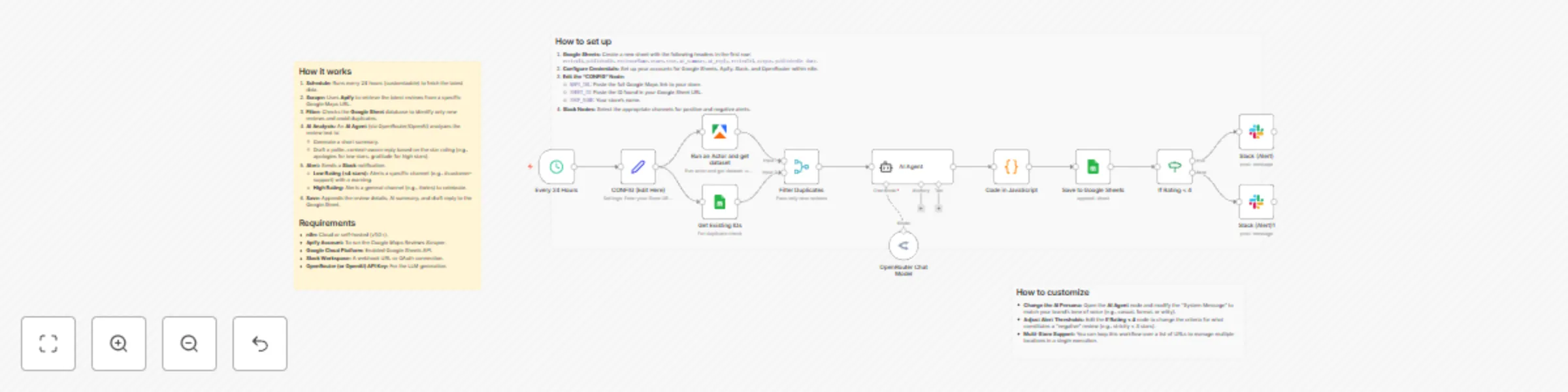
How it works

  1. Schedule: Runs every 24 hours (customizable) to fetch the latest data.
  2. Scrape: Uses Apify to retrieve the latest reviews from a specific Google Maps URL.
  3. Filter: Checks the Google Sheet database to identify only new reviews and avoid duplicates.
  4. AI Analysis: An AI Agent (via OpenRouter/OpenAI) analyzes the review text to:
    • Generate a short summary.
    • Draft a polite, context-aware reply based on the star rating (e.g., apologies for low stars, gratitude for high stars).
  5. Alert: Sends a Slack notification.
    • Low Rating (<4 stars): Alerts a specific channel (e.g., #customer-support) with a warning.
    • High Rating: Alerts a general channel (e.g., #wins) to celebrate.
  6. Save: Appends the review details, AI summary, and draft reply to the Google Sheet.

Requirements

  • n8n: Cloud or self-hosted (v1.0+).
  • Apify Account: To run the Google Maps Reviews Scraper.
  • Google Cloud Platform: Enabled Google Sheets API.
  • Slack Workspace: A webhook URL or OAuth connection.
  • OpenRouter (or OpenAI) API Key: For the LLM generation.

How to set up

  1. Google Sheets: Create a new sheet with the following headers in the first row: reviewId, publishedAt, reviewerName, stars, text, ai_summary, ai_reply, reviewUrl, output, publishedAt date.
  2. Configure Credentials: Set up your accounts for Google Sheets, Apify, Slack, and OpenRouter within n8n.
  3. Edit the "CONFIG" Node:
    • MAPS_URL: Paste the full Google Maps link to your store.
    • SHEET_ID: Paste the ID found in your Google Sheet URL.
    • SHOP_NAME: Your store's name.
  4. Slack Nodes: Select the appropriate channels for positive and negative alerts.

How to customize

  • Change the AI Persona: Open the AI Agent node and modify the "System Message" to match your brand's tone of voice (e.g., casual, formal, or witty).
  • Adjust Alert Thresholds: Edit the If Rating < 4 node to change the criteria for what constitutes a "negative" review (e.g., strictly < 3 stars).
  • Multi-Store Support: You can loop this workflow over a list of URLs to manage multiple locations in a single execution.

1.2 Logical Blocks

This catalog entry is organized from the workflow JSON. The node-level section below shows the executable blocks available for review before importing the template.

2. Block-by-Block Analysis

Block 1 - Every 24 Hours

Type / Role
n8n-nodes-base.scheduleTrigger - scheduleTrigger
Config choices
Version 1.1

Block 2 - CONFIG (Edit Here)

Type / Role
n8n-nodes-base.set - set
Config choices
Version 2

Block 3 - Get Existing IDs

Type / Role
n8n-nodes-base.googleSheets - googleSheets
Config choices
Version 4.1

Block 4 - Save to Google Sheets

Type / Role
n8n-nodes-base.googleSheets - googleSheets
Config choices
Version 4.1

Block 5 - If Rating < 4

Type / Role
n8n-nodes-base.if - if
Config choices
Version 1

Block 6 - Slack (Alert)

Type / Role
n8n-nodes-base.slack - slack
Config choices
Version 2.1

Block 7 - Run an Actor and get dataset

Type / Role
@apify/n8n-nodes-apify.apify - apify
Config choices
Version 1

Block 8 - AI Agent

Type / Role
@n8n/n8n-nodes-langchain.agent - agent
Config choices
Version 3

Block 9 - OpenRouter Chat Model

Type / Role
@n8n/n8n-nodes-langchain.lmChatOpenRouter - lmChatOpenRouter
Config choices
Version 1

Block 10 - Filter Duplicates

Type / Role
n8n-nodes-base.merge - merge
Config choices
Version 2.1

Block 11 - Slack (Alert)1

Type / Role
n8n-nodes-base.slack - slack
Config choices
Version 2.1

Block 12 - Code in JavaScript

Type / Role
n8n-nodes-base.code - code
Config choices
Version 2

Block 13 - Sticky Note

Type / Role
n8n-nodes-base.stickyNote - stickyNote
Config choices
Version 1

Block 14 - Sticky Note1

Type / Role
n8n-nodes-base.stickyNote - stickyNote
Config choices
Version 1

Block 15 - Sticky Note2

Type / Role
n8n-nodes-base.stickyNote - stickyNote
Config choices
Version 1

3. Summary Table

Workflow Monitor & respond to Google Maps reviews using AI, Apify, Slack, and Sheets
Complexity advanced
Nodes 15
Categories Ticket Management, AI Summarization
Author takuma
Published 20 Nov 2025

4. Reproducing the Workflow from Scratch

  1. 1. Download the workflow JSON

    Use the JSON export at /data/workflows/11053/11053.json as the source template for this automation.

  2. 2. Import the template into n8n

    Open n8n, import the downloaded JSON, and review each node before activating the workflow.

  3. 3. Configure credentials and variables

    Replace placeholder credentials, API keys, webhook URLs, account IDs, and environment-specific values with your own settings.

  4. 4. Test with sample data

    Run the workflow manually or in a staging workspace, inspect node output, and confirm downstream systems receive the expected data.

  5. 5. Activate and monitor

    Enable the workflow only after testing, then monitor executions, errors, and rate limits during the first production runs.

5. General Notes & Resources

Review imported nodes carefully before activation. This catalog entry is intended to help you inspect the workflow structure, understand required services, and find related templates faster.

Node names, credentials, schedules, webhook paths, and external service limits may need adjustment for your workspace.

Frequently asked questions

What does Monitor & respond to Google Maps reviews using AI, Apify, Slack, and Sheets do?

This workflow automates reputation management for physical stores (restaurants, retail, clinics) by monitoring Google Maps reviews, analyzing them with AI, and drafting professional replies. It act...

What do I need before importing this workflow?

Review the workflow JSON, configure any required credentials in n8n, and test the automation in a safe workspace before using it in production.

Can I customize this workflow?

Yes. Use the block-by-block analysis and the downloadable JSON to inspect each node, then adjust credentials, prompts, schedules, filters, or destinations for your Ticket Management, AI Summarization use case.