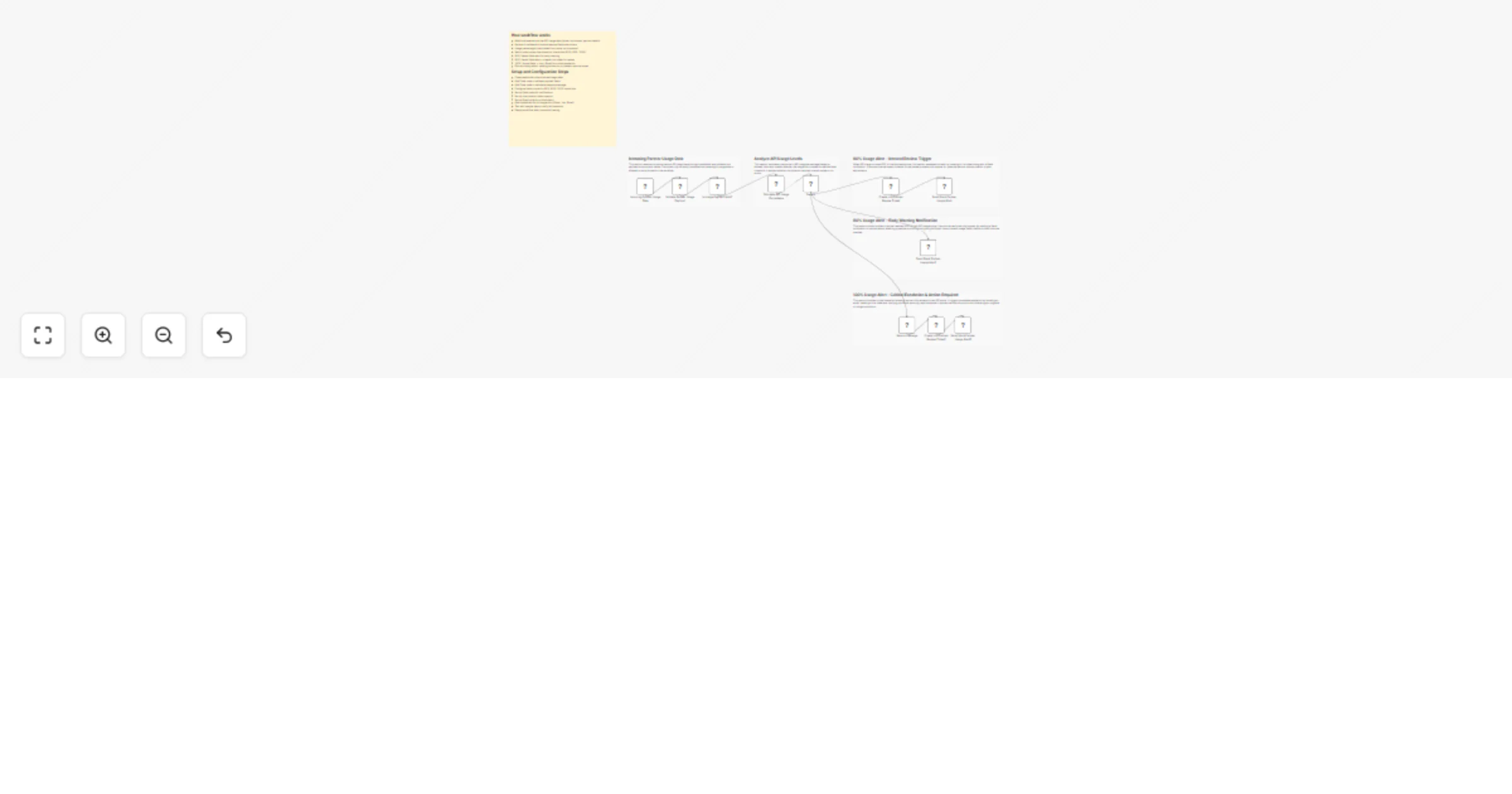
Monitor partner API usage with Slack, Jira and Gmail alerts

Workflow preview

Workflow preview
100%
Monitor partner API usage with Slack, Jira and Gmail alerts preview
Open on n8n.io

1. Workflow Overview

Smart Partner API Usage Monitoring with Slack, Jira & Gmail Alerts This workflow monitors partner API usage in real time and triggers alerts based on usage thresholds. It validates incoming data, c...

Best for

  • DevOps automation workflows
  • advanced n8n builders looking for reusable templates

Tools used

n8n-nodes-base.code, n8n-nodes-base.if, n8n-nodes-base.jira, n8n-nodes-base.slack, n8n-nodes-base.webhook, n8n-nodes-base.stickynote, n8n-nodes-base.switch, n8n-nodes-base.gmail

Source and attribution

This workflow is cataloged by N8N Workflows and links back to its original n8n.io source page by WeblineIndia.

Original n8n.io source

1.1 Workflow description

Title
Monitor partner API usage with Slack, Jira and Gmail alerts
Workflow name
Monitor partner API usage with Slack, Jira and Gmail alerts

Smart Partner API Usage Monitoring with Slack, Jira & Gmail Alerts

This workflow monitors partner API usage in real time and triggers alerts based on usage thresholds. It validates incoming data, calculates usage percentage and routes actions using a Switch node. Slack notifications are sent at 80%, Jira tickets are created at 90% and critical alerts (Email + Jira + Slack) are triggered at 100%.

Quick Implementation Steps

  1. Import the workflow into n8n
  2. Configure the Webhook node and test with sample data
  3. Add credentials for Slack, Jira and Gmail
  4. Update Slack channel ID, Jira project and email recipient
  5. Activate the workflow
  6. Send test payloads to verify all alert levels

What This Workflow Does

This workflow helps monitor partner API usage automatically and ensures timely alerts when usage reaches defined thresholds. It starts by receiving usage data through a webhook, validating the payload and calculating the usage percentage based on quota and consumption values.

Once calculated, the workflow routes the data using a Switch node. At 80% usage, it sends an early warning Slack notification. At 90%, it escalates by creating a Jira ticket and notifying via Slack. When usage reaches 100%, it triggers a critical alert by sending an email, creating a Jira ticket and sending a Slack notification.

This approach ensures better visibility, timely action and helps prevent service disruption.

Who’s This For?

  • SaaS platforms with API-based billing
  • DevOps and Engineering teams
  • Product and Platform teams
  • Customer Success managers
  • Businesses managing partner integrations

Requirements

  • n8n (Cloud or Self-hosted)
  • Slack account with API access
  • Jira Software Cloud account
  • Gmail account (OAuth configured in n8n)
  • API or system to send usage data via webhook

How It Works & Setup Guide

Setup Steps

  1. Webhook Setup
  • Configure the Incoming Partner Usage Data node
  • Accept POST requests
  • Required fields:
  • partner_id
  • partner_name
  • quota
  • consumed
  • timestamp
  1. Validate Payload
  • The workflow checks for missing fields and invalid values
  1. Calculate Usage
  • Calculates usage percentage from quota and consumed values
  • Stops execution if usage is below 80%
  1. Switch Routing
  • Routes workflow based on usage:
  • 80% → Slack alert
  • 90% → Jira + Slack
  • 100% → Gmail + Jira + Slack
  1. Configure Integrations
  • Slack: Set channel ID
  • Jira: Set project and issue type
  • Gmail: Set recipient email
  1. Test Workflow
  • Send sample data to webhook
  • Verify all alert paths
  1. Activate
  • Enable workflow after testing

How To Customize Nodes

  • Webhook Node → Change endpoint path or add authentication
  • Validation Node → Add more fields like plan or email
  • Calculation Node → Modify threshold logic
  • Switch Node → Adjust percentage ranges
  • Slack Node → Customize message format and channel
  • Jira Node → Update ticket structure
  • Gmail Node → Modify email subject, HTML, recipients

Add-ons & Enhancements

  • Add deduplication to avoid repeated alerts
  • Store usage data in database or Google Sheets
  • Send alerts to multiple email recipients
  • Integrate with CRM or billing systems
  • Add cooldown or rate limiting
  • Enrich partner data using external APIs

Use Case Examples

  • Monitor API usage for partners in SaaS platforms
  • Prevent service downtime due to overuse
  • Trigger internal review processes automatically
  • Automate partner upgrade discussions
  • Improve operational visibility for teams

This workflow can be adapted for many other automation use cases as well.

Troubleshooting Guide

Issue Possible Cause Solution
Workflow not triggering Webhook not called Verify webhook URL and method
Invalid payload error Missing fields Ensure required fields are included
Slack message not sent Incorrect channel or credentials Reconfigure Slack node
Jira ticket not created Wrong project or API issue Verify Jira credentials
Email not sent Gmail OAuth issue Reconnect Gmail account
Incorrect usage % Invalid data format Ensure numeric values

Need Help?

If you need help setting up or customizing this workflow, our n8n workflow development team at WeblineIndia can assist you in building scalable automation solutions, integrating APIs and optimizing workflows using n8n.

Whether you need custom workflow development, advanced automation features or production-ready deployment, we are here to help you build reliable automation systems.

1.2 Logical Blocks

This catalog entry is organized from the workflow JSON. The node-level section below shows the executable blocks available for review before importing the template.

2. Block-by-Block Analysis

Block 1 - Validate Partner Usage Payload

Type / Role
n8n-nodes-base.code - code
Config choices
Version 2

Block 2 - Is Usage Payload Valid?

Type / Role
n8n-nodes-base.if - if
Config choices
Version 2.2

Block 3 - Calculate API Usage Percentage

Type / Role
n8n-nodes-base.code - code
Config choices
Version 2

Block 4 - Create Jira Partner Review Ticket

Type / Role
n8n-nodes-base.jira - jira
Config choices
Version 1

Block 5 - Send Slack Partner Usage Alert

Type / Role
n8n-nodes-base.slack - slack
Config choices
Version 2.3

Block 6 - Incoming Partner Usage Data

Type / Role
n8n-nodes-base.webhook - webhook
Config choices
Version 2.1

Block 7 - Sticky Note

Type / Role
n8n-nodes-base.stickyNote - stickyNote
Config choices
Version 1

Block 8 - Sticky Note1

Type / Role
n8n-nodes-base.stickyNote - stickyNote
Config choices
Version 1

Block 9 - Sticky Note2

Type / Role
n8n-nodes-base.stickyNote - stickyNote
Config choices
Version 1

Block 10 - Sticky Note4

Type / Role
n8n-nodes-base.stickyNote - stickyNote
Config choices
Version 1

Block 11 - Switch

Type / Role
n8n-nodes-base.switch - switch
Config choices
Version 3.3

Block 12 - Send Slack Partner Usage Alert1

Type / Role
n8n-nodes-base.slack - slack
Config choices
Version 2.3

Block 13 - Send a message

Type / Role
n8n-nodes-base.gmail - gmail
Config choices
Version 2.1

Block 14 - Create Jira Partner Review Ticket1

Type / Role
n8n-nodes-base.jira - jira
Config choices
Version 1

Block 15 - Send Slack Partner Usage Alert2

Type / Role
n8n-nodes-base.slack - slack
Config choices
Version 2.3

Block 16 - Sticky Note5

Type / Role
n8n-nodes-base.stickyNote - stickyNote
Config choices
Version 1

Block 17 - Sticky Note3

Type / Role
n8n-nodes-base.stickyNote - stickyNote
Config choices
Version 1

3. Summary Table

Workflow Monitor partner API usage with Slack, Jira and Gmail alerts
Complexity advanced
Nodes 17
Categories DevOps
Author WeblineIndia
Published 04 Apr 2026

4. Reproducing the Workflow from Scratch

  1. 1. Download the workflow JSON

    Use the JSON export at /data/workflows/14709/14709.json as the source template for this automation.

  2. 2. Import the template into n8n

    Open n8n, import the downloaded JSON, and review each node before activating the workflow.

  3. 3. Configure credentials and variables

    Replace placeholder credentials, API keys, webhook URLs, account IDs, and environment-specific values with your own settings.

  4. 4. Test with sample data

    Run the workflow manually or in a staging workspace, inspect node output, and confirm downstream systems receive the expected data.

  5. 5. Activate and monitor

    Enable the workflow only after testing, then monitor executions, errors, and rate limits during the first production runs.

5. General Notes & Resources

Review imported nodes carefully before activation. This catalog entry is intended to help you inspect the workflow structure, understand required services, and find related templates faster.

Node names, credentials, schedules, webhook paths, and external service limits may need adjustment for your workspace.

Frequently asked questions

What does Monitor partner API usage with Slack, Jira and Gmail alerts do?

Smart Partner API Usage Monitoring with Slack, Jira & Gmail Alerts This workflow monitors partner API usage in real time and triggers alerts based on usage thresholds. It validates incoming data, c...

What do I need before importing this workflow?

Review the workflow JSON, configure any required credentials in n8n, and test the automation in a safe workspace before using it in production.

Can I customize this workflow?

Yes. Use the block-by-block analysis and the downloadable JSON to inspect each node, then adjust credentials, prompts, schedules, filters, or destinations for your DevOps use case.