Block 1 - Send an Email
- Type / Role
- n8n-nodes-base.emailSend - emailSend
- Config choices
- Version 2.1


 Early Deal
Automatically monitor billable Kimai projects every weekday morning and receive a formatted HTML email when a project deadline is approaching or its hour budget is running low. If nothing requires ...
n8n-nodes-base.emailsend, n8n-nodes-base.scheduletrigger, n8n-nodes-base.httprequest, n8n-nodes-base.code, n8n-nodes-base.merge, n8n-nodes-base.if, n8n-nodes-base.stickynote
This workflow is cataloged by N8N Workflows and links back to its original n8n.io source page by Gaetano Abbaticchio.
Original n8n.io sourceAutomatically monitor billable Kimai projects every weekday morning and receive a formatted HTML email when a project deadline is approaching or its hour budget is running low. If nothing requires attention, no email is sent keeping your inbox clean and focused.
Teams and freelancers using Kimai to track billable hours who want to stay on top of project deadlines and budget consumption without checking manually every day. Particularly useful for agencies managing multiple concurrent projects with fixed-hour contracts or purchase orders with expiry dates.
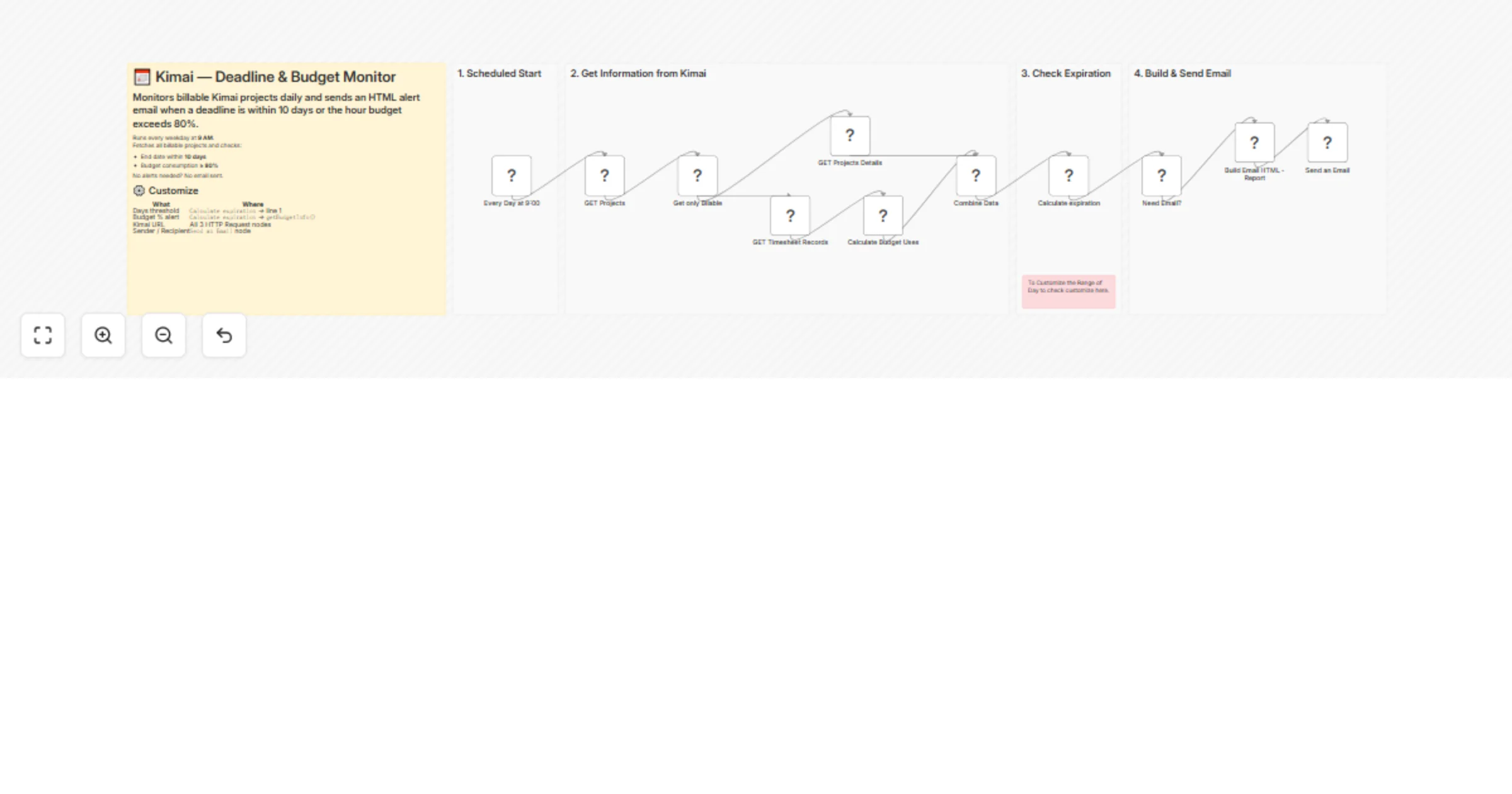
The workflow runs Monday–Friday at 9 AM via a Schedule Trigger. It fetches all visible billable projects from Kimai, then, in parallel, retrieves full project details (end date, time budget, customer name) and all timesheet records for each project. Total logged hours are calculated and merged with project data.
Each project is then evaluated: it gets flagged if its end date falls within the next 10 days, or if logged hours have exceeded 80% of the allocated budget. Flagged projects are assigned a color-coded urgency level (expired, urgent, warning, on track, or missing data) and sorted by days remaining.
A rich HTML email is generated with one card per project, showing the deadline status and a visual progress bar for hour consumption. The email is sent only if at least one project qualifies, otherwise the workflow exits silently.
https://kimai with your actual Kimai instance URL in the three HTTP Request nodes and in the email button link inside the Build Email HTML - Report nodefromEmail and toEmail in the Send an Email node| What | Where |
|---|---|
| Days threshold (default: 10) | Calculate expiration → line 1 |
| Budget alert % (default: 80%) | Calculate expiration → getBudgetInfo() |
| Schedule | Every Day at 9:00 trigger node |
| Sender / recipient email | Send an Email node |
This catalog entry is organized from the workflow JSON. The node-level section below shows the executable blocks available for review before importing the template.
| Workflow | Monitor Kimai project deadlines and budgets with daily email alerts |
|---|---|
| Complexity | advanced |
| Nodes | 17 |
| Categories | Project Management |
| Author | Gaetano Abbaticchio |
| Published | 25 Mar 2026 |
Use the JSON export at /data/workflows/14306/14306.json as the source template for this automation.
Open n8n, import the downloaded JSON, and review each node before activating the workflow.
Replace placeholder credentials, API keys, webhook URLs, account IDs, and environment-specific values with your own settings.
Run the workflow manually or in a staging workspace, inspect node output, and confirm downstream systems receive the expected data.
Enable the workflow only after testing, then monitor executions, errors, and rate limits during the first production runs.
Review imported nodes carefully before activation. This catalog entry is intended to help you inspect the workflow structure, understand required services, and find related templates faster.
Node names, credentials, schedules, webhook paths, and external service limits may need adjustment for your workspace.
Automatically monitor billable Kimai projects every weekday morning and receive a formatted HTML email when a project deadline is approaching or its hour budget is running low. If nothing requires ...
Review the workflow JSON, configure any required credentials in n8n, and test the automation in a safe workspace before using it in production.
Yes. Use the block-by-block analysis and the downloadable JSON to inspect each node, then adjust credentials, prompts, schedules, filters, or destinations for your Project Management use case.