Block 1 - Review Check Schedule
- Type / Role
- n8n-nodes-base.scheduleTrigger - scheduleTrigger
- Config choices
- Version 1.2


 Early Deal
Monitor Google reviews and draft AI responses with Gemini and Slack Who is this for Restaurant owners, retail store managers, and small business owners who want to stay on top of customer feedback ...
n8n-nodes-base.scheduletrigger, n8n-nodes-base.httprequest, n8n-nodes-base.code, @n8n/n8n-nodes-langchain.chainllm, n8n-nodes-base.googlesheets, n8n-nodes-base.filter, n8n-nodes-base.slack, n8n-nodes-base.gmail
This workflow is cataloged by N8N Workflows and links back to its original n8n.io source page by Oka Hironobu.
Original n8n.io sourceRestaurant owners, retail store managers, and small business owners who want to stay on top of customer feedback without manually checking Google reviews multiple times a day. Perfect for businesses that receive regular reviews and need quick response drafts for customer service.
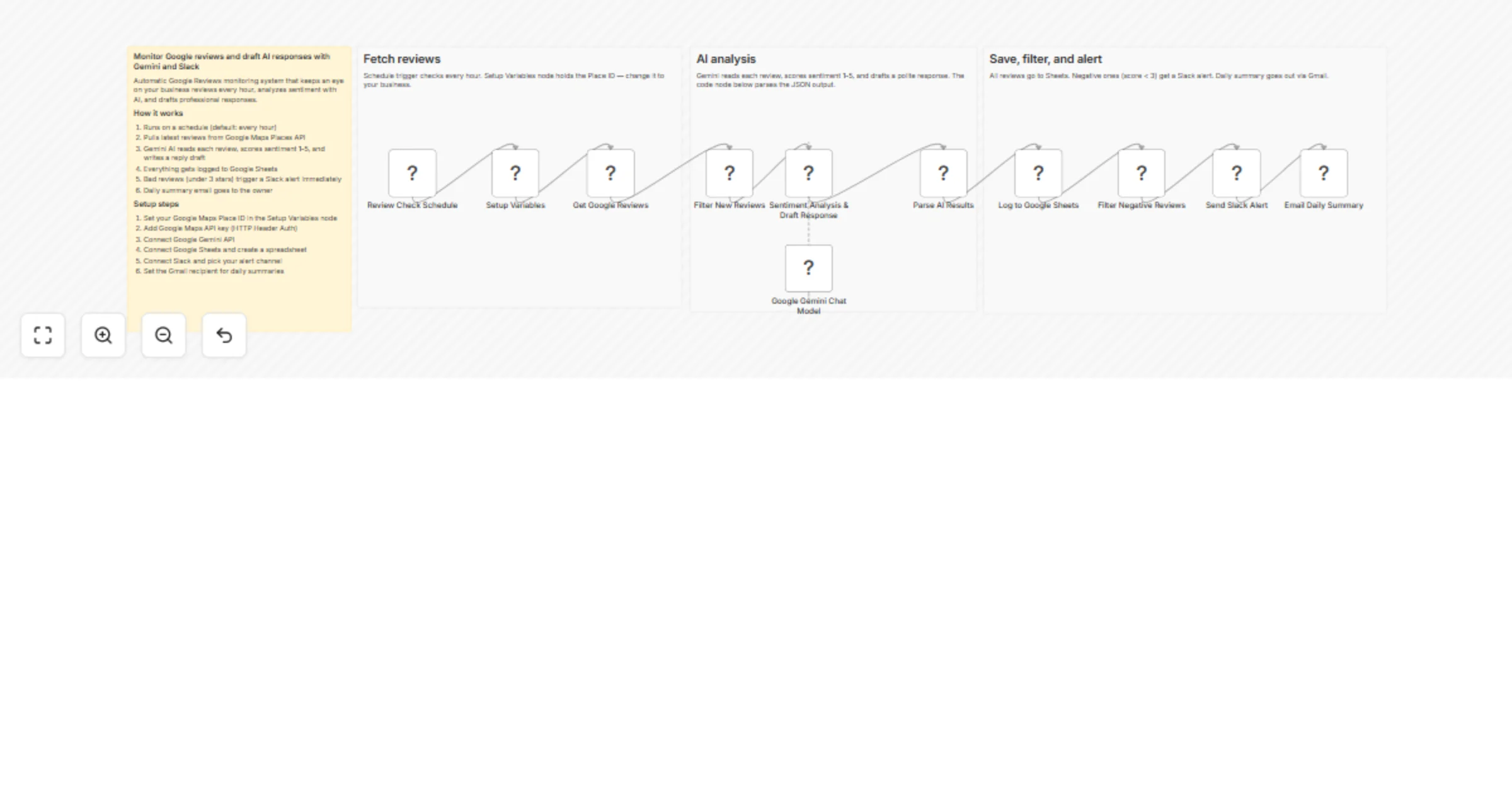
The workflow runs hourly via a schedule trigger, fetching new Google reviews through the Places API. Each review gets analyzed by Google Gemini AI, which provides a sentiment score (1-5 scale) and generates a professional response draft in under 50 words.
All reviews are automatically logged to a Google Sheets spreadsheet for tracking and analytics. When negative reviews (score below 3) are detected, the system immediately sends Slack notifications containing the review details and AI-generated response suggestions. At the end of each day, business owners receive email summaries with review statistics and highlights.
You'll need a Google Maps Places API key and your business place_id. Set up OAuth2 credentials for Google Sheets and Gmail, plus a Slack app for notifications. Configure the Setup Variables node with your business details, spreadsheet ID, and notification preferences.
Adjust the sentiment threshold in the Filter node to change what counts as "negative." Modify the Gemini AI prompt for different response styles or languages. Change the schedule trigger frequency or add additional notification channels like SMS or Discord.
This catalog entry is organized from the workflow JSON. The node-level section below shows the executable blocks available for review before importing the template.
| Workflow | Monitor Google reviews and draft AI responses with Gemini and Slack |
|---|---|
| Complexity | advanced |
| Nodes | 15 |
| Categories | Ticket Management, AI Summarization |
| Author | Oka Hironobu |
| Published | 20 Feb 2026 |
Use the JSON export at /data/workflows/13562/13562.json as the source template for this automation.
Open n8n, import the downloaded JSON, and review each node before activating the workflow.
Replace placeholder credentials, API keys, webhook URLs, account IDs, and environment-specific values with your own settings.
Run the workflow manually or in a staging workspace, inspect node output, and confirm downstream systems receive the expected data.
Enable the workflow only after testing, then monitor executions, errors, and rate limits during the first production runs.
Review imported nodes carefully before activation. This catalog entry is intended to help you inspect the workflow structure, understand required services, and find related templates faster.
Node names, credentials, schedules, webhook paths, and external service limits may need adjustment for your workspace.
Monitor Google reviews and draft AI responses with Gemini and Slack Who is this for Restaurant owners, retail store managers, and small business owners who want to stay on top of customer feedback ...
Review the workflow JSON, configure any required credentials in n8n, and test the automation in a safe workspace before using it in production.
Yes. Use the block-by-block analysis and the downloadable JSON to inspect each node, then adjust credentials, prompts, schedules, filters, or destinations for your Ticket Management, AI Summarization use case.