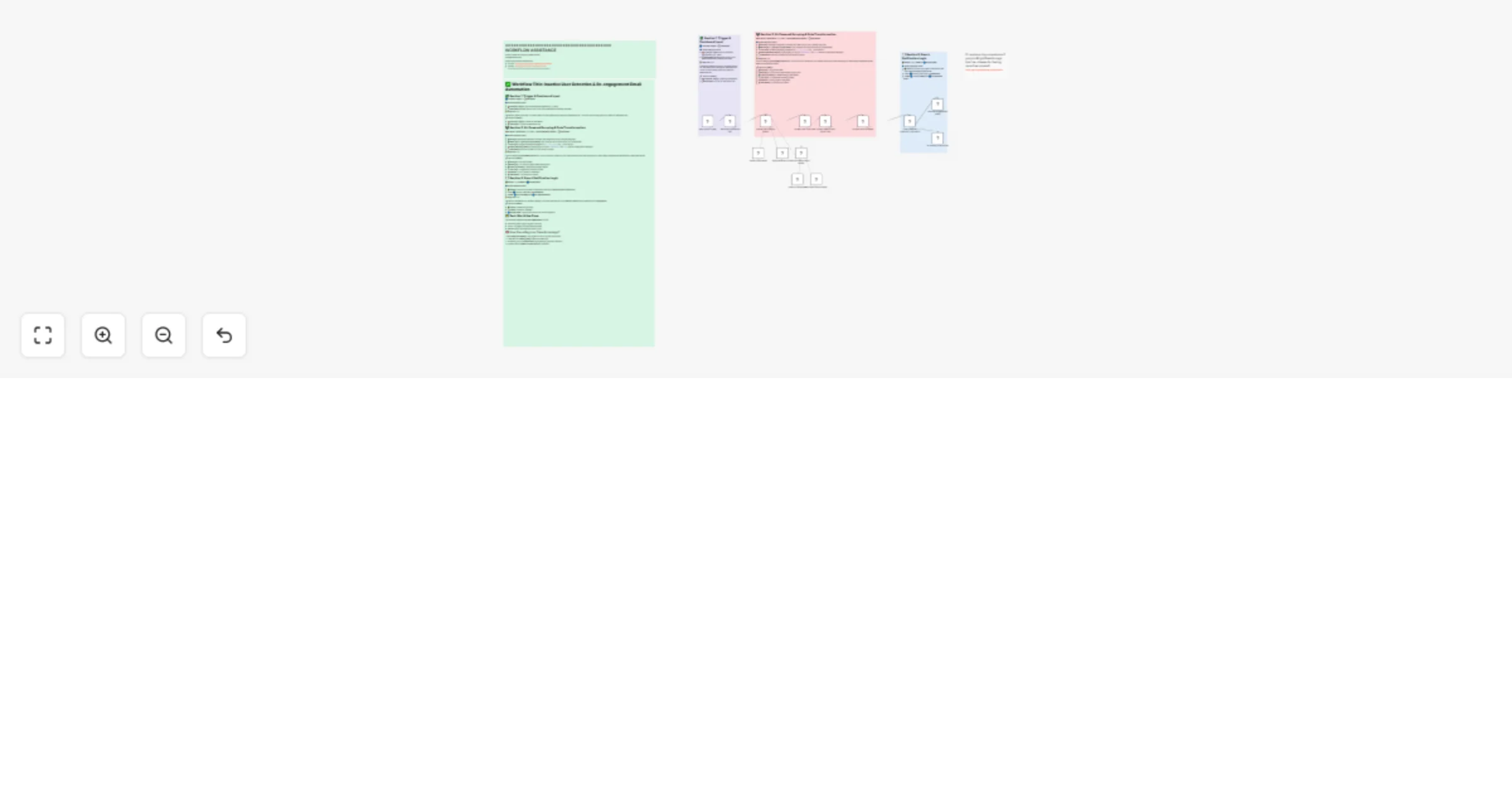
Monitor customer churn indicators with Bright Data MCP and OpenAI

Workflow preview

Workflow preview
100%
Monitor customer churn indicators with Bright Data MCP and OpenAI preview
Open on n8n.io

Important notice

This workflow is provided as-is. Please review and test before using in production.

1. Workflow Overview

This workflow contains community nodes that are only compatible with the self hosted version of n8n. This workflow automatically monitors customer churn indicators and early warning signals to help...

Best for

  • CRM automation workflows
  • AI Summarization automation workflows
  • advanced n8n builders looking for reusable templates

Tools used

@n8n/n8n-nodes-langchain.lmchatopenai, n8n-nodes-base.scheduletrigger, n8n-nodes-base.set, @n8n/n8n-nodes-langchain.agent, n8n-nodes-mcp.mcpclienttool, n8n-nodes-base.code, @n8n/n8n-nodes-langchain.openai, n8n-nodes-base.if

Source and attribution

This workflow is cataloged by N8N Workflows and links back to its original n8n.io source page by Yaron Been.

Original n8n.io source

1.1 Workflow description

Title
Monitor customer churn indicators with Bright Data MCP and OpenAI
Workflow name
Monitor customer churn indicators with Bright Data MCP and OpenAI

This workflow contains community nodes that are only compatible with the self-hosted version of n8n.

This workflow automatically monitors customer churn indicators and early warning signals to help reduce customer attrition and improve retention rates. It saves you time by eliminating the need to manually track customer behavior and provides proactive insights for preventing customer churn.

Overview

This workflow automatically scrapes customer data sources, support tickets, usage analytics, and engagement metrics to identify patterns that indicate potential customer churn. It uses Bright Data to access customer data and AI to intelligently analyze behavior patterns and predict churn risk.

Tools Used

  • n8n: The automation platform that orchestrates the workflow
  • Bright Data: For scraping customer data and analytics platforms without being blocked
  • OpenAI: AI agent for intelligent churn prediction and pattern analysis
  • Google Sheets: For storing churn indicators and customer retention data

How to Install

  1. Import the Workflow: Download the .json file and import it into your n8n instance
  2. Configure Bright Data: Add your Bright Data credentials to the MCP Client node
  3. Set Up OpenAI: Configure your OpenAI API credentials
  4. Configure Google Sheets: Connect your Google Sheets account and set up your churn monitoring spreadsheet
  5. Customize: Define customer data sources and churn indicator parameters

Use Cases

  • Customer Success: Proactively identify at-risk customers for retention efforts
  • Account Management: Prioritize customer outreach based on churn probability
  • Product Teams: Identify product issues that contribute to customer churn
  • Revenue Operations: Reduce churn rates and improve customer lifetime value

Connect with Me

#n8n #automation #churnprediction #customerretention #brightdata #webscraping #customeranalytics #n8nworkflow #workflow #nocode #churnindicators #customersuccess #retentionanalysis #customerchurn #customerinsights #churnprevention #retentionmarketing #customerdata #churnmonitoring #customerlifecycle #retentionmetrics #churnanalysis #customerbehavior #retentionoptimization #churnreduction #customerengagement #retentionstrategy #churnmanagement #customerhealth #retentiontracking

1.2 Logical Blocks

This catalog entry is organized from the workflow JSON. The node-level section below shows the executable blocks available for review before importing the template.

2. Block-by-Block Analysis

Block 1 - OpenAI Chat Model

Type / Role
@n8n/n8n-nodes-langchain.lmChatOpenAi - lmChatOpenAi
Config choices
Version 1.2

Block 2 - Daily Check Trigger

Type / Role
n8n-nodes-base.scheduleTrigger - scheduleTrigger
Config choices
Version 1.2

Block 3 - Set Admin Dashboard URL

Type / Role
n8n-nodes-base.set - set
Config choices
Version 3.4

Block 4 - Scrape User Data (AI Agent)

Type / Role
@n8n/n8n-nodes-langchain.agent - agent
Config choices
Version 2

Block 5 - Bright Data MCP Client

Type / Role
n8n-nodes-mcp.mcpClientTool - mcpClientTool
Config choices
Version 1

Block 6 - Format User Login Data

Type / Role
n8n-nodes-base.code - code
Config choices
Version 2

Block 7 - Convert Date to Days Since Login

Type / Role
@n8n/n8n-nodes-langchain.openAi - openAi
Config choices
Version 1.8

Block 8 - Convert Days to Integer

Type / Role
n8n-nodes-base.set - set
Config choices
Version 3.4

Block 9 - Check Inactive Threshold (>=30 days)

Type / Role
n8n-nodes-base.if - if
Config choices
Version 2.2

Block 10 - Send Re-engagement Email

Type / Role
n8n-nodes-base.gmail - gmail
Config choices
Version 2.1

Block 11 - Do Nothing (User Active)

Type / Role
n8n-nodes-base.noOp - noOp
Config choices
Version 1

Block 12 - Sticky Note

Type / Role
n8n-nodes-base.stickyNote - stickyNote
Config choices
Version 1

Block 13 - Sticky Note1

Type / Role
n8n-nodes-base.stickyNote - stickyNote
Config choices
Version 1

Block 14 - Sticky Note2

Type / Role
n8n-nodes-base.stickyNote - stickyNote
Config choices
Version 1

Block 15 - Sticky Note5

Type / Role
n8n-nodes-base.stickyNote - stickyNote
Config choices
Version 1

Block 16 - Sticky Note9

Type / Role
n8n-nodes-base.stickyNote - stickyNote
Config choices
Version 1

Block 17 - Sticky Note4

Type / Role
n8n-nodes-base.stickyNote - stickyNote
Config choices
Version 1

Block 18 - Auto-fixing Output Parser

Type / Role
@n8n/n8n-nodes-langchain.outputParserAutofixing - outputParserAutofixing
Config choices
Version 1

Block 19 - OpenAI Chat Model1

Type / Role
@n8n/n8n-nodes-langchain.lmChatOpenAi - lmChatOpenAi
Config choices
Version 1.2

Block 20 - Structured Output Parser

Type / Role
@n8n/n8n-nodes-langchain.outputParserStructured - outputParserStructured
Config choices
Version 1.2

3. Summary Table

Workflow Monitor customer churn indicators with Bright Data MCP and OpenAI
Complexity advanced
Nodes 20
Categories CRM, AI Summarization
Author Yaron Been
Published 13 Jul 2025

4. Reproducing the Workflow from Scratch

  1. 1. Download the workflow JSON

    Use the JSON export at /data/workflows/5965/5965.json as the source template for this automation.

  2. 2. Import the template into n8n

    Open n8n, import the downloaded JSON, and review each node before activating the workflow.

  3. 3. Configure credentials and variables

    Replace placeholder credentials, API keys, webhook URLs, account IDs, and environment-specific values with your own settings.

  4. 4. Test with sample data

    Run the workflow manually or in a staging workspace, inspect node output, and confirm downstream systems receive the expected data.

  5. 5. Activate and monitor

    Enable the workflow only after testing, then monitor executions, errors, and rate limits during the first production runs.

5. General Notes & Resources

Review imported nodes carefully before activation. This catalog entry is intended to help you inspect the workflow structure, understand required services, and find related templates faster.

Node names, credentials, schedules, webhook paths, and external service limits may need adjustment for your workspace.

Frequently asked questions

What does Monitor customer churn indicators with Bright Data MCP and OpenAI do?

This workflow contains community nodes that are only compatible with the self hosted version of n8n. This workflow automatically monitors customer churn indicators and early warning signals to help...

What do I need before importing this workflow?

Review the workflow JSON, configure any required credentials in n8n, and test the automation in a safe workspace before using it in production.

Can I customize this workflow?

Yes. Use the block-by-block analysis and the downloadable JSON to inspect each node, then adjust credentials, prompts, schedules, filters, or destinations for your CRM, AI Summarization use case.