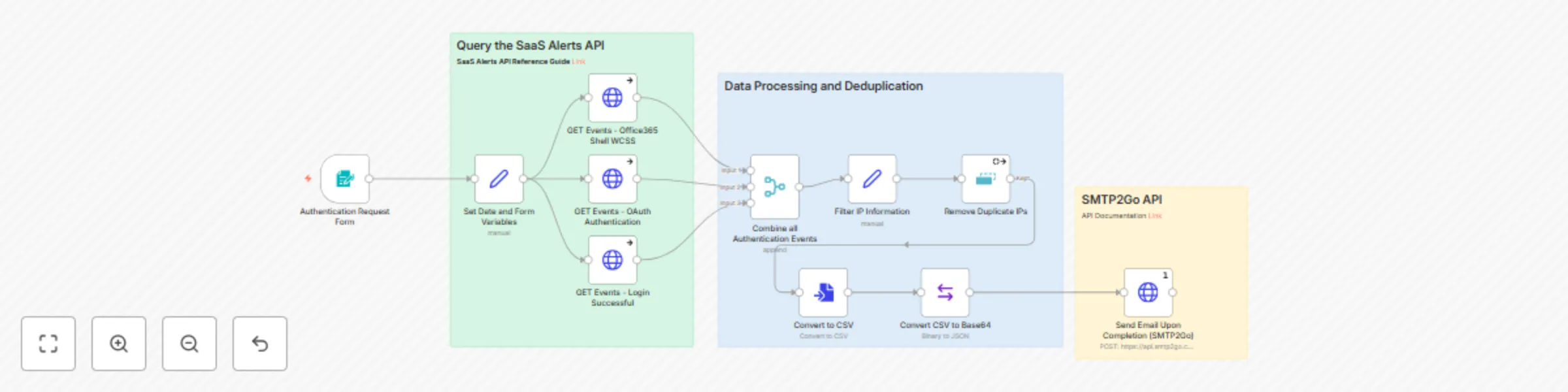
Monitor authentication IPs from SaaS alerts & email reports via SMTP2Go

Workflow preview

Workflow preview
100%
Monitor authentication IPs from SaaS alerts & email reports via SMTP2Go preview
Open on n8n.io

Important notice

This workflow is provided as-is. Please review and test before using in production.

1. Workflow Overview

Collect and Email Authentication IP Addresses from SaaS Alerts (Last 24 Hours) Description This n8n workflow automates the process of collecting sign in IP addresses from SaaS Alerts over the past ...

Best for

  • SecOps automation workflows
  • intermediate n8n builders looking for reusable templates

Tools used

n8n-nodes-base.httprequest, n8n-nodes-base.stickynote, n8n-nodes-base.removeduplicates, n8n-nodes-base.movebinarydata, n8n-nodes-base.converttofile, n8n-nodes-base.set, n8n-nodes-base.merge, n8n-nodes-base.formtrigger

Source and attribution

This workflow is cataloged by N8N Workflows and links back to its original n8n.io source page by Benjamin Jones (SaaS Alerts).

Original n8n.io source

1.1 Workflow description

Title
Monitor authentication IPs from SaaS alerts & email reports via SMTP2Go
Workflow name
Monitor authentication IPs from SaaS alerts & email reports via SMTP2Go

Collect and Email Authentication IP Addresses from SaaS Alerts (Last 24 Hours)

Description

This n8n workflow automates the process of collecting sign-in IP addresses from SaaS Alerts over the past 24 hours and emailing the results using SMTP2Go. Designed for security teams, IT administrators, and compliance officers, this workflow helps monitor user authentication activity, detect unusual sign-ins, and respond to potential security threats in real time.

By automating data collection and email alerts, organizations can proactively track login patterns, ensure compliance with security policies, and mitigate risks associated with unauthorized access.

Use Case

This workflow is ideal for businesses and IT teams that need to:

  • Monitor user authentication activity across SaaS applications.
  • Identify login attempts from suspicious IPs.
  • Automate security reporting and compliance tracking.
  • Receive real-time alerts for unusual sign-in behaviors.

Pre-Conditions & Requirements

Before using this workflow, ensure you have:

  • A SaaS Alerts account or another system that logs authentication IPs.
  • An SMTP2Go account for sending email notifications.
  • n8n set up with proper API credentials and database access (if applicable).

Setup Instructions

  1. Configure SaaS Alerts API

    • Obtain API from the SaaS Alerts Platform under the Settings menu.
  2. Set Up SMTP2Go for Email Alerts

    • Create an SMTP2Go account if you don’t have one.
    • Generate a SMTP2Go API key
    • Verify that your sending email address has been configured and verified.
    • Define recipient email addresses for security alerts.
  3. Customize the Workflow

    • Modify filtering rules to track specific users, IP ranges, or flagged login attempts.
    • Adjust email content to include relevant details for your team.
  4. Test & Deploy

    • Run the workflow manually to verify data retrieval and email notifications.
    • Schedule the workflow to run daily for automated monitoring.

Workflow Steps

  1. Trigger – Starts manually or on a scheduled interval (e.g., every 24 hours).
  2. Fetch Authentication Logs – Retrieves sign-in IPs from SaaS Alerts or a custom API.
  3. Filter & Process Data – Extracts relevant login attempts based on defined criteria.
  4. Format Data for Reporting – Structures the data for readability in an email alert.
  5. Send Email Notification via SMTP2Go – Delivers the security report to designated recipients.

Customization Options

  • Modify Filtering Rules – Track specific login behaviors, flagged IPs, or unusual patterns.
  • Change Email Recipients – Update the recipient list based on security team needs.
  • Integrate with Security Dashboards – Expand the workflow to log data into a SIEM system or incident response platform.
  • Add Additional Triggers – Configure alerts for specific login anomalies, such as failed login attempts.

Keywords

n8n security automation, authentication monitoring, login IP tracking, SMTP2Go email alerts, SaaS Alerts workflow, IT security automation, login anomaly detection

1.2 Logical Blocks

This catalog entry is organized from the workflow JSON. The node-level section below shows the executable blocks available for review before importing the template.

2. Block-by-Block Analysis

Block 1 - GET Events - Login Successful

Type / Role
n8n-nodes-base.httpRequest - httpRequest
Config choices
Version 4.2

Block 2 - Sticky Note

Type / Role
n8n-nodes-base.stickyNote - stickyNote
Config choices
Version 1

Block 3 - Sticky Note1

Type / Role
n8n-nodes-base.stickyNote - stickyNote
Config choices
Version 1

Block 4 - Sticky Note2

Type / Role
n8n-nodes-base.stickyNote - stickyNote
Config choices
Version 1

Block 5 - Send Email Upon Completion (SMTP2Go)

Type / Role
n8n-nodes-base.httpRequest - httpRequest
Config choices
Version 4.2

Block 6 - Remove Duplicate IPs

Type / Role
n8n-nodes-base.removeDuplicates - removeDuplicates
Config choices
Version 2

Block 7 - Convert CSV to Base64

Type / Role
n8n-nodes-base.moveBinaryData - moveBinaryData
Config choices
Version 1

Block 8 - Convert to CSV

Type / Role
n8n-nodes-base.convertToFile - convertToFile
Config choices
Version 1.1

Block 9 - Filter IP Information

Type / Role
n8n-nodes-base.set - set
Config choices
Version 3.4

Block 10 - Combine all Authentication Events

Type / Role
n8n-nodes-base.merge - merge
Config choices
Version 3

Block 11 - GET Events - OAuth Authentication

Type / Role
n8n-nodes-base.httpRequest - httpRequest
Config choices
Version 4.2

Block 12 - GET Events - Office365 Shell WCSS

Type / Role
n8n-nodes-base.httpRequest - httpRequest
Config choices
Version 4.2

Block 13 - Set Date and Form Variables

Type / Role
n8n-nodes-base.set - set
Config choices
Version 3.4

Block 14 - Authentication Request Form

Type / Role
n8n-nodes-base.formTrigger - formTrigger
Config choices
Version 2.2

3. Summary Table

Workflow Monitor authentication IPs from SaaS alerts & email reports via SMTP2Go
Complexity intermediate
Nodes 14
Categories SecOps
Author Benjamin Jones (SaaS Alerts)
Published 10 Mar 2025

4. Reproducing the Workflow from Scratch

  1. 1. Download the workflow JSON

    Use the JSON export at /data/workflows/3126/3126.json as the source template for this automation.

  2. 2. Import the template into n8n

    Open n8n, import the downloaded JSON, and review each node before activating the workflow.

  3. 3. Configure credentials and variables

    Replace placeholder credentials, API keys, webhook URLs, account IDs, and environment-specific values with your own settings.

  4. 4. Test with sample data

    Run the workflow manually or in a staging workspace, inspect node output, and confirm downstream systems receive the expected data.

  5. 5. Activate and monitor

    Enable the workflow only after testing, then monitor executions, errors, and rate limits during the first production runs.

5. General Notes & Resources

Review imported nodes carefully before activation. This catalog entry is intended to help you inspect the workflow structure, understand required services, and find related templates faster.

Node names, credentials, schedules, webhook paths, and external service limits may need adjustment for your workspace.

Frequently asked questions

What does Monitor authentication IPs from SaaS alerts & email reports via SMTP2Go do?

Collect and Email Authentication IP Addresses from SaaS Alerts (Last 24 Hours) Description This n8n workflow automates the process of collecting sign in IP addresses from SaaS Alerts over the past ...

What do I need before importing this workflow?

Review the workflow JSON, configure any required credentials in n8n, and test the automation in a safe workspace before using it in production.

Can I customize this workflow?

Yes. Use the block-by-block analysis and the downloadable JSON to inspect each node, then adjust credentials, prompts, schedules, filters, or destinations for your SecOps use case.