Monitor & alert on inactive AWS IAM users with Slack notifications

Workflow preview

Workflow preview
100%
Monitor & alert on inactive AWS IAM users with Slack notifications preview
Open on n8n.io

Important notice

This workflow is provided as-is. Please review and test before using in production.

1. Workflow Overview

AWS IAM Inactive User Automation Alert Workflow Weekly job that finds IAM users with no activity for 90 days and notifies a Slack channel. ️ Important: AWS SigV4 for IAM must be sco...

Best for

  • SecOps automation workflows
  • Multimodal AI automation workflows
  • advanced n8n builders looking for reusable templates

Tools used

n8n-nodes-base.scheduletrigger, n8n-nodes-base.awsiam, n8n-nodes-base.noop, n8n-nodes-base.slack, n8n-nodes-base.if, n8n-nodes-base.filter, n8n-nodes-base.stickynote, n8n-nodes-base.httprequest

Source and attribution

This workflow is cataloged by N8N Workflows and links back to its original n8n.io source page by Trung Tran.

Original n8n.io source

1.1 Workflow description

Title
Monitor & alert on inactive AWS IAM users with Slack notifications
Workflow name
Monitor & alert on inactive AWS IAM users with Slack notifications

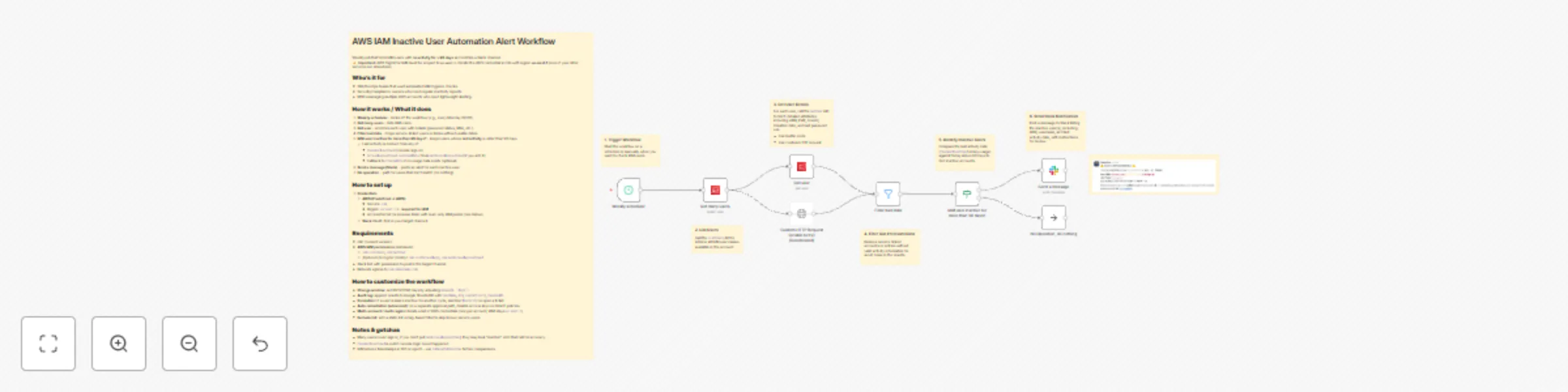
AWS IAM Inactive User Automation Alert Workflow

> Weekly job that finds IAM users with no activity for > 90 days and notifies a Slack channel.
> ⚠️ Important: AWS SigV4 for IAM must be scoped to us-east-1. Create the AWS credential in n8n with region us-east-1 (even if your other services run elsewhere).

Who’s it for

  • SRE/DevOps teams that want automated IAM hygiene checks.
  • Security/compliance owners who need regular inactivity reports.
  • MSPs managing multiple AWS accounts who need lightweight alerting.

How it works / What it does

  1. Weekly scheduler – kicks off the workflow (e.g., every Monday 09:00).
  2. Get many users – lists IAM users.
  3. Get user – enriches each user with details (password status, MFA, etc.).
  4. Filter bad data – drops service-linked users or items without usable dates.
  5. IAM user inactive for more than 90 days? – keeps users whose last activity is older than 90 days.
    • Last activity is derived from any of:
      • PasswordLastUsed (console sign-in)
      • AccessKeyLastUsed.LastUsedDate (from GetAccessKeyLastUsed if you add it)
      • Fallback to CreateDate if no usage data exists (optional)
  6. Send a message (Slack) – posts an alert for each inactive user.
  7. No operation – path for users that don’t match (do nothing).

How to set up

  1. Credentials
    • AWS (Predefined → AWS)
      • Service: iam
      • Region: us-east-1required for IAM
      • Access/Secret (or Assume Role) with read-only IAM perms (see below).
    • Slack OAuth (bot in your target channel).

Requirements

  • n8n (current version).
  • AWS IAM permissions (minimum):
    • iam:ListUsers, iam:GetUser
    • (Optional for higher fidelity) iam:ListAccessKeys, iam:GetAccessKeyLastUsed
  • Slack bot with permission to post in the target channel.
  • Network egress to iam.amazonaws.com.

How to customize the workflow

  • Change window: set 60/120/180 days by adjusting minus(N, 'days').
  • Audit log: append results to Google Sheets/DB with UserName, Arn, LastActivity, CheckedAt.
  • Escalation: if a user remains inactive for another cycle, mention @security or open a ticket.
  • Auto-remediation (advanced): on a separate approval path, disable access keys or detach policies.
  • Multi-account / multi-region: iterate a list of AWS credentials (one per account; IAM stays us-east-1).
  • Exclude list: add a static list or tag-based filter to skip known service users.

Notes & gotchas

  • Many users never sign in; if you don’t pull GetAccessKeyLastUsed, they may look “inactive”. Add that call for accuracy.
  • PasswordLastUsed is null if console login never happened.
  • IAM returns timestamps in ISO or epoch—use toDate/toDateTime before comparisons.

1.2 Logical Blocks

This catalog entry is organized from the workflow JSON. The node-level section below shows the executable blocks available for review before importing the template.

2. Block-by-Block Analysis

Block 1 - Weekly scheduler

Type / Role
n8n-nodes-base.scheduleTrigger - scheduleTrigger
Config choices
Version 1.2

Block 2 - Get many users

Type / Role
n8n-nodes-base.awsIam - awsIam
Config choices
Version 1

Block 3 - Get user

Type / Role
n8n-nodes-base.awsIam - awsIam
Config choices
Version 1

Block 4 - No Operation, do nothing

Type / Role
n8n-nodes-base.noOp - noOp
Config choices
Version 1

Block 5 - Send a message

Type / Role
n8n-nodes-base.slack - slack
Config choices
Version 2.3

Block 6 - IAM user inactive for more than 90 days?

Type / Role
n8n-nodes-base.if - if
Config choices
Version 2.2

Block 7 - Filter bad data

Type / Role
n8n-nodes-base.filter - filter
Config choices
Version 2.2

Block 8 - Sticky Note

Type / Role
n8n-nodes-base.stickyNote - stickyNote
Config choices
Version 1

Block 9 - Custom HTTP Request (enable to try)

Type / Role
n8n-nodes-base.httpRequest - httpRequest
Config choices
Version 4.2

Block 10 - Sticky Note1

Type / Role
n8n-nodes-base.stickyNote - stickyNote
Config choices
Version 1

Block 11 - Sticky Note2

Type / Role
n8n-nodes-base.stickyNote - stickyNote
Config choices
Version 1

Block 12 - Sticky Note3

Type / Role
n8n-nodes-base.stickyNote - stickyNote
Config choices
Version 1

Block 13 - Sticky Note4

Type / Role
n8n-nodes-base.stickyNote - stickyNote
Config choices
Version 1

Block 14 - Sticky Note5

Type / Role
n8n-nodes-base.stickyNote - stickyNote
Config choices
Version 1

Block 15 - Sticky Note6

Type / Role
n8n-nodes-base.stickyNote - stickyNote
Config choices
Version 1

Block 16 - Sticky Note7

Type / Role
n8n-nodes-base.stickyNote - stickyNote
Config choices
Version 1

3. Summary Table

Workflow Monitor & alert on inactive AWS IAM users with Slack notifications
Complexity advanced
Nodes 16
Categories SecOps, Multimodal AI
Author Trung Tran
Published 17 Aug 2025

4. Reproducing the Workflow from Scratch

  1. 1. Download the workflow JSON

    Use the JSON export at /data/workflows/7500/7500.json as the source template for this automation.

  2. 2. Import the template into n8n

    Open n8n, import the downloaded JSON, and review each node before activating the workflow.

  3. 3. Configure credentials and variables

    Replace placeholder credentials, API keys, webhook URLs, account IDs, and environment-specific values with your own settings.

  4. 4. Test with sample data

    Run the workflow manually or in a staging workspace, inspect node output, and confirm downstream systems receive the expected data.

  5. 5. Activate and monitor

    Enable the workflow only after testing, then monitor executions, errors, and rate limits during the first production runs.

5. General Notes & Resources

Review imported nodes carefully before activation. This catalog entry is intended to help you inspect the workflow structure, understand required services, and find related templates faster.

Node names, credentials, schedules, webhook paths, and external service limits may need adjustment for your workspace.

Frequently asked questions

What does Monitor & alert on inactive AWS IAM users with Slack notifications do?

AWS IAM Inactive User Automation Alert Workflow Weekly job that finds IAM users with no activity for 90 days and notifies a Slack channel. ️ Important: AWS SigV4 for IAM must be sco...

What do I need before importing this workflow?

Review the workflow JSON, configure any required credentials in n8n, and test the automation in a safe workspace before using it in production.

Can I customize this workflow?

Yes. Use the block-by-block analysis and the downloadable JSON to inspect each node, then adjust credentials, prompts, schedules, filters, or destinations for your SecOps, Multimodal AI use case.