Merge Google Drive PDFs with dynamic cover pages and watermark using Autype

Workflow preview

Workflow preview
100%
Merge Google Drive PDFs with dynamic cover pages and watermark using Autype preview
Open on n8n.io

1. Workflow Overview

Important : This workflow uses the Autype community node and requires a self hosted n8n instanc...

Best for

  • Document Extraction automation workflows
  • Multimodal AI automation workflows
  • advanced n8n builders looking for reusable templates

Tools used

n8n-nodes-base.manualtrigger, n8n-nodes-base.googledrive, n8n-nodes-base.code, n8n-nodes-autype.autype, n8n-nodes-base.splitinbatches, n8n-nodes-base.stickynote

Source and attribution

This workflow is cataloged by N8N Workflows and links back to its original n8n.io source page by 8Automator.

Original n8n.io source

1.1 Workflow description

Title
Merge Google Drive PDFs with dynamic cover pages and watermark using Autype
Workflow name
Merge Google Drive PDFs with dynamic cover pages and watermark using Autype

Important: This workflow uses the Autype community node and requires a self-hosted n8n instance.

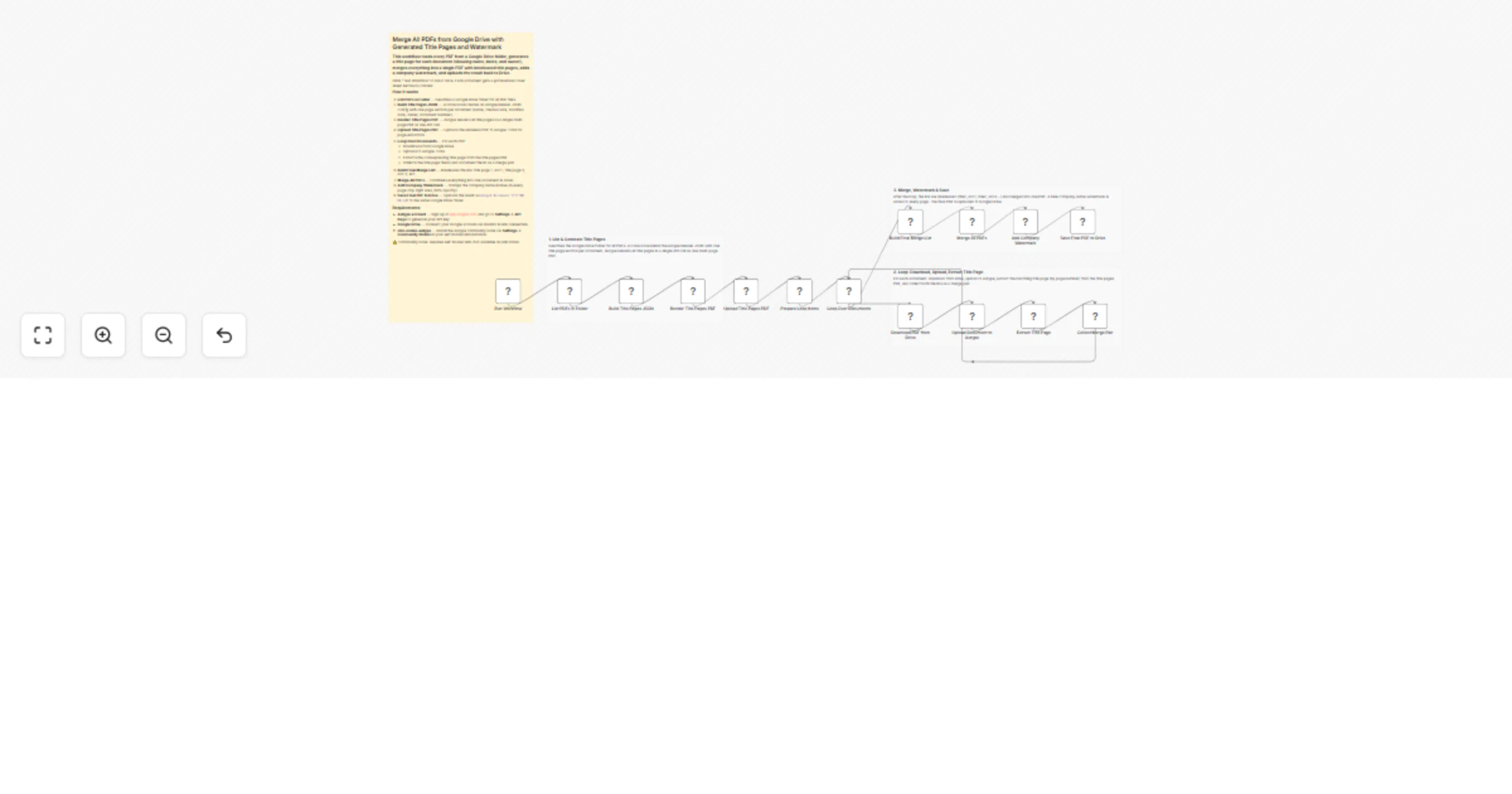
This workflow reads every PDF from a Google Drive folder, generates a metadata title page for each document (showing filename, creation date, last modified date, and owner), merges everything into a single PDF with interleaved title pages, adds a blue company-name watermark to every page, and uploads the final result back to Google Drive.

Who is this for?

Operations teams, project managers, legal departments, and anyone who needs to compile multiple PDFs into a single branded document package. Useful for monthly report bundles, compliance archives, client deliverables, audit documentation, or any scenario where multiple files need to be combined with clear separation between documents.

What this workflow does

On manual trigger, the workflow lists all PDFs in a specified Google Drive folder. It generates all metadata title pages at once using the Autype Render JSON endpoint (one API call for all cover sheets). Then it loops through each document, downloads it from Drive, uploads it to Autype, extracts the corresponding title page using the outputFileId directly (no re-upload needed), and collects merge pairs. After the loop, all file IDs are interleaved (title page 1, document 1, title page 2, document 2, ...) and merged. The watermark step also uses the outputFileId from Merge directly. The final PDF is saved back to Google Drive.

Output structure

The final merged PDF has the following page structure:

Every page in the merged result carries a blue company-name watermark.

How it works

  1. Run Workflow — Manual trigger starts the pipeline.
  2. List PDFs in Folder — A Google Drive node lists all files in the configured folder.
  3. Build Title Pages JSON — A Code node creates an Autype Render JSON config with one page section per document. Each title page shows the document name, creation date, last modified date, owner, and document number.
  4. Render Title Pages PDF — Autype renders all title pages as a single multi-page PDF in one API call (one page per document).
  5. Upload Title Pages PDF — The rendered PDF is uploaded to Autype Document Tools for page extraction in the loop.
  6. Prepare Loop Items — A Code node creates one item per document with the Drive file ID, title page number, and the title pages file ID.
  7. Loop Over Documents — For each document:
  • Download PDF from Drive — Downloads the file binary from Google Drive.
  • Upload Document to Autype — Uploads the document to get a file ID.
  • Extract Title Page — Uses the Keep/Remove Pages operation to extract the matching page from the title pages PDF (page 1 for doc 1, page 2 for doc 2, etc.). Returns outputFileId directly.
  • Collect Merge Pair — Stores outputFileId from Extract Title Page and the document file ID as a pair for the final merge.
  1. Build Final Merge List — A Code node interleaves all pairs into one comma-separated file ID string.
  2. Merge All PDFs — Combines all files into a single PDF in order. Returns outputFileId.
  3. Add Company Watermark — Uses outputFileId from Merge directly (no re-upload). Stamps the company name in blue (#2563EB) on every page at 60% opacity.
  4. Save Final PDF to Drive — Uploads the watermarked result as merged-documents-YYYY-MM-DD.pdf to the configured Google Drive folder.

Setup

  1. Install the Autype community node (n8n-nodes-autype) via Settings → Community Nodes.
  2. Create an Autype API credential with your API key from app.autype.com. See API Keys in Settings.
  3. Create a Google Drive OAuth2 credential and connect your Google account.
  4. Import this workflow and select your Autype credential in all Autype nodes and your Google Drive credential in all Google Drive nodes.
  5. Set YOUR_FOLDER_ID in the "List PDFs in Folder" node to the ID from your folder URL (https://drive.google.com/drive/folders/YOUR_FOLDER_ID).
  6. Set YOUR_FOLDER_ID in the "Save Final PDF to Drive" node to the same folder ID (or a different output folder).
  7. Change the watermark text in the "Add Company Watermark" node to your company name.
  8. Click Test Workflow to run the pipeline.

Note: This is a community node. You need a self-hosted n8n instance to use community nodes.

Requirements

  • Self-hosted n8n instance (community nodes are not available on n8n Cloud)
  • Autype account with API key (free tier available)
  • n8n-nodes-autype community node installed
  • Google Drive account with OAuth2 credentials

How to customize

  • Change title page content: Edit the "Build Title Pages JSON" Code node to add or remove metadata fields, change font sizes, or adjust colors.
  • Change watermark text: Replace "Your Company Name" in the "Add Company Watermark" node with your actual company name, "CONFIDENTIAL", "DRAFT", or any other label.
  • Adjust watermark style: Change color, fontSize, opacity, or rotation in the watermark options. Set pages to a range (e.g. "2-") to skip title pages.
  • Use a different output folder: Change the folder ID in the "Save Final PDF to Drive" node to upload to a separate location.
  • Add compression: Insert a Compress operation between the watermark and the Drive upload to reduce file size.
  • Add password protection: Insert a Protect operation after watermarking to encrypt the final PDF (see the A06 workflow for an example).
  • Control document order: Add sorting logic in the "Build Title Pages JSON" Code node to define the order in the merged PDF.

1.2 Logical Blocks

This catalog entry is organized from the workflow JSON. The node-level section below shows the executable blocks available for review before importing the template.

2. Block-by-Block Analysis

Block 1 - Run Workflow

Type / Role
n8n-nodes-base.manualTrigger - manualTrigger
Config choices
Version 1

Block 2 - List PDFs in Folder

Type / Role
n8n-nodes-base.googleDrive - googleDrive
Config choices
Version 3

Block 3 - Build Title Pages JSON

Type / Role
n8n-nodes-base.code - code
Config choices
Version 2

Block 4 - Render Title Pages PDF

Type / Role
n8n-nodes-autype.autype - autype
Config choices
Version 1

Block 5 - Prepare Loop Items

Type / Role
n8n-nodes-base.code - code
Config choices
Version 2

Block 6 - Loop Over Documents

Type / Role
n8n-nodes-base.splitInBatches - splitInBatches
Config choices
Version 3

Block 7 - Download PDF from Drive

Type / Role
n8n-nodes-base.googleDrive - googleDrive
Config choices
Version 3

Block 8 - Upload Document to Autype

Type / Role
n8n-nodes-autype.autype - autype
Config choices
Version 1

Block 9 - Extract Title Page

Type / Role
n8n-nodes-autype.autype - autype
Config choices
Version 1

Block 10 - Collect Merge Pair

Type / Role
n8n-nodes-base.code - code
Config choices
Version 2

Block 11 - Build Final Merge List

Type / Role
n8n-nodes-base.code - code
Config choices
Version 2

Block 12 - Merge All PDFs

Type / Role
n8n-nodes-autype.autype - autype
Config choices
Version 1

Block 13 - Add Company Watermark

Type / Role
n8n-nodes-autype.autype - autype
Config choices
Version 1

Block 14 - Save Final PDF to Drive

Type / Role
n8n-nodes-base.googleDrive - googleDrive
Config choices
Version 3

Block 15 - Sticky Note

Type / Role
n8n-nodes-base.stickyNote - stickyNote
Config choices
Version 1

Block 16 - Sticky Note1

Type / Role
n8n-nodes-base.stickyNote - stickyNote
Config choices
Version 1

Block 17 - Sticky Note2

Type / Role
n8n-nodes-base.stickyNote - stickyNote
Config choices
Version 1

Block 18 - Sticky Note3

Type / Role
n8n-nodes-base.stickyNote - stickyNote
Config choices
Version 1

Block 19 - Upload Title Pages PDF

Type / Role
n8n-nodes-autype.autype - autype
Config choices
Version 1

3. Summary Table

Workflow Merge Google Drive PDFs with dynamic cover pages and watermark using Autype
Complexity advanced
Nodes 19
Categories Document Extraction, Multimodal AI
Author 8Automator
Published 05 Mar 2026

4. Reproducing the Workflow from Scratch

  1. 1. Download the workflow JSON

    Use the JSON export at /data/workflows/13896/13896.json as the source template for this automation.

  2. 2. Import the template into n8n

    Open n8n, import the downloaded JSON, and review each node before activating the workflow.

  3. 3. Configure credentials and variables

    Replace placeholder credentials, API keys, webhook URLs, account IDs, and environment-specific values with your own settings.

  4. 4. Test with sample data

    Run the workflow manually or in a staging workspace, inspect node output, and confirm downstream systems receive the expected data.

  5. 5. Activate and monitor

    Enable the workflow only after testing, then monitor executions, errors, and rate limits during the first production runs.

5. General Notes & Resources

Review imported nodes carefully before activation. This catalog entry is intended to help you inspect the workflow structure, understand required services, and find related templates faster.

Node names, credentials, schedules, webhook paths, and external service limits may need adjustment for your workspace.

Frequently asked questions

What does Merge Google Drive PDFs with dynamic cover pages and watermark using Autype do?

Important : This workflow uses the Autype community node and requires a self hosted n8n instanc...

What do I need before importing this workflow?

Review the workflow JSON, configure any required credentials in n8n, and test the automation in a safe workspace before using it in production.

Can I customize this workflow?

Yes. Use the block-by-block analysis and the downloadable JSON to inspect each node, then adjust credentials, prompts, schedules, filters, or destinations for your Document Extraction, Multimodal AI use case.