8Automator
Workflows by 8Automator
Generate branded word documents with Claude AI and Json2Doc (up to 20 pages)
## Overview This n8n workflow automatically generates professionally formatted Word documents (DOCX) with consistent company branding using AI. It leverages **[Json2Doc](json2doc)** and the **Json2Doc MCP** server to transform simple text prompts into complete, multi-page documents. Get your free API key at: **[app.json2doc.com](app.json2doc.com)** ## Use Cases Generate first drafts of: - Contracts and legal agreements - Internal forms and templates - Company announcements and notices - Internal documentation and policies - Business reports and presentations - Guidelines and procedures - and much more ... ## Key Features ### Consistent Company Branding - Custom fonts, colors, and typography - Company logo in headers - Page numbers in footers - Controlled spacing and layout - Professional heading styles ### Multi-Page Document Support - Page-based sections (new page) - Flow sections (continuous across pages) - **Automatic pagination** - Consistent **headers** and **footers** throughout ### Rich Content Types - Multiple heading levels - Formatted text and paragraphs - Tables with custom styling - Ordered and unordered lists - Images and logos - Auto Generated QR Codes ### AI-Driven Generation Uses Claude Sonnet 4.5 to: - Generate appropriate document structure - Apply correct formatting - Create professional, coherent content ## How It Works ### 1. Input Form Users provide: - **Prompt** - Description of the desired document (e.g., "Generate an employment contract template") - **Logo URL** - Web-accessible URL to company logo ### 2. Company Styling Pre-configured branding is applied (See workflow for Description on how to Update): - Font, font Styles (for H1,H2, ...) - Header: Company name + logo - Footer: Page numbers ("Page X of Y") - Spacing rules for all content types - Table Styles ### 3. AI Document Generation The AI agent: 1. Retrieves the Json2Doc section schema 2. Generates JSON configuration for the document 3. Validates the configuration 4. Creates a document generation job 5. Returns the Job ID ### 4. Processing & Download - Waits for document completion (3 seconds initially) - Polls job status via API - Retries if not complete - Downloads the final DOCX file when ready ## Setup Requirements ### Authentication You need a Json2Doc API key from **app.json2doc.com** (Permanently free version available). ## Processing Times ### Configuration Generation (Model-dependent) The AI model generates the JSON configuration: - Simple documents (1-2 pages): 10-30 seconds - Medium documents (3-5 pages): 30-60 seconds - Complex documents (10-20 pages): 60-120 seconds Time varies based on the selected AI model and document complexity. ### Json2Doc Processing Once the configuration is created, Json2Doc generates the DOCX file in **2-6 seconds** regardless of document size. ## Extensions This workflow can be integrated with: - Cloud storage (Google Drive, Dropbox) - Email services for automated delivery - Approval workflows - Document management systems ## Important Limitation **This workflow is only suitable for documents up to 20 pages**, as larger documents will exceed the AI model's context window. For longer documents, use the Builder Mode instead: [DocumentBuilder Docs](https://docs.json2doc.com/docs/document-generation/builder)
Convert websites to Instagram Reels with Gemini Veo, OpenAI TTS, and JsonCut
⚠️ Important: This workflow uses community nodes (JsonCut, Blotato) and requires a self-hosted n8n instance. This n8n template automates the **entire process of transforming blog articles and any kind of other websites into short-form informational videos for Instagram**. It scrapes content, generates AI-powered video clips, adds voiceover and subtitles, and publishes directly to social media—all with proper source attribution and branding. ## Who's it for Content creators, digital marketers, and social media managers who want to repurpose quality blog content into engaging video formats. Perfect for those running content marketing operations who need to maintain consistent social media presence without manual video editing. ## What it does The workflow takes a blog article URL as input and produces a fully composed Instagram-ready video with: - AI-generated background video clips matching the content - Professional text-to-speech narration - Auto-generated subtitles with word-by-word animations - Background music from Creative Commons sources - Branding overlay and source attribution - Smooth transitions between scenes - Direct publishing to Instagram ## How it works 1. **Content Extraction**: [Firecrawl](https://www.firecrawl.dev/) scrapes the blog article and extracts clean markdown content 2. **Content Summarization**: An LLM via [OpenRouter](https://openrouter.ai/) condenses the article into digestible talking points (max 1,000 characters) 3. **Script Generation**: A second LLM generates 3-5 video prompts, narration text, and social media caption in structured JSON format 4. **Video Generation**: [Google Veo API](https://aistudio.google.com/models/veo-3) creates 8-second background clips in 9:16 format for each prompt 5. **Audio Creation**: [OpenAI TTS](https://platform.openai.com/docs/guides/text-to-speech) converts the narration to speech, while [Openverse API](https://openverse.org/) fetches royalty-free background music 6. **File Upload**: All assets (videos, voice, music) are uploaded to [JsonCut's](https://jsoncut.com) storage 7. **Video Composition**: JsonCut merges everything together with auto-subtitles, transitions, branding overlays, and source attribution 8. **Publishing**: [Blotato](https://my.blotato.com/signup?plan=starter-monthly) uploads the final video to Instagram as a reel with the generated caption ## Setup requirements ### Required accounts and credentials: - **[Firecrawl API](https://www.firecrawl.dev/)** - for web scraping - **OpenRouter API** - for LLM access (uses GPT-4 Mini in this template) - **Google Gemini API** - for Veo video generation (note: 10 requests/day free tier limit) - **OpenAI** - for text-to-speech generation - **[JsonCut account](https://jsoncut.com)** - for video composition and file hosting - **[Blotato account](https://my.blotato.com/signup?plan=starter-monthly)** - for Instagram publishing - **Instagram Business account** connected to Blotato ### Installation steps: 1. Install community nodes: - `@mendable/n8n-nodes-firecrawl` - `n8n-nodes-jsoncut` - `@blotato/n8n-nodes-blotato` 2. Configure all API credentials in n8n's credential manager 3. Update the Blotato Instagram account ID in the "Create Instagram post" node 4. Replace the branding overlay image URL in the JsonCut "Generate media" node config: ```json "path": "https://your-logo-url.png" ``` 5. Test with the chat trigger by entering a blog article URL ### Good to know **Cost considerations:** - Blotato costs $29 (there are many cheaper alternatives available) - JsonCut is free (but the Pro subscription is required for the auto caption feature) - Veo 3 fast costs approximately $0.15 per second **Rate limits:** Google Veo free tier is limited to 10 requests per day, which means ~2-3 complete workflows daily **Processing time:** Full workflow takes 5-10 minutes depending on Veo API response times **Source attribution:** The workflow automatically extracts the domain from the input URL and displays it on the first video clip **Video quality:** Output depends heavily on input quality. The workflow is designed for repurposing legitimate content
Create viral storytelling videos with GPT, Gemini & JsonCut from text prompts
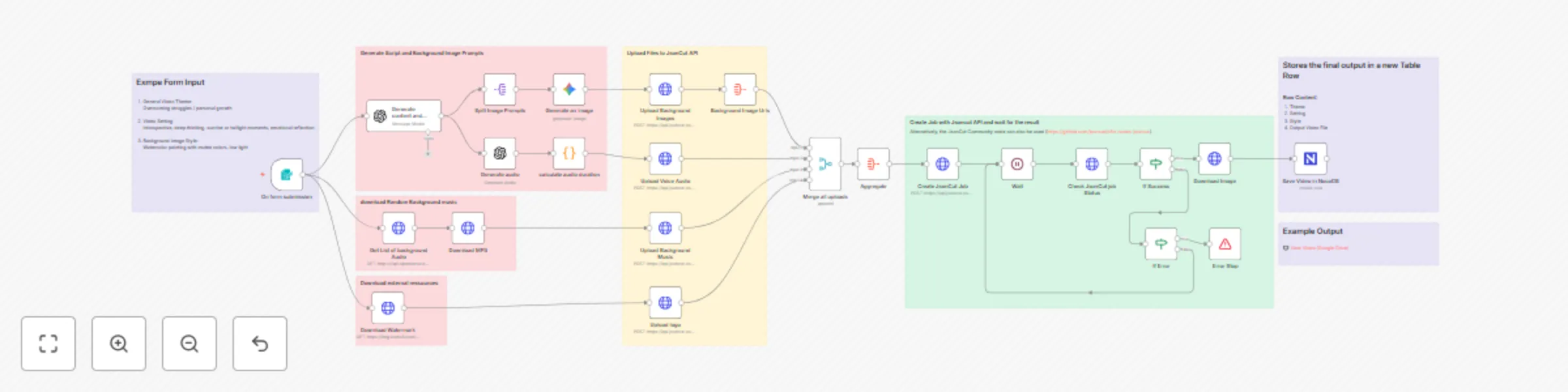
## Generate ready-to-publish short-form videos from text prompts using AI [](https://drive.google.com/file/d/1Cl0KwgRgcuBPVdGgL-nqAcheyvfVXttD/view) *Click on the image to see the Example output in google drive* Transform simple text concepts into professional short-form videos complete with AI-generated visuals, narrator voice, background music, and dynamic text overlays - all automatically generated and ready for Instagram, TikTok, or YouTube Shorts. This workflow demonstrates a cost-effective approach to video automation by combining AI-generated images with audio composition instead of expensive AI video generation. Processing takes 1-2 minutes and outputs professional 9:16 vertical videos optimized for social platforms. The template serves as both a showcase and building block for larger automation systems, with sticky notes providing clear guidance for customization and extension. ## Who's it for Content creators, social media managers, and marketers who need consistent, high-quality video content without manual production work. Perfect for motivational content, storytelling videos, educational snippets, and brand campaigns. ## How it works The workflow uses a form trigger to collect video theme, setting, and style preferences. [ChatGPT](https://platform.openai.com/docs/guides/chat) generates cohesive scripts and image prompts, while [Google Gemini](https://ai.google.dev/) creates themed background images and [OpenAI TTS](https://platform.openai.com/docs/guides/text-to-speech) produces narrator audio. Background music is sourced from [Openverse](https://openverse.org/) for CC-licensed tracks. All assets are uploaded to [JsonCut API](https://jsoncut.com) which composes the final video with synchronized overlays, transitions, and professional audio mixing. Results are stored in [NocoDB](https://nocodb.com/) for management. ## How to set up 1. **JsonCut API**: Sign up at [jsoncut.com](https://jsoncut.com) and create an API key at [app.jsoncut.com](https://app.jsoncut.com). Configure HTTP Header Auth credential in n8n with header name `x-api-key` 2. **OpenAI API**: Set up credentials for script generation and text-to-speech 3. **Google Gemini API**: Configure access for Imagen 4.0 image generation 4. **NocoDB** (Optional): Set up instance for video storage and configure database credentials ## Requirements - [JsonCut](https://jsoncut.com) free account with API key - [OpenAI API](https://platform.openai.com/) access for GPT and TTS - [Google Gemini API](https://ai.google.dev/) for image generation - [NocoDB](https://nocodb.com/) (optional) for result storage ## How to customize the workflow This template is designed as a foundation for larger automation systems. The modular structure allows easy modification of AI prompts for different content niches (business, wellness, education), replacement of the form trigger with RSS feeds or database triggers for automated content generation, integration with social media APIs for direct publishing, and customization of visual branding through [JsonCut configuration](https://docs.jsoncut.com). The workflow can be extended for bulk processing, A/B testing multiple variations, or integration with existing content management systems. Sticky notes throughout the workflow provide detailed guidance for common customizations and scaling options.
Create AI-generated social media posts from RSS feeds with GPT-5 and JsonCut
 Automatically create and publish ready-to-post social media news updates — all powered by AI. This workflow turns any RSS feed into professional, branded posts, complete with visuals and captions. Use cases include automating news updates, sharing industry insights, or maintaining an active social presence without manual work. --- ## Good to know - Fully automated end-to-end publishing — from RSS feed to social post - Uses **JsonCut** for dynamic image composition (backgrounds, text overlays, logos) - Publishes directly to Instagram (or other channels) via **Blotato** - Utilizes **OpenAI GPT-5** for post text and image prompt generation - Polling mechanism checks job status every 3 seconds - Setup time: under 10 minutes once credentials are in place --- ## How it works 1. The **RSS Trigger** monitors any RSS feed for new content. 2. **OpenAI GPT-5** rewrites the headline and creates a short, social-friendly post caption. 3. An **AI image prompt** is generated to match the article’s topic and mood. 4. **JsonCut** combines the background, logo, and headline text into a branded image. 5. Once the image is ready, **Blotato** uploads and publishes the post directly to Instagram (or other connected platforms). The process runs completely automatically — no human input required after setup. --- ## How to use 1. Import the workflow into your **n8n** instance. 2. Configure your RSS feed URL(s). 3. Add your **JsonCut**, **Blotato**, and **OpenAI** credentials. 4. Activate the workflow — it will automatically generate and post new content whenever your RSS source updates. --- ## Requirements - Free account at [jsoncut.com](https://jsoncut.com) - Account at [blotato.com](https://www.blotato.com/) *(paid service — can be replaced with any social media API or publishing platform)* - API keys for both services: - **JsonCut API Key** via [app.jsoncut.com](https://app.jsoncut.com) - **Blotato API Key** via [www.blotato.com](https://www.blotato.com/) - **OpenAI credential** (GPT-5 or compatible model) - **RSS Feed URL** (e.g. from a news site, blog, or press page) --- ## Setup steps 1. Sign up for a free account at [app.jsoncut.com](https://app.jsoncut.com). 2. If you use **Blotato**, create an account at [blotato.com](https://www.blotato.com/) and generate an API key. 3. In n8n, add: - `JsonCut API Key` (HTTP Header Auth, header: `x-api-key`) - `Blotato API` credential *(optional — can be replaced)* - `OpenAI` credential for GPT-5 4. Replace the example RSS URL in the **RSS Feed Trigger** node with your own. 5. Activate the workflow — it will start monitoring, generating, and posting automatically. --- ## Customising this workflow You can easily adjust: - The **image layout** and branding (in the “Create JsonCut Job” node) - The **tone or length** of social captions (in the “Create Instagram Text” node prompt) - The **publishing platform** — replace **Blotato** with another integration (e.g. Buffer, Hootsuite, or native social API) - Posting frequency via the **RSS trigger interval** For advanced customization, check out: - [JsonCut Documentation](https://docs.jsoncut.com) - [JsonCut Image Generation Examples](https://docs.jsoncut.com/docs/image-generation/examples) - [Blotato Website](https://www.blotato.com/) - [n8n Documentation](https://docs.n8n.io)
Create professional image watermarks with JSONCut API
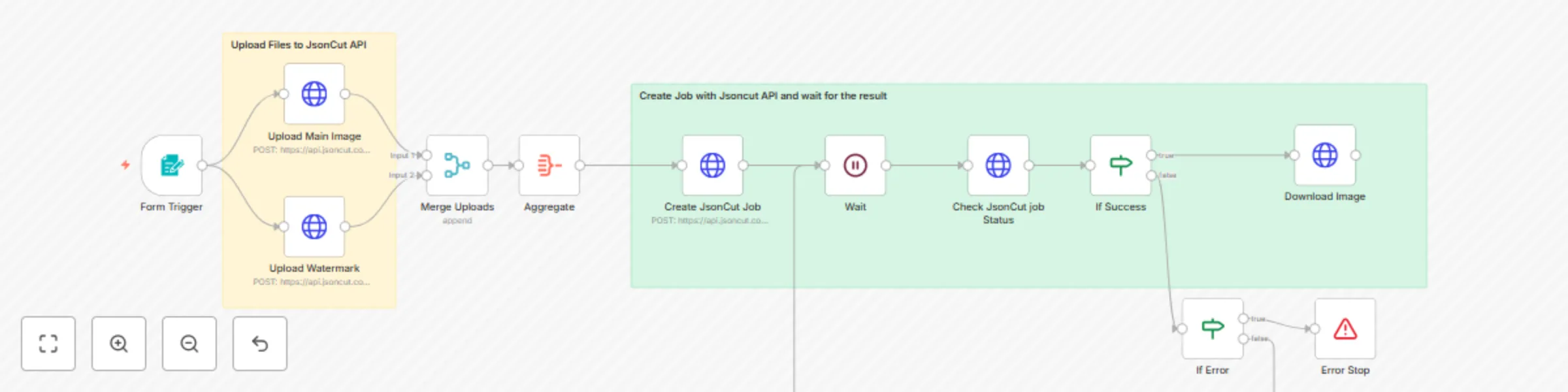
Example generated with this workflow:  Simply upload a image and a watermark file, and the workflow will automatically combine them into a professional watermarked image. Use cases include adding logos to content, branding product photos, or protecting images with copyright marks. ## Good to know - Completely free solution with no ongoing costs or subscriptions - Processing typically takes 5-15 seconds depending on image size - The workflow uses a polling mechanism to check job completion every 3 seconds - Supports standard image formats (PNG, JPG, etc.) - No credit card required to get started ## How it works 1. The Form Trigger creates a user-friendly upload interface for two files: main image and watermark 2. Both images are uploaded simultaneously to the API's file storage via parallel HTTP requests 3. The uploaded file URLs are aggregated and used to create an image composition job 4. The workflow polls the API every 3 seconds to check job completion status 5. Once completed, the final watermarked image is downloaded and returned as a file download The watermark is automatically positioned in the bottom-right corner with 50% opacity, but this can be easily customized. ## How to use The form trigger provides a clean interface, but you can replace this with other triggers like webhooks or manual triggers if needed. The workflow handles all file processing automatically and returns the result as a downloadable file. ## Requirements - Free account at [jsoncut.com](https://jsoncut.com) - API key with full access (generated at [app.jsoncut.com](https://app.jsoncut.com)) - HTTP Header Auth credential configured in n8n with header name `x-api-key` ## Setup steps 1. Sign up for a free account at [jsoncut.com](https://jsoncut.com) 2. Navigate to your dashboard at [app.jsoncut.com](https://app.jsoncut.com) → API Keys and create a new key with full access  3. In n8n, create an HTTP Header Auth credential named "JsonCut API Key" 4. Set the header name to `x-api-key` and the value to your API key  5. Apply this credential to all HTTP Request nodes in the workflow ## Customising this workflow The watermark positioning, size, and opacity can be easily adjusted by modifying the JSON body in the "Create Job" node. You can change: - Position coordinates (x, y values from 0 to 1) - Watermark dimensions (width, height in pixels) - Transparency (opacity from 0.1 to 1.0) - Output image dimensions - Fit options (cover, contain, fill) For more advanced image generation examples and configuration options, check out the [documentation](https://docs.jsoncut.com) and [image generation examples](https://docs.jsoncut.com/docs/image-generation/examples). For bulk processing, you could extend this workflow to handle multiple images or integrate it with cloud storage/database services.