Manage patient appointments and care follow-ups with OpenAI, Gmail and Twilio

Workflow preview

Workflow preview
100%
Manage patient appointments and care follow-ups with OpenAI, Gmail and Twilio preview
Open on n8n.io

1. Workflow Overview

How It Works This workflow automates patient care coordination in healthcare settings by intelligently processing patient information and scheduling follow up communications through multiple channe...

Best for

  • Support Chatbot automation workflows
  • AI Chatbot automation workflows
  • advanced n8n builders looking for reusable templates

Tools used

@n8n/n8n-nodes-langchain.chattrigger, n8n-nodes-base.set, @n8n/n8n-nodes-langchain.agent, @n8n/n8n-nodes-langchain.agenttool, @n8n/n8n-nodes-langchain.lmchatopenai, @n8n/n8n-nodes-langchain.outputparserstructured, @n8n/n8n-nodes-langchain.memorybufferwindow, n8n-nodes-base.if

Source and attribution

This workflow is cataloged by N8N Workflows and links back to its original n8n.io source page by Cheng Siong Chin.

Original n8n.io source

1.1 Workflow description

Title
Manage patient appointments and care follow-ups with OpenAI, Gmail and Twilio
Workflow name
Manage patient appointments and care follow-ups with OpenAI, Gmail and Twilio

How It Works

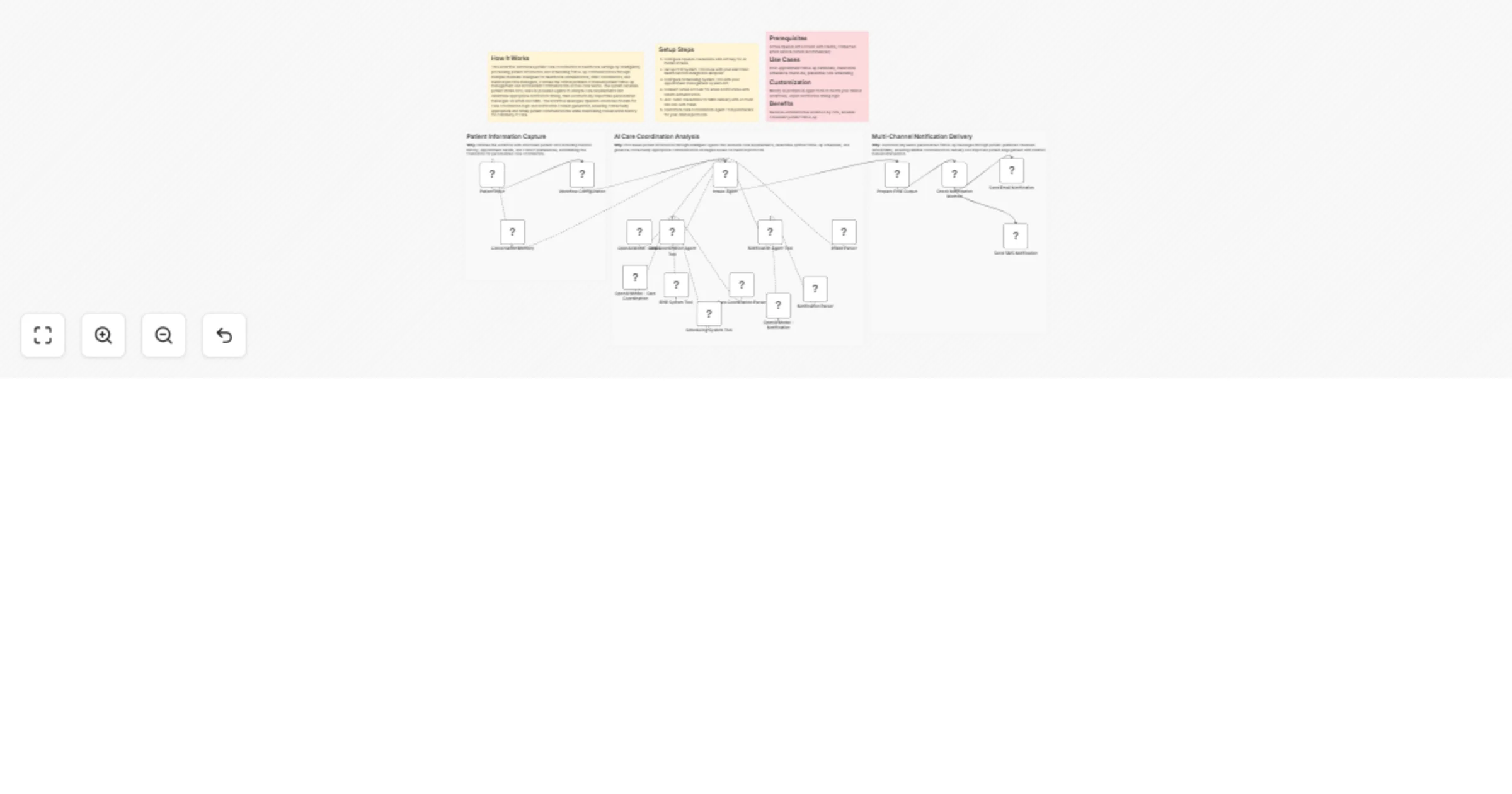
This workflow automates patient care coordination in healthcare settings by intelligently processing patient information and scheduling follow-up communications through multiple channels. Designed for healthcare administrators, clinic coordinators, and medical practice managers, it solves the critical problem of manual patient follow-up management and inconsistent communication across care teams. The system receives patient intake data, uses AI-powered agents to analyze care requirements and determine appropriate notification timing, then automatically dispatches personalized messages via email and SMS. The workflow leverages OpenAI's advanced models for care coordination logic and notification content generation, ensuring contextually appropriate and timely patient communications while maintaining conversation history for continuity of care.

Setup Steps

  1. Configure OpenAI credentials with API key for AI model access
  2. Set up EHR System Tool node with your electronic health records integration endpoint
  3. Configure Scheduling System Tool with your appointment management system API
  4. Connect Gmail account for email notifications with OAuth authentication
  5. Add Twilio credentials for SMS delivery with account SID and auth token
  6. Customize Care Coordination Agent Tool parameters for your clinical protocols

Prerequisites

Active OpenAI API account with credits, connected email service (Gmail recommended)

Use Cases

Post-appointment follow-up reminders, medication adherence check-ins, preventive care scheduling

Customization

Modify AI prompts in agent tools to match your clinical workflows, adjust notification timing logic

Benefits

Reduces administrative workload by 70%, ensures consistent patient follow-up

1.2 Logical Blocks

This catalog entry is organized from the workflow JSON. The node-level section below shows the executable blocks available for review before importing the template.

2. Block-by-Block Analysis

Block 1 - Patient Input

Type / Role
@n8n/n8n-nodes-langchain.chatTrigger - chatTrigger
Config choices
Version 1.4

Block 2 - Workflow Configuration

Type / Role
n8n-nodes-base.set - set
Config choices
Version 3.4

Block 3 - Intake Agent

Type / Role
@n8n/n8n-nodes-langchain.agent - agent
Config choices
Version 3.1

Block 4 - Care Coordination Agent Tool

Type / Role
@n8n/n8n-nodes-langchain.agentTool - agentTool
Config choices
Version 3

Block 5 - Notification Agent Tool

Type / Role
@n8n/n8n-nodes-langchain.agentTool - agentTool
Config choices
Version 3

Block 6 - OpenAI Model - Intake

Type / Role
@n8n/n8n-nodes-langchain.lmChatOpenAi - lmChatOpenAi
Config choices
Version 1.3

Block 7 - OpenAI Model - Care Coordination

Type / Role
@n8n/n8n-nodes-langchain.lmChatOpenAi - lmChatOpenAi
Config choices
Version 1.3

Block 8 - OpenAI Model - Notification

Type / Role
@n8n/n8n-nodes-langchain.lmChatOpenAi - lmChatOpenAi
Config choices
Version 1.3

Block 9 - Intake Parser

Type / Role
@n8n/n8n-nodes-langchain.outputParserStructured - outputParserStructured
Config choices
Version 1.3

Block 10 - Care Coordination Parser

Type / Role
@n8n/n8n-nodes-langchain.outputParserStructured - outputParserStructured
Config choices
Version 1.3

Block 11 - Notification Parser

Type / Role
@n8n/n8n-nodes-langchain.outputParserStructured - outputParserStructured
Config choices
Version 1.3

Block 12 - Conversation Memory

Type / Role
@n8n/n8n-nodes-langchain.memoryBufferWindow - memoryBufferWindow
Config choices
Version 1.3

Block 13 - Prepare Final Output

Type / Role
n8n-nodes-base.set - set
Config choices
Version 3.4

Block 14 - Check Notification Method

Type / Role
n8n-nodes-base.if - if
Config choices
Version 2.3

Block 15 - Send Email Notification

Type / Role
n8n-nodes-base.emailSend - emailSend
Config choices
Version 2.1

Block 16 - Send SMS Notification

Type / Role
n8n-nodes-base.twilio - twilio
Config choices
Version 1

Block 17 - EHR System Tool

Type / Role
n8n-nodes-base.httpRequestTool - httpRequestTool
Config choices
Version 4.3

Block 18 - Scheduling System Tool

Type / Role
n8n-nodes-base.httpRequestTool - httpRequestTool
Config choices
Version 4.3

Block 19 - Sticky Note

Type / Role
n8n-nodes-base.stickyNote - stickyNote
Config choices
Version 1

Block 20 - Sticky Note1

Type / Role
n8n-nodes-base.stickyNote - stickyNote
Config choices
Version 1

Block 21 - Sticky Note2

Type / Role
n8n-nodes-base.stickyNote - stickyNote
Config choices
Version 1

Block 22 - Sticky Note3

Type / Role
n8n-nodes-base.stickyNote - stickyNote
Config choices
Version 1

Block 23 - Sticky Note4

Type / Role
n8n-nodes-base.stickyNote - stickyNote
Config choices
Version 1

Block 24 - Sticky Note5

Type / Role
n8n-nodes-base.stickyNote - stickyNote
Config choices
Version 1

3. Summary Table

Workflow Manage patient appointments and care follow-ups with OpenAI, Gmail and Twilio
Complexity advanced
Nodes 24
Categories Support Chatbot, AI Chatbot
Author Cheng Siong Chin
Published 25 Jan 2026

4. Reproducing the Workflow from Scratch

  1. 1. Download the workflow JSON

    Use the JSON export at /data/workflows/12985/12985.json as the source template for this automation.

  2. 2. Import the template into n8n

    Open n8n, import the downloaded JSON, and review each node before activating the workflow.

  3. 3. Configure credentials and variables

    Replace placeholder credentials, API keys, webhook URLs, account IDs, and environment-specific values with your own settings.

  4. 4. Test with sample data

    Run the workflow manually or in a staging workspace, inspect node output, and confirm downstream systems receive the expected data.

  5. 5. Activate and monitor

    Enable the workflow only after testing, then monitor executions, errors, and rate limits during the first production runs.

5. General Notes & Resources

Review imported nodes carefully before activation. This catalog entry is intended to help you inspect the workflow structure, understand required services, and find related templates faster.

Node names, credentials, schedules, webhook paths, and external service limits may need adjustment for your workspace.

Frequently asked questions

What does Manage patient appointments and care follow-ups with OpenAI, Gmail and Twilio do?

How It Works This workflow automates patient care coordination in healthcare settings by intelligently processing patient information and scheduling follow up communications through multiple channe...

What do I need before importing this workflow?

Review the workflow JSON, configure any required credentials in n8n, and test the automation in a safe workspace before using it in production.

Can I customize this workflow?

Yes. Use the block-by-block analysis and the downloadable JSON to inspect each node, then adjust credentials, prompts, schedules, filters, or destinations for your Support Chatbot, AI Chatbot use case.