Log Jira worklogs nightly from Google Sheets with Gmail and GPT-4o-mini

Workflow preview

Workflow preview
100%
Log Jira worklogs nightly from Google Sheets with Gmail and GPT-4o-mini preview
Open on n8n.io

1. Workflow Overview

Jira Daily Worklog Automation — Auto log Time from Google Sheets to Jira Every Night Automatically logs time to Jira every night from a Google Sheet. No manual worklog entries needed — just fill in...

Best for

  • Project Management automation workflows
  • AI Summarization automation workflows
  • advanced n8n builders looking for reusable templates

Tools used

n8n-nodes-base.googlesheets, n8n-nodes-base.code, n8n-nodes-base.if, n8n-nodes-base.splitinbatches, n8n-nodes-base.httprequest, n8n-nodes-base.set, @n8n/n8n-nodes-langchain.openai, n8n-nodes-base.gmail

Source and attribution

This workflow is cataloged by N8N Workflows and links back to its original n8n.io source page by Nirav Gajera.

Original n8n.io source

1.1 Workflow description

Title
Log Jira worklogs nightly from Google Sheets with Gmail and GPT-4o-mini
Workflow name
Log Jira worklogs nightly from Google Sheets with Gmail and GPT-4o-mini

Jira Daily Worklog Automation — Auto-log Time from Google Sheets to Jira Every Night

Automatically logs time to Jira every night from a Google Sheet. No manual worklog entries needed — just fill in your sheet and the workflow handles the rest at 10 PM.

Built for developers and teams who track their daily tasks in a spreadsheet and want their Jira time entries done automatically, with a clean email report.


How It Works

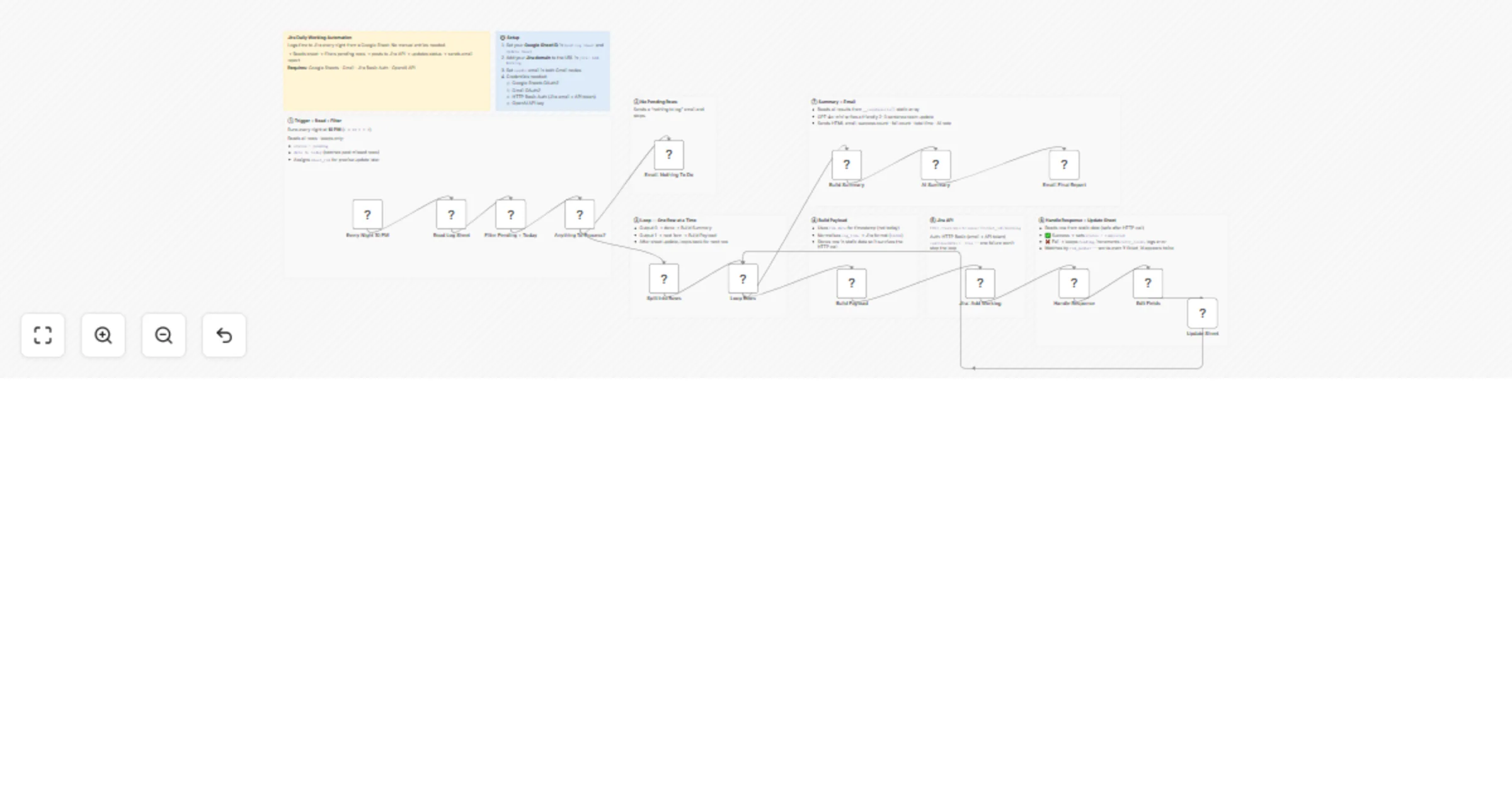
  • Runs every night at 10 PM via a Schedule Trigger
  • Reads all rows from your Google Sheet and filters rows where status = Pending and date <= today
  • Loops through each pending row one at a time using splitInBatches
  • Builds the Jira worklog payload — normalises time format, constructs the ISO timestamp from date + started_at
  • Calls the Jira REST API (POST /rest/api/3/issue/ticket_id/worklog) with Basic Auth
  • Updates the sheet row status to Completed or keeps it Pending with an error message and incremented retry_count
  • After all rows are processed, reads results from static data and builds a summary
  • GPT-4o-mini writes a friendly 2–3 sentence team update
  • Sends a formatted HTML email report via Gmail with success count, fail count, total time logged, and the AI summary

How to Use

Step 1 — Set up your Google Sheet

Create a sheet with these exact column headers in row 1:

ticket_id log_text date started_at log_time status error_message retry_count
  • ticket_id — your Jira issue key e.g. PROJ-123
  • log_text — worklog comment e.g. Reviewed PR and fixed unit tests
  • date — date to log against e.g. 2026-04-02
  • started_at — time the work started e.g. 09:30
  • log_time — time spent e.g. 1h, 30m, 1h30m
  • status — set to pending for rows to be processed
  • error_message — auto-filled on failure
  • retry_count — auto-incremented on failure

Step 2 — Add credentials in n8n

  • Google Sheets OAuth2 — connect your Google account
  • Gmail OAuth2 — connect your Gmail account for email reports
  • HTTP Basic Auth — your Jira email + API token (get token at id.atlassian.com/manage-profile/security/api-tokens)
  • OpenAI API — for the AI summary (GPT-4o-mini)

Step 3 — Update the workflow

  • Open the Read Log Sheet node and select your spreadsheet and sheet tab
  • Open the Update Sheet node and do the same
  • Open Jira: Add Worklog and update the Atlassian domain in the URL: https://YOUR-DOMAIN.atlassian.net/...
  • Open both Gmail nodes and update the sendTo email address
  • Select your HTTP Basic Auth credential in Jira: Add Worklog

Step 4 — Activate

Toggle the workflow to Active. It will run automatically every night at 10 PM.

To test immediately, open the workflow and click Test Workflow.


Requirements

  • n8n (self-hosted or cloud)
  • Google account with Google Sheets + Gmail
  • Jira Cloud account with an API token
  • OpenAI API key (free tier works for low volume)

Customising This Workflow

  • Change the schedule — edit the cron expression in the trigger node. Examples are in the sticky note
  • Change the Jira domain — update the URL in Jira: Add Worklog to your Atlassian subdomain
  • Use Telegram instead of Gmail — replace both Gmail nodes with a Telegram node using chatId and text
  • Skip the AI summary — delete the AI Summary node and wire Build Summary directly to the Gmail node; update the email template to remove $json.message.content
  • Add multiple projects — the sheet supports any mix of ticket IDs from different Jira projects in the same run
  • Catch missed past days — the filter already picks up rows where date < today, so any past pending rows are automatically retried on the next run

1.2 Logical Blocks

This catalog entry is organized from the workflow JSON. The node-level section below shows the executable blocks available for review before importing the template.

2. Block-by-Block Analysis

Block 1 - Read Log Sheet

Type / Role
n8n-nodes-base.googleSheets - googleSheets
Config choices
Version 4.5

Block 2 - Filter Pending + Today

Type / Role
n8n-nodes-base.code - code
Config choices
Version 2

Block 3 - Anything To Process?

Type / Role
n8n-nodes-base.if - if
Config choices
Version 2

Block 4 - Split Into Rows

Type / Role
n8n-nodes-base.code - code
Config choices
Version 2

Block 5 - Loop Rows

Type / Role
n8n-nodes-base.splitInBatches - splitInBatches
Config choices
Version 3

Block 6 - Build Payload

Type / Role
n8n-nodes-base.code - code
Config choices
Version 2

Block 7 - Jira: Add Worklog

Type / Role
n8n-nodes-base.httpRequest - httpRequest
Config choices
Version 4.2

Block 8 - Handle Response

Type / Role
n8n-nodes-base.code - code
Config choices
Version 2

Block 9 - Edit Fields

Type / Role
n8n-nodes-base.set - set
Config choices
Version 3.4

Block 10 - Update Sheet

Type / Role
n8n-nodes-base.googleSheets - googleSheets
Config choices
Version 4.5

Block 11 - Build Summary

Type / Role
n8n-nodes-base.code - code
Config choices
Version 2

Block 12 - AI Summary

Type / Role
@n8n/n8n-nodes-langchain.openAi - openAi
Config choices
Version 1.8

Block 13 - Email: Nothing To Do

Type / Role
n8n-nodes-base.gmail - gmail
Config choices
Version 2.2

Block 14 - Email: Final Report

Type / Role
n8n-nodes-base.gmail - gmail
Config choices
Version 2.2

Block 15 - Every Night 10 PM

Type / Role
n8n-nodes-base.scheduleTrigger - scheduleTrigger
Config choices
Version 1.2

Block 16 - SN: Jira Daily Worklog Automation

Type / Role
n8n-nodes-base.stickyNote - stickyNote
Config choices
Version 1

Block 17 - SN: Setup

Type / Role
n8n-nodes-base.stickyNote - stickyNote
Config choices
Version 1

Block 18 - SN: Trigger + Read + Filter

Type / Role
n8n-nodes-base.stickyNote - stickyNote
Config choices
Version 1

Block 19 - SN: No Pending Rows

Type / Role
n8n-nodes-base.stickyNote - stickyNote
Config choices
Version 1

Block 20 - SN: Loop — One Row at a Time

Type / Role
n8n-nodes-base.stickyNote - stickyNote
Config choices
Version 1

Block 21 - SN: Build Payload

Type / Role
n8n-nodes-base.stickyNote - stickyNote
Config choices
Version 1

Block 22 - SN: Jira API

Type / Role
n8n-nodes-base.stickyNote - stickyNote
Config choices
Version 1

Block 23 - SN: Handle Response + Update Sheet

Type / Role
n8n-nodes-base.stickyNote - stickyNote
Config choices
Version 1

Block 24 - SN: Summary + Email

Type / Role
n8n-nodes-base.stickyNote - stickyNote
Config choices
Version 1

3. Summary Table

Workflow Log Jira worklogs nightly from Google Sheets with Gmail and GPT-4o-mini
Complexity advanced
Nodes 24
Categories Project Management, AI Summarization
Author Nirav Gajera
Published 06 Apr 2026

4. Reproducing the Workflow from Scratch

  1. 1. Download the workflow JSON

    Use the JSON export at /data/workflows/14779/14779.json as the source template for this automation.

  2. 2. Import the template into n8n

    Open n8n, import the downloaded JSON, and review each node before activating the workflow.

  3. 3. Configure credentials and variables

    Replace placeholder credentials, API keys, webhook URLs, account IDs, and environment-specific values with your own settings.

  4. 4. Test with sample data

    Run the workflow manually or in a staging workspace, inspect node output, and confirm downstream systems receive the expected data.

  5. 5. Activate and monitor

    Enable the workflow only after testing, then monitor executions, errors, and rate limits during the first production runs.

5. General Notes & Resources

Review imported nodes carefully before activation. This catalog entry is intended to help you inspect the workflow structure, understand required services, and find related templates faster.

Node names, credentials, schedules, webhook paths, and external service limits may need adjustment for your workspace.

Frequently asked questions

What does Log Jira worklogs nightly from Google Sheets with Gmail and GPT-4o-mini do?

Jira Daily Worklog Automation — Auto log Time from Google Sheets to Jira Every Night Automatically logs time to Jira every night from a Google Sheet. No manual worklog entries needed — just fill in...

What do I need before importing this workflow?

Review the workflow JSON, configure any required credentials in n8n, and test the automation in a safe workspace before using it in production.

Can I customize this workflow?

Yes. Use the block-by-block analysis and the downloadable JSON to inspect each node, then adjust credentials, prompts, schedules, filters, or destinations for your Project Management, AI Summarization use case.