Block 1 - Sticky Note
- Type / Role
- n8n-nodes-base.stickyNote - stickyNote
- Config choices
- Version 1


 Early Deal
This workflow is provided as-is. Please review and test before using in production.
The Daily Mood & Weather Logger is more than just a utility; it's a hands on n8n workflow designed to teach you core automation concepts. By setting up and exploring this template, you'll gain p...
n8n-nodes-base.stickynote, n8n-nodes-base.code, n8n-nodes-base.httprequest, n8n-nodes-base.telegramtrigger, n8n-nodes-base.telegram, n8n-nodes-base.cron, n8n-nodes-base.notion
This workflow is cataloged by N8N Workflows and links back to its original n8n.io source page by Issam AGGOUR.
Original n8n.io sourceThe Daily Mood & Weather Logger 🚀 is more than just a utility; it's a hands-on n8n workflow designed to teach you core automation concepts. By setting up and exploring this template, you'll gain practical experience with triggers, API calls, data manipulation using the Code node, and integrating with external services like Notion. It automates tracking your daily mood alongside local weather, logging it all into a Notion database.
This workflow template is specifically structured to help you understand and practice:
Workflow Triggers:
Making API Calls:
Data Manipulation with Code:
Database Integration (Notion):
Environment Variables: Learn the importance of using environment variables for managing sensitive information (like API keys) and configurable parameters (like city/location).
Workflow Logic & Data Flow: Observe how data passes between nodes and how different components work together to achieve a complete automation.
While the primary goal is educational, the workflow itself is useful for:
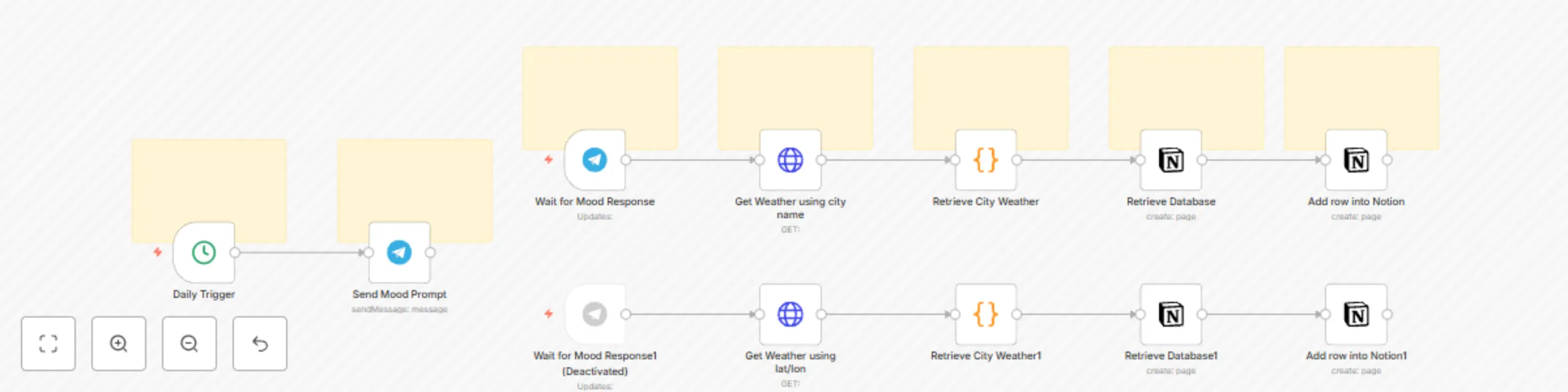
Let’s break down how each part of the workflow demonstrates key n8n concepts:
appid, q or lat/lon), and environment variables are used. Try changing the parameters!$input, $('Node Name')) and structures the output.Notion Database Interaction (Notion nodes): ✍️
Note: The template includes two paths for weather fetching (city name vs. lat/lon). This allows you to explore different ways to configure the HTTP Request node and manage input data.
Set up your learning environment:
Import the Workflow: Add the .json to n8n. This is your starting blueprint!
Set Up Environment Variables in n8n:
OPEN_WEATHER_API_KEY: Your OpenWeatherMap API key.City: (e.g., "Paris") For city-based weather.latitude: (e.g., "18.834366") For coordinate-based weather.longitude: (e.g., "35.352342") For coordinate-based weather.Configure Node Credentials:
Personalize Node Settings (Experiment Here!):
Daily Trigger (Cron Node): Change the "Trigger Times". How does this affect when the workflow runs?
Send Mood Prompt (Telegram Node):
Chat ID (e.g., from =83495863) to your own.Text of the prompt.Notion Nodes:
Database ID (e.g., replace 20e9c592...).city, description, temperature, mood, etc., as defined in the "Add row into Notion" node. Try adding or removing properties to see what happens!Weather Fetching Path:
Activate and Test: Turn the workflow ON. Trigger it manually or wait for the Cron. Check each node’s output to understand the data flow.
Follow the data and actions:
Use the n8n execution log to inspect the input and output of each node. This is invaluable for learning and debugging!
Once you're comfortable, try these to deepen your understanding:
May your mood tracking be seamless and your weather always logged!
This catalog entry is organized from the workflow JSON. The node-level section below shows the executable blocks available for review before importing the template.
| Workflow | Log daily mood & weather to Notion with Telegram and OpenWeatherMap |
|---|---|
| Complexity | advanced |
| Nodes | 19 |
| Categories | Personal Productivity |
| Author | Issam AGGOUR |
| Published | 10 Jun 2025 |
Use the JSON export at /data/workflows/4862/4862.json as the source template for this automation.
Open n8n, import the downloaded JSON, and review each node before activating the workflow.
Replace placeholder credentials, API keys, webhook URLs, account IDs, and environment-specific values with your own settings.
Run the workflow manually or in a staging workspace, inspect node output, and confirm downstream systems receive the expected data.
Enable the workflow only after testing, then monitor executions, errors, and rate limits during the first production runs.
Review imported nodes carefully before activation. This catalog entry is intended to help you inspect the workflow structure, understand required services, and find related templates faster.
Node names, credentials, schedules, webhook paths, and external service limits may need adjustment for your workspace.
The Daily Mood & Weather Logger is more than just a utility; it's a hands on n8n workflow designed to teach you core automation concepts. By setting up and exploring this template, you'll gain p...
Review the workflow JSON, configure any required credentials in n8n, and test the automation in a safe workspace before using it in production.
Yes. Use the block-by-block analysis and the downloadable JSON to inspect each node, then adjust credentials, prompts, schedules, filters, or destinations for your Personal Productivity use case.