I

Issam AGGOUR

8
Workflows

Workflows by Issam AGGOUR

Workflow preview: Manage recipes with AI-powered Telegram bot and Google Sheets database
Free advanced

Manage recipes with AI-powered Telegram bot and Google Sheets database

## Transform Your Telegram into a Smart Recipe Assistant! Tired of scrolling through messy notes and bookmarks to find your favorite recipes? Wish you had a personal chef's assistant to help you in the kitchen? Introducing the **Culinary Companion for Telegram**, an n8n workflow that turns your Telegram app into a powerful, AI-driven recipe management tool, using Google Sheets as your database. --- ## 🚀 Key Features * **Telegram Bot Interface:** Interact with your recipe book using simple text commands. * **Google Sheets Database:** Your single source of truth for recipes, easily viewable and editable outside of Telegram. * **AI-Powered Recipe Assistant:** Utilizes Google Gemini or OpenAI to understand natural language for creating, modifying, and searching for recipes. * **Full Recipe Management (CRUD):** * **Create:** Add new recipes conversationally. * **Read:** Fetch your full recipe list or view a single, detailed recipe card. * **Update:** Modify existing recipes with AI assistance. * **Command-Driven & AI-Driven:** Use simple commands for direct actions (`/list`, `/select`) or have a conversation with the AI for more complex tasks (`/search`, `/create`, `/modify`). * **Formatted for Mobile:** All responses are sent in clean, readable Markdown, perfect for viewing on the go. --- ## ⚙️ How It Works The workflow is triggered by messages sent to your Telegram bot. A central **Command Router** (`Switch` node) determines the user's intent and directs the flow to the appropriate tool. ### 1. Command Routing * A **Telegram Trigger** node listens for any new message. * The **Command Router** (`Switch` node) immediately inspects the message text for keywords like `/list`, `/select`, `/create`, etc. * Based on the command, the workflow branches into either a simple data fetch or a more complex AI-powered action. ### 2. Simple Recipe Lookups (`/list` & `/select`) * **`/list`:** 1. The **Read Recipe Names** (`Google Sheets` node) fetches all values from column A of your sheet. 2. A **Format List Message** (`Code` node) transforms the raw data into a clean, numbered list. 3. The formatted list is sent to you via the **Telegram Send Recipe List** node. * **`/select [recipe name]`:** 1. The **Extract Select Param** (`Code` node) isolates the recipe name from your command. 2. The **Lookup Recipe Row** (`Google Sheets` node) searches for that specific recipe in your sheet and returns its full row of data. 3. A **Format Full Recipe** (`Code` node) assembles the data into a beautifully formatted recipe card, complete with emojis and sections for ingredients, instructions, and notes. 4. The final recipe card is sent via the **Telegram Send Full Recipe** node. ### 3. AI-Powered Recipe Management (`/search`, `/create`, `/modify`) For more complex tasks, the workflow leverages a powerful AI agent. * The user's command (e.g., `/search chicken and rice` or `/create a pasta dish`) is passed to the **Recipe AI Agent**. * This agent is powered by either **Google Gemini** or an **OpenAI Model**. * It is given a specific **system prompt** to act as a helpful, food-focused assistant with access to a set of tools. * **Tools Available to the AI:** * **Read Recipes Sheet:** Allows the AI to read the entire Google Sheet to answer broad questions or find recipes based on ingredients. * **Update Recipes Sheet:** Gives the AI the power to add new rows (new recipes) or modify existing ones based on your conversation. * **Think:** A tool that allows the agent to process complex requests step-by-step before acting. * **Conversation Memory:** The agent remembers the last few messages, allowing you to have a natural, back-and-forth conversation (e.g., "Create a new recipe" -> "What should it be called?" -> "Spicy Tacos"). * The AI's final, formatted response is sent back to you via the **Telegram Send AI Response** node. --- ## 🛠️ Setup Steps & Credentials 1. **Telegram Bot:** * Create a bot with `@BotFather` on Telegram to get your API token. * Add this token as a credential for the **Telegram Trigger** and all **Telegram** sender nodes. 2. **Google Sheets:** * Create a new Google Sheet. * Set up the first row with headers: `Recipe Name`, `Cooking Time`, `Ingredients`, `Instructions`, `Notes`. * Copy the **Sheet ID** from the URL (it's the long string of characters in the middle). * Paste the Sheet ID into the relevant fields in the **Read Recipe Names**, **Lookup Recipe Row**, and the **Google Sheets Tools** (`Read Recipes Sheet`, `Update Recipes Sheet`). * Create Google OAuth2 credentials and connect them to all `Google Sheets` and `Google Sheets Tool` nodes. 3. **AI Provider (Choose One):** * **For Google Gemini:** Get an API key from Google AI Studio, create a `Google Gemini(PaLM) Api` credential, and connect it to the **Google Gemini Chat Model** node. * **For OpenAI:** Get an API key from OpenAI, create an `OpenAI` credential, and connect it to the **OpenAI Chat Model** node. * *Note:* You only need to enable one of the two AI models. --- ## 💡 Customization & Learning * **Expand Your Database:** Add more columns to your Google Sheet like `Cuisine`, `Difficulty`, or `Rating`, and modify the **Format Full Recipe** node to display them. * **Enhance the AI:** Edit the system prompt in the **Recipe AI Agent** to change its personality or give it more specific instructions. * **Add New Tools:** Create new tools for the AI agent, such as a function to fetch nutritional information from an external API based on ingredients. * **Different Triggers:** Instead of a Telegram bot, you could trigger the `/create` function from a simple web form.

I
Issam AGGOUR
Personal Productivity
10 Sep 2025
59
0
Workflow preview: Classify and convert GitHub issues to Jira tickets with OpenAI
Free intermediate

Classify and convert GitHub issues to Jira tickets with OpenAI

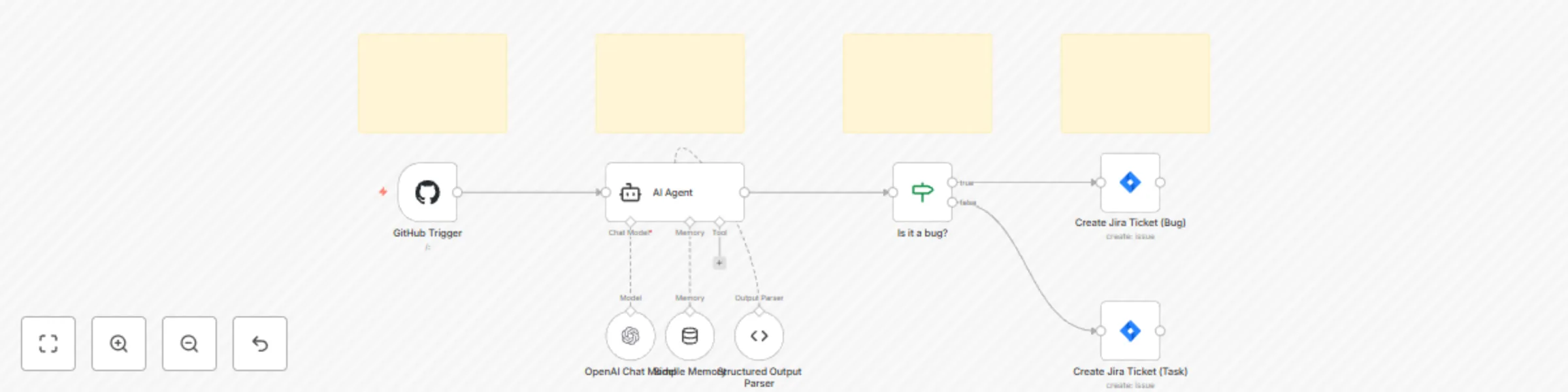
## AI-Powered GitHub Issue to Jira Ticket Automation Bridge the gap between your development and project management workflows with this intelligent n8n template. This isn't just a simple sync; it uses an AI agent to analyze, classify, and intelligently route new GitHub issues into the correct Jira ticket type, saving you countless hours of manual triage. --- ## 🚀 Key Features * **AI-Powered Issue Classification:** Leverages an AI Agent (powered by OpenAI) to analyze the content of a new GitHub issue and determine its type (e.g., bug, task, improvement). * **Intelligent Routing:** Automatically creates the corresponding ticket type in Jira. Bugs in GitHub become Bugs in Jira; other issues become Tasks. * **Seamless Integration:** Triggers instantly when a new issue is created in your specified GitHub repository. * **Rich Data Transfer:** Migrates the issue title and body directly into the Jira ticket description for full context. * **Structured AI Output:** Uses a structured output parser to ensure the AI's classification is reliable and consistent. * **Beginner-Friendly & Educational:** The workflow is annotated with sticky notes, explaining each step of the process, making it a great tool for learning how to use AI in n8n. --- ## ⚙️ How It Works The workflow is designed for clarity and power, moving from issue creation to ticket generation in four automated steps. ### 1. **Trigger: New GitHub Issue** * The **GitHub Trigger** node constantly listens for new issues being created in your designated repository. Once an issue is opened, the workflow springs into action. ### 2. **Analyze: AI Classification** * The issue's title and body are passed to an **AI Agent**. * Using a prompt designed for classification and an **OpenAI Chat Model**, the agent determines if the issue is a `bug`, `task`, or another category. * A **Structured Output Parser** ensures the AI returns clean, usable JSON data (e.g., `{"type": "bug"}`). ### 3. **Route: Conditional Logic** * An **IF node** checks the structured output from the AI agent. * If the `type` is "bug," the workflow proceeds down the "bug" path. Otherwise, it follows the default path for "tasks." ### 4. **Create: Jira Ticket Generation** * Depending on the route, the corresponding **Jira node** is activated. * A new ticket is created in your specified Jira project with the appropriate issue type (`Bug` or `Task`) and includes the full context from the original GitHub issue. --- ## 🛠️ Setup Steps & Credentials To get this AI-powered workflow running, you'll need to configure a few credentials: 1. **GitHub:** * Create a GitHub credential in n8n. * In the **GitHub Trigger** node, select your credential and specify the `owner` (your GitHub username or organization) and the `repository` you want to monitor. 2. **OpenAI:** * Obtain an API Key from [platform.openai.com](https://platform.openai.com). * Create an `OpenAI` credential in n8n. * In the **OpenAI Chat Model** node, select your newly created credential. You can also experiment with different models like `gpt-4.1-mini` for speed or `gpt-4o` for higher accuracy. 3. **Jira:** * Create a Jira API token from your Atlassian account settings. * Create a `Jira` credential in n8n using your email, API token, and Atlassian domain. * In both the **Create Jira Ticket (Bug)** and **Create Jira Ticket (Task)** nodes, select your Jira credential and set your target `project` key. --- ## 💡 Customization & Learning This workflow is a powerful starting point. Here are a few ways you can customize it and learn more: * **Expand Classification:** Modify the AI Agent's prompt and the IF node to handle more issue types, like `improvement`, `documentation`, or `feature-request`. * **Add More Data:** Enhance the Jira nodes to include labels, assignees, or priority levels based on the AI's output or the original GitHub issue's properties. * **Swap AI Models:** Try different language models by replacing the OpenAI node with one for Google Gemini, Anthropic Claude, or others supported by n8n. * **Error Handling:** Add a path for what to do if the AI fails to classify an issue, such as sending a notification to a Slack channel for manual review. --- ## 📋 Requirements * An active n8n instance. * GitHub API credentials. * OpenAI API credentials. * Jira API credentials.

I
Issam AGGOUR
AI Summarization
3 Sep 2025
30
0
Workflow preview: Auto-track Amazon prices with Google Gemini & send alerts to Telegram
Free advanced

Auto-track Amazon prices with Google Gemini & send alerts to Telegram

# AI-Powered Amazon Price Tracker to Telegram ## Overview Automate your deal hunting with this intelligent Amazon price tracker. This workflow uses the power of AI to monitor any Amazon product page at regular intervals. When the price drops to or below your desired target, it instantly sends a notification to your Telegram chat. Say goodbye to manual price checking and never miss a sale, a lightning deal, or a Black Friday bargain again. Unlike traditional scrapers that break when a website's layout changes, this workflow uses a Large Language Model (Google Gemini) to understand the page content, making it significantly more robust and reliable. ## 🚀 Key Features * **AI-Powered Data Extraction:** Leverages Google Gemini to intelligently read the product page and extract the name and price, making it resilient to Amazon's frequent layout updates. * **Scheduled Automation:** Set it up once with a schedule (e.g., every hour) and let it run in the background. * **Instant Telegram Alerts:** Get real-time notifications directly in Telegram the moment a price drops to your target. * **Centralized & Easy Configuration:** A single `Set` node holds all your settings—product URL, target price, and Telegram Chat ID—for quick and easy updates. * **Built-in Error Handling:** Intelligently checks if data was extracted correctly and sends an error alert if it fails, so you're always in the loop. * **Cost-Efficient Processing:** Includes a pre-processing step to clean and simplify the page's HTML, reducing the amount of data sent to the AI and lowering potential token costs. ## ⚙️ How It Works The workflow follows a clear, linear process from scheduling to notification. ### 1. Initiation and Configuration * A **Schedule** node triggers the workflow automatically at your chosen interval (e.g., every hour). * A **Set** node named `Config: Product & Alert` acts as your control panel. Here, you define the Amazon product URL, your target price, and your Telegram Chat ID. ### 2. Fetch and Clean Product Page * An **HTTP Request** node fetches the full HTML content of the Amazon product URL. * A **Code** node then cleans this raw HTML. It strips out unnecessary scripts, styles, and tags, leaving only the core text content. This crucial step makes the data easier for the AI to analyze accurately and efficiently. ### 3. AI-Powered Data Extraction * An **AI Agent** node sends the cleaned text to the **Google Gemini** model. * It uses a specific prompt to ask the AI to identify and extract the product's name (`productName`) and its current price (`priceValue`) as a number. * A **Structured Output Parser** ensures the AI returns the data in a clean, predictable JSON format (e.g., `{"productName": "...", "priceValue": 49.99}`), which is essential for the next steps. ### 4. Validate and Compare Price * An **IF** node first validates the AI's output, checking if a valid price was successfully extracted. If not, it routes the workflow to send an error message. * If the data is valid, a second **IF** node compares the extracted `priceValue` with your `priceTarget` from the configuration node. ### 5. Prepare and Send Telegram Notification * If the current price is less than or equal to your target price, the workflow proceeds down the "true" path. * A **Set** node constructs a formatted, user-friendly success message including the product name, the new low price, and a direct link to the product page. * Finally, a **Telegram** node sends this prepared message to your specified Chat ID. If an error occurred at any stage, a corresponding error message is sent instead. ## 🛠️ Setup Steps & Credentials To get this workflow running, you'll need to configure the following: 1. **Google Gemini:** * You need a Google AI (Gemini) API Key. * Create a `Google Gemini(PaLM) Api` credential in n8n. * Assign this credential to the `Google Gemini Chat Model` node. 2. **Telegram:** * You need a **Telegram Bot Token**. Get one by talking to the `@BotFather` on Telegram. * You also need your personal **Chat ID**. You can get this from a bot like `@userinfobot`. * Create a `Telegram` credential in n8n with your Bot Token. * Assign this credential to both the `Send Success` and `Send Error` Telegram nodes. 3. **Workflow Configuration:** * Open the **`Config: Product & Alert`** node. * Replace the placeholder values: * `telegramChatId`: Paste your Telegram Chat ID. * `amazonUrl`: Paste the full URL of the Amazon product you want to track. * `priceTarget`: Set your desired price (e.g., `49.99`). Once configured, save the workflow and activate it using the toggle in the top-right corner. ## 💡 Customization & Learning This workflow is a powerful template that you can easily adapt and expand: * **Track Multiple Products:** Modify the workflow to read product URLs and target prices from a Google Sheet or Airtable base to monitor many items at once. * **Add More Notification Channels:** Duplicate the Telegram node and add `Discord`, `Slack`, or `Email` nodes to receive alerts on multiple platforms. * **Store Price History:** Connect a `Google Sheets`, `Airtable`, or database node after the AI extraction step to log the price of the product over time, creating a historical price chart. * **Switch AI Models:** Easily swap the `Google Gemini` node for an `OpenAI` or `Anthropic` model by adjusting the prompt and credentials.

I
Issam AGGOUR
Crypto Trading
2 Sep 2025
49
0
Workflow preview: Generate professional changelogs from Git commits with GPT-4 and GitHub
Free intermediate

Generate professional changelogs from Git commits with GPT-4 and GitHub

## AI-Powered Git Changelog Generator for Automated Release Notes This workflow transforms your software release process by automatically generating clean, professional changelogs from your Git commit history. It listens for new version tags in your GitHub repository, uses AI to summarize the changes, and publishes a polished release note, saving you hours of manual work. ## Disclaimer This template is designed for self-hosted n8n instances and requires API credentials for GitHub and an AI provider (e.g., OpenAI, Google Gemini). ## 🚀 Key Features * **Fully Automated Process:** Triggers automatically on a `git push --tags` event. Set it up once and forget about it. * **AI-Powered Summarization:** Leverages a Large Language Model (LLM) to intelligently read, categorize, and summarize your commit messages into a human-friendly format. * **Seamless GitHub Integration:** Fetches commit data and creates official GitHub Releases without leaving the n8n environment. * **Smart Categorization:** Automatically groups release notes into sections like "Features," "Fixes," and "Other Changes" for clarity. * **Highly Customizable:** Easily adapt the AI prompt, changelog format, and release template to match your project's style. * **Saves Developer Time:** Eliminates the tedious, manual task of writing release notes, freeing up developers to focus on coding. ## ⚙️ How It Works The workflow is a linear process triggered by a webhook from GitHub. ## 1. GitHub Webhook Trigger * A **Webhook node** is configured to listen for `push` events from your specified GitHub repository. * It is filtered to only run when a new tag (e.g., `v1.2.0`) is pushed, which is the standard practice for signaling a new release. ## 2. Fetch Commit History * Once triggered, a **GitHub node** uses the webhook payload to identify the repository and the new tag. * It makes an API call to GitHub to compare the new tag with the most recent previous tag, fetching all the commit messages in between. ## 3. AI Summarization * The list of raw commit messages is passed to an **AI node** (e.g., OpenAI or Google Gemini). * A pre-defined prompt instructs the AI to process the commits. The prompt asks the model to summarize the changes and group them into logical categories. * The AI returns a single, well-formatted markdown text block representing the complete changelog. ## 4. GitHub Release Creation * The final **GitHub node** takes the AI-generated markdown. * It creates a new **GitHub Release**, using the tag from the webhook as the release version and the AI-generated text as the release body/description. ## 🛠️ Setup Steps & Credentials To get this workflow running, you will need to configure the following credentials and settings: 1. **GitHub:** * You need a **GitHub Personal Access Token** with `repo` scope to allow n8n to access your repository. * Create a `GitHub OAuth2 Api` or `GitHub Api` credential in n8n. * Assign this credential to the `Get Commits` and `Create GitHub Release` nodes. * In the **Webhook node**, copy the Test URL and add it as a new webhook in your GitHub repository's settings (`Settings > Webhooks`). Set the content type to `application/json` and select "Just the push event" or "Send me everything," then filter for tag pushes in the workflow itself. 2. **AI Provider (OpenAI / Gemini):** * Obtain an API Key from your chosen AI provider (e.g., [platform.openai.com](https://platform.openai.com) or [aistudio.google.com](https://aistudio.google.com/)). * Create the corresponding credential in n8n (e.g., `OpenAI API` or `Google Gemini(PaLM) Api`). * Assign this credential to the `Generate Changelog with AI` node. ## 💡 Customization & Learning This workflow is a powerful base that you can easily extend: * **Refine the AI Prompt:** Modify the prompt in the `Generate Changelog with AI` node to change the tone, language, or structure of your release notes. You could ask it to generate a "What's New" section in a different style, for example. * **Add Notifications:** Extend the workflow by adding a `Discord` or `Slack` node after the final step to notify your team or community channel that a new version has been released. * **Support Different Git Providers:** Swap the `GitHub` nodes for `GitLab` or other provider nodes to adapt the workflow to a different platform. * **Experiment with Models:** Try different AI models (e.g., GPT-4 vs. GPT-3.5-Turbo, or different Gemini versions) to see how it affects the quality and cost of your generated changelogs.

I
Issam AGGOUR
Engineering
2 Sep 2025
96
0
Workflow preview: Automated expense tracking with AI receipt analysis & Google Sheets
Free advanced

Automated expense tracking with AI receipt analysis & Google Sheets

*This workflow contains community nodes that are only compatible with the self-hosted version of n8n.* **Your Pocket Bookkeeper** is workflow designed to automate expense tracking for freelancers and small businesses. It transforms your favorite chat app into a smart financial assistant, eliminating tedious manual data entry and ensuring your records are always organized, up-to-date, and secure. Just send a photo or a text, and let AI handle the rest. ### Why Your Pocket Bookkeeper? 🤔 For a freelancer or small business owner, time is money. Administrative tasks like logging receipts and updating spreadsheets steal valuable hours that could be spent on billable work. This workflow solves these critical problems: * **Saves Significant Time:** Drastically reduces the hours spent on manual bookkeeping. * **Eliminates Human Error:** AI-powered data extraction is more accurate than manual entry, preventing costly mistakes. * **Ensures Audit-Readiness:** Creates a secure, digital archive of every receipt, linked directly to its corresponding transaction. * **Provides Real-Time Financial Clarity:** Your expense log is always current, giving you an accurate snapshot of your business spending at any moment. * **Simplifies Tax Season:** With perfectly organized records, preparing your tax return becomes a straightforward, stress-free process. ### Core Features & Automations 🧩 This workflow bundle is built around a simple yet powerful "Capture > Process > Log" model: 🧾 **Multi-Modal Expense Capture:** * **Photo Capture:** Snap a photo of a receipt. The workflow automatically extracts the text using Optical Character Recognition (OCR). * **Text Capture:** Send a simple text message describing an expense (e.g., "Software subscription for $15"). 🤖 **AI-Powered Processing:** * **Intelligent Data Extraction:** An advanced AI Agent (powered by Mistral) analyzes the text from your photo or message to identify and structure key financial data. * **Structured Output:** The AI formats the extracted information into a clean JSON object, identifying fields like: * `store_name`, `date`, `time`, `total_price`, `currency`, `item_description`, `category`, and more. * **Smart Validation:** A built-in check flags potential errors, like a transaction with a total of zero, and prompts you to double-check. 🗄️ **Automated Logging & Archiving:** * **Google Sheets Integration:** Every valid expense is automatically appended as a new, neatly organized row in a designated Google Sheet. * **Google Drive Archiving:** If a photo was submitted, the original receipt image is automatically saved to a specified Google Drive folder. * **Linked Records:** The Google Sheet entry includes a direct hyperlink to the corresponding receipt image in Google Drive, creating a seamless, interconnected record. * **User Confirmation:** The system sends a summary of the logged expense or a success/error message back to you via Telegram, closing the loop on every transaction. ### Getting Started: Setup & Customization 🛠️ Setting up your Pocket Bookkeeper is designed to be quick and easy: 1. **Import the Workflow:** Add the provided `.json` file to your n8n instance. 2. **Configure Credentials:** * **Telegram:** Create a new bot via `@BotFather` on Telegram to get a Bot Token. Add this token to the `Telegram Trigger` and all `Telegram` sender nodes. * **Mistral AI:** Obtain an API key from your Mistral AI console and create a `Mistral Cloud API` credential. Assign this to the `Mistral Cloud Chat Model` nodes. * **Google Drive & Google Sheets:** Set up OAuth 2.0 credentials for the Google Drive and Google Sheets APIs in your Google Cloud Console. Create the corresponding credentials in n8n and assign them to the `Google Drive` and `Google Sheets` nodes. 3. **Personalize Your Setup (Crucial!):** * **Google Drive Folder:** In the `Save Receipt` (Google Drive) node, specify the **Folder ID** where you want your receipt images to be saved. * **Google Sheet:** In the `Google Sheets` node, enter your **Spreadsheet ID** and **Sheet Name**. Ensure your sheet has columns matching the data fields (e.g., `store_name`, `date`, `total_price`, etc.). * **(Optional) AI Prompting:** Fine-tune the system message in the `AI Agent` node to better guide the AI on how to categorize your specific business expenses. 4. **Activate the Workflow:** * The workflow is inactive by default. Toggle the **Active** switch to `ON` at the top left of the n8n canvas to start listening for messages. ### How The Workflow Operates ⚙️ 1. **TRIGGER:** The `Telegram Trigger` node listens for incoming messages (text or photo). 2. **ROUTE:** An `IF` node checks if the message contains a photo. * **If Photo:** The image is downloaded, and OCR is used to extract text. * **If Text:** The message text is used directly. 3. **PROCESS:** The extracted text is sent to the `AI Agent` node. The agent, using the Mistral LLM, parses the text and structures it into a predefined JSON format. 4. **VALIDATE & FORMAT:** The structured data flows to a `Code` node that formats a user-friendly summary message. An `IF` node then checks for invalid data (e.g., total = 0). 5. **LOG & ARCHIVE:** * A sub-workflow is triggered via the `Execute Workflow` node. * The `Save Receipt` node uploads the image to Google Drive (if one was sent). * The `Google Sheets` node appends the final structured data to your spreadsheet. 6. **RESPOND:** A `Telegram` node sends a confirmation message back to you, confirming that the expense has been successfully logged or notifying you of an error. ### Expanding Your Bookkeeper 🚀 This workflow is a powerful foundation. Consider these enhancements: * **Multi-Currency Handling:** Add a function to convert all expenses to a single base currency. * **Advanced Reporting:** Schedule a monthly summary of your expenses to be emailed to you. * **Invoice OCR:** Expand the AI prompt and workflow to handle and log incoming invoices from vendors. * **Bank Statement Reconciliation:** Create a separate workflow to import bank statements and automatically match them against your logged receipts. * **Different Notifiers:** Easily swap Telegram for WhatsApp, Slack, or email. ### Requirements 📋 * An active n8n instance (self-hosted or cloud). * Credentials for Telegram, Mistral AI/Open Router/Open AI, Google Drive, and Google Sheets. * A few minutes to customize the workflow with your specific IDs and preferences! Take control of your business finances and let your **Pocket Bookkeeper** turn a tedious chore into a simple, automated task.

I
Issam AGGOUR
Invoice Processing
29 Jun 2025
303
0
Workflow preview: Log daily mood & weather to Notion with Telegram and OpenWeatherMap
Free advanced

Log daily mood & weather to Notion with Telegram and OpenWeatherMap

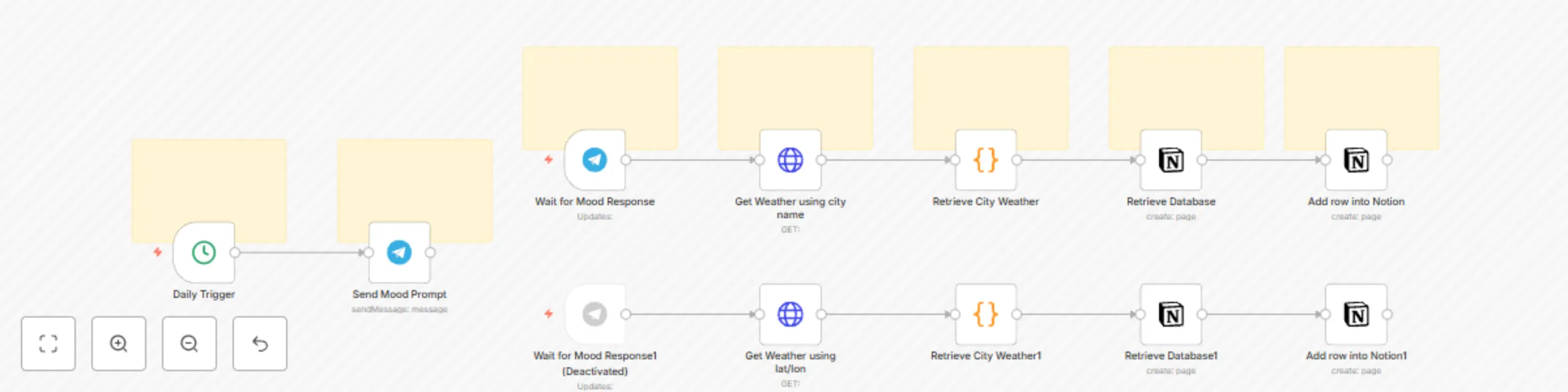
The **Daily Mood & Weather Logger 🚀** is more than just a utility; it's a hands-on n8n workflow designed to teach you core automation concepts. By setting up and exploring this template, you'll gain practical experience with triggers, API calls, data manipulation using the Code node, and integrating with external services like Notion. It automates tracking your daily mood alongside local weather, logging it all into a Notion database. --- ## 🎯 Learning Objectives: What You'll Master This workflow template is specifically structured to help you understand and practice: * **Workflow Triggers:** * **Scheduled Triggers:** Learn how the **Cron node** initiates actions at specific times (e.g., daily). * **Webhook/Event-Based Triggers:** Understand how the **Telegram Trigger node** listens for and reacts to external events (like a new message). * **Making API Calls:** * See the **HTTP Request node** in action, querying the external OpenWeatherMap API to fetch real-time data. * Understand how to configure API endpoints, query parameters, and handle API keys (using environment variables). * **Data Manipulation with Code:** * Explore the **Code node** to write simple JavaScript for combining data from different sources (Telegram input and API response). * Learn basic data structuring and transformation within n8n. * **Database Integration (Notion):** * Discover how to use the **Notion node** to interact with a Notion database. * Practice retrieving database information and, more importantly, creating new pages (entries/rows) with dynamic data. * **Environment Variables:** Learn the importance of using environment variables for managing sensitive information (like API keys) and configurable parameters (like city/location). * **Workflow Logic & Data Flow:** Observe how data passes between nodes and how different components work together to achieve a complete automation. --- ## Why This Workflow? (Beyond Learning) 🤔 While the primary goal is educational, the workflow itself is useful for: * **Automated Data Collection:** It prompts for mood via Telegram and fetches weather automatically. * **Consistent Logging:** Ensures daily entries into your Notion journal. * **Centralized Information:** Stores mood and weather data in a structured Notion database. --- ## Core Features & How They Teach You 🧩 Let’s break down how each part of the workflow demonstrates key n8n concepts: ### 📅 Daily Automation Cycle & Triggers: * **Daily Trigger (Cron node):** ⏰ Initiates the workflow daily. *Learning:* This is your introduction to time-based automation. Observe its simple configuration for scheduling. * **Telegram Mood Prompt (Telegram node):** 📩 Sends a message. *Learning:* Shows a basic "action" node interacting with an external service. * **Telegram Mood Capture (Telegram Trigger node):** 🎣 Listens for your reply. *Learning:* A prime example of an event-driven trigger. See how it waits for user input to continue the workflow. ### 🌍 Fetching External Data (APIs): * **Weather Data Fetch (HTTP Request node for OpenWeatherMap):** 🌦️ Retrieves current weather. *Learning:* The core of API interaction. Examine how the URL, query parameters (`appid`, `q` or `lat`/`lon`), and environment variables are used. Try changing the parameters! ### ⚙️ Processing Data (Code Node): * **Data Consolidation (Code node):** 🛠️ Combines mood and weather data. *Learning:* A practical use of the Code node. Look at the JavaScript to understand how it accesses data from previous nodes (`$input`, `$('Node Name')`) and structures the output. ### 📝 Storing Data (Notion Integration): * **Notion Database Interaction (Notion nodes):** ✍️ * "Retrieve Database": Gets database info. *Learning:* Demonstrates reading from Notion. * "Add row into Notion": Logs the data. *Learning:* Shows how to write data to Notion, mapping your workflow data to specific Notion properties. This is a common pattern for many database integrations. *Note: The template includes two paths for weather fetching (city name vs. lat/lon). This allows you to explore different ways to configure the HTTP Request node and manage input data.* --- ## Getting Started: Your Learning Lab Setup 🛠️ Set up your learning environment: 1. **Import the Workflow:** Add the `.json` to n8n. This is your starting blueprint! 2. **Set Up Environment Variables in n8n:** * `OPEN_WEATHER_API_KEY`: Your OpenWeatherMap API key. * `City`: (e.g., "Paris") For city-based weather. * `latitude`: (e.g., "18.834366") For coordinate-based weather. * `longitude`: (e.g., "35.352342") For coordinate-based weather. 3. **Configure Node Credentials:** * **Telegram:** Link your Telegram API credentials in the "Send Mood Prompt" and "Wait for Mood Response" nodes. * **Notion:** Connect your Notion API credentials in the "Retrieve Database" and "Add row into Notion" nodes. 4. **Personalize Node Settings (Experiment Here!):** * **Daily Trigger (Cron Node):** Change the "Trigger Times". How does this affect when the workflow runs? * **Send Mood Prompt (Telegram Node):** * Update the `Chat ID` (e.g., from `=83495863`) to your own. * Modify the `Text` of the prompt. * **Notion Nodes:** * Set your target `Database ID` (e.g., replace `20e9c592...`). * Ensure your Notion database has properties like `city`, `description`, `temperature`, `mood`, etc., as defined in the "Add row into Notion" node. Try adding or removing properties to see what happens! * **Weather Fetching Path:** * Experiment with enabling one path (city name or lat/lon) and disabling the other. Observe how the HTTP Request node parameters differ. Ensure relevant environment variables are set. 5. **Activate and Test:** Turn the workflow ON. Trigger it manually or wait for the Cron. Check each node’s output to understand the data flow. --- ## How The Automation Works (A Learning Recap) ⚙️ Follow the data and actions: 1. **TRIGGER:** Cron node (scheduled) or Telegram Trigger (event-based after prompt). 2. **ACTION (Prompt):** Telegram node sends a message. 3. **INPUT (User):** You reply to the Telegram message. 4. **API CALL:** HTTP Request node fetches weather using your API key and location. 5. **CODE PROCESSING:** Code node merges your mood and the weather data. 6. **DATABASE WRITE:** Notion node creates a new entry with the combined data. Use the n8n execution log to inspect the input and output of each node. This is invaluable for learning and debugging! --- ## Next Steps in Your Learning Journey 🚀 Once you're comfortable, try these to deepen your understanding: * **Modify the Code Node:** Add new data transformations. Can you format the date or extract more specific weather details? * **Change API Parameters:** Explore the OpenWeatherMap API docs. Can you fetch forecast data instead of current weather? * **Add Error Handling:** What happens if the API call fails? Explore the "Error Trigger" or "Continue on Fail" settings. * **Integrate a New Service:** Try sending a summary to email or another messaging app. * **Explore Different Trigger Types:** What other ways could this workflow be initiated? --- ## Requirements (Your Learning Kit) 📋 * An active n8n instance. * Telegram Bot API credentials. * An OpenWeatherMap API Key. * Notion API credentials & a configured Notion Database. * Curiosity and a willingness to experiment! *May your mood tracking be seamless and your weather always logged!*

I
Issam AGGOUR
Personal Productivity
11 Jun 2025
185
0
Workflow preview: Family assistant: Schedule, meal & routine management with Email & Telegram
Free advanced

Family assistant: Schedule, meal & routine management with Email & Telegram

The **FamilyFlow Assistant** is your n8n-powered 🚀 companion designed to streamline daily parenting tasks, reduce mental load, and bring a bit more organization and fun into your family life. This versatile workflow automates reminders, generates helpful ideas, and provides gentle nudges to keep your household running smoothly. * * * Why FamilyFlow Assistant? 🤔 ---------------------------- Parenting is a demanding (and rewarding!) job. Juggling schedules, meals, routines, and remembering everything can be overwhelming. FamilyFlow Assistant aims to: * **Reduce Mental Clutter:** Offload common reminders and to-dos to an automated system. * **Enhance Organization:** Keep track of activities, appointments, and important checks. * **Spark Joy & Creativity:** Generate meal ideas, story starters, and positive thoughts. * **Promote Routine:** Help establish and maintain consistent morning and evening routines. * **Save Time:** Automate repetitive prompts and checks, freeing you up for what matters most. * * * Core Features & Automations 🧩 ------------------------------ This workflow bundle comes packed with several independent yet complementary automations: ### 📅 Daily & Weekly Organization: * **Activity & Appointment Reminders:** Get a daily heads-up on scheduled events for the family. * **Morning Routine Checklist:** Start the day right with a friendly checklist for kids (or parents!). * **Bedtime Routine Nudge:** A gentle reminder to begin the wind-down process. * **Evening “Did You Remember?” Scan:** A quick mental checklist for common end-of-day to-dos. * **Weekly “Plan Ahead” Prompt:** A Sunday reminder to review the upcoming week. * **School/Daycare Comms Check:** Prompts to check for important updates. ### 💡 Inspiration & Well-being: * **Meal Idea Generator:** Never wonder “what’s for dinner?” again (or at least, less often!). * **Positive Thought / Fun Fact Sender:** A little daily dose of brightness. * **Story Starter / Quick Activity Prompt:** Spark imagination or a quick family interaction. * **Weekly Wins & Gratitude Reminder:** Encourage reflection on positive moments. ### ⏱️ Optional Helpers: * **Screen Time Break Reminder:** (Disabled by default) A nudge for offline time. * * * Getting Started: Setup & Customization 🛠️ ------------------------------------------ Make FamilyFlow Assistant truly yours with these simple steps: 1. **Import the Workflow:** Add the provided `.json` file to your n8n instance. 2. **Configure Credentials:** * **Email:** Set up your preferred email sending credential (e.g., SMTP, Gmail) in _all_ “Email Send” nodes. You’ll likely use the same one for all. 3. **Personalize Content (Crucial!):** * **Email Addresses:** Update [email protected] to your actual email(s) in all Email nodes. * **Schedules & Activities:** Edit the “Define Daily Schedules” (Set node) with your family’s actual events. * **Meal Ideas:** Customize the mealIdeas array in the “Generate Meal Idea” (Function node). * **Checklists & Prompts:** Tailor the text/HTML in Email nodes for morning/bedtime routines, check-ins, story starters, etc., to fit your family’s style. * **Positive Thoughts/Facts:** Update the lists in the “Get Positive Thought/Fact” (Function node). 4. **Adjust Triggers (Cron Nodes):** * Modify the “Rule” in each Cron node to set the exact time and frequency for each automation. 5. **Activate Automations:** * The main workflow and most automations are inactive by default. Toggle the “Active” switch ON for the entire workflow or for individual automations/nodes you wish to use. * Remember, the “Screen Time Break Reminder” is disabled by default; enable its Email node if desired. * * * How Each Automation Works (Briefly) ⚙️ -------------------------------------- Each automation generally follows this pattern: 1. **TRIGGER:** An event starts the flow (e.g., a scheduled time via Cron). 2. **PROCESS:** Data is defined (e.g., list of activities, meal ideas) or generated (e.g., a random selection, a formatted message). 3. **RESPOND:** An action is taken, typically sending an email with the relevant information or reminder. For instance, the “Daily Activity Reminder” uses a Cron trigger, a Set node to hold your schedule, a Function node to filter for today’s events, an IF node to check if there are any, and finally an Email node to send the reminder. * * * Expanding Your Assistant 🚀 --------------------------- FamilyFlow Assistant is a great starting point. Consider these ideas to extend its capabilities: * **Integrate Calendars:** Connect to Google Calendar or Outlook Calendar to fetch events dynamically. * **Use Different Notifiers:** Send messages via Telegram, WhatsApp, Slack, or push notifications. * **Smart Home Integration:** If you have smart home devices, trigger lights or announcements for routines. * **Shared To-Do Lists:** Update a shared Todoist or Microsoft To Do list. * **Interactive Input:** Use n8n forms or Telegram commands to add events or trigger specific actions. * * * Requirements 📋 --------------- * An active n8n instance (self-hosted or cloud). * Email sending credentials configured in n8n. * A little time to customize the content to perfectly match your family’s needs! _Embrace the flow and let your FamilyFlow Assistant help make parenting a little smoother!_

I
Issam AGGOUR
Personal Productivity
10 Jun 2025
585
0
Workflow preview: Build a multi-functional Telegram bot with Gemini, RAG PDF search & Google Suite
Free advanced

Build a multi-functional Telegram bot with Gemini, RAG PDF search & Google Suite

## The Ultimate Beginner's Guide to an AI-Powered Telegram Assistant (PDF, Brave search & Google Suite) This comprehensive workflow bundle is designed as a powerful starter kit, enabling you to build a multi-functional AI assistant on Telegram. It seamlessly integrates AI-powered voice interactions, an intelligent PDF document search using a Retrieval-Augmented Generation (RAG) system, and automates various Google Suite tasks like calendar management and document generation. Perfect for beginners looking to explore advanced AI and automation capabilities. ## Disclaimer This template is designed for self-hosted n8n instances. ## 🚀 Key Features * **Telegram Bot Interface:** Interact with your AI assistant using both text and voice commands through Telegram. * **AI Voice Bot:** * Transcribes user voice messages using OpenAI Whisper. * Processes requests with an AI agent powered by Google Gemini. * Responds with AI-synthesized voice using Replicate API. * **PDF RAG System:** * Index PDF documents from Google Drive via Telegram commands. * Utilizes Mistral AI for Optical Character Recognition (OCR) on PDFs. * Stores document content and embeddings in a Qdrant vector database. * Answers questions about your documents using Google Gemini, based on retrieved context. * **Google Suite Automation:** * Manage Google Calendar: Create events, find upcoming holidays, and list birthdays. * Google Drive: Search for PDF files and manage document templates. * Google Docs: Automatically generate invoices from templates. * **Intelligent Web Search:** Employs Brave Search for fetching real-time information from the web. * **Versatile AI Agent:** Leverages Google Gemini with a suite of tools including a calculator, date & time utilities, and custom integrations (e.g., example Airbnb tools). * **Command-Driven Functionality:** Easily trigger specific actions using Telegram commands like `/help`, `/pdf`, `/rag`, `/invoice`, `/chat`, `/brave`, and `/birthday`. ## ⚙️ How It Works The workflow is initiated by messages or commands sent to your Telegram bot. A central `Switch` node directs the flow based on the input received. ## 1. Telegram Interaction & Command Routing * A **Telegram Trigger** node listens for new messages (text or voice). * A "typing..." indicator is sent to Telegram for better user experience. * The **Switch** node parses the message content and routes it to the appropriate sub-workflow based on predefined commands (e.g., `/pdf`, `/rag`, `/voice`) or general chat. ## 2. AI Voice Bot Functionality * For voice messages (or if the voice path is triggered): * The voice file is downloaded from Telegram. * **OpenAI Whisper** transcribes the audio into text. * The transcribed text is fed to an **AI Agent** (powered by Google Gemini and equipped with various tools and memory). * The AI Agent's text response is then sent to the **Replicate API** to generate a natural-sounding voice. * The generated audio response is sent back to the user on Telegram. ## 3. PDF RAG System with Mistral OCR & Qdrant * **Indexing PDFs (via `/qdrant <Google_Drive_File_ID>` command):** * The specified PDF is downloaded from Google Drive. * The PDF is uploaded to **Mistral AI** for OCR processing. * The extracted text (in markdown format) is retrieved. * The text is split into manageable chunks. * **OpenAI Embeddings** are generated for each chunk. * These chunks and their embeddings are stored in a **Qdrant** vector collection. * A confirmation message is sent to Telegram. * **Querying PDFs (via `/rag <your_question>` command):** * The user's question is processed by a **RetrievalQA Chain**. * This chain uses Google Gemini as the Language Model and retrieves relevant document chunks from Qdrant based on semantic similarity (embeddings). * Google Gemini then generates a concise answer based on the user's question and the retrieved contextual information from the documents. * The answer is sent back to the user on Telegram. * **Searching PDFs in Drive (via `/pdf <search_term>` command):** * Searches your Google Drive for PDF files matching the provided search term. * Sends a list of found PDF files (name and ID) to the user on Telegram, allowing them to easily identify files for indexing with `/qdrant`. ## 4. AI Chat & Task Automation (General Chat & `/chat` command) * Handles general text messages or transcribed voice inputs that are not specific commands. * An **AI Agent** (Google Gemini) processes these inputs. * The agent is equipped with tools such as: * **Google Calendar Tools:** To create events, find the next public holiday, or list upcoming birthdays. * **Brave Search Tool:** To search the internet for information. * **Calculator Tool:** For mathematical computations. * **Date & Time Utility:** For handling and formatting dates. * **Example Airbnb Tools:** Demonstrates extensibility for custom tool integrations. * The agent utilizes a "Think Node" process for reasoning and **Window Buffer Memory** to maintain conversational context. * Responses are formulated and sent back to the user on Telegram. ## 5. Google Automations * **Invoice Generation (via `/invoice` command):** * Copies a predefined Google Docs invoice template from your Google Drive. * Populates the new document with details (client name, items, etc. – currently uses placeholder data from an 'Edit Fields' node, which can be customized to parse input from the command). * Converts the populated Google Doc into a PDF file. * Sends the generated PDF invoice to the user via Telegram. * **Calendar Management (via AI Agent or specific commands like `/birthday`):** * The `/birthday` command fetches upcoming birthdays from a specified Google Calendar. * The AI Agent can also interact with Google Calendar to create events or retrieve information based on natural language requests. ## 6. Web Search (via `/brave <query>` command or AI Agent) * Performs a web search using the Brave Search API. * Returns a list of search results, including titles and URLs, to the user on Telegram. ## 7. Help Command (`/help`) * Provides the user with a formatted list of all available Telegram commands and their basic usage instructions. ## 🛠️ Setup Steps & Credentials To get this workflow bundle up and running, you'll need to configure several credentials: 1. **Telegram:** * Create a new bot via `@BotFather` on Telegram to obtain a **Bot Token**. * Add this token to the `Telegram Trigger` node and all `Telegram` (sender) nodes in the workflow. 2. **OpenAI:** * Obtain an API Key from [platform.openai.com](https://platform.openai.com). * Create an `OpenAI` credential. * Use this credential in the `Convert audio to text` (OpenAI node for Whisper transcription) and all `Embeddings OpenAI` nodes (for RAG system). 3. **Replicate API (Text-to-Speech):** * Sign up at [replicate.com](https://replicate.com) and get your API token. * Create an `HTTP Bearer Auth` credential using this token. * Assign this credential to the `Call Replicate API` (HTTP Request) node. 4. **Google Gemini (PaLM API):** * Get an API key from Google AI Studio or Google Cloud Console. * Create a `Google Gemini(PaLM) Api` credential. * Assign it to all `Google Gemini Chat Model` nodes. 5. **Qdrant (Vector Database):** * Set up a Qdrant instance (either cloud-hosted or self-managed). * Note your Qdrant instance URL and API Key (if security is enabled). * Create a `QdrantApi` credential with these details. * Assign it to the `Qdrant Vector Store` nodes. * For the `Refresh collection` node (an HTTP Request node used to clear the collection for `/pdf` command demo), create an `HTTP Header Auth` credential with your Qdrant API key if required by your instance. 6. **Mistral AI (PDF OCR):** * Obtain an API key from [console.mistral.ai](https://console.mistral.ai). * Create a `Mistral Cloud API` credential. * Assign this to the `Mistral Upload`, `Mistral Signed URL`, and `Mistral DOC OCR` (HTTP Request) nodes. 7. **Google Drive & Google Docs:** * Ensure the Google Drive API and Google Docs API are enabled in your Google Cloud Console project. * Set up OAuth 2.0 credentials (Client ID and Client Secret). * Create `Google Drive OAuth2 Api` and `Google Docs OAuth2 Api` credentials. * Assign these to the respective `Google Drive` and `Google Docs` nodes throughout the workflow. * *Important:* Configure relevant Folder IDs (for PDF search, invoice template source, invoice output) and the invoice template Document ID in the Google Drive and Google Docs nodes. 8. **Google Calendar:** * Enable the Google Calendar API in your Google Cloud Console project. * Set up OAuth 2.0 credentials. * Create a `Google Calendar OAuth2 Api` credential. * Assign it to the `Google CalendarTool` and `Google Calendar` nodes. * Specify the correct calendar names or IDs in the nodes (e.g., for birthdays, holidays, new event creation). 9. **Brave Search:** * Get a Brave Search API key from their developer portal. * Create a `Brave Search API` credential. * Assign it to the `Brave Search` nodes and tools. 10. **(Optional) Airbnb MCP Client:** * The workflow includes example nodes for Airbnb MCP tools. If you intend to use or expand these, set up the corresponding `MCP Client API` credentials. ## 💡 Customization & Learning This "Beginner Bundle" is not just a ready-to-use solution but also a fantastic learning resource: * **Explore AI Agent Prompts:** Dive into the `AI Agent` nodes to see how prompts are structured to guide the LLM's behavior, including the "Think Node" process and character guidance for robust messaging. * **Modify Toolsets:** Easily add or remove tools for the AI agent to expand its capabilities. * **Invoice Customization:** Adapt the `Edit Fields` node and the Google Docs template to match your invoicing needs. You can extend it to parse invoice details directly from the Telegram command. * **RAG Parameters:** Experiment with chunk sizes, overlap, and different embedding models in the RAG pipeline. * **Extend Commands:** Add new commands and corresponding functionalities by expanding the main `Switch` node and building out new automation paths. By setting up and dissecting this workflow, beginners can gain a practical understanding of building complex, AI-driven applications, integrating various services, and managing different data flows.

I
Issam AGGOUR
Personal Productivity
31 May 2025
1511
0