Block 1 - On clicking 'execute'
- Type / Role
- n8n-nodes-base.manualTrigger - manualTrigger
- Config choices
- Version 1


 Early Deal
This workflow is provided as-is. Please review and test before using in production.
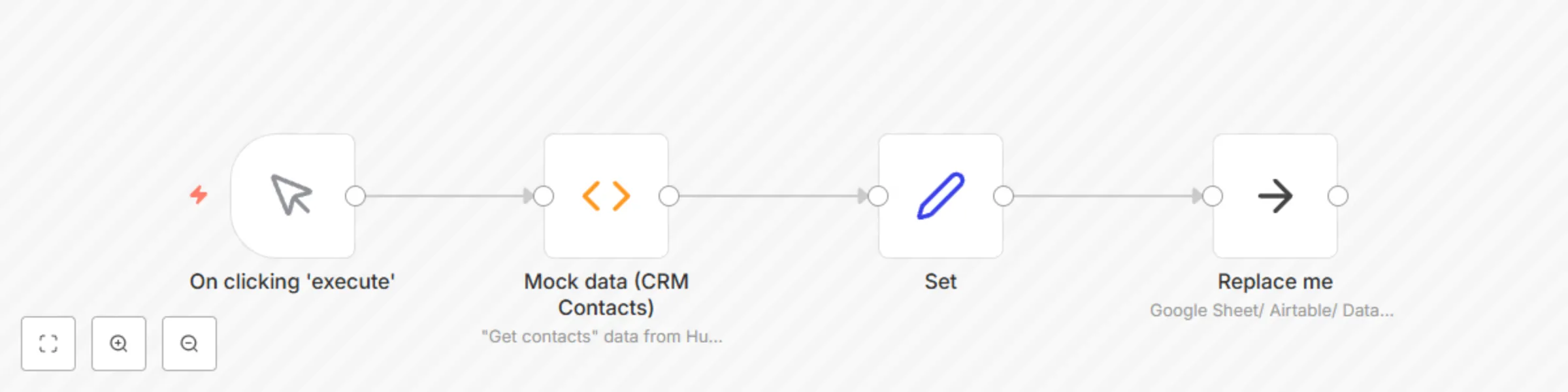
This workflow is a generic example of how to load data from your workflow into a destination that stores tabular data. For example, a Google Sheets or Airtable sheet, a .CSV file, or any relational...
n8n-nodes-base.manualtrigger, n8n-nodes-base.set, n8n-nodes-base.function, n8n-nodes-base.noop
This workflow is cataloged by N8N Workflows and links back to its original n8n.io source page by Max Tkacz.
Original n8n.io sourceThis workflow is a generic example of how to load data from your workflow into a destination that stores tabular data. For example, a Google Sheets or Airtable sheet, a .CSV file, or any relational database like MySQL.
Generally, you need to ensure that you send well-formatted data into the Spreadsheet or Database node. You can use the Set or Function node to transform data into the correct format for your destination.
Spreadsheets and databases have columns, like "Name" and "Email". The data you send into a Spreadsheet/ Database node needs to match these column names for each row of data that you want to insert. Data points need to be represented as key-value pairs. Specifically, each item of data needs to have a JSON key for each column in the sheet. For a spreadsheet with "Name" and "Email" columns, it would look like: {"Name" : "Karla", "Email" : "[email protected]"}
Before appending or inserting data to a spreadsheet or database, you might need to transform it into the correct format. You can preprocess the data with a Set or Function node. The Set node allows you to perform simple transforms when the data you want to load into spreadsheet rows is already represented as items. Use the Function node when you need to map nested data (like arrays) inside a single item to their own top-level items (Example in community forums).
Spreadsheet and database nodes in n8n perform their configured action (like Append, Create Row, Write to File) on each item of input data.
This catalog entry is organized from the workflow JSON. The node-level section below shows the executable blocks available for review before importing the template.
| Workflow | Load data into spreadsheet or database |
|---|---|
| Complexity | beginner |
| Nodes | 4 |
| Categories | Engineering |
| Author | Max Tkacz |
| Published | 11 Mar 2021 |
Use the JSON export at /data/workflows/980/980.json as the source template for this automation.
Open n8n, import the downloaded JSON, and review each node before activating the workflow.
Replace placeholder credentials, API keys, webhook URLs, account IDs, and environment-specific values with your own settings.
Run the workflow manually or in a staging workspace, inspect node output, and confirm downstream systems receive the expected data.
Enable the workflow only after testing, then monitor executions, errors, and rate limits during the first production runs.
Review imported nodes carefully before activation. This catalog entry is intended to help you inspect the workflow structure, understand required services, and find related templates faster.
Node names, credentials, schedules, webhook paths, and external service limits may need adjustment for your workspace.
This workflow is a generic example of how to load data from your workflow into a destination that stores tabular data. For example, a Google Sheets or Airtable sheet, a .CSV file, or any relational...
Review the workflow JSON, configure any required credentials in n8n, and test the automation in a safe workspace before using it in production.
Yes. Use the block-by-block analysis and the downloadable JSON to inspect each node, then adjust credentials, prompts, schedules, filters, or destinations for your Engineering use case.