Block 1 - Get a message in Gmail
- Type / Role
- n8n-nodes-base.gmailTool - gmailTool
- Config choices
- Version 2.1


 Early Deal
This workflow is provided as-is. Please review and test before using in production.
The official ChatGPT connector doesn’t allow you to interact directly with Google Workspace apps from within the app. Let’s see how to overcome this limitation by creating a dedicated MCP server . ...
n8n-nodes-base.gmailtool, @n8n/n8n-nodes-langchain.mcptrigger, n8n-nodes-base.stickynote, n8n-nodes-base.googlecalendartool, n8n-nodes-base.googledrivetool, n8n-nodes-base.googledocstool, n8n-nodes-base.googlesheetstool, n8n-nodes-base.googleslidestool
This workflow is cataloged by N8N Workflows and links back to its original n8n.io source page by Davide.
Original n8n.io sourceThe official ChatGPT connector doesn’t allow you to interact directly with Google Workspace apps from within the app. Let’s see how to overcome this limitation by creating a dedicated MCP server.
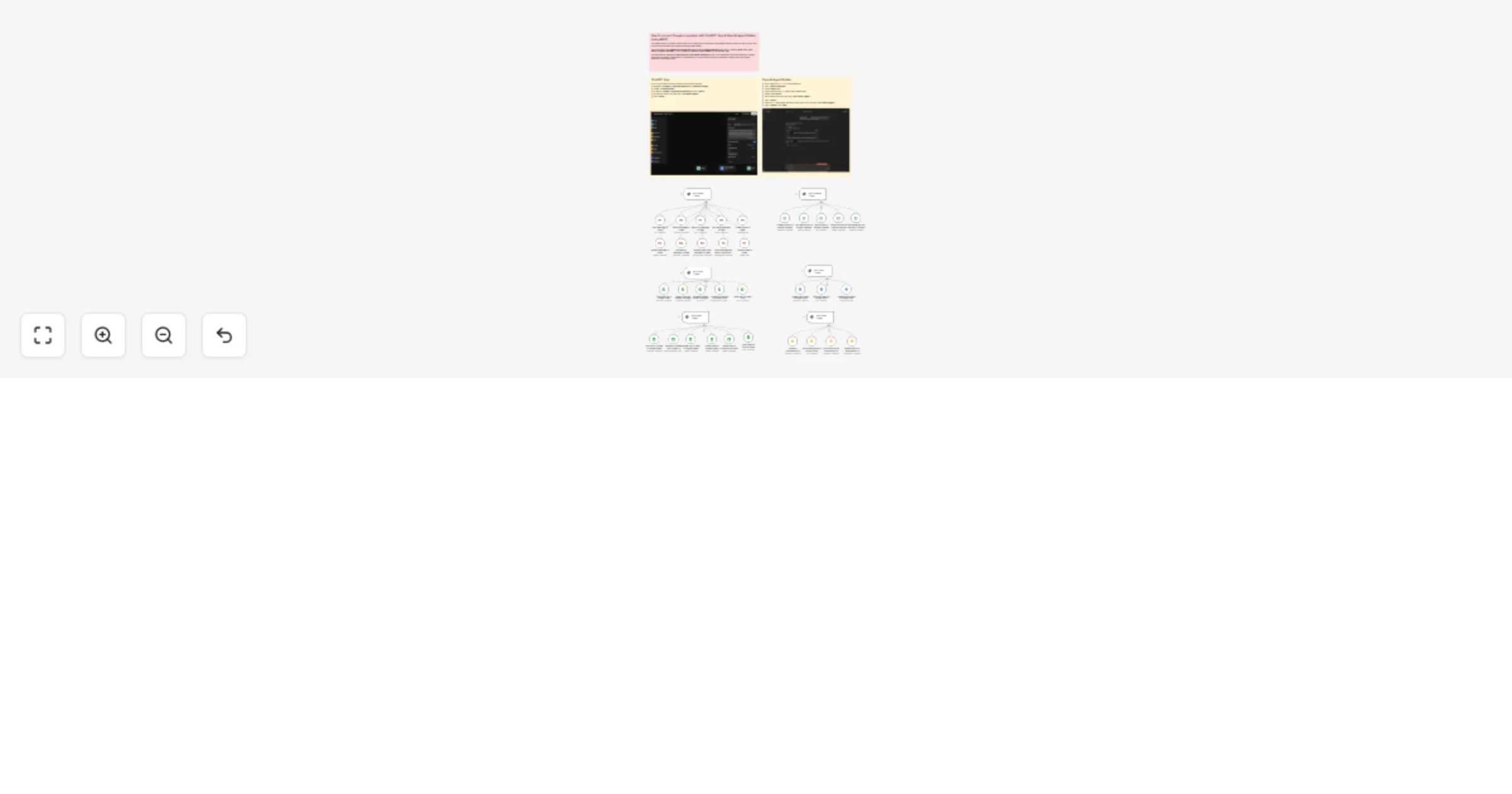
This workflow acts as a Middleware Control Point (MCP) between Google Workspace services — including Gmail, Drive, Docs, Sheets, Calendar, and Slides — and AI agents like OpenAI’s Agent Builder and the ChatGPT App.
It enables these AI assistants to directly interact with Google Workspace tools — from managing emails and calendars to creating and editing documents, spreadsheets, or presentations — through secure automation endpoints, a feature that is not natively supported in the ChatGPT app.
✅ Unified AI–Google Workspace Integration Allows large language models (LLMs) to manage Gmail, Drive, Docs, Sheets, Calendar, and Slides directly, enabling AI-driven workflows like email automation, document creation, meeting scheduling, and data analysis.
✅ Full Control Across Google Apps Supports key actions across multiple services:
✅ Plug-and-Play with OpenAI Agent Builder & ChatGPT Easily connect to MCP-compatible AI platforms like Claude Desktop or OpenAI Agent Builder, with minimal configuration.
✅ Scalable and Extensible The modular structure allows you to expand to additional Google APIs or custom automations (e.g., CRM syncing, sentiment analysis, or reporting).
✅ No-Code/Low-Code Configuration Fully built in n8n, allowing easy customization and maintenance without deep programming skills.
MCP Trigger: The “MCP Google Workspace Trigger” node acts as the server endpoint, waiting for incoming requests from an AI application.
Tool Execution: When the AI needs to interact with a Google app (e.g., Gmail or Drive), it sends a command to this trigger. The workflow routes the request to the appropriate tool node.
Available Actions (Examples):
Data Return: The result (email content, document link, file metadata, event details, etc.) is returned to the MCP server and then to the AI, which can use it to continue the workflow or conversation.
Configure Google Workspace Credentials in n8n: Authenticate each Google service (Gmail, Drive, Docs, Sheets, Calendar, Slides) via OAuth2 using the correct account credentials.
Activate the Workflow: The workflow must be active in n8n. The MCP Trigger node provides a unique URL that serves as the server endpoint.
Connect to an AI Application (Choose one method):
ChatGPT App:
OpenAI Agent Builder:
Once connected, the AI can intelligently manage Google Workspace tasks based on natural language requests such as:
> “Schedule a meeting with Sarah tomorrow at 3 PM,” > “Create a new Google Doc titled ‘Marketing Plan’ and share it with the team,” > or “Find the latest report in Drive and summarize it.”
Contact me for consulting and support or add me on Linkedin.
This catalog entry is organized from the workflow JSON. The node-level section below shows the executable blocks available for review before importing the template.
Showing the first 24 of 42 workflow blocks. Download the JSON for the full node graph.
| Workflow | Integrate Google Workspace with ChatGPT & OpenAI Agent Builder using MCP Bridge |
|---|---|
| Complexity | advanced |
| Nodes | 42 |
| Categories | Engineering, AI RAG |
| Author | Davide |
| Published | 14 Oct 2025 |
Use the JSON export at /data/workflows/9635/9635.json as the source template for this automation.
Open n8n, import the downloaded JSON, and review each node before activating the workflow.
Replace placeholder credentials, API keys, webhook URLs, account IDs, and environment-specific values with your own settings.
Run the workflow manually or in a staging workspace, inspect node output, and confirm downstream systems receive the expected data.
Enable the workflow only after testing, then monitor executions, errors, and rate limits during the first production runs.
Review imported nodes carefully before activation. This catalog entry is intended to help you inspect the workflow structure, understand required services, and find related templates faster.
Node names, credentials, schedules, webhook paths, and external service limits may need adjustment for your workspace.
The official ChatGPT connector doesn’t allow you to interact directly with Google Workspace apps from within the app. Let’s see how to overcome this limitation by creating a dedicated MCP server . ...
Review the workflow JSON, configure any required credentials in n8n, and test the automation in a safe workspace before using it in production.
Yes. Use the block-by-block analysis and the downloadable JSON to inspect each node, then adjust credentials, prompts, schedules, filters, or destinations for your Engineering, AI RAG use case.