Block 1 - ⏰ Schedule - Every 3 Hours
- Type / Role
- n8n-nodes-base.scheduleTrigger - scheduleTrigger
- Config choices
- Version 1.2


 Early Deal
Self learning feedback loop for AI customer support email drafts with Gmail, OpenAI and PostgreSQL Automatically compare AI generated email drafts against what your support team actually sent, lear...
n8n-nodes-base.scheduletrigger, n8n-nodes-base.postgres, n8n-nodes-base.code, n8n-nodes-base.gmail, n8n-nodes-base.splitinbatches, n8n-nodes-base.if, @n8n/n8n-nodes-langchain.agent, @n8n/n8n-nodes-langchain.lmchatopenai
This workflow is cataloged by N8N Workflows and links back to its original n8n.io source page by Vivekanand M.
Original n8n.io sourceAutomatically compare AI-generated email drafts against what your support team actually sent, learn from the differences, and improve future drafts over time — without any model fine-tuning.
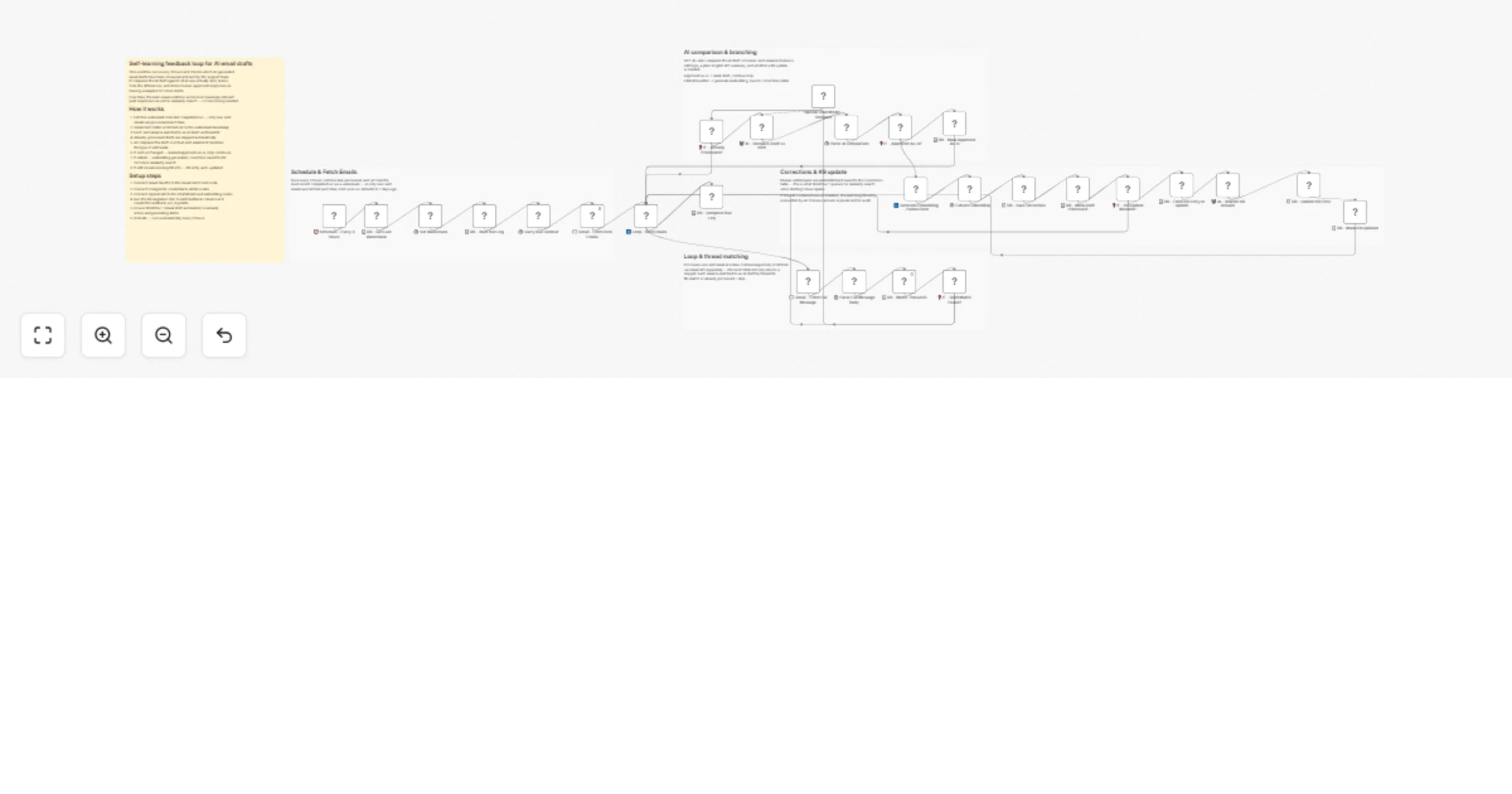
This is the second workflow in a two-part customer support automation system. The first workflow generates AI draft replies for incoming support emails. This workflow closes the loop — it runs every 3 hours, checks which drafts were reviewed and sent, compares them against the original AI output, and stores the human-edited versions as training examples.
The more this workflow runs, the smarter the first workflow becomes. When generating future drafts, the similarity search surfaces past human-approved responses — so the AI progressively learns what good answers look like for your specific support context.
Step 1 — Watermark and scheduling
Every run starts by fetching the last_processed_sent_at timestamp from the previous completed run. Only Gmail Sent emails newer than this timestamp are fetched, so nothing gets processed twice. On the first-ever run it defaults to 7 days ago.
Step 2 — Fetch and loop
Sent emails are fetched from Gmail and processed one at a time. For each email, the full message body is retrieved via the Gmail API (the list endpoint only returns a preview snippet). The sent email's thread ID is matched against the ai_drafts table to find the corresponding AI draft.
Step 3 — Match and skip logic Three things skip an email without processing: no matching AI draft found (the team sent something manually), the draft was already processed in a previous run, or the fetch returns no results. Only genuine unprocessed matches continue.
Step 4 — AI comparison GPT-4o-mini compares the AI draft text against the human-sent text and returns a structured analysis: whether it was approved unchanged, the type of edit made (minor edits vs major rewrite), a plain English summary of what changed, and whether the edit implies missing or incorrect information in the knowledge base.
Step 5 — Store the correction
If the human made any edits, the pair (original email + human response) is embedded using OpenAI text-embedding-3-small and saved to the corrections table. This table is what the first workflow searches using vector cosine similarity when assembling future draft prompts.
Step 6 — KB auto-update
If the AI comparison flags that the human edit contained new information, the most relevant knowledge base entry for that category is fetched and rewritten by GPT-4o-mini to incorporate the new information. The previous answer is preserved in the previous_answer column for auditing.
Step 7 — Run log
Each run is logged to feedback_run_log with counts of emails checked, corrections saved, KB updates made and any errors. This log also serves as the watermark source for the next run.
Run the following against your existing database to add the columns this workflow needs:
ALTER TABLE ai_drafts
 ADD COLUMN IF NOT EXISTS email_embedding vector(1536),
 ADD COLUMN IF NOT EXISTS feedback_processed_at TIMESTAMPTZ,
 ADD COLUMN IF NOT EXISTS was_approved_as_is BOOLEAN DEFAULT FALSE;

ALTER TABLE corrections
 ADD COLUMN IF NOT EXISTS source TEXT DEFAULT 'feedback_loop',
 ADD COLUMN IF NOT EXISTS kb_updated BOOLEAN DEFAULT FALSE;

ALTER TABLE kb_data
 ADD COLUMN IF NOT EXISTS updated_by TEXT DEFAULT 'manual',
 ADD COLUMN IF NOT EXISTS previous_answer TEXT;

CREATE TABLE IF NOT EXISTS feedback_run_log (
 id SERIAL PRIMARY KEY,
 run_started_at TIMESTAMPTZ DEFAULT NOW(),
 run_completed_at TIMESTAMPTZ,
 last_processed_sent_at TIMESTAMPTZ,
 emails_checked INTEGER DEFAULT 0,
 approved_as_is INTEGER DEFAULT 0,
 corrections_saved INTEGER DEFAULT 0,
 kb_updates INTEGER DEFAULT 0,
 errors INTEGER DEFAULT 0,
 status TEXT DEFAULT 'running'
);
| Node | Credential needed |
|---|---|
| Gmail - Fetch Sent Emails | Gmail OAuth2 |
| Gmail - Fetch Full Message | Gmail OAuth2 (HTTP Request with OAuth) |
| All DB nodes | PostgreSQL |
| OpenAI Chat Model - Compare | OpenAI API |
| AI - Rewrite KB Answer | OpenAI API |
| Generate Embedding - Human Sent | OpenAI API |
The splitInBatches loop node has two outputs — make sure they are connected correctly:
DB - Match Thread IDDB - Complete Run LogAll branch dead-ends (approved as-is, no KB update, KB updated) should feed back into the loop node's input to advance to the next item.
Toggle the workflow to active. It will run automatically on the 3-hour schedule. You can also trigger it manually to test.
Once corrections start accumulating in the corrections table, Workflow 1's similarity search (which queries this table using vector cosine distance) will begin surfacing relevant past human-approved responses when assembling draft prompts. No changes to Workflow 1 are needed — it queries the same table this workflow writes to.
This catalog entry is organized from the workflow JSON. The node-level section below shows the executable blocks available for review before importing the template.
Showing the first 24 of 32 workflow blocks. Download the JSON for the full node graph.
| Workflow | Improve AI support email drafts with Gmail, OpenAI and PostgreSQL |
|---|---|
| Complexity | advanced |
| Nodes | 32 |
| Categories | Ticket Management, AI RAG |
| Author | Vivekanand M |
| Published | 10 Mar 2026 |
Use the JSON export at /data/workflows/13978/13978.json as the source template for this automation.
Open n8n, import the downloaded JSON, and review each node before activating the workflow.
Replace placeholder credentials, API keys, webhook URLs, account IDs, and environment-specific values with your own settings.
Run the workflow manually or in a staging workspace, inspect node output, and confirm downstream systems receive the expected data.
Enable the workflow only after testing, then monitor executions, errors, and rate limits during the first production runs.
Review imported nodes carefully before activation. This catalog entry is intended to help you inspect the workflow structure, understand required services, and find related templates faster.
Node names, credentials, schedules, webhook paths, and external service limits may need adjustment for your workspace.
Self learning feedback loop for AI customer support email drafts with Gmail, OpenAI and PostgreSQL Automatically compare AI generated email drafts against what your support team actually sent, lear...
Review the workflow JSON, configure any required credentials in n8n, and test the automation in a safe workspace before using it in production.
Yes. Use the block-by-block analysis and the downloadable JSON to inspect each node, then adjust credentials, prompts, schedules, filters, or destinations for your Ticket Management, AI RAG use case.