Import multiple manufacturers from Google Sheets to Shopware 6

Workflow preview

Workflow preview
100%
Import multiple manufacturers from Google Sheets to Shopware 6 preview
Open on n8n.io

Important notice

This workflow is provided as-is. Please review and test before using in production.

1. Workflow Overview

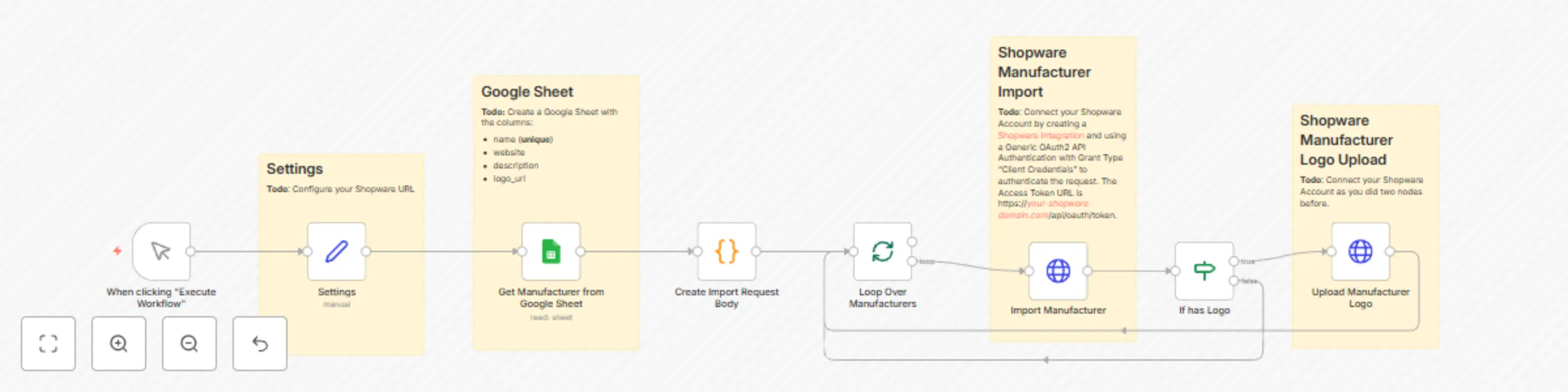
Effortlessly optimize your workflow by automatically importing hundreds of manufacturers from a Google Sheet into your Shopware online store, saving countless hours of manual work. How it works 1. ...

Best for

  • Miscellaneous automation workflows
  • intermediate n8n builders looking for reusable templates

Tools used

n8n-nodes-base.manualtrigger, n8n-nodes-base.set, n8n-nodes-base.code, n8n-nodes-base.httprequest, n8n-nodes-base.stickynote, n8n-nodes-base.splitinbatches, n8n-nodes-base.googlesheets, n8n-nodes-base.if

Source and attribution

This workflow is cataloged by N8N Workflows and links back to its original n8n.io source page by Manuel.

Original n8n.io source

1.1 Workflow description

Title
Import multiple manufacturers from Google Sheets to Shopware 6
Workflow name
Import multiple manufacturers from Google Sheets to Shopware 6

Effortlessly optimize your workflow by automatically importing hundreds of manufacturers from a Google Sheet into your Shopware online store, saving countless hours of manual work.

How it works

  1. Retrieve all manufactures from a Google Sheet
  2. Add each manufacture via Shopware sync API Endpoint to Shopware
  3. Upload a logo for each manufacture from a provided public URL to Shopware

Set Up Steps

  1. Add your Shopware url to first node called Settings
  2. Create a Google Sheet in your Google account with the following columns (Demo Sheet)
    1. name (the name of the manufacturer which has to be unique and is required)
    2. website (url to the manufacturer website)
    3. description
    4. logo_url (public manufcaturer logo url. Have to be a png, jpg or svg file)
    5. translation_language_code_1 (optional. Language Code of your language. For example 'es-ES' for spanish. You have to make sure a language with this code exists in your Shopware shop.)
    6. translation_name_1 (optional. Manufacturer name translated to the language you defined at translation_language_code_1)
    7. translation_description_1 (optional. Manufacturer description translated to the language you defined at translation_language_code_1)
    8. translation_language_code_2 (optional. Same as translation_language_code_1 for another language)
    9. translation_name_2 (optional. Same as translation_name_1 for another language)
    10. translation_description_2 (optional. Same as translation_description_1 for another language)
    11. translation_language_code_3 (optional. Same as translation_language_code_1 for another language)
    12. translation_name_3 (optional. Same as translation_name_1 for another language)
    13. translation_description_3 (optional. Same as translation_description_1 for another language)
  3. Connect to your Google account
  4. Connect to your Shopware account
    1. Create a Shopware Integration
    2. Connect to Shopware at the nodes "Import Manufacturer" and "Upload Manufacturer Logo" using a Generic OAuth2 API Authentication with Grant Type "Client Credentials". The Access Token URL is https://your-shopware-domain.com/api/oauth/token.
  5. Run the workflow

1.2 Logical Blocks

This catalog entry is organized from the workflow JSON. The node-level section below shows the executable blocks available for review before importing the template.

2. Block-by-Block Analysis

Block 1 - When clicking "Execute Workflow"

Type / Role
n8n-nodes-base.manualTrigger - manualTrigger
Config choices
Version 1

Block 2 - Settings

Type / Role
n8n-nodes-base.set - set
Config choices
Version 3.2

Block 3 - Create Import Request Body

Type / Role
n8n-nodes-base.code - code
Config choices
Version 2

Block 4 - Upload Manufacturer Logo

Type / Role
n8n-nodes-base.httpRequest - httpRequest
Config choices
Version 4.1

Block 5 - Import Manufacturer

Type / Role
n8n-nodes-base.httpRequest - httpRequest
Config choices
Version 4.1

Block 6 - Sticky Note

Type / Role
n8n-nodes-base.stickyNote - stickyNote
Config choices
Version 1

Block 7 - Sticky Note1

Type / Role
n8n-nodes-base.stickyNote - stickyNote
Config choices
Version 1

Block 8 - Loop Over Manufacturers

Type / Role
n8n-nodes-base.splitInBatches - splitInBatches
Config choices
Version 3

Block 9 - Get Manufacturer from Google Sheet

Type / Role
n8n-nodes-base.googleSheets - googleSheets
Config choices
Version 4.2

Block 10 - If has Logo

Type / Role
n8n-nodes-base.if - if
Config choices
Version 2

Block 11 - Sticky Note2

Type / Role
n8n-nodes-base.stickyNote - stickyNote
Config choices
Version 1

Block 12 - Sticky Note3

Type / Role
n8n-nodes-base.stickyNote - stickyNote
Config choices
Version 1

3. Summary Table

Workflow Import multiple manufacturers from Google Sheets to Shopware 6
Complexity intermediate
Nodes 12
Categories Miscellaneous
Author Manuel
Published 15 Feb 2024

4. Reproducing the Workflow from Scratch

  1. 1. Download the workflow JSON

    Use the JSON export at /data/workflows/2097/2097.json as the source template for this automation.

  2. 2. Import the template into n8n

    Open n8n, import the downloaded JSON, and review each node before activating the workflow.

  3. 3. Configure credentials and variables

    Replace placeholder credentials, API keys, webhook URLs, account IDs, and environment-specific values with your own settings.

  4. 4. Test with sample data

    Run the workflow manually or in a staging workspace, inspect node output, and confirm downstream systems receive the expected data.

  5. 5. Activate and monitor

    Enable the workflow only after testing, then monitor executions, errors, and rate limits during the first production runs.

5. General Notes & Resources

Review imported nodes carefully before activation. This catalog entry is intended to help you inspect the workflow structure, understand required services, and find related templates faster.

Node names, credentials, schedules, webhook paths, and external service limits may need adjustment for your workspace.

Frequently asked questions

What does Import multiple manufacturers from Google Sheets to Shopware 6 do?

Effortlessly optimize your workflow by automatically importing hundreds of manufacturers from a Google Sheet into your Shopware online store, saving countless hours of manual work. How it works 1. ...

What do I need before importing this workflow?

Review the workflow JSON, configure any required credentials in n8n, and test the automation in a safe workspace before using it in production.

Can I customize this workflow?

Yes. Use the block-by-block analysis and the downloadable JSON to inspect each node, then adjust credentials, prompts, schedules, filters, or destinations for your Miscellaneous use case.