Block 1 - When clicking ‘Test workflow’
- Type / Role
- n8n-nodes-base.manualTrigger - manualTrigger
- Config choices
- Version 1


 Early Deal
This workflow is provided as-is. Please review and test before using in production.
This n8n workflow automates the import of your Google Keep notes into a structured Google Sheet, using Google Drive, OpenAI for AI powered processing, and JSON file extraction. It's perfect for use...
n8n-nodes-base.manualtrigger, n8n-nodes-base.extractfromfile, n8n-nodes-base.if, @n8n/n8n-nodes-langchain.lmchatopenai, n8n-nodes-base.filter, n8n-nodes-base.stickynote, n8n-nodes-base.googledrive, n8n-nodes-base.splitinbatches
This workflow is cataloged by N8N Workflows and links back to its original n8n.io source page by PollupAI.
Original n8n.io sourceThis n8n workflow automates the import of your Google Keep notes into a structured Google Sheet, using Google Drive, OpenAI for AI-powered processing, and JSON file extraction. It's perfect for users who want to turn exported Keep notes into a searchable, filterable spreadsheet – optionally enhanced by AI summarization or transformation.
Researchers, knowledge workers, and digital minimalists who rely on Google Keep and want to better organize or analyze their notes.
Anyone who regularly exports Google Keep notes and wants a clean, automated workflow to store them in Google Sheets.
Users looking to apply AI to process, summarize, or extract insights from raw notes.
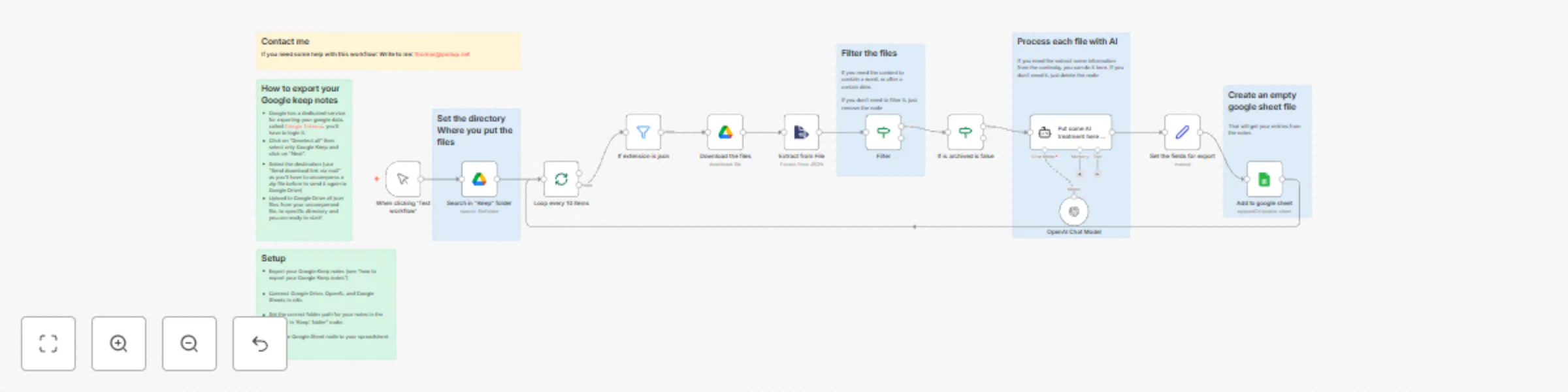
Exporting Google Keep notes via Google Takeout gives you unstructured .json files that are hard to read and manage. This workflow solves that by:
Google Drive Search: Looks for .json files inside a specified "Keep" folder.
Loop: Processes files in batches of 10.
File Filtering: Filters by .json extension.
Download + Extract: Downloads each file and extracts note content from JSON.
Optional Filtering: Only keeps non-archived notes or those meeting content criteria.
AI Processing (optional): Uses OpenAI to summarize or transform the note content.
Prepare for Export: Maps note fields to be written.
Google Sheets: Appends or updates the target sheet with the note data.
Export your Google Keep notes using Google Takeout:
Deselect all, then choose only Google Keep.
Choose “Send download link via email”.
Unzip the downloaded archive and upload the .json files to your Google Drive.
Connect Google Drive, OpenAI, and Google Sheets in n8n.
Set the correct folder path for your notes in the “Search in ‘Keep’ folder” node.
Point the Google Sheet node to your spreadsheet
Skip AI processing: If you don't need summaries or transformations, remove or disable the OpenAI Chat Model node.
Filter criteria: Customize the Filter node to extract only recent notes, or those containing specific keywords.
AI prompts: Edit the Tools Agent or Chat Model node to instruct the AI to summarize, extract tasks, categorize notes, etc.
Field mapping: Adjust the “Set fields for export” node to control what gets written to the spreadsheet.
Use this template to build a powerful knowledge extraction tool from your Google Keep archive – ideal for backups, audits, or data-driven insights.
This catalog entry is organized from the workflow JSON. The node-level section below shows the executable blocks available for review before importing the template.
| Workflow | Import Google Keep notes to Google Sheets using OpenAI and Google Drive |
|---|---|
| Complexity | advanced |
| Nodes | 19 |
| Categories | Document Extraction, AI Summarization |
| Author | PollupAI |
| Published | 11 Apr 2025 |
Use the JSON export at /data/workflows/3517/3517.json as the source template for this automation.
Open n8n, import the downloaded JSON, and review each node before activating the workflow.
Replace placeholder credentials, API keys, webhook URLs, account IDs, and environment-specific values with your own settings.
Run the workflow manually or in a staging workspace, inspect node output, and confirm downstream systems receive the expected data.
Enable the workflow only after testing, then monitor executions, errors, and rate limits during the first production runs.
Review imported nodes carefully before activation. This catalog entry is intended to help you inspect the workflow structure, understand required services, and find related templates faster.
Node names, credentials, schedules, webhook paths, and external service limits may need adjustment for your workspace.
This n8n workflow automates the import of your Google Keep notes into a structured Google Sheet, using Google Drive, OpenAI for AI powered processing, and JSON file extraction. It's perfect for use...
Review the workflow JSON, configure any required credentials in n8n, and test the automation in a safe workspace before using it in production.
Yes. Use the block-by-block analysis and the downloadable JSON to inspect each node, then adjust credentials, prompts, schedules, filters, or destinations for your Document Extraction, AI Summarization use case.