Google Calendar đź“… reminder system with GPT-4o and Telegram

Workflow preview

Workflow preview
100%
Google Calendar đź“… reminder system with GPT-4o and Telegram preview
Open on n8n.io

Important notice

This workflow is provided as-is. Please review and test before using in production.

1. Workflow Overview

How many times have you missed a meeting or forgotten an appointment because a calendar reminder got lost in the noise? Traditional notifications are often dry, easy to ignore, or scattered across ...

Best for

  • Personal Productivity automation workflows
  • AI Chatbot automation workflows
  • intermediate n8n builders looking for reusable templates

Tools used

n8n-nodes-base.scheduletrigger, @n8n/n8n-nodes-langchain.lmchatopenai, n8n-nodes-base.googlecalendar, n8n-nodes-base.removeduplicates, @n8n/n8n-nodes-langchain.agent, n8n-nodes-base.telegram, n8n-nodes-base.stickynote

Source and attribution

This workflow is cataloged by N8N Workflows and links back to its original n8n.io source page by Davide.

Original n8n.io source

1.1 Workflow description

Title
Google Calendar đź“… reminder system with GPT-4o and Telegram
Workflow name
Google Calendar đź“… reminder system with GPT-4o and Telegram

How many times have you missed a meeting or forgotten an appointment because a calendar reminder got lost in the noise? Traditional notifications are often dry, easy to ignore, or scattered across different apps—leaving you scrambling at the last minute.

This smart Google Calendar workflow fixes that by sending you a clear, friendly reminder exactly 1 hour before your event starts—delivered through Telegram as if a personal assistant were looking out for you. Powered by AI, it transforms cold calendar alerts into warm, conversational nudges you won't ignore.


Why This Works Better:

✅ No More Overlooked Alerts – Consolidates reminders into one clear, accessible place (Telegram), so you never miss them.
✅ Friendly & Engaging – AI transforms robotic calendar entries into natural, human-like reminders that are harder to ignore.
✅ Works Everywhere – Whether you're on your phone, laptop, or tablet, you’ll get the same clear notification, no matter the platform.


How It Works
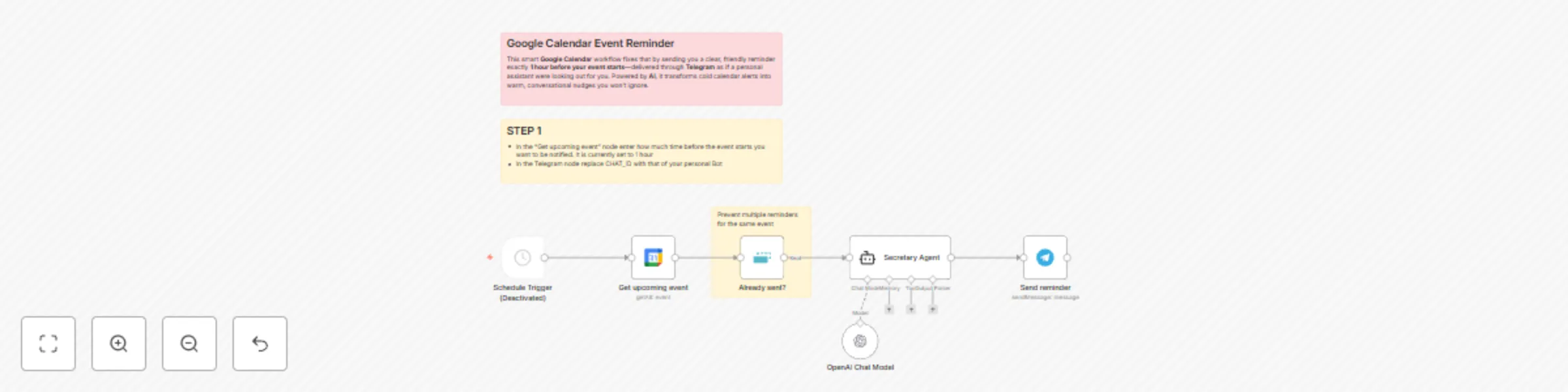
  1. Scheduled Trigger: The workflow starts with a Schedule Trigger node that runs every minute to check for upcoming events.
  2. Google Calendar Check: The "Get upcoming event" node queries Google Calendar for events starting within the next hour (between timeMin and timeMax).
  3. Duplicate Prevention: The "Already sent?" node ensures reminders are not sent multiple times for the same event by filtering out duplicates.
  4. AI-Powered Reminder: The "Secretary Agent" node, powered by GPT-4, crafts a friendly and professional reminder message. It includes event details like name, description, location, start/end time, and creator, formatted in a conversational tone.
  5. Telegram Notification: The final "Send reminder" node delivers the reminder via Telegram, ensuring the user receives it in a clear and accessible format.

Set Up Steps
  1. Configure Schedule Trigger: Set the interval (e.g., every minute) to check for events.
  2. Connect Google Calendar: Link your Google Calendar account and specify the calendar to monitor.
  3. Set Up AI Agent: Customize the "Secretary Agent" with the provided system message to ensure reminders are warm, professional, and detailed.
  4. Link Telegram: Add your Telegram credentials and specify the CHAT_ID where reminders will be sent.
  5. Activate Workflow: Ensure the workflow is active and set to the correct timezone (e.g., Europe/Rome).

Why It’s Useful
  • Never Miss an Event: Traditional calendar reminders can be easy to overlook, especially when scattered across platforms. This workflow consolidates reminders into a single, accessible channel (Telegram).
  • Clear and Friendly: The AI agent transforms generic calendar alerts into personalized, conversational reminders, making them harder to ignore.
  • Cross-Platform Accessibility: By delivering reminders via Telegram, users receive them in a consistent format, regardless of the device or platform they’re using. No more missed events due to unclear notifications!

Need help customizing?

Contact me for consulting and support or add me on Linkedin.

1.2 Logical Blocks

This catalog entry is organized from the workflow JSON. The node-level section below shows the executable blocks available for review before importing the template.

2. Block-by-Block Analysis

Block 1 - Schedule Trigger

Type / Role
n8n-nodes-base.scheduleTrigger - scheduleTrigger
Config choices
Version 1.2

Block 2 - OpenAI Chat Model

Type / Role
@n8n/n8n-nodes-langchain.lmChatOpenAi - lmChatOpenAi
Config choices
Version 1.2

Block 3 - Get upcoming event

Type / Role
n8n-nodes-base.googleCalendar - googleCalendar
Config choices
Version 1.3

Block 4 - Already sent?

Type / Role
n8n-nodes-base.removeDuplicates - removeDuplicates
Config choices
Version 2

Block 5 - Secretary Agent

Type / Role
@n8n/n8n-nodes-langchain.agent - agent
Config choices
Version 1.8

Block 6 - Send reminder

Type / Role
n8n-nodes-base.telegram - telegram
Config choices
Version 1.2

Block 7 - Sticky Note

Type / Role
n8n-nodes-base.stickyNote - stickyNote
Config choices
Version 1

Block 8 - Sticky Note1

Type / Role
n8n-nodes-base.stickyNote - stickyNote
Config choices
Version 1

Block 9 - Sticky Note2

Type / Role
n8n-nodes-base.stickyNote - stickyNote
Config choices
Version 1

3. Summary Table

Workflow Google Calendar đź“… reminder system with GPT-4o and Telegram
Complexity intermediate
Nodes 9
Categories Personal Productivity, AI Chatbot
Author Davide
Published 01 Apr 2025

4. Reproducing the Workflow from Scratch

  1. 1. Download the workflow JSON

    Use the JSON export at /data/workflows/3393/3393.json as the source template for this automation.

  2. 2. Import the template into n8n

    Open n8n, import the downloaded JSON, and review each node before activating the workflow.

  3. 3. Configure credentials and variables

    Replace placeholder credentials, API keys, webhook URLs, account IDs, and environment-specific values with your own settings.

  4. 4. Test with sample data

    Run the workflow manually or in a staging workspace, inspect node output, and confirm downstream systems receive the expected data.

  5. 5. Activate and monitor

    Enable the workflow only after testing, then monitor executions, errors, and rate limits during the first production runs.

5. General Notes & Resources

Review imported nodes carefully before activation. This catalog entry is intended to help you inspect the workflow structure, understand required services, and find related templates faster.

Node names, credentials, schedules, webhook paths, and external service limits may need adjustment for your workspace.

Frequently asked questions

What does Google Calendar đź“… reminder system with GPT-4o and Telegram do?

How many times have you missed a meeting or forgotten an appointment because a calendar reminder got lost in the noise? Traditional notifications are often dry, easy to ignore, or scattered across ...

What do I need before importing this workflow?

Review the workflow JSON, configure any required credentials in n8n, and test the automation in a safe workspace before using it in production.

Can I customize this workflow?

Yes. Use the block-by-block analysis and the downloadable JSON to inspect each node, then adjust credentials, prompts, schedules, filters, or destinations for your Personal Productivity, AI Chatbot use case.