Block 1 - Sticky Note7
- Type / Role
- n8n-nodes-base.stickyNote - stickyNote
- Config choices
- Version 1


 Early Deal
This workflow is provided as-is. Please review and test before using in production.
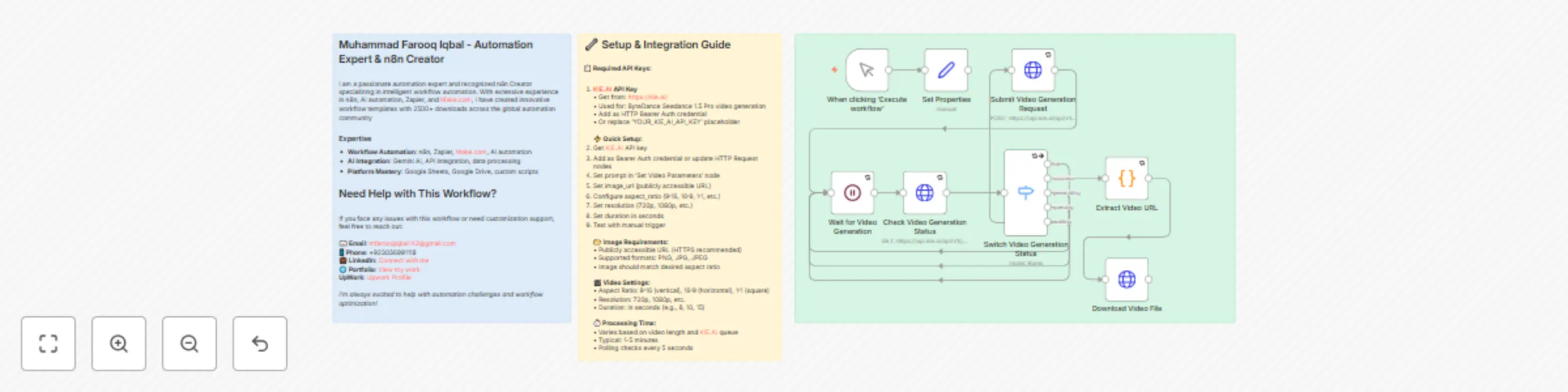
This n8n template demonstrates how to generate animated videos from static images using ByteDance Seedance 1.5 Pro model through the KIE.AI API. The workflow creates dynamic video content based on ...
n8n-nodes-base.stickynote, n8n-nodes-base.httprequest, n8n-nodes-base.switch, n8n-nodes-base.wait, n8n-nodes-base.code, n8n-nodes-base.manualtrigger, n8n-nodes-base.set
This workflow is cataloged by N8N Workflows and links back to its original n8n.io source page by Muhammad Farooq Iqbal.
Original n8n.io sourceThis n8n template demonstrates how to generate animated videos from static images using ByteDance Seedance 1.5 Pro model through the KIE.AI API. The workflow creates dynamic video content based on text prompts and input images, supporting custom aspect ratios, resolutions, and durations for versatile video creation.
Use cases are many: Create animated videos from product photos, generate social media content from images, produce video ads from static graphics, create animated story videos, transform photos into dynamic content, generate video presentations, create animated thumbnails, or produce video content for marketing campaigns!
The workflow automatically handles different processing states (queuing, generating, success, fail) and retries polling until video generation is complete. The Seedance model creates smooth, animated videos from static images based on the provided text prompt, bringing images to life with natural motion.
Pro tip: For best results, ensure your image is hosted on a public URL (HTTPS) and matches the desired aspect ratio. Use clear, high-quality images for better video generation. Write detailed, descriptive prompts to guide the animation - the more specific your prompt, the better the video output. The workflow automatically handles polling and status checks, so you don't need to worry about timing.
Trigger Options: Replace the manual trigger with webhook trigger for API-based video generation, schedule trigger for batch processing, or form trigger for user image uploads.
Video Settings: Modify aspect ratio, resolution, and duration in 'Submit Video Generation Request' node to match your content needs (TikTok vertical, YouTube horizontal, Instagram square, etc.).
Prompt Engineering: Enhance prompts in 'Set Video Parameters' node with detailed descriptions, camera movements, animation styles, and scene details for better video quality.
Output Formatting: Modify the 'Extract Video URL' code node to format output differently (add metadata, include processing time, add file size, etc.).
Error Handling: Add notification nodes (Email, Slack, Telegram) to alert when video generation fails or completes.
Post-Processing: Add nodes after video generation to save to cloud storage, upload to YouTube/Vimeo, send to video editing tools, or integrate with content management systems.
Batch Processing: Add loops to process multiple images from a list or spreadsheet automatically, generating videos for each image.
Storage Integration: Connect output to Google Drive, Dropbox, S3, or other storage services for organized video file management.
Social Media Integration: Automatically post generated videos to TikTok, Instagram Reels, YouTube Shorts, or other platforms.
Video Enhancement: Chain with other video processing workflows - add captions, music, transitions, or combine multiple generated videos.
Aspect Ratio Variations: Generate multiple versions of the same video in different aspect ratios (9:16, 16:9, 1:1) for different platforms.
This catalog entry is organized from the workflow JSON. The node-level section below shows the executable blocks available for review before importing the template.
| Workflow | Generate video from an image with ByteDance Seedance 1.5 Pro via KIE.AI |
|---|---|
| Complexity | intermediate |
| Nodes | 11 |
| Categories | Content Creation, Multimodal AI |
| Author | Muhammad Farooq Iqbal |
| Published | 29 Dec 2025 |
Use the JSON export at /data/workflows/12250/12250.json as the source template for this automation.
Open n8n, import the downloaded JSON, and review each node before activating the workflow.
Replace placeholder credentials, API keys, webhook URLs, account IDs, and environment-specific values with your own settings.
Run the workflow manually or in a staging workspace, inspect node output, and confirm downstream systems receive the expected data.
Enable the workflow only after testing, then monitor executions, errors, and rate limits during the first production runs.
Review imported nodes carefully before activation. This catalog entry is intended to help you inspect the workflow structure, understand required services, and find related templates faster.
Node names, credentials, schedules, webhook paths, and external service limits may need adjustment for your workspace.
This n8n template demonstrates how to generate animated videos from static images using ByteDance Seedance 1.5 Pro model through the KIE.AI API. The workflow creates dynamic video content based on ...
Review the workflow JSON, configure any required credentials in n8n, and test the automation in a safe workspace before using it in production.
Yes. Use the block-by-block analysis and the downloadable JSON to inspect each node, then adjust credentials, prompts, schedules, filters, or destinations for your Content Creation, Multimodal AI use case.