M

Muhammad Farooq Iqbal

13
Workflows

Workflows by Muhammad Farooq Iqbal

Workflow preview: Generate text-, image-, and video-to-video clips with WAN 2.6 via KIE.AI
Free advanced

Generate text-, image-, and video-to-video clips with WAN 2.6 via KIE.AI

**This n8n template provides a comprehensive suite of WAN 2.6 video generation capabilities through the KIE.AI API. The workflow includes three independent video generation workflows: text-to-video, image-to-video, and video-to-video. Each workflow can be used independently to create videos from different input types, making it perfect for content creators, marketers, and video production teams.** **Use cases are many:** Create videos from text descriptions without any input media, transform static images into animated videos, enhance existing videos with new styles and effects, generate engaging video content for social media, automate video production workflows, create video variations from the same source, produce marketing videos at scale, repurpose content across different video formats, or streamline video creation pipelines for content teams! ### **Good to know** - The workflow includes three independent WAN 2.6 video generation capabilities via KIE.AI API: - **Text-to-Video:** Creates videos directly from text prompts without requiring input images or videos - **Image-to-Video:** Transforms static images into animated videos based on text prompts - **Video-to-Video:** Enhances or transforms existing videos with new styles and effects - Each workflow can be used independently based on your input type and needs - Supports two resolution options: 720p or 1080p - Supports three duration options: 5, 10, or 15 seconds - Text-to-video creates videos purely from text descriptions - no media input required - Image-to-video animates static images with customizable prompts for style and movement - Video-to-video allows you to transform existing videos with new visual styles and effects - KIE.AI pricing: Check current rates at https://kie.ai/ for video generation costs - Processing time: Varies based on video length and KIE.AI queue, typically 1-5 minutes for generation - Media requirements: Image and video files must be publicly accessible via URL (HTTPS recommended) - Supported image formats: PNG, JPG, JPEG, WEBP - Supported video formats: MP4, MOV, AVI, WEBM - Automatic polling system handles processing status checks and retries for all workflows ### **How it works** The template includes three independent workflows that can be used separately based on your input type: **1. Text-to-Video (Top Section):** 1. **Video Parameters Setup:** Set prompt, duration (5, 10, or 15 seconds), and resolution (720p or 1080p) in 'Set Video Parameters' node 2. **Video Generation Submission:** Parameters are submitted to KIE.AI API using WAN 2.6 text-to-video model 3. **Processing Wait:** Workflow waits 5 seconds, then polls the generation status 4. **Status Check:** Checks if video generation is complete, queuing, generating, or failed 5. **Polling Loop:** If still processing, workflow waits and checks again until completion 6. **Video URL Extraction:** Once complete, extracts the generated video file URL from the API response 7. **Video Download:** Downloads the generated video file for local use **2. Image-to-Video (Middle Section):** 1. **Video Parameters Setup:** Set prompt, image URL, duration, and resolution in 'Set Prompt & Image Url' node 2. **Video Generation Submission:** Parameters are submitted to KIE.AI API using WAN 2.6 image-to-video model 3. **Processing Wait:** Workflow waits 5 seconds, then polls the generation status 4. **Status Check:** Checks if video generation is complete, queuing, generating, or failed 5. **Polling Loop:** If still processing, workflow waits and checks again until completion 6. **Video URL Extraction:** Once complete, extracts the generated video file URL from the API response 7. **Video Download:** Downloads the generated video file for local use **3. Video-to-Video (Bottom Section):** 1. **Video Parameters Setup:** Set prompt, video URL, duration, and resolution in 'Set Video URL and Prompt' node 2. **Video Generation Submission:** Parameters are submitted to KIE.AI API using WAN 2.6 video-to-video model 3. **Processing Wait:** Workflow waits 5 seconds, then polls the generation status 4. **Status Check:** Checks if video generation is complete, queuing, generating, or failed 5. **Polling Loop:** If still processing, workflow waits and checks again until completion 6. **Video URL Extraction:** Once complete, extracts the generated video file URL from the API response 7. **Video Download:** Downloads the generated video file for local use All workflows automatically handle different processing states (queuing, generating, success, fail) and retry polling until video generation is complete. Each workflow operates independently, allowing you to use only the video generation type you need. ### **How to use** 1. **Setup Credentials:** - Configure KIE.AI API key as HTTP Bearer Auth credential (used for all three workflows) 2. **Choose Your Workflow:** - **For Text-to-Video:** Update 'Set Video Parameters' node with prompt, duration (5/10/15), and resolution (720p/1080p) - **For Image-to-Video:** Update 'Set Prompt & Image Url' node with prompt, image URL (publicly accessible), duration, and resolution - **For Video-to-Video:** Update 'Set Video URL and Prompt' node with prompt, video URL (publicly accessible), duration, and resolution 3. **Set Video Parameters:** - **prompt:** Detailed text description of the desired video content, style, and effects - **duration:** 5, 10, or 15 seconds (only these values supported) - **resolution:** 720p or 1080p (only these values supported) - **image_url/video_urls:** Publicly accessible URL for image-to-video or video-to-video workflows 4. **Deploy Workflow:** Import the template and activate the workflow 5. **Trigger Generation:** Use manual trigger to test, or replace with webhook/other trigger 6. **Receive Video:** Get generated video file URL and download the video file **Pro tip:** Write detailed, descriptive prompts to guide the video generation - the more specific your prompt, the better the video output. Include scene details, camera movements, lighting, style, and visual effects in your prompt. For image-to-video and video-to-video, ensure your input media is hosted on public URLs (HTTPS recommended). The workflows automatically handle polling, status checks, and video download, so you can set it and forget it. You can use different workflows for different use cases - text-to-video for pure creation, image-to-video for animating static content, and video-to-video for enhancing existing videos. ### **Requirements** - **KIE.AI API** account for accessing WAN 2.6 video generation models - **Text Prompt** describing the desired video content (required for all workflows) - **Image File URL** (for image-to-video) that is publicly accessible (HTTPS recommended) - **Video File URL** (for video-to-video) that is publicly accessible (HTTPS recommended) - **Duration** value: 5, 10, or 15 seconds only - **Resolution** value: 720p or 1080p only - **n8n** instance (cloud or self-hosted) - Supported image formats: PNG, JPG, JPEG, WEBP - Supported video formats: MP4, MOV, AVI, WEBM ### **Customizing this workflow** **Workflow Selection:** Use only the workflows you need by removing or disabling nodes for text-to-video, image-to-video, or video-to-video. Each workflow operates independently. **Trigger Options:** Replace the manual trigger with webhook trigger for API-based video generation requests, schedule trigger for batch processing, or form trigger for user submissions. **Video Settings:** Modify duration (5, 10, or 15 seconds) and resolution (720p or 1080p) in the respective 'Set' nodes to match your content needs. Note: Only these specific values are supported. **Prompt Engineering:** Enhance prompts in the 'Set' nodes with detailed scene descriptions, visual effects, camera movements, style effects, and artistic directions for better video quality. The more descriptive your prompt, the better the output. **Workflow Chaining:** Connect workflows together - generate a video with text-to-video, then enhance it with video-to-video, or create an image-to-video, then transform it further. **Batch Processing:** Add loops to process multiple prompts, images, or videos from a list or spreadsheet automatically, generating videos in batch. **Storage Integration:** Add nodes to save generated videos to Google Drive, Dropbox, S3, or other storage services before or after download. **Post-Processing:** Add nodes between video generation and download to add captions, apply filters, add watermarks, or integrate with video editing tools. **Error Handling:** Add notification nodes (Email, Slack, Telegram) to alert when video generation completes, fails, or encounters errors. **Content Management:** Add nodes to log video generation results, track processing status, or store outputs in databases or spreadsheets. **Video Variations:** Create multiple video variations with different prompts and settings for A/B testing or content variations. **Social Media Integration:** Add nodes after video download to automatically upload videos to YouTube, Instagram, TikTok, or other platforms. **Quality Control:** Add conditional logic to check video quality, file size, or other characteristics before proceeding with download or distribution.

M
Muhammad Farooq Iqbal
Content Creation
29 Dec 2025
0
0
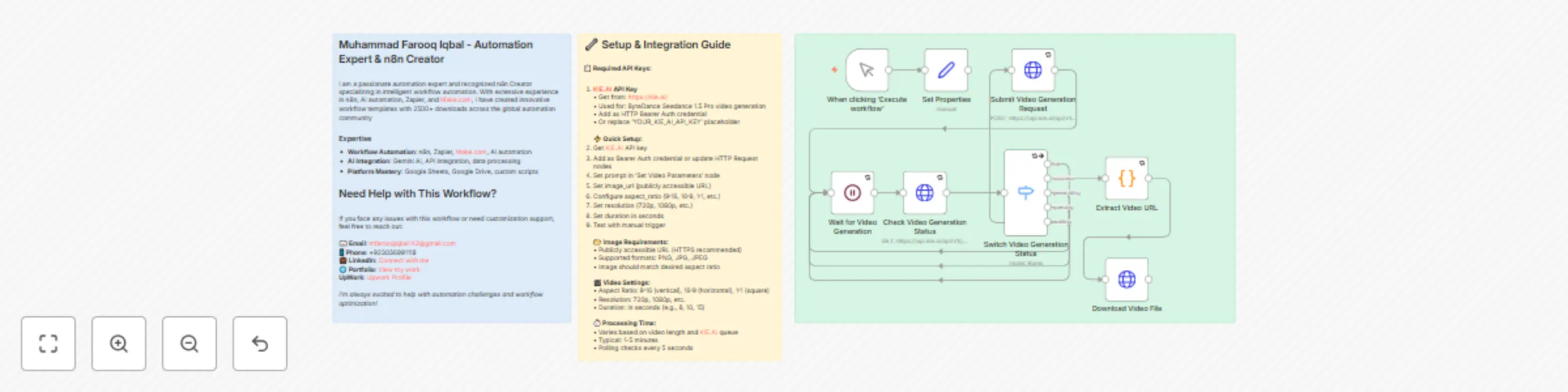
Workflow preview: Generate video from an image with ByteDance Seedance 1.5 Pro via KIE.AI
Free intermediate

Generate video from an image with ByteDance Seedance 1.5 Pro via KIE.AI

**This n8n template demonstrates how to generate animated videos from static images using ByteDance Seedance 1.5 Pro model through the KIE.AI API. The workflow creates dynamic video content based on text prompts and input images, supporting custom aspect ratios, resolutions, and durations for versatile video creation.** **Use cases are many:** Create animated videos from product photos, generate social media content from images, produce video ads from static graphics, create animated story videos, transform photos into dynamic content, generate video presentations, create animated thumbnails, or produce video content for marketing campaigns! ### **Good to know** - The workflow uses ByteDance Seedance 1.5 Pro model via KIE.AI API for high-quality image-to-video generation - Creates animated videos from static images based on text prompts - Supports multiple aspect ratios (9:16 vertical, 16:9 horizontal, 1:1 square) - Configurable resolution options (720p, 1080p, etc.) - Customizable video duration (in seconds) - KIE.AI pricing: Check current rates at https://kie.ai/ for video generation costs - Processing time: Varies based on video length and KIE.AI queue, typically 1-5 minutes - Image requirements: File must be publicly accessible via URL (HTTPS recommended) - Supported image formats: PNG, JPG, JPEG - Output format: Video file URL (MP4) ready for download or streaming - Automatic polling system handles processing status checks and retries ### **How it works** 1. **Video Parameters Setup:** The workflow receives video prompt and image URL (set in 'Set Video Parameters' node or via trigger) 2. **Video Generation Submission:** Parameters are submitted to KIE.AI API using ByteDance Seedance 1.5 Pro model 3. **Processing Wait:** Workflow waits 5 seconds, then polls the generation status 4. **Status Check:** Checks if video generation is complete, queuing, generating, or failed 5. **Polling Loop:** If still processing, workflow waits and checks again until completion 6. **Video URL Extraction:** Once complete, extracts the generated video file URL from the API response 7. **Video Download:** Downloads the generated video file for local use or further processing The workflow automatically handles different processing states (queuing, generating, success, fail) and retries polling until video generation is complete. The Seedance model creates smooth, animated videos from static images based on the provided text prompt, bringing images to life with natural motion. ### **How to use** 1. **Setup Credentials:** Configure KIE.AI API key as HTTP Bearer Auth credential 2. **Set Video Parameters:** Update 'Set Video Parameters' node with: - **prompt:** Text description of the desired video animation/scene - **image_url:** Publicly accessible URL of the input image 3. **Configure Video Settings:** Adjust in 'Submit Video Generation Request' node: - **aspect_ratio:** 9:16 (vertical), 16:9 (horizontal), 1:1 (square) - **resolution:** 720p, 1080p, etc. - **duration:** Video length in seconds (e.g., 8, 10, 15) 4. **Deploy Workflow:** Import the template and activate the workflow 5. **Trigger Generation:** Use manual trigger to test, or replace with webhook/other trigger 6. **Receive Video:** Get generated video file in the output, ready for download or streaming **Pro tip:** For best results, ensure your image is hosted on a public URL (HTTPS) and matches the desired aspect ratio. Use clear, high-quality images for better video generation. Write detailed, descriptive prompts to guide the animation - the more specific your prompt, the better the video output. The workflow automatically handles polling and status checks, so you don't need to worry about timing. ### **Requirements** - **KIE.AI API** account for accessing ByteDance Seedance 1.5 Pro video generation - **Image File URL** that is publicly accessible (HTTPS recommended) - **Text Prompt** describing the desired video animation/scene - **n8n** instance (cloud or self-hosted) - Supported image formats: PNG, JPG, JPEG ### **Customizing this workflow** **Trigger Options:** Replace the manual trigger with webhook trigger for API-based video generation, schedule trigger for batch processing, or form trigger for user image uploads. **Video Settings:** Modify aspect ratio, resolution, and duration in 'Submit Video Generation Request' node to match your content needs (TikTok vertical, YouTube horizontal, Instagram square, etc.). **Prompt Engineering:** Enhance prompts in 'Set Video Parameters' node with detailed descriptions, camera movements, animation styles, and scene details for better video quality. **Output Formatting:** Modify the 'Extract Video URL' code node to format output differently (add metadata, include processing time, add file size, etc.). **Error Handling:** Add notification nodes (Email, Slack, Telegram) to alert when video generation fails or completes. **Post-Processing:** Add nodes after video generation to save to cloud storage, upload to YouTube/Vimeo, send to video editing tools, or integrate with content management systems. **Batch Processing:** Add loops to process multiple images from a list or spreadsheet automatically, generating videos for each image. **Storage Integration:** Connect output to Google Drive, Dropbox, S3, or other storage services for organized video file management. **Social Media Integration:** Automatically post generated videos to TikTok, Instagram Reels, YouTube Shorts, or other platforms. **Video Enhancement:** Chain with other video processing workflows - add captions, music, transitions, or combine multiple generated videos. **Aspect Ratio Variations:** Generate multiple versions of the same video in different aspect ratios (9:16, 16:9, 1:1) for different platforms.

M
Muhammad Farooq Iqbal
Content Creation
29 Dec 2025
233
0
Workflow preview: Process audio with ElevenLabs via KIE.AI: transcribe, TTS, and isolate audio
Free advanced

Process audio with ElevenLabs via KIE.AI: transcribe, TTS, and isolate audio

**This n8n template provides a comprehensive suite of ElevenLabs audio processing capabilities through the KIE.AI API. The workflow includes three independent audio processing workflows: speech-to-text transcription, text-to-speech generation, and audio isolation. Each workflow can be used independently or combined to create complete audio processing pipelines.** **Use cases are many:** Transcribe audio files to text with speaker diarization, convert text to natural-sounding speech audio, isolate and clean audio by removing background noise, create complete audio processing pipelines from transcription to speech generation, automate podcast transcription and audio enhancement, generate voiceovers from text content, clean up recordings by removing unwanted audio elements, create accessible content by converting text to audio, or process audio files in batch for content creation workflows! ### **Good to know** - The workflow includes three independent ElevenLabs audio processing capabilities via KIE.AI API: - **Speech-to-Text:** Transcribes audio to text with speaker diarization and audio event tagging - **Text-to-Speech:** Converts text to natural-sounding speech with voice customization options - **Audio Isolation:** Removes background noise and isolates audio sources - Each workflow can be used independently or combined for complete audio processing pipelines - Speech-to-text supports speaker diarization (identifying different speakers) and audio event tagging - Text-to-speech supports multiple voices (Rachel, Adam, Antoni, Arnold, and more) with customizable stability, similarity boost, style, and speed - Audio isolation removes background noise and separates audio sources for cleaner output - KIE.AI pricing: Check current rates at https://kie.ai/ for audio processing costs - Processing time: Varies based on audio length and KIE.AI queue, typically 10-30 seconds for text-to-speech, 30 seconds to 5 minutes for transcription and isolation - Audio requirements: Files must be publicly accessible via URL (HTTPS recommended) - Supported audio formats: MP3, WAV, M4A, FLAC, and other common audio formats - Automatic polling system handles processing status checks and retries for all workflows ### **How it works** The template includes three independent workflows that can be used separately or combined: **1. Speech-to-Text Transcription:** 1. **Audio URL Setup:** Set the audio file URL in 'Set Audio URL' node 2. **Transcription Submission:** Audio URL is submitted to KIE.AI API using ElevenLabs speech-to-text model with diarization and event tagging 3. **Processing Wait:** Workflow waits 5 seconds, then polls the transcription status 4. **Status Check:** Checks if transcription is complete, queuing, generating, or failed 5. **Polling Loop:** If still processing, workflow waits and checks again until completion 6. **Text Extraction:** Once complete, extracts the transcribed text from the API response **2. Text-to-Speech Generation:** 1. **Text Input Setup:** Set the text to convert to speech in 'Set Text Input' node 2. **Speech Generation Submission:** Text is submitted to KIE.AI API using ElevenLabs text-to-speech multilingual v2 model 3. **Processing Wait:** Workflow waits 5 seconds, then polls the generation status 4. **Status Check:** Checks if audio generation is complete, queuing, generating, or failed 5. **Polling Loop:** If still processing, workflow waits and checks again until completion 6. **Audio URL Extraction:** Once complete, extracts the generated audio file URL from the API response **3. Audio Isolation:** 1. **Audio URL Setup:** Set the audio file URL in 'Set Audio URL 1' node 2. **Isolation Submission:** Audio URL is submitted to KIE.AI API using ElevenLabs audio isolation model 3. **Processing Wait:** Workflow waits 5 seconds, then polls the isolation status 4. **Status Check:** Checks if audio isolation is complete, queuing, generating, or failed 5. **Polling Loop:** If still processing, workflow waits and checks again until completion 6. **Isolated Audio URL Extraction:** Once complete, extracts the isolated audio file URL from the API response All workflows automatically handle different processing states (queuing, generating, success, fail) and retry polling until processing is complete. Each workflow operates independently, allowing you to use only the features you need. ### **How to use** 1. **Setup Credentials:** - Configure KIE.AI API key as HTTP Bearer Auth credential (used for all three workflows) 2. **Choose Your Workflow:** - **For Transcription:** Update 'Set Audio URL' node with your audio file URL (must be publicly accessible) - **For Text-to-Speech:** Update 'Set Text Input' node with your text content - **For Audio Isolation:** Update 'Set Audio URL 1' node with your audio file URL (must be publicly accessible) 3. **Configure Voice Settings (Text-to-Speech only):** Adjust voice, stability, similarity_boost, style, and speed in 'Submit Text for Speech Generation' node 4. **Deploy Workflow:** Import the template and activate the workflow 5. **Trigger Processing:** Use manual trigger to test, or replace with webhook/other trigger 6. **Receive Output:** Get transcribed text, generated audio URL, or isolated audio URL depending on which workflow you use **Pro tip:** You can use these workflows independently or chain them together. For example, transcribe audio to text, then convert that text to speech with a different voice, or isolate audio first, then transcribe the cleaned audio. Ensure your audio files are hosted on public URLs (HTTPS recommended) for best results. The workflows automatically handle polling and status checks, so you don't need to worry about timing. For text-to-speech, experiment with voice settings - higher stability (0.7-1.0) creates more consistent voice, while higher similarity boost (0.7-1.0) makes the voice more similar to the original. ### **Requirements** - **KIE.AI API** account for accessing ElevenLabs audio processing models - **Audio File URL** (for transcription and isolation) that is publicly accessible (HTTPS recommended) - **Text Input** (for text-to-speech) to convert to speech - **n8n** instance (cloud or self-hosted) - Supported audio formats: MP3, WAV, M4A, FLAC, or other formats supported by KIE.AI ### **Customizing this workflow** **Workflow Selection:** Use only the workflows you need by removing or disabling nodes for transcription, text-to-speech, or audio isolation. Each workflow operates independently. **Trigger Options:** Replace the manual trigger with webhook trigger for API-based audio/text submission, schedule trigger for batch processing, or form trigger for user uploads. **Voice Customization (Text-to-Speech):** Modify voice, stability, similarity_boost, style, and speed parameters in 'Submit Text for Speech Generation' node to fine-tune voice characteristics. Experiment with different voices (Rachel, Adam, Antoni, Arnold, etc.). **Transcription Options:** Adjust diarization and audio event tagging settings in 'Submit Audio for Transcription' node to customize transcription output. **Workflow Chaining:** Connect workflows together - transcribe audio to text, then convert that text to speech, or isolate audio first, then transcribe the cleaned audio. **Batch Processing:** Add loops to process multiple audio files or text inputs from a list or spreadsheet automatically. **Storage Integration:** Add nodes to save transcribed text, generated audio, or isolated audio to Google Drive, Dropbox, S3, or other storage services. **Post-Processing:** Add nodes after audio generation to download audio files, convert formats, apply additional audio filters, or integrate with video editing tools. **Error Handling:** Add notification nodes (Email, Slack, Telegram) to alert when processing completes, fails, or encounters errors. **Content Management:** Add nodes to log transcriptions, track audio processing results, or store outputs in databases or spreadsheets. **Multi-Language Support:** For text-to-speech, add language detection or selection before conversion for multilingual content creation. **Audio Quality Enhancement:** Chain multiple audio processing steps - isolate audio, then transcribe, or transcribe, then generate speech with different voices.

M
Muhammad Farooq Iqbal
Content Creation
27 Dec 2025
0
0
Workflow preview: Generate text-to-video and image-to-video clips with Kling 2.6 via KIE.AI
Free advanced

Generate text-to-video and image-to-video clips with Kling 2.6 via KIE.AI

**This n8n template provides a comprehensive suite of Kling 2.6 video generation capabilities through the KIE.AI API. The workflow includes two independent video generation workflows: text-to-video and image-to-video. Each workflow can be used independently to create videos from different input types, making it perfect for content creators, marketers, and video production teams. ** **Use cases are many:** Create videos from text descriptions without any input media, transform static images into animated videos, generate engaging video content for social media, automate video production workflows, create video variations from the same source, produce marketing videos at scale, repurpose content across different video formats, or streamline video creation pipelines for content teams! ### **Good to know** - The workflow includes two independent Kling 2.6 video generation capabilities via KIE.AI API: - **Text-to-Video:** Creates videos directly from text prompts without requiring input images or videos using `kling-2.6/text-to-video` model - **Image-to-Video:** Transforms static images into animated videos based on text prompts using `kling-2.6/image-to-video` model - Each workflow can be used independently based on your input type and needs - Supports customizable aspect ratios: 9:16 (vertical), 16:9 (landscape), 1:1 (square), 4:3 (classic) - Supports customizable duration options (e.g., 5, 10, or 15 seconds) - Sound control: Enable or disable sound in generated videos - Text-to-video creates videos purely from text descriptions - no media input required - Image-to-video animates static images with customizable prompts for style and movement - KIE.AI pricing: Check current rates at https://kie.ai/ for video generation costs - Processing time: Varies based on video length and KIE.AI queue, typically 1-5 minutes for generation - Media requirements: Image files must be publicly accessible via URL (HTTPS recommended) - Supported image formats: PNG, JPG, JPEG, WEBP - Automatic polling system handles processing status checks and retries for all workflows ### **How it works** The template includes two independent workflows that can be used separately based on your input type: **1. Text-to-Video (Top Section):** 1. **Video Parameters Setup:** Set prompt, duration, aspect ratio (e.g., "9:16", "16:9"), and sound (true/false) in 'Set Text to Video Parameters' node 2. **Video Generation Submission:** Parameters are submitted to KIE.AI API using `kling-2.6/text-to-video` model 3. **Processing Wait:** Workflow waits 5 seconds, then polls the generation status 4. **Status Check:** Checks if video generation is complete, queuing, generating, or failed 5. **Polling Loop:** If still processing, workflow waits and checks again until completion 6. **Video URL Extraction:** Once complete, extracts the generated video file URL from the API response 7. **Video Download:** Downloads the generated video file for local use **2. Image-to-Video (Bottom Section):** 1. **Video Parameters Setup:** Set prompt, image URL, duration, and sound (true/false) in 'Set Prompt & Image Url' node 2. **Video Generation Submission:** Parameters are submitted to KIE.AI API using `kling-2.6/image-to-video` model 3. **Processing Wait:** Workflow waits 5 seconds, then polls the generation status 4. **Status Check:** Checks if video generation is complete, queuing, generating, or failed 5. **Polling Loop:** If still processing, workflow waits and checks again until completion 6. **Video URL Extraction:** Once complete, extracts the generated video file URL from the API response 7. **Video Download:** Downloads the generated video file for local use All workflows automatically handle different processing states (queuing, generating, success, fail) and retry polling until video generation is complete. Each workflow operates independently, allowing you to use only the video generation type you need. ### **How to use** 1. **Setup Credentials:** - Configure KIE.AI API key as HTTP Bearer Auth credential (used for both workflows) 2. **Choose Your Workflow:** - **For Text-to-Video:** Update 'Set Text to Video Parameters' node with prompt, duration (e.g., "5", "10", "15"), aspect ratio (e.g., "9:16", "16:9"), and sound (true/false) - **For Image-to-Video:** Update 'Set Prompt & Image Url' node with prompt, image URL (publicly accessible), duration, and sound (true/false) 3. **Set Video Parameters:** - **prompt:** Detailed text description of the desired video content, style, and effects - **duration:** Video duration in seconds as a string (e.g., "5", "10", "15") - **aspect_ratio:** Video aspect ratio as a string (e.g., "9:16" for vertical, "16:9" for landscape, "1:1" for square, "4:3" for classic) - **Text-to-Video only** - **sound:** Boolean value (true/false) to enable or disable sound in the generated video - **image_urls:** Publicly accessible URL for image-to-video workflow (single URL string) 4. **Deploy Workflow:** Import the template and activate the workflow 5. **Trigger Generation:** Use manual trigger to test, or replace with webhook/other trigger 6. **Receive Video:** Get generated video file URL and download the video file **Pro tip:** Write detailed, descriptive prompts to guide the video generation - the more specific your prompt, the better the video output. Include scene details, camera movements, lighting, style, and visual effects in your prompt. For image-to-video, ensure your input image is hosted on a public URL (HTTPS recommended). Choose the aspect ratio that matches your target platform - 9:16 for mobile/social media, 16:9 for standard video, 1:1 for square posts. The workflows automatically handle polling, status checks, and video download, so you can set it and forget it. You can use different workflows for different use cases - text-to-video for pure creation, image-to-video for animating static content. ### **Requirements** - **KIE.AI API** account for accessing Kling 2.6 video generation models (`kling-2.6/text-to-video` and `kling-2.6/image-to-video`) - **Text Prompt** describing the desired video content (required for all workflows) - **Image File URL** (for image-to-video) that is publicly accessible (HTTPS recommended) - **Duration** value: String format (e.g., "5", "10", "15" seconds) - **Aspect Ratio** value: String format (e.g., "9:16", "16:9", "1:1", "4:3") - **Text-to-Video only** - **Sound** value: Boolean (true/false) to enable or disable sound - **n8n** instance (cloud or self-hosted) - Supported image formats: PNG, JPG, JPEG, WEBP ### **Customizing this workflow** **Workflow Selection:** Use only the workflows you need by removing or disabling nodes for text-to-video or image-to-video. Each workflow operates independently. **Trigger Options:** Replace the manual trigger with webhook trigger for API-based video generation requests, schedule trigger for batch processing, or form trigger for user submissions. **Video Settings:** Modify duration (as string, e.g., "5", "10", "15"), aspect ratio (e.g., "9:16", "16:9", "1:1", "4:3" for text-to-video), and sound (true/false) in the respective 'Set' nodes to match your content needs. **Prompt Engineering:** Enhance prompts in the 'Set' nodes with detailed scene descriptions, visual effects, camera movements, style effects, and artistic directions for better video quality. The more descriptive your prompt, the better the output. **Aspect Ratio Selection:** Choose aspect ratios based on your target platform - 9:16 for mobile/social media (Instagram Stories, TikTok), 16:9 for standard video (YouTube), 1:1 for square posts (Instagram), or 4:3 for classic format. **Batch Processing:** Add loops to process multiple prompts or images from a list or spreadsheet automatically, generating videos in batch. **Storage Integration:** Add nodes to save generated videos to Google Drive, Dropbox, S3, or other storage services before or after download. **Post-Processing:** Add nodes between video generation and download to add captions, apply filters, add watermarks, or integrate with video editing tools. **Error Handling:** Add notification nodes (Email, Slack, Telegram) to alert when video generation completes, fails, or encounters errors. **Content Management:** Add nodes to log video generation results, track processing status, or store outputs in databases or spreadsheets. **Video Variations:** Create multiple video variations with different prompts and settings for A/B testing or content variations. **Social Media Integration:** Add nodes after video download to automatically upload videos to YouTube, Instagram, TikTok, or other platforms. **Quality Control:** Add conditional logic to check video quality, file size, or other characteristics before proceeding with download or distribution.

M
Muhammad Farooq Iqbal
Content Creation
27 Dec 2025
0
0
Workflow preview: Creating consistent character videos with Veo 3.1, GPT-4o, and Google NanoBanana
Free advanced

Creating consistent character videos with Veo 3.1, GPT-4o, and Google NanoBanana

**This n8n template demonstrates how to create consistent character videos using AI image and video generation. The workflow generates photorealistic videos featuring the same character across different poses, locations, and outfits, maintaining perfect character consistency throughout cinematic transitions.** **Use cases are many:** Create consistent character content for social media, generate cinematic videos for brand campaigns, produce lifestyle content with the same character, automate video content creation for TikTok/Instagram, create character-based storytelling videos, or scale video production with consistent visual identity! ### **Good to know** - The workflow maintains perfect character consistency across frames using reference images - Uses multiple AI services: GPT-4o for prompt generation, Google Nano Banana Edit for image generation, and Veo 3.1 for video creation - Features 100 unique locations (beaches, cities, cafes, rooftops, etc.) and 15 different poses - KIE.AI pricing: Check current rates for Veo 3.1 and Nano Banana Edit models - Processing time: ~5-10 minutes per complete video (depends on AI service queue) - Output format: 9:16 aspect ratio videos optimized for TikTok/Instagram - Automatically generates social media content (titles, descriptions, hashtags) using GPT-4o - Includes AI disclosure labels for TikTok compliance ### **How it works** 1. **Location & Pose Selection:** Randomly selects one location from 100 options and 3 unique poses from 15 options 2. **AI Story Creation:** GPT-4o generates cinematic prompts for first frame, last frame, and video motion while maintaining character identity from reference images 3. **Start Frame Generation:** Google Nano Banana Edit creates the first frame image with character in initial pose, location, and outfit 4. **End Frame Generation:** Nano Banana Edit generates the final frame using start frame as reference, changing only pose/expression while maintaining consistency 5. **Video Generation:** Veo 3.1 creates smooth cinematic video transition between frames with natural character movement 6. **Content Creation:** GPT-4o generates engaging title, description, and hashtags for social media 7. **Auto-Publishing:** Automatically posts to TikTok (with AI disclosure) and Instagram, plus sends previews via Telegram The workflow ensures the same character appears in both frames with identical facial features, hair, skin tone, and overall appearance, while only pose and expression change. The video features dynamic camera movements (arc shots, dolly pushes, crane rises, etc.) for cinematic quality. ### **How to use** 1. **Setup Credentials:** Configure OpenAI API, KIE.AI API, Blotato API, and Telegram Bot credentials 2. **Add Reference Images:** Update the 5 reference image URLs in the "Create Start Frame" node with your character images 3. **Configure Social Media:** Set up Blotato accounts for TikTok and Instagram posting 4. **Set Telegram Chat ID:** Replace `YOUR_TELEGRAM_CHAT_ID` with your Telegram chat ID for previews 5. **Deploy Workflow:** Import the template and activate the workflow 6. **Trigger Generation:** Use the schedule trigger (default: every 6 hours) or replace with manual/webhook trigger 7. **Receive Content:** Get previews via Telegram and published posts on TikTok & Instagram **Pro tip:** The workflow uses 5 reference images to maintain character consistency. For best results, use clear, high-quality photos of your character from different angles. The workflow automatically handles character identity preservation across all generated content. ### **Requirements** - **OpenAI API** account for GPT-4o prompt generation and social media content creation - **KIE.AI API** account for Veo 3.1 video generation and Google Nano Banana Edit image generation - **Blotato API** account for TikTok and Instagram posting automation - **Telegram Bot** setup for preview delivery (optional but recommended) - **n8n** instance (cloud or self-hosted) - **Reference Images:** 5 high-quality images of your character (URLs or hosted images) ### **Customizing this workflow** **Character Variations:** Modify the reference images to create videos with different characters while maintaining the same workflow structure. **Location Customization:** Edit the location pool in the "Code in JavaScript" node to add or modify locations (currently 100 options). **Pose Library:** Expand or customize the pose library in the JavaScript code node (currently 15 poses with detailed guidance). **Social Media Platforms:** Add more platforms by duplicating the Blotato nodes and configuring additional accounts (YouTube, Facebook, etc.). **Content Style:** Adjust GPT-4o prompts in "Story Creator Agent" and "Title Description" nodes to change content tone, style, or language. **Scheduling:** Replace the schedule trigger with webhook, form, or manual trigger based on your needs. **Video Settings:** Modify Veo 3.1 parameters (aspect ratio, watermark, seeds) in the "Veo 3.1" node for different output formats. **Batch Processing:** Add loops to generate multiple videos with different location/pose combinations automatically.

M
Muhammad Farooq Iqbal
Content Creation
8 Dec 2025
1680
0
Workflow preview: Create authentic UGC video ads with GPT-4o, ElevenLabs & WaveSpeed lip-sync
Free advanced

Create authentic UGC video ads with GPT-4o, ElevenLabs & WaveSpeed lip-sync

**This n8n template demonstrates how to create authentic-looking User Generated Content (UGC) advertisements using AI image generation, voice synthesis, and lip-sync technology. The workflow transforms product images into realistic customer testimonial videos that mimic genuine user reviews and social media content.** **Use cases are many:** Generate authentic UGC-style ads for social media campaigns, create customer testimonial videos without hiring influencers, produce localized UGC content for different markets, automate TikTok/Instagram-style product reviews, or scale UGC ad production for e-commerce brands! ### **Good to know** - The workflow creates UGC-style content that appears genuine and authentic - Uses multiple AI services: OpenAI GPT-4o for analysis, ElevenLabs for voice synthesis, and WaveSpeed AI for image generation and lip-sync - Voice synthesis costs vary by ElevenLabs plan (typically $0.18-$0.30 per 1K characters) - WaveSpeed AI pricing: ~$0.039 per image generation, additional costs for lip-sync processing - Processing time: ~3-5 minutes per complete UGC video - Optimized for Malaysian-English content but easily adaptable for global markets ### **How it works** 1. **Product Input:** The Telegram bot receives product images to create UGC ads for 2. **AI Analysis:** ChatGPT-4o analyzes the product to understand brand, colors, and target demographics 3. **UGC Content Creation:** AI generates authentic-sounding testimonial scripts and detailed prompts for realistic customer scenarios 4. **Character Generation:** WaveSpeed AI creates believable customer avatars that look like real users reviewing products 5. **Voice Synthesis:** ElevenLabs generates natural, conversational audio using gender-appropriate voice models 6. **UGC Video Production:** WaveSpeed AI combines generated characters with audio to create TikTok/Instagram-style review videos 7. **Content Delivery:** Final UGC videos are delivered via Telegram, ready for social media posting The workflow produces UGC-style content that maintains authenticity while showcasing products in realistic, relatable scenarios that resonate with target audiences. ### **How to use** 1. **Setup Credentials:** Configure OpenAI API, ElevenLabs API, WaveSpeed AI API, Cloudinary, and Telegram Bot credentials 2. **Deploy Workflow:** Import the template and activate the workflow 3. **Send Product Images:** Use the Telegram bot to send product images you want to create UGC ads for 4. **Automatic UGC Generation:** The workflow will automatically create authentic-looking customer testimonial videos 5. **Receive UGC Content:** Get both testimonial images and final UGC videos ready for social media campaigns **Pro tip:** The workflow automatically detects product demographics and creates appropriate customer personas. For best UGC results, use clear product images that show the item in use. ### **Requirements** - **OpenAI API** account for GPT-4o product analysis and UGC script generation - **ElevenLabs API** account for authentic voice synthesis (requires voice cloning credits) - **WaveSpeed AI API** account for realistic character generation and lip-sync processing - **Cloudinary** account for UGC content storage and hosting - **Telegram Bot** setup for content input and delivery - **n8n** instance (cloud or self-hosted) ### **Customizing this workflow** **Platform-Specific UGC:** Modify prompts to create UGC content optimized for TikTok, Instagram Reels, YouTube Shorts, or Facebook Stories. **Brand Voice:** Adjust testimonial scripts and character personas to match your brand's target audience and tone. **Regional Adaptation:** Customize language, cultural references, and character demographics for different markets and demographics. **UGC Style Variations:** Create different UGC formats - unboxing videos, before/after comparisons, day-in-the-life content, or product demonstrations. **Influencer Personas:** Develop specific customer personas (age groups, lifestyles, interests) to create targeted UGC content for different audience segments. **Content Scaling:** Set up batch processing to generate multiple UGC variations for A/B testing different approaches and styles.

M
Muhammad Farooq Iqbal
Content Creation
23 Oct 2025
1339
0
Workflow preview: Generate viral CCTV animal videos using GPT and Veo3 AI for TikTok
Free advanced

Generate viral CCTV animal videos using GPT and Veo3 AI for TikTok

### **Overview** This n8n workflow automates the creation of viral CCTV-style animal videos using AI, perfect for TikTok content creators looking to capitalize on the popular security camera animal footage trend. The workflow generates realistic surveillance-style videos featuring random animals in humorous situations, complete with authentic CCTV aesthetics. ### **How It Works** The workflow runs on a 4-hour schedule and automatically: 1. **AI Prompt Generation**: Uses GPT-5 to create hyper-realistic CCTV-style prompts with random animals, locations, and funny actions 2. **Video Creation**: Generates videos using Veo3 AI with authentic security camera aesthetics (black & white, grainy, timestamp overlay) 3. **Content Optimization**: AI creates viral TikTok titles and hashtags optimized for maximum engagement 4. **Multi-Platform Publishing**: Automatically uploads to TikTok via Blotato and sends to Telegram 5. **Data Tracking**: Stores all content in a data table for analytics and management ### **Key Features** - **Authentic CCTV Style**: Black & white, grainy quality, timestamp overlays, night vision effects - **Random Content**: 50+ animals, 30+ locations, 50+ hilarious actions for endless variety - **AI-Powered Titles**: GPT-4 generates compelling, SEO-optimized titles and viral hashtags - **Automated Publishing**: Direct TikTok posting with proper AI-generated content labeling - **Multi-Channel Distribution**: TikTok + Telegram for maximum reach - **Content Management**: Built-in data tracking and status management ### **Perfect For** - TikTok content creators - Social media managers - AI automation enthusiasts - Viral content strategists - Pet/animal content creators ### **Requirements** - OpenAI API key (for GPT-5 and GPT-4) - Veo3 AI API access - Blotato account (for TikTok posting) - Telegram bot token - n8n Cloud or self-hosted instance ### **Customization Options** - Modify animal lists, locations, and actions - Adjust scheduling frequency - Change video aspect ratios - Add more social platforms - Customize AI prompts for different styles ## **Categories** - Content Creation - AI Automation - Social Media - Multimodal AI ## **Tags** `#AI` `#TikTok` `#VideoGeneration` `#CCTV` `#Animals` `#ViralContent` `#Automation` `#SocialMedia`

M
Muhammad Farooq Iqbal
Content Creation
2 Oct 2025
1387
0
Workflow preview: Generate UGC videos from product images with GPT-4, Fal.ai & KIE.ai via Telegram
Free advanced

Generate UGC videos from product images with GPT-4, Fal.ai & KIE.ai via Telegram

**Transform any product image into engaging UGC (User-Generated Content) videos and images using AI automation. This comprehensive workflow analyzes uploaded images via Telegram, generates realistic product images, and creates authentic UGC-style videos with multiple scenes.** ### **Key Features:** - **📱 Telegram Integration**: Upload images directly via Telegram bot - **🔍 AI Image Analysis**: Automatically analyzes and describes uploaded images using GPT-4 Vision - **🎨 Smart Image Generation**: Creates realistic product images using Fal.ai's nano-banana model with reference images - **🎬 UGC Video Creation**: Generates 3-scene UGC-style videos using KIE.ai's Veo3 model - **📹 Video Compilation**: Automatically combines multiple video scenes into a final output - **📤 Instant Delivery**: Sends both generated images and final videos back to Telegram ### **Perfect For:** - E-commerce businesses creating authentic product content - Social media marketers needing UGC-style content - Influencers and content creators - Marketing agencies automating content production - Anyone looking to scale UGC content creation ### **What It Does:** 1. Receives product images via Telegram 2. Analyzes image content with AI vision 3. Generates realistic product images with UGC styling 4. Creates 3-scene video prompts (Hook → Product → CTA) 5. Generates individual video scenes 6. Combines scenes into final UGC video 7. Delivers both image and video results ### **Technical Stack:** - OpenAI GPT-4 Vision for image analysis - Fal.ai for image generation and video merging - KIE.ai Veo3 for video generation - Telegram for input/output interface **Ready to automate your UGC content creation? This workflow handles everything from image analysis to final video delivery!** Updated

M
Muhammad Farooq Iqbal
Content Creation
22 Sep 2025
1324
0
Workflow preview: Create consistent AI characters with Google Nano Banana & upscaling via Kie.ai
Free advanced

Create consistent AI characters with Google Nano Banana & upscaling via Kie.ai

# Google NanoBanana Model Image Editor for Consistent AI Influencer Creation with Kie AI Image Generation & Enhancement Workflow This n8n template demonstrates how to use Kie.ai's powerful image generation models to create and enhance images using AI, with automated story creation, image upscaling, and organized file management through Google Drive and Sheets. **Use cases include:** AI-powered content creation for social media, automated story visualization with consistent characters, marketing material generation, and high-quality image enhancement workflows. ## Good to know - The workflow uses Kie.ai's `google/nano-banana-edit` model for image generation and `nano-banana-upscale` for 4x image enhancement - Images are automatically organized in Google Drive with timestamped folders - Progress is tracked in Google Sheets with status updates throughout the process - The workflow includes face enhancement during upscaling for better portrait results - All generated content is automatically saved and organized for easy access ## How it works 1. **Project Setup**: Creates a timestamped folder structure in Google Drive and initializes a Google Sheet for tracking 2. **Story Generation**: Uses OpenAI GPT-4 to create detailed prompts for image generation based on predefined templates 3. **Image Creation**: Sends the AI-generated prompt along with 5 reference images to Kie.ai's nano-banana-edit model 4. **Status Monitoring**: Polls the Kie.ai API to monitor task completion with automatic retry logic 5. **Image Enhancement**: Upscales the generated image 4x using nano-banana-upscale with face enhancement 6. **File Management**: Downloads, uploads, and organizes all generated content in the appropriate Google Drive folders 7. **Progress Tracking**: Updates Google Sheets with status information and image URLs throughout the entire process ## Key Features - **Automated Story Creation**: AI-powered prompt generation for consistent, cinematic image creation - **Multi-Stage Processing**: Image generation followed by intelligent upscaling - **Smart Organization**: Automatic folder creation with timestamps and file management - **Progress Tracking**: Real-time status updates in Google Sheets - **Error Handling**: Built-in retry logic and failure state management - **Face Enhancement**: Specialized enhancement for portrait images during upscaling ## How to use 1. **Manual Trigger**: The workflow starts with a manual trigger (easily replaceable with webhooks, forms, or scheduled triggers) 2. **Automatic Processing**: Once triggered, the entire pipeline runs automatically 3. **Monitor Progress**: Check the Google Sheet for real-time status updates 4. **Access Results**: Find your generated and enhanced images in the organized Google Drive folders ## Requirements - **Kie.ai Account**: For AI image generation and upscaling services - **OpenAI API**: For intelligent prompt generation (GPT-4 mini) - **Google Drive**: For file storage and organization - **Google Sheets**: For progress tracking and status monitoring ## Customizing this workflow This workflow is highly adaptable for various use cases: - **Content Creation**: Modify prompts for different styles (fashion, product photography, architectural visualization) - **Batch Processing**: Add loops to process multiple prompts or reference images - **Social Media**: Integrate with social platforms for automatic posting - **E-commerce**: Adapt for product visualization and marketing materials - **Storytelling**: Create sequential images for visual narratives or storyboards The modular design makes it easy to add additional processing steps, change AI models, or integrate with other services as needed. ## Workflow Components - **Folder Management**: Dynamic folder creation with timestamp naming - **AI Integration**: OpenAI for prompts, Kie.ai for image processing - **File Processing**: Binary handling, URL management, and format conversion - **Status Tracking**: Multi-stage progress monitoring with Google Sheets - **Error Handling**: Comprehensive retry and failure management systems

M
Muhammad Farooq Iqbal
Content Creation
12 Sep 2025
1483
0
Workflow preview: Create emotional stories with Gemini AI: Generate images and Veo3 JSON prompts
Free advanced

Create emotional stories with Gemini AI: Generate images and Veo3 JSON prompts

![Screenshot 20250902 at 3.45.36 PM.png](fileId:2304) **This n8n template demonstrates how to create an automated emotional story generation system that produces structured video prompts and generates corresponding images using AI. The workflow creates a complete story with 5 scenes featuring a Pakistani character named Yusra, converts them into Veo 3 video generation prompts, and generates images for each scene.** **Use cases include:** - Automated story creation for social media content - Video pre-production with AI-generated storyboards - Content creation for educational or entertainment purposes - Multi-scene narrative development with consistent character design **Good to know:** - Uses Gemini 2.5 Flash Lite for story generation and prompt conversion - Uses Gemini 2.0 Flash Exp for image generation - The image generation model may be geo-restricted in some regions - Workflow includes automatic Google Drive organization and Google Sheets tracking **How it works:** 1. **Story Creation**: Gemini AI creates a 5-scene emotional story featuring Yusra, a Pakistani girl aged 20-25 in traditional dress 2. **Folder Organization**: AI generates a unique folder name with timestamp for project organization 3. **Google Sheets Setup**: Creates a new sheet to track all scenes and their processing status 4. **Scene Processing**: Each scene is processed individually with character and action prompts 5. **Veo 3 Prompt Conversion**: Converts natural language scene descriptions into structured JSON format optimized for Veo 3 video generation, including parameters like: - Detailed scene descriptions - Camera movements and angles - Lighting and mood settings - Style and quality specifications - Aspect ratios and technical parameters 6. **Image Generation**: Uses Gemini's image generation model to create visual representations of each scene 7. **File Management**: Automatically uploads images to Google Drive and organizes them in project folders 8. **Status Tracking**: Updates Google Sheets with processing status and file URLs 9. **Automated Workflow**: Includes conditional logic to handle different processing states and file movements **How to use:** 1. Execute the workflow manually or set up automated triggers 2. The system will automatically create a new story with 5 scenes 3. Each scene gets processed through the AI pipeline 4. Generated images are organized in Google Drive folders 5. Track progress through the Google Sheets interface 6. The workflow handles all file management and status updates automatically **Requirements:** - Gemini API access for both text and image generation - Google Drive for file storage and organization - Google Sheets for project tracking and management - n8n instance with appropriate node access **Customizing this workflow:** - Modify the character description in the Story Creator node - Adjust the number of scenes by changing the story prompt - Customize the Veo 3 prompt parameters for different video styles - Add additional AI models or processing steps - Integrate with other content creation tools - Modify the folder naming convention or organization structure **Technical Features:** - Automated retry logic for failed operations - Conditional processing based on status flags - Batch processing for multiple scenes - Error handling and status tracking - File organization with timestamp-based naming - Integration with Google Workspace services This template is perfect for content creators, educators, or anyone looking to automate story-based content creation with AI assistance.

M
Muhammad Farooq Iqbal
Content Creation
2 Sep 2025
1476
0
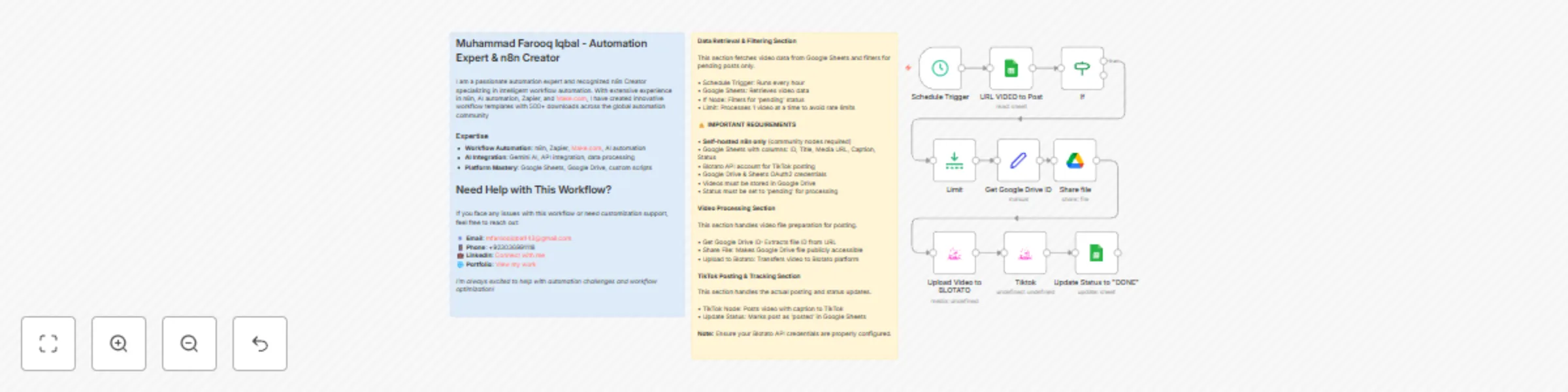
Workflow preview: Automate TikTok video posting from Google Sheets & Drive with Blotato
Free intermediate

Automate TikTok video posting from Google Sheets & Drive with Blotato

**Automate TikTok video posting from Google Sheets & Drive with Blotato. Perfect for content creators and social media managers.** ### ⚠️ IMPORTANT **Self-hosted n8n only** - requires community nodes not available in cloud version. ## Google Sheets Structure Required columns: **ID**, **Media URL**, **Caption**, **Status** - Videos must be in Google Drive - Status must be "pending" for processing - Captions can include hashtags (5 max recommended) ## How it works 1. **Schedule Trigger** → Runs every hour 2. **Fetch Data** → Gets pending videos from Google Sheets 3. **Process Video** → Extracts Drive ID and shares file 4. **Upload** → Transfers to Blotato platform 5. **Post** → Automatically posts to TikTok 6. **Update Status** → Marks as "posted" in spreadsheet ## Requirements - Self-hosted n8n instance - Blotato API account - Google Drive & Sheets OAuth2 credentials - Community node: @blotato/n8n-nodes-blotato.blotato ## Use cases - Automated TikTok content posting - Batch video processing - Content management workflows - Scheduled social media distribution The workflow processes one video per hour to avoid rate limits and maintains a clear audit trail through Google Sheets integration.

M
Muhammad Farooq Iqbal
Social Media
22 Aug 2025
806
0
Workflow preview: Generate AI images from text prompts with Gemini 2.0, Google Sheets & Drive
Free intermediate

Generate AI images from text prompts with Gemini 2.0, Google Sheets & Drive

![Screenshot 20250818 at 1.56.53 PM.png](fileId:2134) **This n8n template demonstrates how to automate the creation of high-quality visual content using AI. The workflow takes simple titles from a Google Sheets spreadsheet, generates detailed artistic prompts using AI, creates photorealistic images, and manages the entire process from data input to final delivery.** **Use cases are many**: Perfect for digital marketers, content creators, social media managers, e-commerce businesses, advertising agencies, and anyone needing consistent, high-quality visual content for marketing campaigns, social media posts, or brand materials! ### Good to know - The Gemini 2.0 Flash Exp image generation model used in this workflow may have geo-restrictions. - The workflow processes one image at a time to ensure quality and avoid rate limiting. - Each generated image maintains high consistency with the source prompt and shows minimal AI artifacts. ### How it works 1. **Automated Trigger**: A schedule trigger runs every minute to check for new entries in your Google Sheets spreadsheet. 2. **Data Retrieval**: The workflow fetches rows from your Google Sheets document, specifically looking for entries with "pending" status. 3. **AI Prompt Generation**: Using Google Gemini, the workflow takes simple titles and transforms them into detailed, artistic prompts for image generation. The AI considers: - Specific visual elements, styles, and compositions - Natural poses, interactions, and environmental context - Lighting conditions and mood settings - Brand consistency and visual appeal - Proper aspect ratios for different platforms 4. **Text Processing**: A code node ensures proper JSON formatting by escaping newlines and maintaining clean text structure. 5. **Image Generation**: Gemini's advanced image generation model creates photorealistic images based on the detailed prompts, ensuring high-quality, consistent results. 6. **File Management**: Generated images are automatically uploaded to a designated folder in Google Drive with organized naming conventions. 7. **Public Sharing**: Images are made publicly accessible with read permissions, enabling easy sharing and embedding. 8. **Database Update**: The workflow completes by updating the Google Sheets with the generated image URL and changing the status from "pending" to "posted", creating a complete audit trail. ### How to use 1. **Setup**: Ensure you have the required Google Sheets document with columns for ID, prompt, status, and imageUrl. 2. **Configuration**: Update the Google Sheets document ID and folder IDs in the respective nodes to match your setup. 3. **Activation**: The workflow is currently inactive - activate it in n8n to start processing. 4. **Data Input**: Simply add new rows to your Google Sheets with titles and set status to "pending" - the workflow will automatically process them. 5. **Monitoring**: Check the Google Sheets for updated status and image URLs to track progress. ### Requirements - **Google Gemini API** account for LLM and image generation capabilities - **Google Drive** for file storage and management - **Google Sheets** for data input and tracking - **n8n instance** with proper credentials configured ### Customizing this workflow **Content Variations**: Try different visual styles, seasonal themes, or trending designs by modifying the AI prompt in the LangChain agent. **Output Formats**: Adjust the aspect ratio or image specifications for different platforms (Instagram, Pinterest, TikTok, Facebook ads, etc.). **Integration Options**: Replace the schedule trigger with webhooks for real-time processing, or add notification nodes for status updates. **Batch Processing**: Modify the limit node to process multiple items simultaneously, though be mindful of API rate limits. **Quality Control**: Add additional validation nodes to ensure generated images meet quality standards before uploading. **Analytics**: Integrate with analytics platforms to track image performance and engagement metrics. This workflow provides a complete solution for automated visual content creation, perfect for businesses and creators looking to scale their visual content production while maintaining high quality and consistency across all marketing materials.

M
Muhammad Farooq Iqbal
Content Creation
18 Aug 2025
4163
0
Workflow preview: Auto-generate LinkedIn content with Gemini AI: posts & images 24/7
Free advanced

Auto-generate LinkedIn content with Gemini AI: posts & images 24/7

![Screenshot 20250815 at 10.14.43 PM.png](fileId:2117) ## 🔄 **How It Works - LinkedIn Post with Image Automation** ### **Overview** This n8n automation creates and publishes LinkedIn posts with AI-generated images automatically. It's a complete end-to-end solution that transforms simple post titles into engaging social media content. ### **Step-by-Step Process** #### **1. Content Trigger & Management** - **Google Sheets Trigger** monitors a spreadsheet for new post titles - Only processes posts with "pending" status - Limits to one post at a time for controlled execution #### **2. AI Content Generation** - **AI Agent** uses Google Gemini to create engaging LinkedIn posts - Takes the post title and generates: - Compelling opening hooks - 3-4 informative paragraphs - Engagement questions - Relevant hashtags (4-6) - Appropriate emojis - Output is structured and formatted for LinkedIn #### **3. AI Image Creation** - **Google Gemini Image Generation** creates custom visuals - Uses the AI-generated post content as context - Generates professional images featuring: - Modern workspace with coding elements - Flutter development themes - Professional, LinkedIn-appropriate aesthetics - 16:9 aspect ratio, high resolution - **No text or captions** in the generated image #### **4. Image Processing & Storage** - Generated images are uploaded to **Google Drive** - Files are shared with public access permissions - Image URLs are stored back in the spreadsheet for tracking #### **5. LinkedIn Publishing** - **LinkedIn API integration** handles the posting process: - Registers image uploads - Uploads images to LinkedIn's servers - Creates posts with text + image - Publishes to your LinkedIn profile - Updates spreadsheet status to "posted" ### **Technical Architecture** ``` Google Sheets → AI Content → AI Image → Google Drive → LinkedIn API → Status Update ↓ ↓ ↓ ↓ ↓ ↓ Trigger Gemini LLM Gemini File Upload Posting Tracking Content Gen Image Gen ``` ### **Key Features** ✅ **Fully Automated** - Runs continuously without manual intervention ✅ **AI-Powered** - Both content and images generated by AI ✅ **Professional Quality** - LinkedIn-optimized formatting and visuals ✅ **Real-time Tracking** - Monitor status and performance ✅ **Scalable** - Handle multiple posts and campaigns ### **How to Use** #### **Setup Requirements** 1. **Google Gemini API** for content and image generation 2. **LinkedIn API** credentials for posting 3. **Google Sheets** for content management 4. **Google Drive** for image storage 5. **n8n** instance for workflow execution #### **Content Management** 1. Add new post titles to your Google Sheet 2. Set status to "pending" 3. Automation automatically processes and publishes 4. Status updates to "posted" upon completion #### **Customization Options** - Modify AI prompts for different content styles - Adjust image generation parameters - Change posting frequency and timing - Add multiple LinkedIn accounts - Integrate with other content sources ### **Use Cases** �� **Perfect for:** - **Startups** wanting consistent LinkedIn presence - **Marketing teams** overwhelmed with content creation - **HR departments** building employer branding - **Agencies** managing multiple client accounts - **Solo entrepreneurs** needing professional social media presence ### **Benefits** ⏰ **Time Savings:** 20+ hours per week for content teams 📈 **Consistency:** Daily, professional posts without gaps 🎨 **Quality:** AI-optimized content and visuals 📊 **Scalability:** Handle unlimited content volume 💰 **Cost Effective:** Reduce manual content creation costs 🔄 **The automation runs continuously, ensuring your LinkedIn presence stays active and engaging 24/7!** **For inquiries: [email protected]**

M
Muhammad Farooq Iqbal
Social Media
16 Aug 2025
2156
0