Generate text-to-video and image-to-video clips with Kling 2.6 via KIE.AI

Workflow preview

Workflow preview
100%
Generate text-to-video and image-to-video clips with Kling 2.6 via KIE.AI preview
Open on n8n.io

Important notice

This workflow is provided as-is. Please review and test before using in production.

1. Workflow Overview

This n8n template provides a comprehensive suite of Kling 2.6 video generation capabilities through the KIE.AI API. The workflow includes two independent video generation workflows: text to video a...

Best for

  • Content Creation automation workflows
  • Multimodal AI automation workflows
  • advanced n8n builders looking for reusable templates

Tools used

n8n-nodes-base.stickynote, n8n-nodes-base.httprequest, n8n-nodes-base.switch, n8n-nodes-base.wait, n8n-nodes-base.code, n8n-nodes-base.manualtrigger, n8n-nodes-base.set

Source and attribution

This workflow is cataloged by N8N Workflows and links back to its original n8n.io source page by Muhammad Farooq Iqbal.

Original n8n.io source

1.1 Workflow description

Title
Generate text-to-video and image-to-video clips with Kling 2.6 via KIE.AI
Workflow name
Generate text-to-video and image-to-video clips with Kling 2.6 via KIE.AI

**This n8n template provides a comprehensive suite of Kling 2.6 video generation capabilities through the KIE.AI API. The workflow includes two independent video generation workflows: text-to-video and image-to-video. Each workflow can be used independently to create videos from different input types, making it perfect for content creators, marketers, and video production teams. ** Use cases are many: Create videos from text descriptions without any input media, transform static images into animated videos, generate engaging video content for social media, automate video production workflows, create video variations from the same source, produce marketing videos at scale, repurpose content across different video formats, or streamline video creation pipelines for content teams!

Good to know

  • The workflow includes two independent Kling 2.6 video generation capabilities via KIE.AI API:
    • Text-to-Video: Creates videos directly from text prompts without requiring input images or videos using kling-2.6/text-to-video model
    • Image-to-Video: Transforms static images into animated videos based on text prompts using kling-2.6/image-to-video model
  • Each workflow can be used independently based on your input type and needs
  • Supports customizable aspect ratios: 9:16 (vertical), 16:9 (landscape), 1:1 (square), 4:3 (classic)
  • Supports customizable duration options (e.g., 5, 10, or 15 seconds)
  • Sound control: Enable or disable sound in generated videos
  • Text-to-video creates videos purely from text descriptions - no media input required
  • Image-to-video animates static images with customizable prompts for style and movement
  • KIE.AI pricing: Check current rates at https://kie.ai/ for video generation costs
  • Processing time: Varies based on video length and KIE.AI queue, typically 1-5 minutes for generation
  • Media requirements: Image files must be publicly accessible via URL (HTTPS recommended)
  • Supported image formats: PNG, JPG, JPEG, WEBP
  • Automatic polling system handles processing status checks and retries for all workflows

How it works

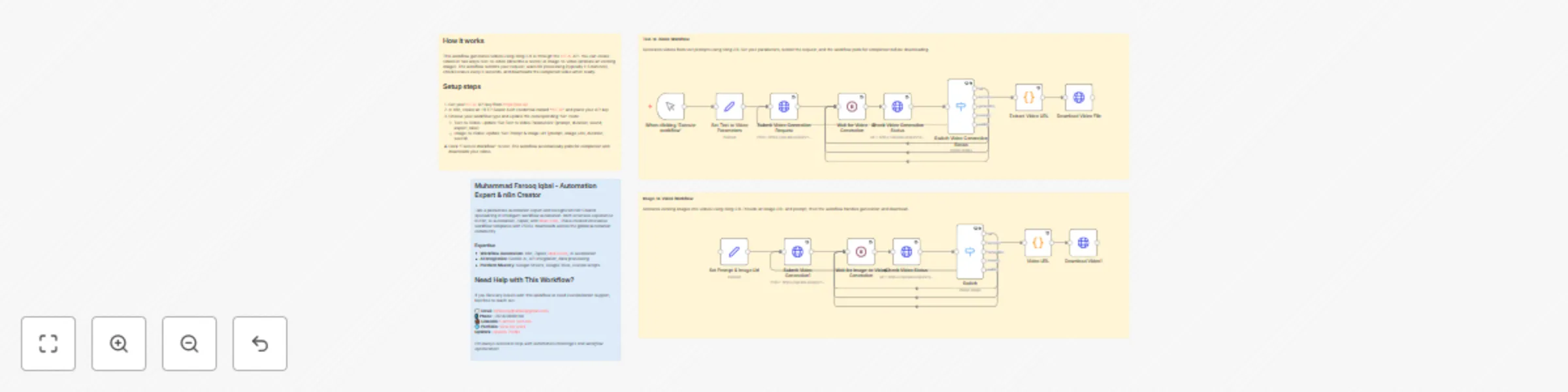
The template includes two independent workflows that can be used separately based on your input type:

1. Text-to-Video (Top Section):

  1. Video Parameters Setup: Set prompt, duration, aspect ratio (e.g., "9:16", "16:9"), and sound (true/false) in 'Set Text to Video Parameters' node
  2. Video Generation Submission: Parameters are submitted to KIE.AI API using kling-2.6/text-to-video model
  3. Processing Wait: Workflow waits 5 seconds, then polls the generation status
  4. Status Check: Checks if video generation is complete, queuing, generating, or failed
  5. Polling Loop: If still processing, workflow waits and checks again until completion
  6. Video URL Extraction: Once complete, extracts the generated video file URL from the API response
  7. Video Download: Downloads the generated video file for local use

2. Image-to-Video (Bottom Section):

  1. Video Parameters Setup: Set prompt, image URL, duration, and sound (true/false) in 'Set Prompt & Image Url' node
  2. Video Generation Submission: Parameters are submitted to KIE.AI API using kling-2.6/image-to-video model
  3. Processing Wait: Workflow waits 5 seconds, then polls the generation status
  4. Status Check: Checks if video generation is complete, queuing, generating, or failed
  5. Polling Loop: If still processing, workflow waits and checks again until completion
  6. Video URL Extraction: Once complete, extracts the generated video file URL from the API response
  7. Video Download: Downloads the generated video file for local use

All workflows automatically handle different processing states (queuing, generating, success, fail) and retry polling until video generation is complete. Each workflow operates independently, allowing you to use only the video generation type you need.

How to use

  1. Setup Credentials:
    • Configure KIE.AI API key as HTTP Bearer Auth credential (used for both workflows)
  2. Choose Your Workflow:
    • For Text-to-Video: Update 'Set Text to Video Parameters' node with prompt, duration (e.g., "5", "10", "15"), aspect ratio (e.g., "9:16", "16:9"), and sound (true/false)
    • For Image-to-Video: Update 'Set Prompt & Image Url' node with prompt, image URL (publicly accessible), duration, and sound (true/false)
  3. Set Video Parameters:
    • prompt: Detailed text description of the desired video content, style, and effects
    • duration: Video duration in seconds as a string (e.g., "5", "10", "15")
    • aspect_ratio: Video aspect ratio as a string (e.g., "9:16" for vertical, "16:9" for landscape, "1:1" for square, "4:3" for classic) - Text-to-Video only
    • sound: Boolean value (true/false) to enable or disable sound in the generated video
    • image_urls: Publicly accessible URL for image-to-video workflow (single URL string)
  4. Deploy Workflow: Import the template and activate the workflow
  5. Trigger Generation: Use manual trigger to test, or replace with webhook/other trigger
  6. Receive Video: Get generated video file URL and download the video file

Pro tip: Write detailed, descriptive prompts to guide the video generation - the more specific your prompt, the better the video output. Include scene details, camera movements, lighting, style, and visual effects in your prompt. For image-to-video, ensure your input image is hosted on a public URL (HTTPS recommended). Choose the aspect ratio that matches your target platform - 9:16 for mobile/social media, 16:9 for standard video, 1:1 for square posts. The workflows automatically handle polling, status checks, and video download, so you can set it and forget it. You can use different workflows for different use cases - text-to-video for pure creation, image-to-video for animating static content.

Requirements

  • KIE.AI API account for accessing Kling 2.6 video generation models (kling-2.6/text-to-video and kling-2.6/image-to-video)
  • Text Prompt describing the desired video content (required for all workflows)
  • Image File URL (for image-to-video) that is publicly accessible (HTTPS recommended)
  • Duration value: String format (e.g., "5", "10", "15" seconds)
  • Aspect Ratio value: String format (e.g., "9:16", "16:9", "1:1", "4:3") - Text-to-Video only
  • Sound value: Boolean (true/false) to enable or disable sound
  • n8n instance (cloud or self-hosted)
  • Supported image formats: PNG, JPG, JPEG, WEBP

Customizing this workflow

Workflow Selection: Use only the workflows you need by removing or disabling nodes for text-to-video or image-to-video. Each workflow operates independently.

Trigger Options: Replace the manual trigger with webhook trigger for API-based video generation requests, schedule trigger for batch processing, or form trigger for user submissions.

Video Settings: Modify duration (as string, e.g., "5", "10", "15"), aspect ratio (e.g., "9:16", "16:9", "1:1", "4:3" for text-to-video), and sound (true/false) in the respective 'Set' nodes to match your content needs.

Prompt Engineering: Enhance prompts in the 'Set' nodes with detailed scene descriptions, visual effects, camera movements, style effects, and artistic directions for better video quality. The more descriptive your prompt, the better the output.

Aspect Ratio Selection: Choose aspect ratios based on your target platform - 9:16 for mobile/social media (Instagram Stories, TikTok), 16:9 for standard video (YouTube), 1:1 for square posts (Instagram), or 4:3 for classic format.

Batch Processing: Add loops to process multiple prompts or images from a list or spreadsheet automatically, generating videos in batch.

Storage Integration: Add nodes to save generated videos to Google Drive, Dropbox, S3, or other storage services before or after download.

Post-Processing: Add nodes between video generation and download to add captions, apply filters, add watermarks, or integrate with video editing tools.

Error Handling: Add notification nodes (Email, Slack, Telegram) to alert when video generation completes, fails, or encounters errors.

Content Management: Add nodes to log video generation results, track processing status, or store outputs in databases or spreadsheets.

Video Variations: Create multiple video variations with different prompts and settings for A/B testing or content variations.

Social Media Integration: Add nodes after video download to automatically upload videos to YouTube, Instagram, TikTok, or other platforms.

Quality Control: Add conditional logic to check video quality, file size, or other characteristics before proceeding with download or distribution.

1.2 Logical Blocks

This catalog entry is organized from the workflow JSON. The node-level section below shows the executable blocks available for review before importing the template.

2. Block-by-Block Analysis

Block 1 - Sticky Note7

Type / Role
n8n-nodes-base.stickyNote - stickyNote
Config choices
Version 1

Block 2 - Submit Video Generation Request

Type / Role
n8n-nodes-base.httpRequest - httpRequest
Config choices
Version 4.2

Block 3 - Switch Video Generation Status

Type / Role
n8n-nodes-base.switch - switch
Config choices
Version 3.2

Block 4 - Check Video Generation Status

Type / Role
n8n-nodes-base.httpRequest - httpRequest
Config choices
Version 4.2

Block 5 - Wait for Video Generation

Type / Role
n8n-nodes-base.wait - wait
Config choices
Version 1

Block 6 - Extract Video URL

Type / Role
n8n-nodes-base.code - code
Config choices
Version 2

Block 7 - Download Video File

Type / Role
n8n-nodes-base.httpRequest - httpRequest
Config choices
Version 4.3

Block 8 - When clicking ‘Execute workflow’

Type / Role
n8n-nodes-base.manualTrigger - manualTrigger
Config choices
Version 1

Block 9 - Text-to-Video Section

Type / Role
n8n-nodes-base.stickyNote - stickyNote
Config choices
Version 1

Block 10 - Image-to-Video Section

Type / Role
n8n-nodes-base.stickyNote - stickyNote
Config choices
Version 1

Block 11 - Set Prompt & Image Url

Type / Role
n8n-nodes-base.set - set
Config choices
Version 3.4

Block 12 - Wait for Image-to-Video Generation

Type / Role
n8n-nodes-base.wait - wait
Config choices
Version 1

Block 13 - Switch

Type / Role
n8n-nodes-base.switch - switch
Config choices
Version 3.2

Block 14 - Check Video Status

Type / Role
n8n-nodes-base.httpRequest - httpRequest
Config choices
Version 4.2

Block 15 - Download Video1

Type / Role
n8n-nodes-base.httpRequest - httpRequest
Config choices
Version 4.3

Block 16 - Submit Video Generation1

Type / Role
n8n-nodes-base.httpRequest - httpRequest
Config choices
Version 4.2

Block 17 - Video URL

Type / Role
n8n-nodes-base.code - code
Config choices
Version 2

Block 18 - Set Text to Video Parameters

Type / Role
n8n-nodes-base.set - set
Config choices
Version 3.4

Block 19 - Sticky Note1

Type / Role
n8n-nodes-base.stickyNote - stickyNote
Config choices
Version 1

3. Summary Table

Workflow Generate text-to-video and image-to-video clips with Kling 2.6 via KIE.AI
Complexity advanced
Nodes 19
Categories Content Creation, Multimodal AI
Author Muhammad Farooq Iqbal
Published 27 Dec 2025

4. Reproducing the Workflow from Scratch

  1. 1. Download the workflow JSON

    Use the JSON export at /data/workflows/12202/12202.json as the source template for this automation.

  2. 2. Import the template into n8n

    Open n8n, import the downloaded JSON, and review each node before activating the workflow.

  3. 3. Configure credentials and variables

    Replace placeholder credentials, API keys, webhook URLs, account IDs, and environment-specific values with your own settings.

  4. 4. Test with sample data

    Run the workflow manually or in a staging workspace, inspect node output, and confirm downstream systems receive the expected data.

  5. 5. Activate and monitor

    Enable the workflow only after testing, then monitor executions, errors, and rate limits during the first production runs.

5. General Notes & Resources

Review imported nodes carefully before activation. This catalog entry is intended to help you inspect the workflow structure, understand required services, and find related templates faster.

Node names, credentials, schedules, webhook paths, and external service limits may need adjustment for your workspace.

Frequently asked questions

What does Generate text-to-video and image-to-video clips with Kling 2.6 via KIE.AI do?

This n8n template provides a comprehensive suite of Kling 2.6 video generation capabilities through the KIE.AI API. The workflow includes two independent video generation workflows: text to video a...

What do I need before importing this workflow?

Review the workflow JSON, configure any required credentials in n8n, and test the automation in a safe workspace before using it in production.

Can I customize this workflow?

Yes. Use the block-by-block analysis and the downloadable JSON to inspect each node, then adjust credentials, prompts, schedules, filters, or destinations for your Content Creation, Multimodal AI use case.