Generate SEO content outlines from SERP analysis with OpenAI and Google Docs

Workflow preview

Workflow preview
100%
Generate SEO content outlines from SERP analysis with OpenAI and Google Docs preview
Open on n8n.io

Important notice

This workflow is provided as-is. Please review and test before using in production.

1. Workflow Overview

Generate SEO content outlines from SERP analysis to Google Docs Overview Stop wasting hours on manual competitor research and content briefing. This workflow automates the creation of data backed c...

Best for

  • Content Creation automation workflows
  • Multimodal AI automation workflows
  • advanced n8n builders looking for reusable templates

Tools used

n8n-nodes-base.formtrigger, n8n-nodes-base.set, @apify/n8n-nodes-apify.apify, n8n-nodes-base.filter, n8n-nodes-base.aggregate, @n8n/n8n-nodes-langchain.openai, n8n-nodes-base.googledocs, n8n-nodes-base.googlesheets

Source and attribution

This workflow is cataloged by N8N Workflows and links back to its original n8n.io source page by MAMI YAMANE.

Original n8n.io source

1.1 Workflow description

Title
Generate SEO content outlines from SERP analysis with OpenAI and Google Docs
Workflow name
Generate SEO content outlines from SERP analysis with OpenAI and Google Docs

Generate SEO content outlines from SERP analysis to Google Docs

Overview

Stop wasting hours on manual competitor research and content briefing. This workflow automates the creation of data-backed content briefs by analyzing the current top-ranking pages for your specific keyword.

It scrapes the Google Search Engine Results Page (SERP), extracts the content structure (headings H1-H3) from competitor articles, and uses AI to generate a comprehensive article outline based on what is already ranking. The final outline is automatically saved to a Google Doc, streamlining your content production process.

Who is this for?

  • Content Marketers: To drastically reduce the time needed to create detailed content briefs.
  • SEO Specialists: To analyze competitor content structures at scale without manual checking.
  • Bloggers & Writers: To overcome writer's block and ensure their content covers all necessary topics to rank.

How it works

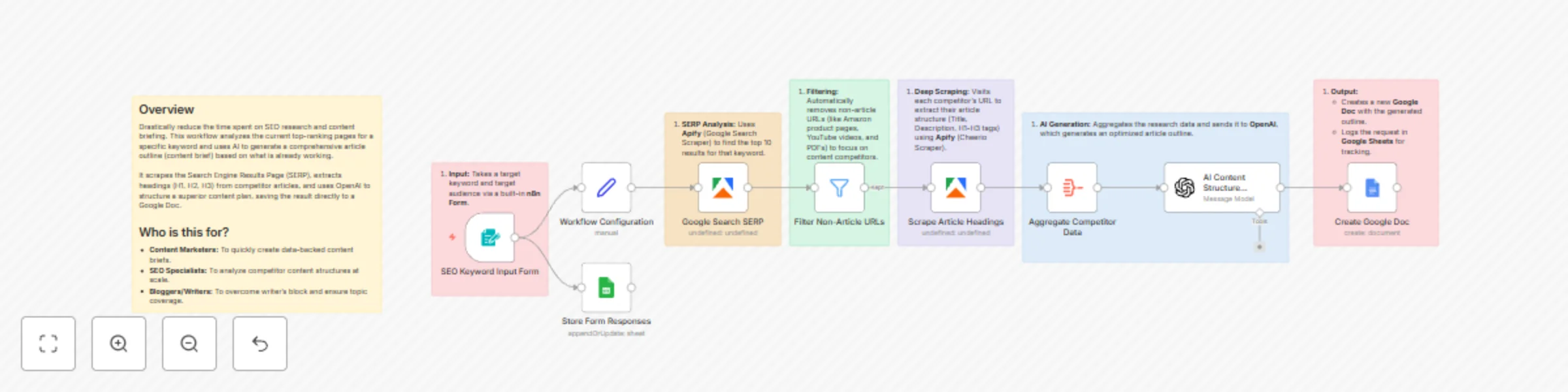
  1. Input: You enter a "Target Keyword" and "Target Audience" via the built-in n8n Form.
  2. SERP Scraping: The workflow uses Apify (Google Search Scraper) to fetch the top results for that keyword.
  3. Filtering: It automatically removes non-article URLs (such as Amazon product pages, YouTube videos, and PDFs) to ensure only relevant content competitors are analyzed.
  4. Deep Extraction: It visits each competitor's URL using Apify (Cheerio Scraper) to extract their article metadata and heading structure (H1, H2, H3).
  5. AI Analysis: The aggregated data is sent to OpenAI, which analyzes common patterns and generates an optimized article outline.
  6. Output:
    • A new Google Doc is created with the generated outline.
    • The request details are logged in Google Sheets for your records.

Requirements

  • Apify Account: You will need an Apify account with access to the Google Search Result Scraper and Cheerio Scraper actors.
  • OpenAI Account: An API key for OpenAI (GPT-3.5 or GPT-4 recommended).
  • Google Cloud: Credentials to access Google Docs and Google Sheets.

How to set up

  1. Configure Credential: Connect your Apify, OpenAI, and Google accounts in the respective nodes.
  2. Workflow Configuration: Open the Workflow Configuration node. You can change the countryCode (default is "jp" for Japan) to your target region (e.g., "us", "uk") and adjust maxResults if needed.
  3. Google Sheets Setup: Create a Google Sheet with a column header named target_keyword. Copy the Spreadsheet ID and paste it into the Store Form Responses node.
  4. Run: Click "Chat" or "Open Form" in the trigger node to start the workflow.

How to customize

  • Change the AI Model: In the AI Content Structure Analysis node, you can switch between different OpenAI models or adjust the system prompt to change the tone/format of the outline.
  • Adjust Filters: Modify the Filter Non-Article URLs node to exclude specific domains you don't want to analyze (e.g., wikipedia.org).
  • Output Format: You can modify the Create Google Doc node to include more specific data, such as the list of competitor URLs analyzed.

1.2 Logical Blocks

This catalog entry is organized from the workflow JSON. The node-level section below shows the executable blocks available for review before importing the template.

2. Block-by-Block Analysis

Block 1 - SEO Keyword Input Form

Type / Role
n8n-nodes-base.formTrigger - formTrigger
Config choices
Version 2.3

Block 2 - Workflow Configuration

Type / Role
n8n-nodes-base.set - set
Config choices
Version 3.4

Block 3 - Google Search SERP

Type / Role
@apify/n8n-nodes-apify.apify - apify
Config choices
Version 1

Block 4 - Filter Non-Article URLs

Type / Role
n8n-nodes-base.filter - filter
Config choices
Version 2.2

Block 5 - Scrape Article Headings

Type / Role
@apify/n8n-nodes-apify.apify - apify
Config choices
Version 1

Block 6 - Aggregate Competitor Data

Type / Role
n8n-nodes-base.aggregate - aggregate
Config choices
Version 1

Block 7 - AI Content Structure Analysis

Type / Role
@n8n/n8n-nodes-langchain.openAi - openAi
Config choices
Version 2

Block 8 - Create Google Doc

Type / Role
n8n-nodes-base.googleDocs - googleDocs
Config choices
Version 2

Block 9 - Store Form Responses

Type / Role
n8n-nodes-base.googleSheets - googleSheets
Config choices
Version 4.7

Block 10 - Sticky Note

Type / Role
n8n-nodes-base.stickyNote - stickyNote
Config choices
Version 1

Block 11 - Sticky Note1

Type / Role
n8n-nodes-base.stickyNote - stickyNote
Config choices
Version 1

Block 12 - Sticky Note2

Type / Role
n8n-nodes-base.stickyNote - stickyNote
Config choices
Version 1

Block 13 - Sticky Note3

Type / Role
n8n-nodes-base.stickyNote - stickyNote
Config choices
Version 1

Block 14 - Sticky Note4

Type / Role
n8n-nodes-base.stickyNote - stickyNote
Config choices
Version 1

Block 15 - Sticky Note5

Type / Role
n8n-nodes-base.stickyNote - stickyNote
Config choices
Version 1

Block 16 - Sticky Note6

Type / Role
n8n-nodes-base.stickyNote - stickyNote
Config choices
Version 1

3. Summary Table

Workflow Generate SEO content outlines from SERP analysis with OpenAI and Google Docs
Complexity advanced
Nodes 16
Categories Content Creation, Multimodal AI
Author MAMI YAMANE
Published 15 Dec 2025

4. Reproducing the Workflow from Scratch

  1. 1. Download the workflow JSON

    Use the JSON export at /data/workflows/11809/11809.json as the source template for this automation.

  2. 2. Import the template into n8n

    Open n8n, import the downloaded JSON, and review each node before activating the workflow.

  3. 3. Configure credentials and variables

    Replace placeholder credentials, API keys, webhook URLs, account IDs, and environment-specific values with your own settings.

  4. 4. Test with sample data

    Run the workflow manually or in a staging workspace, inspect node output, and confirm downstream systems receive the expected data.

  5. 5. Activate and monitor

    Enable the workflow only after testing, then monitor executions, errors, and rate limits during the first production runs.

5. General Notes & Resources

Review imported nodes carefully before activation. This catalog entry is intended to help you inspect the workflow structure, understand required services, and find related templates faster.

Node names, credentials, schedules, webhook paths, and external service limits may need adjustment for your workspace.

Frequently asked questions

What does Generate SEO content outlines from SERP analysis with OpenAI and Google Docs do?

Generate SEO content outlines from SERP analysis to Google Docs Overview Stop wasting hours on manual competitor research and content briefing. This workflow automates the creation of data backed c...

What do I need before importing this workflow?

Review the workflow JSON, configure any required credentials in n8n, and test the automation in a safe workspace before using it in production.

Can I customize this workflow?

Yes. Use the block-by-block analysis and the downloadable JSON to inspect each node, then adjust credentials, prompts, schedules, filters, or destinations for your Content Creation, Multimodal AI use case.