MAMI YAMANE
Workflows by MAMI YAMANE
Generate SEO content outlines from SERP analysis with OpenAI and Google Docs
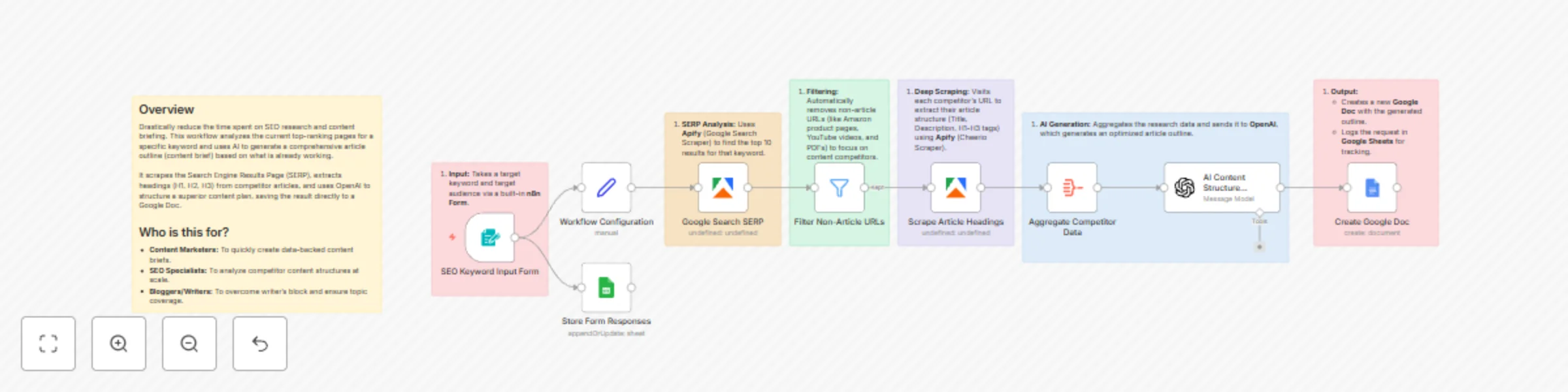
# Generate SEO content outlines from SERP analysis to Google Docs ## Overview Stop wasting hours on manual competitor research and content briefing. This workflow automates the creation of data-backed content briefs by analyzing the current top-ranking pages for your specific keyword. It scrapes the Google Search Engine Results Page (SERP), extracts the content structure (headings H1-H3) from competitor articles, and uses AI to generate a comprehensive article outline based on what is already ranking. The final outline is automatically saved to a Google Doc, streamlining your content production process. ## Who is this for? - **Content Marketers:** To drastically reduce the time needed to create detailed content briefs. - **SEO Specialists:** To analyze competitor content structures at scale without manual checking. - **Bloggers & Writers:** To overcome writer's block and ensure their content covers all necessary topics to rank. ## How it works 1. **Input:** You enter a "Target Keyword" and "Target Audience" via the built-in n8n Form. 2. **SERP Scraping:** The workflow uses **Apify** (Google Search Scraper) to fetch the top results for that keyword. 3. **Filtering:** It automatically removes non-article URLs (such as Amazon product pages, YouTube videos, and PDFs) to ensure only relevant content competitors are analyzed. 4. **Deep Extraction:** It visits each competitor's URL using **Apify** (Cheerio Scraper) to extract their article metadata and heading structure (H1, H2, H3). 5. **AI Analysis:** The aggregated data is sent to **OpenAI**, which analyzes common patterns and generates an optimized article outline. 6. **Output:** - A new **Google Doc** is created with the generated outline. - The request details are logged in **Google Sheets** for your records. ## Requirements - **Apify Account:** You will need an Apify account with access to the *Google Search Result Scraper* and *Cheerio Scraper* actors. - **OpenAI Account:** An API key for OpenAI (GPT-3.5 or GPT-4 recommended). - **Google Cloud:** Credentials to access Google Docs and Google Sheets. ## How to set up 1. **Configure Credential:** Connect your Apify, OpenAI, and Google accounts in the respective nodes. 2. **Workflow Configuration:** Open the `Workflow Configuration` node. You can change the `countryCode` (default is "jp" for Japan) to your target region (e.g., "us", "uk") and adjust `maxResults` if needed. 3. **Google Sheets Setup:** Create a Google Sheet with a column header named `target_keyword`. Copy the Spreadsheet ID and paste it into the `Store Form Responses` node. 4. **Run:** Click "Chat" or "Open Form" in the trigger node to start the workflow. ## How to customize - **Change the AI Model:** In the `AI Content Structure Analysis` node, you can switch between different OpenAI models or adjust the system prompt to change the tone/format of the outline. - **Adjust Filters:** Modify the `Filter Non-Article URLs` node to exclude specific domains you don't want to analyze (e.g., wikipedia.org). - **Output Format:** You can modify the `Create Google Doc` node to include more specific data, such as the list of competitor URLs analyzed.
Influencer brand safety auditor with engagement analysis
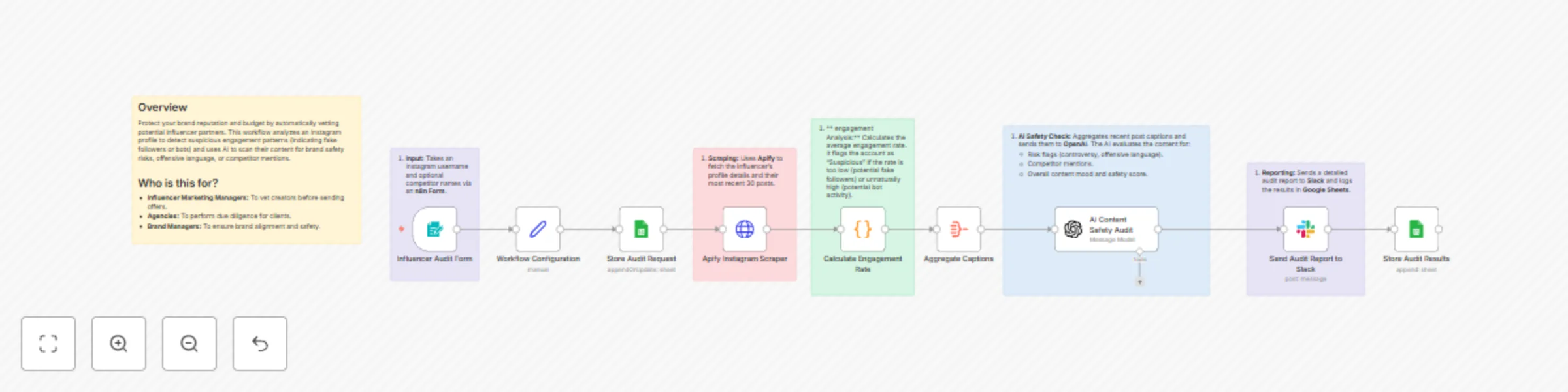
Here is the template specification based on the provided workflow and guidelines. # Audit Instagram Influencer Safety and Engagement to Slack ## Description Protect your brand reputation and optimize your marketing budget by automatically vetting potential influencer partners. Manually analyzing engagement rates and reading through hundreds of comments to detect brand safety risks is time-consuming and prone to error. This workflow streamlines the due diligence process. By simply entering an Instagram username into a form, the system scrapes recent data, calculates engagement metrics to detect potential fake followers or bot activity, and uses AI to scan content for offensive language or competitor mentions. The final detailed audit report is delivered instantly to your Slack channel and logged in Google Sheets for record-keeping. ## Who is this for - **Influencer Marketing Managers:** To quickly vet creators before sending collaboration offers. - **Digital Agencies:** To perform scalable due diligence for client campaigns. - **Brand Managers:** To ensure potential partners align with brand safety guidelines and do not promote direct competitors. ## How it works 1. **Input:** The workflow starts with an **n8n Form** where you enter the influencer’s Instagram handle and optional competitor names. 2. **Data Extraction:** It triggers **Apify** (using the Instagram Scraper) to fetch the profile’s statistics and their most recent 30 posts. 3. **Engagement Analysis:** A **Code Node** calculates the average engagement rate. It logic flags the account as "Suspicious" if the rate is unnaturally low (indicating fake followers) or suspiciously high (indicating bot farms). 4. **AI Safety Check:** Recent post captions are aggregated and sent to **OpenAI**. The AI analyzes the text for risk flags (controversy, profanity), competitor mentions, and assigns a safety score. 5. **Reporting:** The workflow saves the raw request and results to **Google Sheets** and sends a formatted summary report to a specific **Slack** channel. ## Requirements - **Apify Account:** You will need an API token and access to the [Instagram Scraper actor](https://apify.com/apify/instagram-scraper). - **OpenAI Account:** An API key to perform the content safety analysis. - **Google Cloud Platform:** Credential with access to the Google Sheets API. - **Slack Workspace:** A configured Slack app/bot to post messages. ## How to set up 1. **Configure Credentials:** Connect your Apify, Google Sheets, OpenAI, and Slack accounts in the respective nodes. 2. **Setup Google Sheet:** Create a Google Sheet with two tabs: * `Audit Requests` (Columns: `username`, `timestamp`) * `Audit Results` (Columns: `username`, `followers`, `engagementRate`, `status`, `safetyScore`, `riskFlags`, `recommendation`) 3. **Configure Variables:** Open the **Workflow Configuration** node (Set node) to input: * Your `apifyApiToken`. * `engagementThresholdLow` (default is 1%). * `engagementThresholdHigh` (default is 10%). 4. **Update IDs:** * In the **Store Audit Request** and **Store Audit Results** nodes, select your created Google Sheet. * In the **Send Audit Report to Slack** node, select the channel where you want reports to appear. ## How to customize the workflow - **Adjust Thresholds:** Change the `engagementThresholdLow` or `engagementThresholdHigh` values in the **Workflow Configuration** node to fit your specific industry benchmarks. - **Modify AI Criteria:** Edit the system prompt in the **AI Content Safety Audit** node to check for specific brand values, specific keywords, or tone of voice requirements. - **Change Output:** Replace the Slack node with an **Email** node (Gmail/Outlook) or a **Notion** node if you prefer to store reports in a project management database.
Automate trend research to blog content with GPT-4o, DALL-E & Apify to Notion
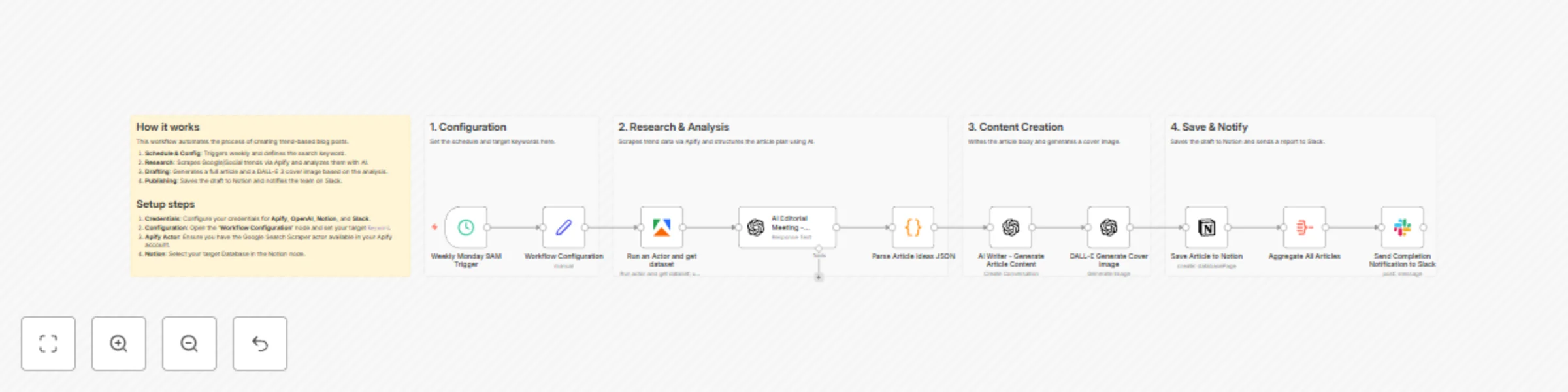
AI Editor-in-Chief: Trend Research to 3 Notion Blog Drafts This workflow acts as your personal "AI Editor-in-Chief," fully automating the process from trend research to content creation. It scrapes Google Search results and generates three distinct article drafts (with different angles) complete with AI-generated cover images, saving everything directly to Notion. 🎯 Target Audience Bloggers & Affiliate Marketers: Individuals who struggle with writer's block and want to maintain a consistent posting schedule. Content Marketers & Editors: Teams running owned media who need to efficiently generate high-volume article ideas and drafts based on trends. SEO Specialists: Professionals who need to quickly create content based on the latest search keywords. ⚙️ How it Works & Features This workflow automates the entire editorial process: Automated Research: Scrapes top Google Search results for a specific keyword (e.g., "2025 AI Tools") using Apify. Multi-Angle Planning: GPT-4o analyzes the research and brainstorms article concepts from 3 different perspectives (e.g., "Beginner's Guide," "Critical Review," "Business Use Case"). Writing & Visualizing: For each concept, the AI writes a full article body in Markdown and DALL-E 3 generates a matching cover image. CMS Entry: Automatically saves the Title, Body Text, and Cover Image URL into a Notion database as a draft. Notification: Sends a completion report with links to the created Notion pages via Slack. 🛠 Setup Instructions Import: Copy the workflow JSON and paste it into your n8n editor. Credentials: Set up credentials for the following nodes: Apify: Required for the Google Search Scraper actor. OpenAI: Required for GPT-4o and DALL-E 3. Notion: Connect your account to access your database. Slack: Connect your account for notifications. Configuration: Open the Workflow Configuration node and set your desired Search Keyword. Notion Setup: Create a database in Notion (with properties for Title, Content, etc.). Crucial Step: Go to the Notion database page menu ... > Connect to and select your n8n integration to grant permission. Select this database in the Save Article to Notion node. Slack Setup: In the Send Completion Notification to Slack node, specify the target channel name (e.g., general). 📦 Requirements n8n Version: v1.0 or higher (recommended). Apify Account: Access to the apify/google-search-scraper actor. OpenAI Account: API access to GPT-4o and DALL-E 3. Notion Account: A workspace with a database. Slack Account: A workspace for receiving notifications. 🔧 Customization Change Keywords: Simply update the searchKeyword value in the Workflow Configuration node to target any topic (e.g., "Keto Diet," "Tech Gadgets," "Investment Trends"). Adjust Angles: Modify the System Prompt in the AI Editorial Meeting node to change the persona or angles (e.g., "Pros & Cons," "Global Reaction," "Tutorial"). Change Destination: You can replace the Notion node with a WordPress node to draft articles directly into your CMS. Scheduling: Update the Schedule Trigger node to run daily, weekly, or on specific days as needed.