Block 1 - AI Agent
- Type / Role
- @n8n/n8n-nodes-langchain.agent - agent
- Config choices
- Version 1.9


 Early Deal
What This Workflow Does A user submits a form with an existing product photo, a name, a vision prompt, and their email. The workflow generates a brand new AI product image from that photo, turns it...
@n8n/n8n-nodes-langchain.agent, @n8n/n8n-nodes-langchain.lmchatopenai, n8n-nodes-base.googledrive, n8n-nodes-base.converttofile, n8n-nodes-base.httprequest, n8n-nodes-base.if, n8n-nodes-base.wait, n8n-nodes-base.formtrigger
This workflow is cataloged by N8N Workflows and links back to its original n8n.io source page by Jason Stelo.
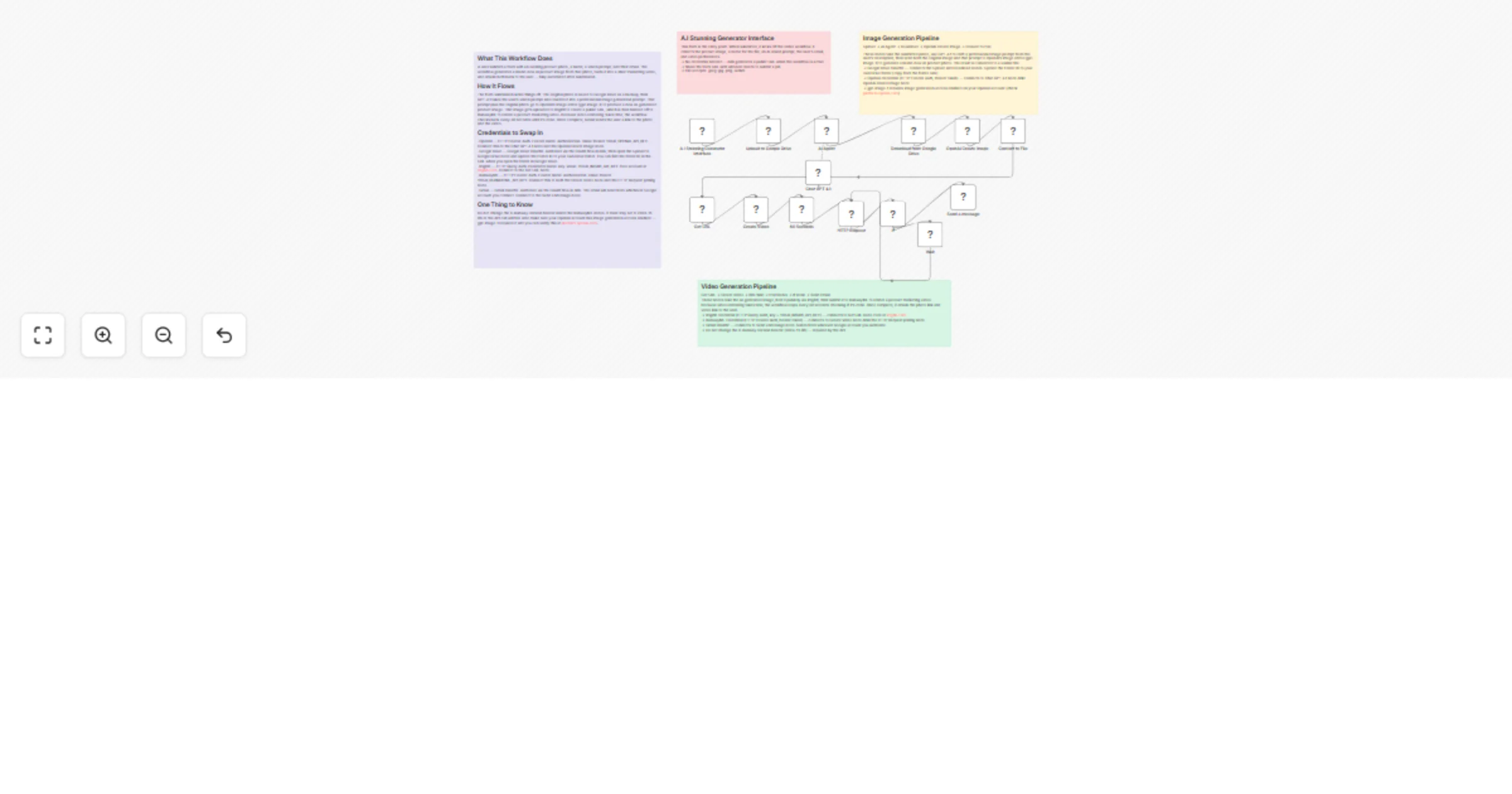
Original n8n.io sourceWhat This Workflow Does A user submits a form with an existing product photo, a name, a vision prompt, and their email. The workflow generates a brand-new AI product image from that photo, turns it into a short marketing video, and emails both back to the user — fully automated after submission.
How It Flows The form submission kicks things off. The original photo is saved to Google Drive as a backup, then GPT-4.1 takes the user's vision prompt and rewrites it into a professional image generation prompt. That prompt plus the original photo go to OpenAI's image editor (gpt-image-1) to produce a new AI-generated product image. That image gets uploaded to ImgBB to create a public URL, which is then handed off to RunwayML to render a product marketing video. Because video rendering takes time, the workflow checks back every 30 seconds until it's done. Once complete, Gmail sends the user a link to the photo and the video.
Credentials to Swap In -OpenAI — HTTP Header Auth. Header name: Authorization. Value: Bearer YOUR_OPENAI_API_KEY. Connect this to the Chat GPT 4.1 node and the OpenAi Create Image node. -Google Drive — Google Drive OAuth2. Authorize via the OAuth flow in n8n, then open the Upload to Google Drive node and update the Folder ID to your own Drive folder. You can find the folder ID in the URL when you open the folder in Google Drive. -ImgBB — HTTP Query Auth. Parameter name: key. Value: YOUR_IMGBB_API_KEY. Free account at imgbb.com. Connect to the Get URL node. -RunwayML — HTTP Header Auth. Header name: Authorization. Value: Bearer YOUR_RUNWAYML_API_KEY. Connect this to both the Create Video node and the HTTP Request polling node. -Gmail — Gmail OAuth2. Authorize via the OAuth flow in n8n. The email will send from whichever Google account you connect. Connect to the Send a Message node.
One Thing to Know Do not change the X-Runway-Version header inside the RunwayML nodes. It must stay set to 2024-11-06 or the API call will fail. Also make sure your OpenAI account has image generation access enabled — gpt-image-1 requires it and you can verify this at platform.openai.com.
This catalog entry is organized from the workflow JSON. The node-level section below shows the executable blocks available for review before importing the template.
| Workflow | Generate product photos and videos from a reference image with OpenAI and RunwayML |
|---|---|
| Complexity | advanced |
| Nodes | 18 |
| Categories | Content Creation, Multimodal AI |
| Author | Jason Stelo |
| Published | 20 Mar 2026 |
Use the JSON export at /data/workflows/14201/14201.json as the source template for this automation.
Open n8n, import the downloaded JSON, and review each node before activating the workflow.
Replace placeholder credentials, API keys, webhook URLs, account IDs, and environment-specific values with your own settings.
Run the workflow manually or in a staging workspace, inspect node output, and confirm downstream systems receive the expected data.
Enable the workflow only after testing, then monitor executions, errors, and rate limits during the first production runs.
Review imported nodes carefully before activation. This catalog entry is intended to help you inspect the workflow structure, understand required services, and find related templates faster.
Node names, credentials, schedules, webhook paths, and external service limits may need adjustment for your workspace.
What This Workflow Does A user submits a form with an existing product photo, a name, a vision prompt, and their email. The workflow generates a brand new AI product image from that photo, turns it...
Review the workflow JSON, configure any required credentials in n8n, and test the automation in a safe workspace before using it in production.
Yes. Use the block-by-block analysis and the downloadable JSON to inspect each node, then adjust credentials, prompts, schedules, filters, or destinations for your Content Creation, Multimodal AI use case.