Block 1 - Overview
- Type / Role
- n8n-nodes-base.stickyNote - stickyNote
- Config choices
- Version 1


 Early Deal
Fill in a simple form with your demo recording URL, your product name, and describe the moments you want to find in plain English — the workflow does the rest. WayinVideo A...
n8n-nodes-base.stickynote, n8n-nodes-base.formtrigger, n8n-nodes-base.httprequest, n8n-nodes-base.wait, n8n-nodes-base.if, n8n-nodes-base.gmail
This workflow is cataloged by N8N Workflows and links back to its original n8n.io source page by Incrementors.
Original n8n.io sourceFill in a simple form with your demo recording URL, your product name, and describe the moments you want to find in plain English — the workflow does the rest. WayinVideo AI scans your full recording and extracts the exact clips that match your search query. You receive a formatted email with every clip's title, timestamp, relevance score, description, and a one-click download link. Built for sales teams, product marketers, and agencies who need to pull specific moments from demo recordings without scrubbing through video manually.
Estimated Setup Time: 10–15 minutes
Get your WayinVideo API key Log in at WayinVideo, go to your account settings or developer section, and copy your API key.
Paste the API key into node "2. WayinVideo — Submit Find Moments"
Open this node, find the Authorization header, and replace YOUR_WAYINVIDEO_API_KEY with your actual key.
Paste the API key into node "4. WayinVideo — Get Moments Result"
Open this node, find the same Authorization header, and replace YOUR_WAYINVIDEO_API_KEY again.
> ⚠️ This key appears in 2 nodes — you must replace it in both "2. WayinVideo — Submit Find Moments" and "4. WayinVideo — Get Moments Result". Missing either one will cause the workflow to fail.
Connect your Gmail account Open node "7. Gmail — Send Review Email". Click the credential field and connect your Google account via OAuth2. Follow the on-screen prompts to authorise n8n to send emails from your account.
Activate the workflow Toggle the workflow to Active. Open the form URL generated by node "1. Form — Demo URL + Query + Email" and submit a test recording URL to confirm the full workflow runs and the email arrives.
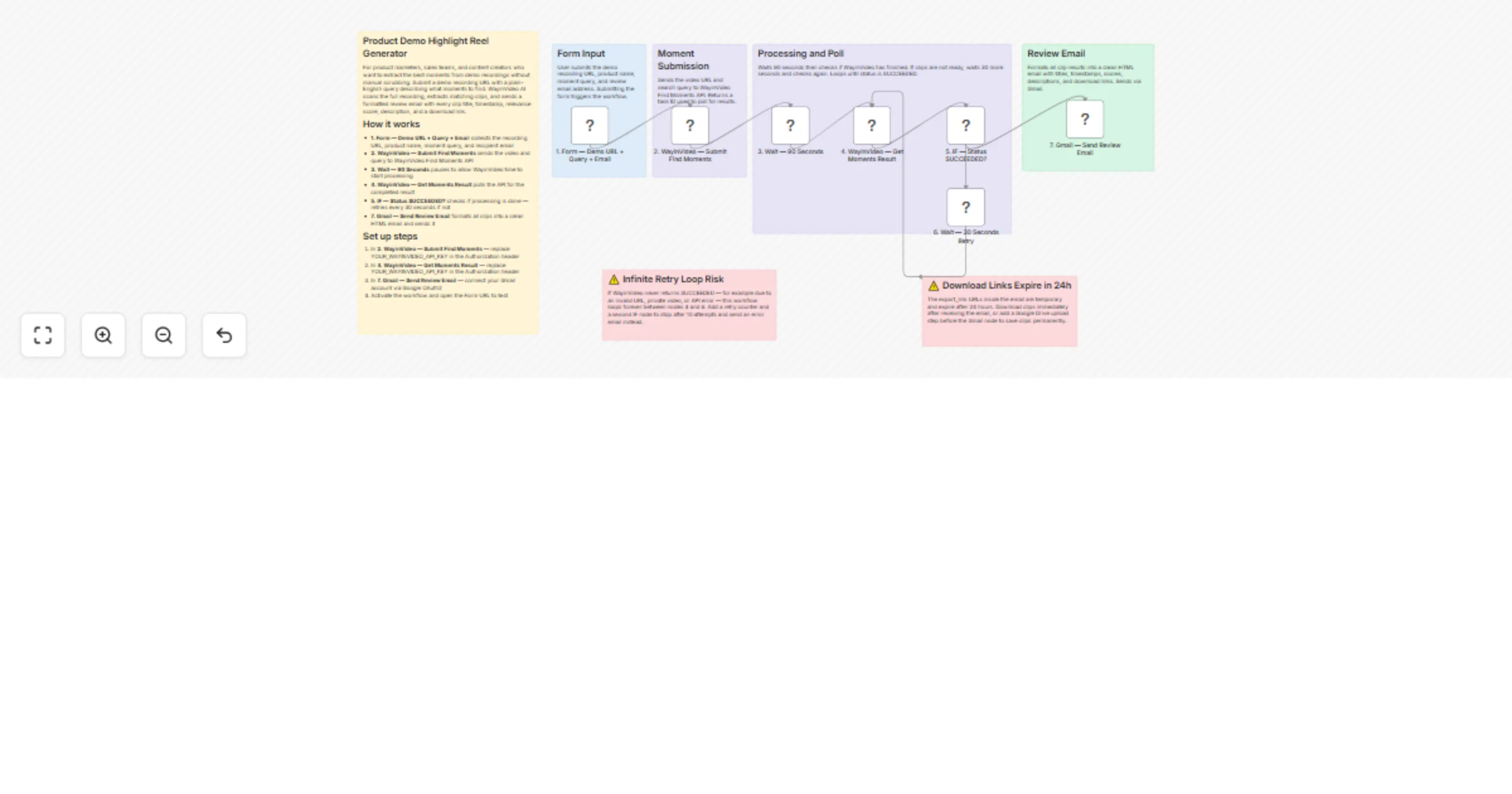
Step 1 — Form Trigger (Web Form) The workflow starts when someone fills in the web form. You enter four things: the demo recording URL (Zoom, YouTube, or any direct link), the product or brand name, a plain-English description of what moments to find (e.g. "pricing discussion" or "live feature walkthrough"), and the email address where results should be sent. The form is hosted by n8n and can be shared with anyone on your team.
Step 2 — Submit to WayinVideo Find Moments API Your video URL and search query are sent to WayinVideo's Find Moments endpoint. The request also includes settings for clip quality (HD 720p), captions in the original language, and a limit of 5 clips per search. WayinVideo begins scanning the recording for moments that match your query and returns a task ID the workflow uses to check for results.
Step 3 — Wait 90 Seconds The workflow pauses for 90 seconds to give WayinVideo time to scan the video before it checks for results. This prevents the workflow from asking for results before they are ready.
Step 4 — Check for Results (WayinVideo Poll) The workflow calls WayinVideo's results endpoint using the task ID from Step 2. It asks: "Have the clips been found yet?" and receives either a completed clips list or a status showing the job is still processing.
Step 5 — Check: Status SUCCEEDED? (YES / NO branch)
SUCCEEDED, the workflow moves forward to send the review email with all the clip results.> ⚠️ Infinite Loop Risk: If WayinVideo never returns SUCCEEDED — because the video URL is invalid, the video is private, or an API error occurs — this loop will run forever. Add a retry counter to stop after 8–10 attempts and send an error notification instead.
Step 6 — Wait 30 Seconds (Retry) When clips are not ready yet, the workflow pauses for 30 seconds before checking again. This gap prevents too many requests being sent to WayinVideo in a short time.
Step 7 — Gmail Sends the Review Email Once clips are ready, the workflow builds and sends a formatted HTML email to the address you entered in the form. The email includes your product name in the subject line, a summary of the query used and total clips found, and a separate block for every clip — showing the clip number and title, start and end timestamps in seconds, relevance score out of 100, a description of what happens in the clip, tags, and a download button. The footer reminds you that download links expire in 24 hours.
The final result is a clean, ready-to-review email in your inbox with everything you need to evaluate and download your demo highlight clips.
✅ Plain-English search queries — You describe what you want in normal language — "pricing objection handling" or "onboarding walkthrough" — and WayinVideo finds it ✅ Relevance score per clip — Every clip shows a score out of 100 so you can instantly see which moments are the strongest match ✅ Timestamps in the email — Each clip shows exact start and end times in seconds — so you can jump to that moment in the full recording if needed ✅ Auto-retry polling — The workflow keeps checking until clips are ready — you submit the form and walk away ✅ No login required to download — Every clip download link is included directly in the email — no need to log into WayinVideo to access your clips ✅ Captions embedded — Each exported clip includes original-language captions baked in — useful for silent viewing or accessibility ✅ Team-friendly form — Any team member can submit a demo URL through the web form — no n8n access needed ✅ One email, all clips — All results arrive in a single formatted email — no separate notifications per clip
Increase or decrease the number of clips returned
In node "2. WayinVideo — Submit Find Moments", change "limit": 5 to any number — use 3 for a tighter shortlist or 10 for a broader set of matching moments.
Upgrade to Full HD resolution
In node "2. WayinVideo — Submit Find Moments", change "resolution": "HD_720" to "FULL_HD_1080" to export clips at 1080p quality — useful for client-facing or presentation materials.
Save clips to Google Drive automatically Add an HTTP Request step after "4. WayinVideo — Get Moments Result" to download each clip file, then add a Google Drive upload step — so clips are saved permanently before the 24-hour download link expires.
Log searches to Google Sheets After "7. Gmail — Send Review Email", add a Google Sheets "Append Row" step to record the product name, search query, number of clips found, and date — useful for tracking which demo moments get searched most often.
Add a Slack notification alongside the email Insert a Slack node after "7. Gmail — Send Review Email" to post a message in your team channel with the product name and clip count — so your team knows results are ready without checking their inbox.
Add a retry limit to prevent infinite loops Add a Set step before "6. Wait — 30 Seconds Retry" to track a retry counter. Add a second IF check to stop after 10 attempts and send a failure email to the address from the form instead of looping indefinitely.
WayinVideo API key not working:
YOUR_WAYINVIDEO_API_KEY in both "2. WayinVideo — Submit Find Moments" and "4. WayinVideo — Get Moments Result" — missing one will cause the workflow to failWorkflow stuck in the retry loop:
Email not arriving:
Clips found but download links not working:
No clips returned in the email (zero results):
Need help setting this up or want a custom version built for your team or agency?
📧 Email:[email protected] 🌐 Website:https://incrementors.com/
This catalog entry is organized from the workflow JSON. The node-level section below shows the executable blocks available for review before importing the template.
| Workflow | Generate product demo highlight reels using WayinVideo Find Moments API |
|---|---|
| Complexity | intermediate |
| Nodes | 14 |
| Categories | Content Creation, Multimodal AI |
| Author | Incrementors |
| Published | 04 Apr 2026 |
Use the JSON export at /data/workflows/14712/14712.json as the source template for this automation.
Open n8n, import the downloaded JSON, and review each node before activating the workflow.
Replace placeholder credentials, API keys, webhook URLs, account IDs, and environment-specific values with your own settings.
Run the workflow manually or in a staging workspace, inspect node output, and confirm downstream systems receive the expected data.
Enable the workflow only after testing, then monitor executions, errors, and rate limits during the first production runs.
Review imported nodes carefully before activation. This catalog entry is intended to help you inspect the workflow structure, understand required services, and find related templates faster.
Node names, credentials, schedules, webhook paths, and external service limits may need adjustment for your workspace.
Fill in a simple form with your demo recording URL, your product name, and describe the moments you want to find in plain English — the workflow does the rest. WayinVideo A...
Review the workflow JSON, configure any required credentials in n8n, and test the automation in a safe workspace before using it in production.
Yes. Use the block-by-block analysis and the downloadable JSON to inspect each node, then adjust credentials, prompts, schedules, filters, or destinations for your Content Creation, Multimodal AI use case.