Block 1 - Local File Trigger
- Type / Role
- n8n-nodes-base.localFileTrigger - localFileTrigger
- Config choices
- Version 1


 Early Deal
This workflow is provided as-is. Please review and test before using in production.
Disclaimer This Workflow uses a community node. What It Does Workflow Demonstration This powerful workflow eliminates ...
n8n-nodes-base.localfiletrigger, @n8n/n8n-nodes-langchain.lmchatopenai, n8n-nodes-base.code, n8n-nodes-base.readwritefile, @n8n/n8n-nodes-langchain.openai, @n8n/n8n-nodes-langchain.agent, n8n-nodes-base.converttofile, n8n-nodes-base.stickynote
This workflow is cataloged by N8N Workflows and links back to its original n8n.io source page by AiAgent.
Original n8n.io sourceThis Workflow uses a community node.
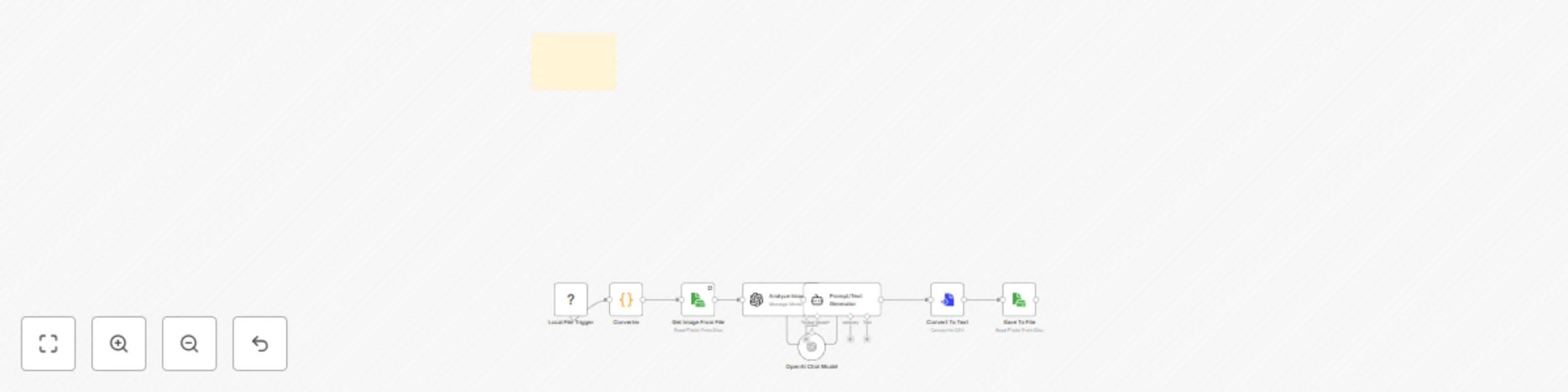
This powerful workflow eliminates hours of trial and error when trying to craft the perfect prompt for AI-generated images. By simply saving an image of the design you want to model your generated images after into a designated folder on your desktop, the workflow is automatically triggered. Once the image is saved, n8n pulls it into the workflow, where an Analyze Image AI agent powered by GPT-4o analyzes it and generates a detailed text description. This description is then passed to another Prompt/Text Generator AI agent, which uses it as a template to create five entirely new and unique image prompts using the power of GPT-4o. These prompts produce images that share a similar art style with the original, while remaining creatively distinct. In addition, the AI will extract the original phrase and generate nine brand-new phrases that can be incorporated into the image. Finally, all this information is automatically saved into a folder on your computer, ready for you to use whenever you like.
This workflow is ideal for anyone looking to create high-quality AI-generated images with ease. It’s especially valuable for those running a print-on-demand business or working in logo and artwork design. By automating the process of crafting image prompts that match a desired style, it saves you hours of manual effort and guesswork. With this streamlined system, you can focus less on prompt engineering and more on what truly matters—growing your business.
Once you find an image or design that perfectly matches the style you're aiming for, the rest of the process is seamless. With the workflow running, simply save the image to the designated folder that triggers the automation. This action activates the workflow, and the image is automatically pulled into n8n using the Get Image From File node. From there, the Analyze Image AI Agent, powered by GPT-4o, takes over. It examines the image in depth—assessing its overall theme, art style, text phrase, font, aesthetic, and complexity (whether it’s a simple design or a more detailed composition). Based on this analysis, it generates a detailed description of the image along with the original text phrase it contains. Once the analysis is complete, a second AI agent, Prompt/Text Generator, receives this information and uses GPT-4o to create five unique image prompts. These prompts are designed to replicate the essence and style of the original image, while still producing completely original results when used with any AI image generator. In addition to the original phrase, the agent also generates nine brand-new text phrases. By combining each of the five prompts with the ten total text phrases (original + nine new), the workflow gives you the potential to generate 50 unique image variations. Finally, the Save to File node takes the entire output from the Prompt/Text Generator—including all five image prompts and ten text phrases—that was converted to text and automatically saves it into a designated folder on your computer for future use. After a completed workflow has been saved to the designated folder you must change the name of the file prior to running the workflow again. The workflow will only save the same file name each time.
This catalog entry is organized from the workflow JSON. The node-level section below shows the executable blocks available for review before importing the template.
| Workflow | Generate multiple T-shirt design prompts from images with GPT-4o |
|---|---|
| Complexity | intermediate |
| Nodes | 9 |
| Categories | Content Creation, Multimodal AI |
| Author | AiAgent |
| Published | 04 Apr 2025 |
Use the JSON export at /data/workflows/3430/3430.json as the source template for this automation.
Open n8n, import the downloaded JSON, and review each node before activating the workflow.
Replace placeholder credentials, API keys, webhook URLs, account IDs, and environment-specific values with your own settings.
Run the workflow manually or in a staging workspace, inspect node output, and confirm downstream systems receive the expected data.
Enable the workflow only after testing, then monitor executions, errors, and rate limits during the first production runs.
Review imported nodes carefully before activation. This catalog entry is intended to help you inspect the workflow structure, understand required services, and find related templates faster.
Node names, credentials, schedules, webhook paths, and external service limits may need adjustment for your workspace.
Disclaimer This Workflow uses a community node. What It Does Workflow Demonstration This powerful workflow eliminates ...
Review the workflow JSON, configure any required credentials in n8n, and test the automation in a safe workspace before using it in production.
Yes. Use the block-by-block analysis and the downloadable JSON to inspect each node, then adjust credentials, prompts, schedules, filters, or destinations for your Content Creation, Multimodal AI use case.