Generate Meta Ads campaign reports in Google Sheets and send Telegram alerts

Workflow preview

Workflow preview
100%
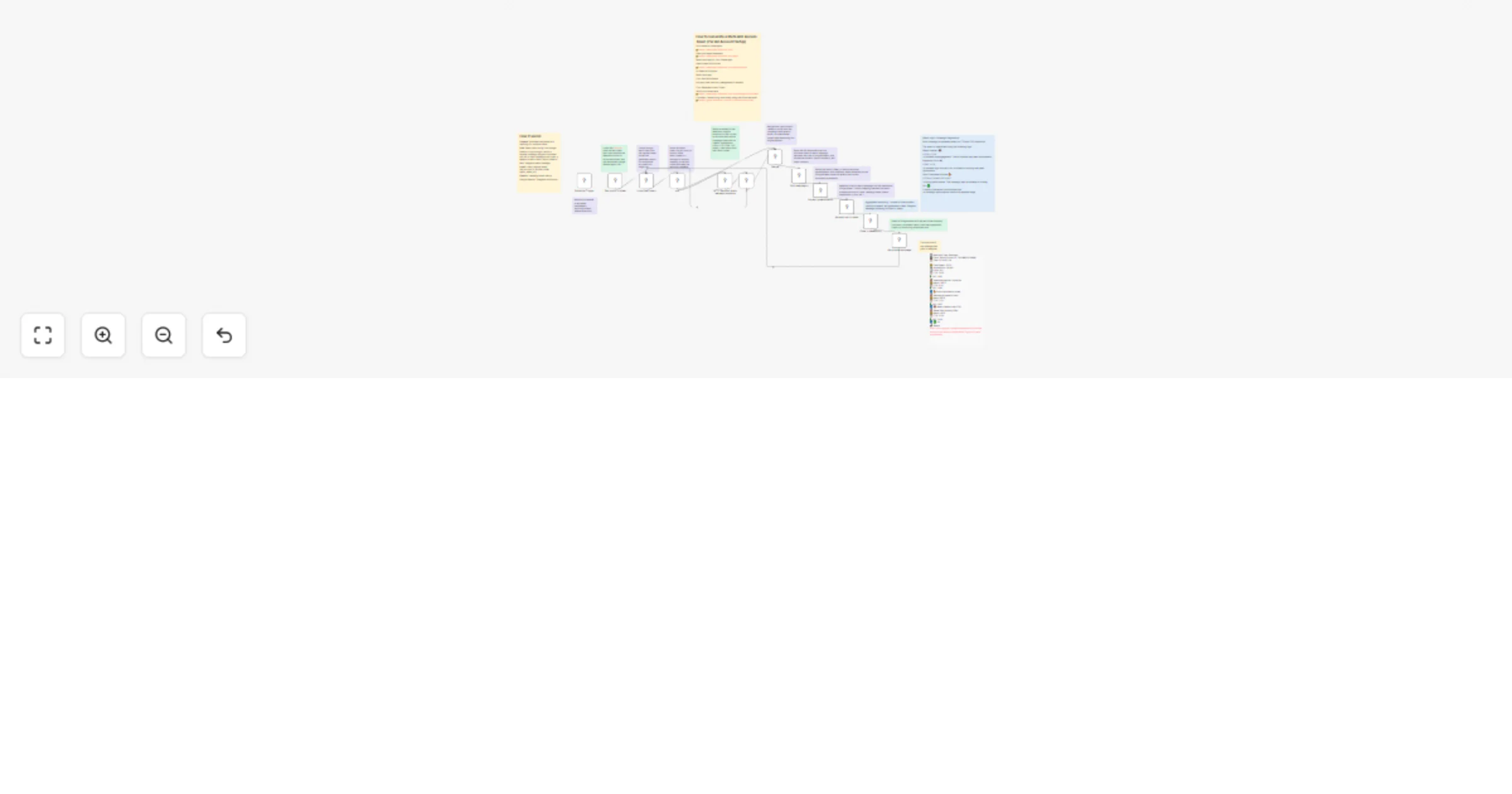
Generate Meta Ads campaign reports in Google Sheets and send Telegram alerts preview
Open on n8n.io

1. Workflow Overview

Hi, I’m Amina I built this workflow to remove the daily pain of Meta Ads reporting. If you manage multiple ad accounts, you know how time consuming it is to open Ads Manager, export campaign data, ...

Best for

  • Market Research automation workflows
  • AI Summarization automation workflows
  • advanced n8n builders looking for reusable templates

Tools used

n8n-nodes-base.googlesheets, n8n-nodes-base.splitinbatches, n8n-nodes-base.stickynote, n8n-nodes-base.httprequest, n8n-nodes-base.code, n8n-nodes-base.merge, n8n-nodes-base.telegram, n8n-nodes-base.scheduletrigger

Source and attribution

This workflow is cataloged by N8N Workflows and links back to its original n8n.io source page by Amina Doszhan.

Original n8n.io source

1.1 Workflow description

Title
Generate Meta Ads campaign reports in Google Sheets and send Telegram alerts
Workflow name
Generate Meta Ads campaign reports in Google Sheets and send Telegram alerts

Hi, I’m Amina

I built this workflow to remove the daily pain of Meta Ads reporting. If you manage multiple ad accounts, you know how time-consuming it is to open Ads Manager, export campaign data, clean spreadsheets, and send updates to clients.

This automation pulls campaign performance directly from the Meta Ads API, writes structured data into Google Sheets (per client), generates a performance summary, and sends a Telegram alert when the report is updated.

It transforms manual reporting into a fully automated monitoring system.


What it does

  • Reads a list of clients/ad accounts from a Google Sheets “client register”
  • Fetches campaign-level performance data from the Meta Ads API
  • Splits the campaign results into clean, row-ready records
  • Appends each campaign as a new row in the client’s Google Sheets report
  • Calculates aggregated performance metrics
  • Applies campaign diagnostics logic
  • Sends a Telegram notification with summary + alerts
  • Runs automatically on a schedule (daily/weekly)

How it works

  1. Schedule Trigger starts the workflow on a defined schedule.

  2. Google Sheets (Get rows) loads your client register (one row per client). Use this template structure for the client register: 👉 Client Register Template

The register should include:

  • ad_account_id
  • access_token
  • report_sheet_url
  1. Loop Over Items processes each client individually.

  2. Code (ctx) prepares the current client context (account ID, token, report sheet URL).

  3. HTTP Request calls the Meta Ads Insights endpoint and retrieves campaign-level metrics.

  4. IF checks the response (skip if no data).

  5. Merge combines client context + API response.

  6. Code (Split campaigns) converts the campaigns array into individual items (one per campaign) and formats metrics for reporting.

  7. Code (Extract spreadsheetId) extracts the spreadsheet ID from the report URL.

  8. Google Sheets (Append row) writes each campaign row into the client’s report sheet. Example report structure: 👉 Campaign Report Template

  9. Code (Summary & Status Logic) aggregates totals and applies campaign diagnostics.

  10. Telegram sends a structured performance summary including:

  • Total metrics
  • Campaign-level highlights
  • Status alerts
  • Direct link to the report

Data captured (campaign level)

  • Ad account ID
  • Report date (date_start)
  • Campaign name
  • Spend
  • Impressions
  • Clicks
  • CTR
  • CPM
  • CPC
  • Date start / Date stop

Summary Generation Logic

After writing campaign rows to Google Sheets, the workflow generates a performance overview using a JavaScript node.

Aggregated calculations:

  • Total Spend = sum of all campaign spend values
  • Total Impressions = sum of impressions
  • Total Clicks = sum of clicks
  • CTR = (Total Clicks / Total Impressions) × 100
  • CPC = Total Spend / Total Clicks

The workflow then:

  • Formats the totals into a readable performance summary
  • Lists campaign highlights
  • Applies status diagnostics
  • Appends the Google Sheets report link
  • Sends everything via Telegram

This provides both structured spreadsheet reporting and a quick executive snapshot.


Status Logic (Campaign Diagnostics)

Each campaign is automatically evaluated based on CTR and CPC thresholds.

Status Rules

Weak Creative (❌) If CTR < 1.5% → Indicates low engagement. The ad creative may need improvement.

Expensive Click (⚠) If CPC > 0.5 → Indicates high cost per click. Audience targeting or bidding strategy may need optimization.

Good Candidate to Scale (🔥) If CTR ≥ 2% AND CPC ≤ 0.5 → Strong performance. The campaign may be suitable for scaling.

OK (✅) If none of the above conditions are met → Campaign performance is within an acceptable range.

The status appears directly in the Telegram notification, allowing marketers to quickly identify which campaigns need attention without logging into Ads Manager.


How to set up

Estimated setup time: 10–20 minutes.

  1. Create a Google Sheets client register with:
  • ad_account_id
  • access_token
  • report_sheet_url
  1. Connect Google Sheets credentials in n8n.
  2. Add your Meta Ads API access token (do not hardcode API keys in nodes).
  3. Connect your Telegram bot and set the destination chat ID.
  4. Adjust the schedule (daily/weekly) and run a test execution.

Requirements

  • Meta Ads API access token (Facebook Graph API)
  • Google Sheets credentials
  • Telegram bot token + chat ID

How to customize

  • Add additional metrics (e.g., conversions, purchases, ROAS) by extending Meta API fields.
  • Modify CTR/CPC thresholds in the Status Logic section.
  • Change the report structure in the “Split campaigns” step.
  • Switch notifications from Telegram to Slack or Email.
  • Add filters (e.g., only active campaigns, only spend > X).

Benefits

  • Fully automated reporting
  • Multi-client support
  • Dynamic spreadsheet handling
  • Built-in KPI calculations
  • Automated campaign diagnostics
  • Instant performance alerts
  • Scalable agency-ready structure

1.2 Logical Blocks

This catalog entry is organized from the workflow JSON. The node-level section below shows the executable blocks available for review before importing the template.

2. Block-by-Block Analysis

Block 1 - Get row(s) in sheet

Type / Role
n8n-nodes-base.googleSheets - googleSheets
Config choices
Version 4.7

Block 2 - Loop Over Items

Type / Role
n8n-nodes-base.splitInBatches - splitInBatches
Config choices
Version 3

Block 3 - Sticky Note1

Type / Role
n8n-nodes-base.stickyNote - stickyNote
Config choices
Version 1

Block 4 - HTTP Request в ads manager клиента

Type / Role
n8n-nodes-base.httpRequest - httpRequest
Config choices
Version 4.4

Block 5 - Split campaigns

Type / Role
n8n-nodes-base.code - code
Config choices
Version 2

Block 6 - Extract spreadsheetId

Type / Role
n8n-nodes-base.code - code
Config choices
Version 2

Block 7 - ctx

Type / Role
n8n-nodes-base.code - code
Config choices
Version 2

Block 8 - Merge

Type / Role
n8n-nodes-base.merge - merge
Config choices
Version 3.2

Block 9 - Append row in sheet

Type / Role
n8n-nodes-base.googleSheets - googleSheets
Config choices
Version 4.7

Block 10 - Code in JavaScript

Type / Role
n8n-nodes-base.code - code
Config choices
Version 2

Block 11 - Send a text message

Type / Role
n8n-nodes-base.telegram - telegram
Config choices
Version 1.2

Block 12 - Schedule Trigger

Type / Role
n8n-nodes-base.scheduleTrigger - scheduleTrigger
Config choices
Version 1.3

Block 13 - If

Type / Role
n8n-nodes-base.if - if
Config choices
Version 2.3

Block 14 - Sticky Note

Type / Role
n8n-nodes-base.stickyNote - stickyNote
Config choices
Version 1

Block 15 - Sticky Note2

Type / Role
n8n-nodes-base.stickyNote - stickyNote
Config choices
Version 1

Block 16 - Sticky Note3

Type / Role
n8n-nodes-base.stickyNote - stickyNote
Config choices
Version 1

Block 17 - Sticky Note4

Type / Role
n8n-nodes-base.stickyNote - stickyNote
Config choices
Version 1

Block 18 - Sticky Note5

Type / Role
n8n-nodes-base.stickyNote - stickyNote
Config choices
Version 1

Block 19 - Sticky Note6

Type / Role
n8n-nodes-base.stickyNote - stickyNote
Config choices
Version 1

Block 20 - Sticky Note7

Type / Role
n8n-nodes-base.stickyNote - stickyNote
Config choices
Version 1

Block 21 - Sticky Note8

Type / Role
n8n-nodes-base.stickyNote - stickyNote
Config choices
Version 1

Block 22 - Sticky Note9

Type / Role
n8n-nodes-base.stickyNote - stickyNote
Config choices
Version 1

Block 23 - Sticky Note10

Type / Role
n8n-nodes-base.stickyNote - stickyNote
Config choices
Version 1

Block 24 - Sticky Note11

Type / Role
n8n-nodes-base.stickyNote - stickyNote
Config choices
Version 1

Showing the first 24 of 28 workflow blocks. Download the JSON for the full node graph.

3. Summary Table

Workflow Generate Meta Ads campaign reports in Google Sheets and send Telegram alerts
Complexity advanced
Nodes 28
Categories Market Research, AI Summarization
Author Amina Doszhan
Published 27 Feb 2026

4. Reproducing the Workflow from Scratch

  1. 1. Download the workflow JSON

    Use the JSON export at /data/workflows/13745/13745.json as the source template for this automation.

  2. 2. Import the template into n8n

    Open n8n, import the downloaded JSON, and review each node before activating the workflow.

  3. 3. Configure credentials and variables

    Replace placeholder credentials, API keys, webhook URLs, account IDs, and environment-specific values with your own settings.

  4. 4. Test with sample data

    Run the workflow manually or in a staging workspace, inspect node output, and confirm downstream systems receive the expected data.

  5. 5. Activate and monitor

    Enable the workflow only after testing, then monitor executions, errors, and rate limits during the first production runs.

5. General Notes & Resources

Review imported nodes carefully before activation. This catalog entry is intended to help you inspect the workflow structure, understand required services, and find related templates faster.

Node names, credentials, schedules, webhook paths, and external service limits may need adjustment for your workspace.

Frequently asked questions

What does Generate Meta Ads campaign reports in Google Sheets and send Telegram alerts do?

Hi, I’m Amina I built this workflow to remove the daily pain of Meta Ads reporting. If you manage multiple ad accounts, you know how time consuming it is to open Ads Manager, export campaign data, ...

What do I need before importing this workflow?

Review the workflow JSON, configure any required credentials in n8n, and test the automation in a safe workspace before using it in production.

Can I customize this workflow?

Yes. Use the block-by-block analysis and the downloadable JSON to inspect each node, then adjust credentials, prompts, schedules, filters, or destinations for your Market Research, AI Summarization use case.