Block 1 - Sticky Note
- Type / Role
- n8n-nodes-base.stickyNote - stickyNote
- Config choices
- Version 1


 Early Deal
This workflow automatically generates and delivers professional invoice PDFs whenever a Stripe checkout session completes. It fetches the line items from Stripe, formats them into a clean invoice w...
n8n-nodes-base.stickynote, n8n-nodes-base.stripetrigger, n8n-nodes-base.httprequest, n8n-nodes-base.code, n8n-nodes-templatefox.templatefox, n8n-nodes-base.gmail, n8n-nodes-base.googledrive
This workflow is cataloged by N8N Workflows and links back to its original n8n.io source page by Vince V.
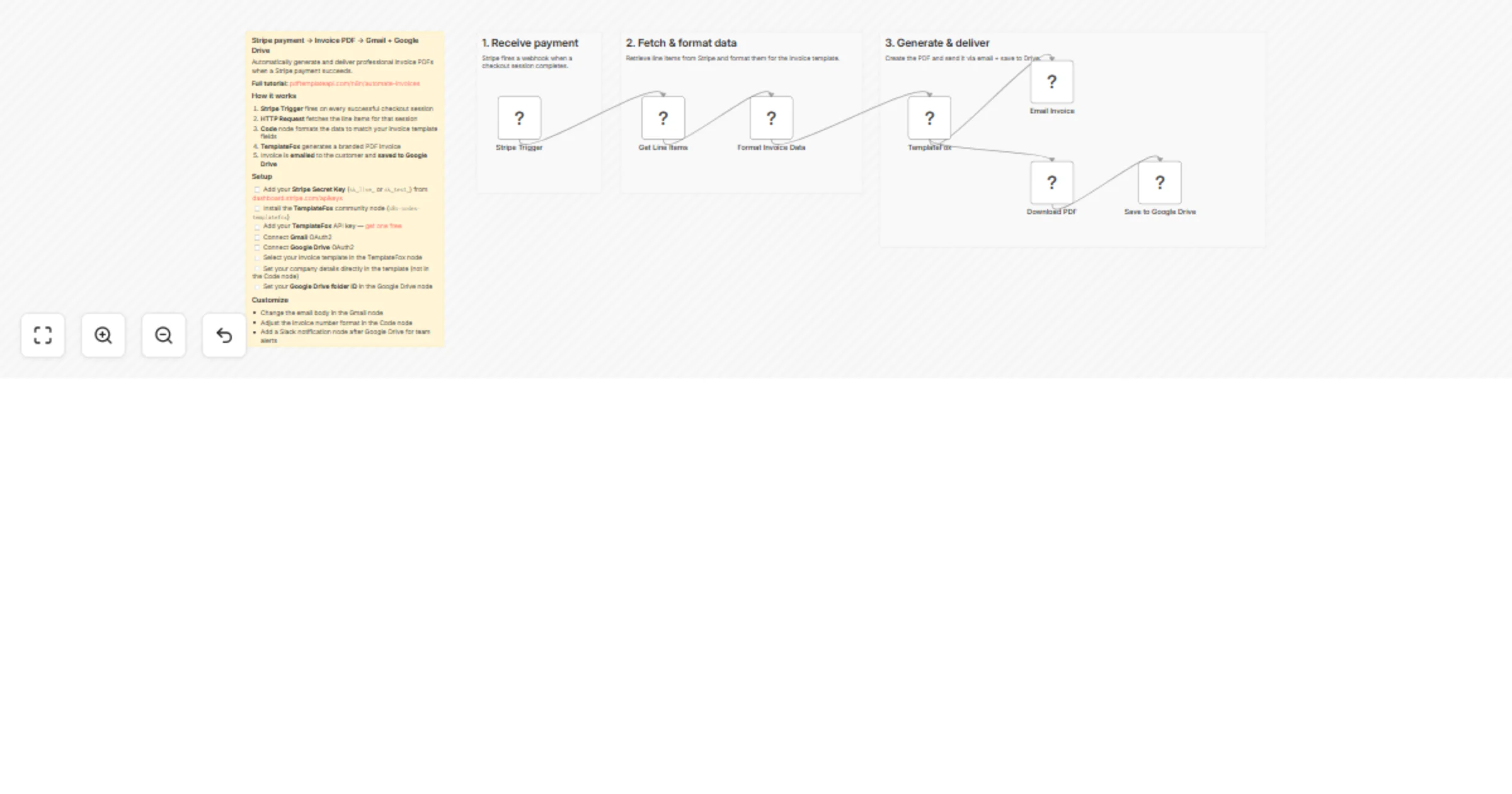
Original n8n.io sourceThis workflow automatically generates and delivers professional invoice PDFs whenever a Stripe checkout session completes. It fetches the line items from Stripe, formats them into a clean invoice with your company details, generates a branded PDF via TemplateFox, emails it to the customer, and saves a copy to Google Drive.
Without this automation, invoicing after a Stripe payment requires:
This workflow handles all of that automatically for every Stripe checkout, including proper invoice numbering, due dates, and tax calculations.
You need a TemplateFox invoice template for this workflow. You can:
Once your template is ready, select it from the dropdown in the TemplateFox node — no need to copy template IDs manually.
Step 1: Stripe Trigger
Fires on every completed checkout session (checkout.session.completed). This captures successful payments with full customer and product details.
Step 2: Get Line Items An HTTP Request node calls the Stripe API to fetch the line items for the checkout session (product names, quantities, amounts). Stripe doesn't include line items in the webhook payload, so this separate call is required.
Step 3: Format Invoice Data A Code node combines the Stripe session data and line items into a clean invoice structure: company details, client info (from Stripe customer), line items with prices, subtotal, tax, total, invoice number (auto-generated from date + session ID), and due date (Net 30).
Step 4: TemplateFox — Generate Invoice
Select your invoice template from the dropdown — the node automatically loads your template's fields. Map each field to the matching output from the Code node (e.g. client_company → {{ $json.client_company }}). TemplateFox generates a professional invoice PDF using your custom template.
Step 5a: Email Invoice Sends the invoice PDF link to the customer via Gmail with invoice number, amount, and due date.
Step 5b: Save to Google Drive Downloads the PDF and uploads it to a Google Drive folder for bookkeeping. Runs in parallel with the email step.
invoiceNumber format in the Code node (default: INV-YYYY-MMDD-XXXXXX).Note: This template uses the TemplateFox community node. Install it from Settings → Community Nodes.
This catalog entry is organized from the workflow JSON. The node-level section below shows the executable blocks available for review before importing the template.
| Workflow | Generate invoice PDFs from Stripe payments using TemplateFox, Gmail and Drive |
|---|---|
| Complexity | intermediate |
| Nodes | 11 |
| Categories | Invoice Processing |
| Author | Vince V |
| Published | 05 Apr 2026 |
Use the JSON export at /data/workflows/14761/14761.json as the source template for this automation.
Open n8n, import the downloaded JSON, and review each node before activating the workflow.
Replace placeholder credentials, API keys, webhook URLs, account IDs, and environment-specific values with your own settings.
Run the workflow manually or in a staging workspace, inspect node output, and confirm downstream systems receive the expected data.
Enable the workflow only after testing, then monitor executions, errors, and rate limits during the first production runs.
Review imported nodes carefully before activation. This catalog entry is intended to help you inspect the workflow structure, understand required services, and find related templates faster.
Node names, credentials, schedules, webhook paths, and external service limits may need adjustment for your workspace.
This workflow automatically generates and delivers professional invoice PDFs whenever a Stripe checkout session completes. It fetches the line items from Stripe, formats them into a clean invoice w...
Review the workflow JSON, configure any required credentials in n8n, and test the automation in a safe workspace before using it in production.
Yes. Use the block-by-block analysis and the downloadable JSON to inspect each node, then adjust credentials, prompts, schedules, filters, or destinations for your Invoice Processing use case.